
Thanks for your feedback.
 Feedback?
Want to embed a whiteboard, puzzle, gameshow, social media feed, calendar, photo booth, and many more interactive tools in your Event's Web App? Keep reading to learn how to create a seamless multi-platform experience that keeps all the fun in your Event App.
This article shows how to use our incredibly flexible platform to embed browser-based third-party tools and services into your Event App. We've also compiled a list of vendors our customers commonly use and have had success with, and we share tips for setting up each one for the best possible experience.
External websites only embed in the Event's Web App. Attendees using the Webex Events App or your Branded App access the embedded content in their mobile device's default browser.
Embed methods
There are several ways to embed websites, videos, and third-party services in your Event App, though we recommend the following for interactive content:
-
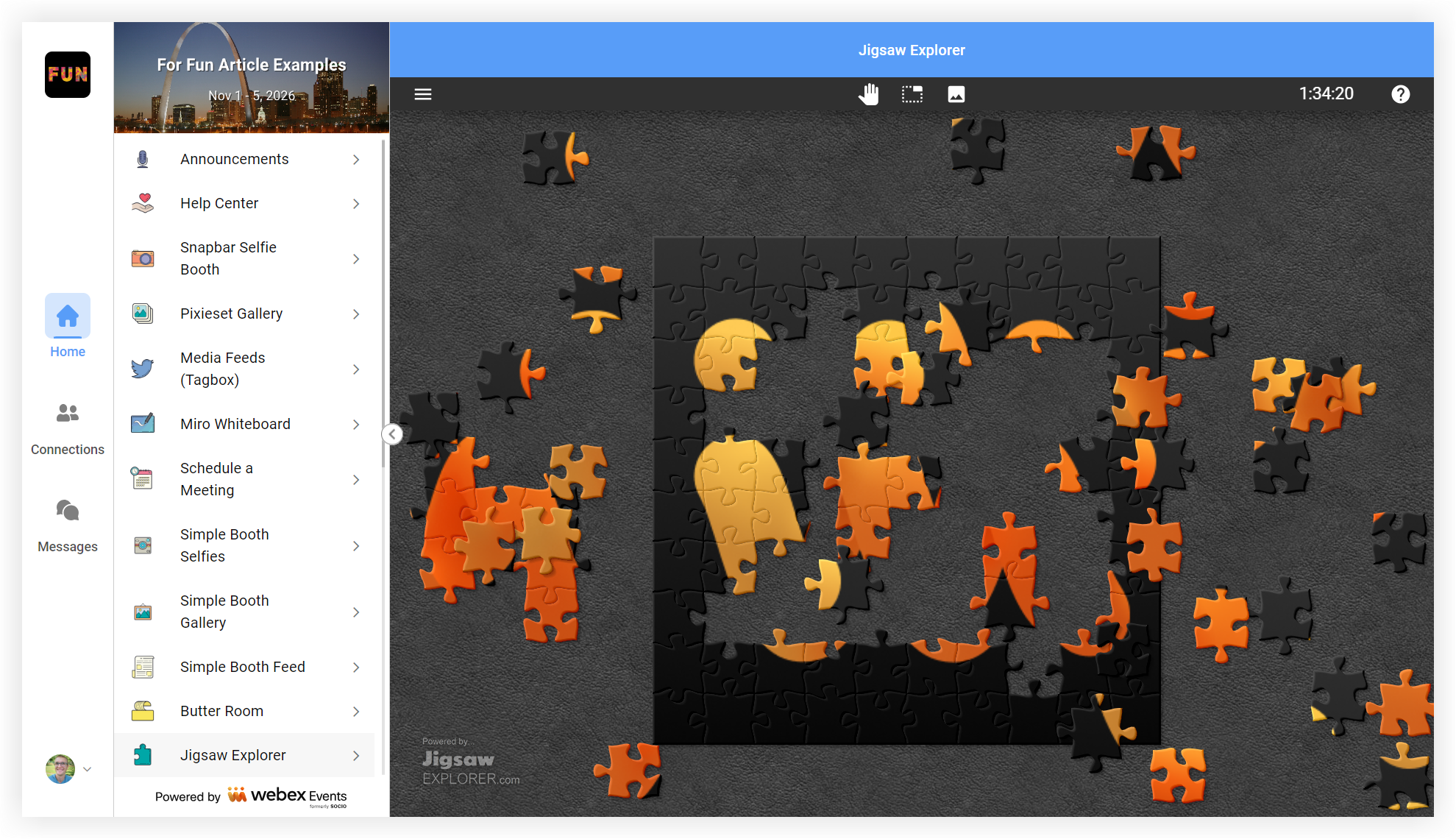
The Web Link feature turns the third-party platform into a feature in your Event App. This is perfect when you want the service to be center-stage. The following screenshot is an example of a Jigsaw Explorer puzzle in a Web App:
-
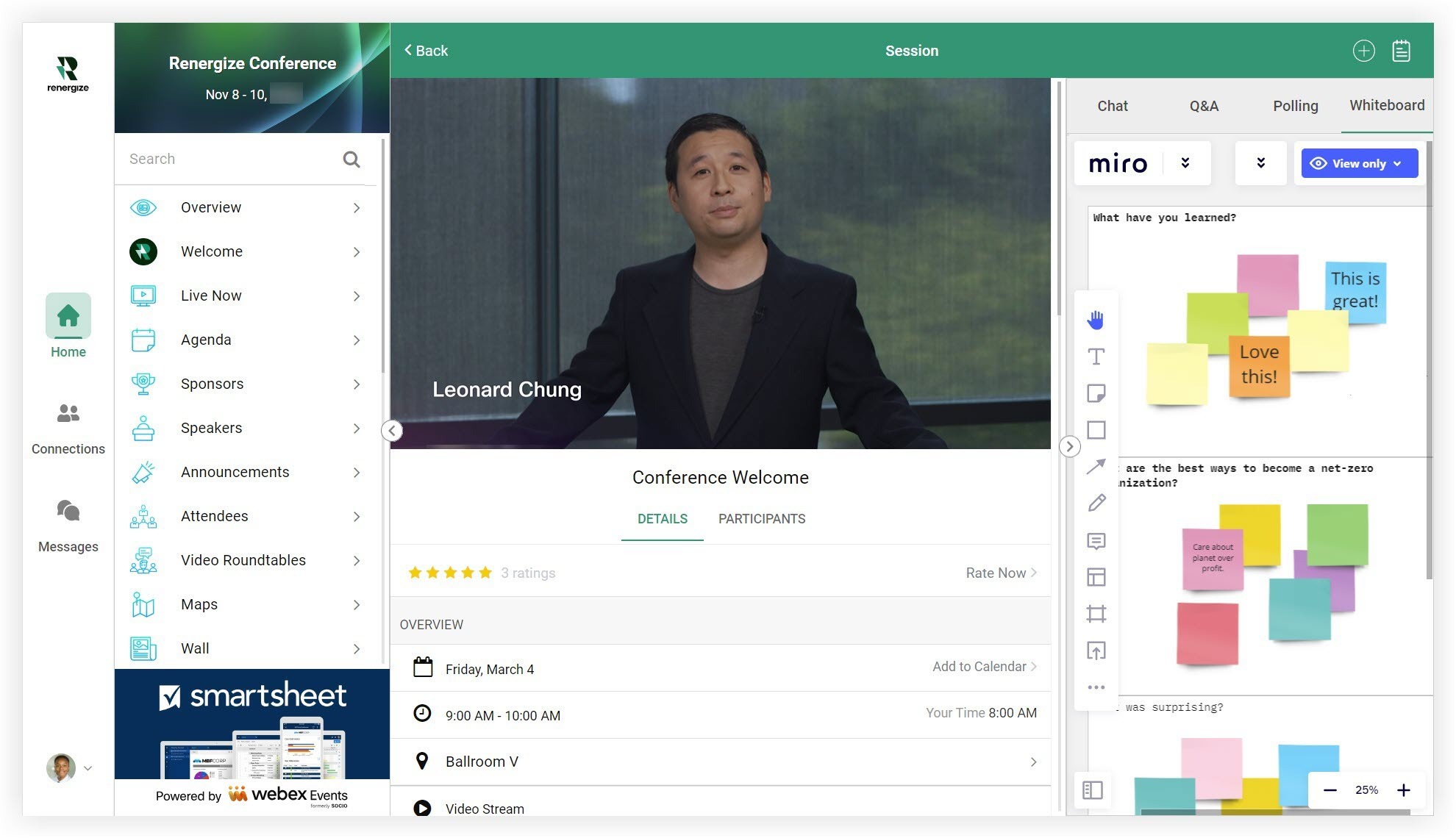
The Custom Tab in a Live Stream feature or Agenda Session embeds the content in the right side panel next to your live stream. This is great for audience engagement tools like Slido, Miro, and TriviaMaker, to name only a few. The following screenshot is an example of a Miro whiteboard embedded in an Agenda Session:
-
Content Provider and External Links fields
How to embed third-party tools
Before you start working to set up and embed a third-party platform, make sure it's embeddable first. If the platform is listed at the end of this article, it's embeddable. We also have individual articles about survey and polling platforms like Typeform and Slido, and video platforms like Wistia in our Integrations and partnerships documentation.
If we don't mention your chosen platform in our articles, check the platform's help articles or contact their support team to verify it's embeddable.
1. Set up the third-party platform
Once you've verified that the platform is embeddable, it's time to set it up! The steps for setting up a third-party platform will obviously vary widely, and we're not here to tell you how to use the whole internet. 😅 However, we do have some general tips that apply to every situation and some platform-specific tips in the sections at the end of this article.
-
When setting up your third-party platform, make sure it doesn't require attendees to log in to the service, or that all your attendees can log in easily without creating a new account.
-
Before you copy a platform's link, make sure you set link permissions to public when necessary so everyone can access the content.
2. Copy the third-party platform's embeddable link
Just like with setup, how you copy a platform's embeddable link will vary widely. With some platforms like Miro, you might need to access the platform's embed code snippet and copy only the URL.
3. Embed the platform in the Web App
As mentioned earlier, there are two ways to embed content in your Event App — A Web Link feature and a Custom Tab. Keep reading to learn how.
3a. Use a Web Link feature
If you want a dedicated feature in your Event App where folks can use your chosen third-party platform, the Web Link feature is a great option. Here's how to set it up:
-
Add the Web Link feature to your Event App.
-
Edit the feature and paste in an embeddable URL for the site or service.
-
Uncheck the 'Open link in external browser' box.
-
Check the ' Pass Data to URL' checkbox if you want to pre-fill forms for sites like Calendly or Jotform.
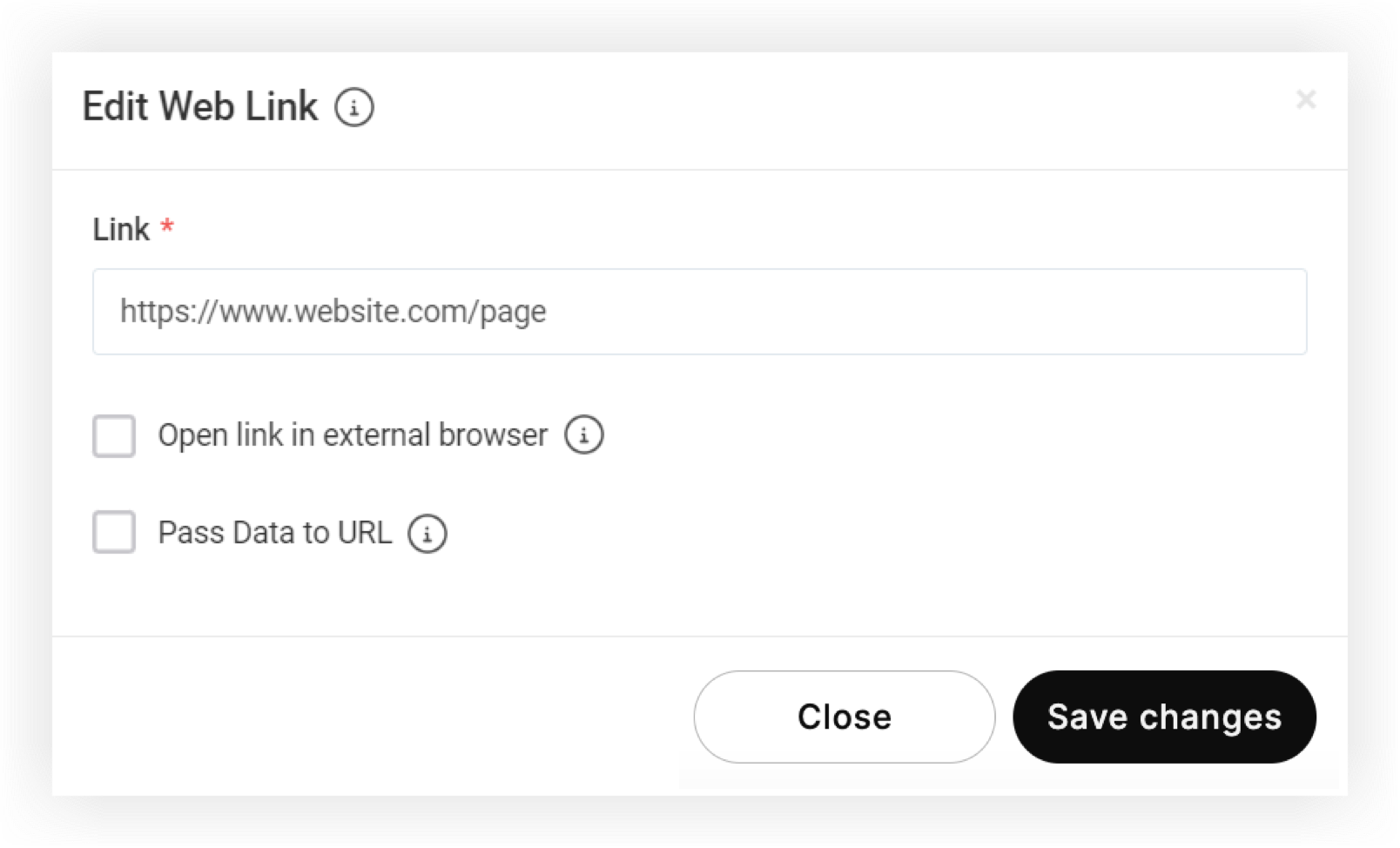
- Click Save Changes when you're done.
- Now, click the feature's Settings (⚙️) icon and change its name and icon to better reflect platform.
Keep in mind, if you want to keep the feature hidden until you've tested it, assign it to a hidden group until you're ready to reveal it. Read our article about testing your Event App for complete instructions.
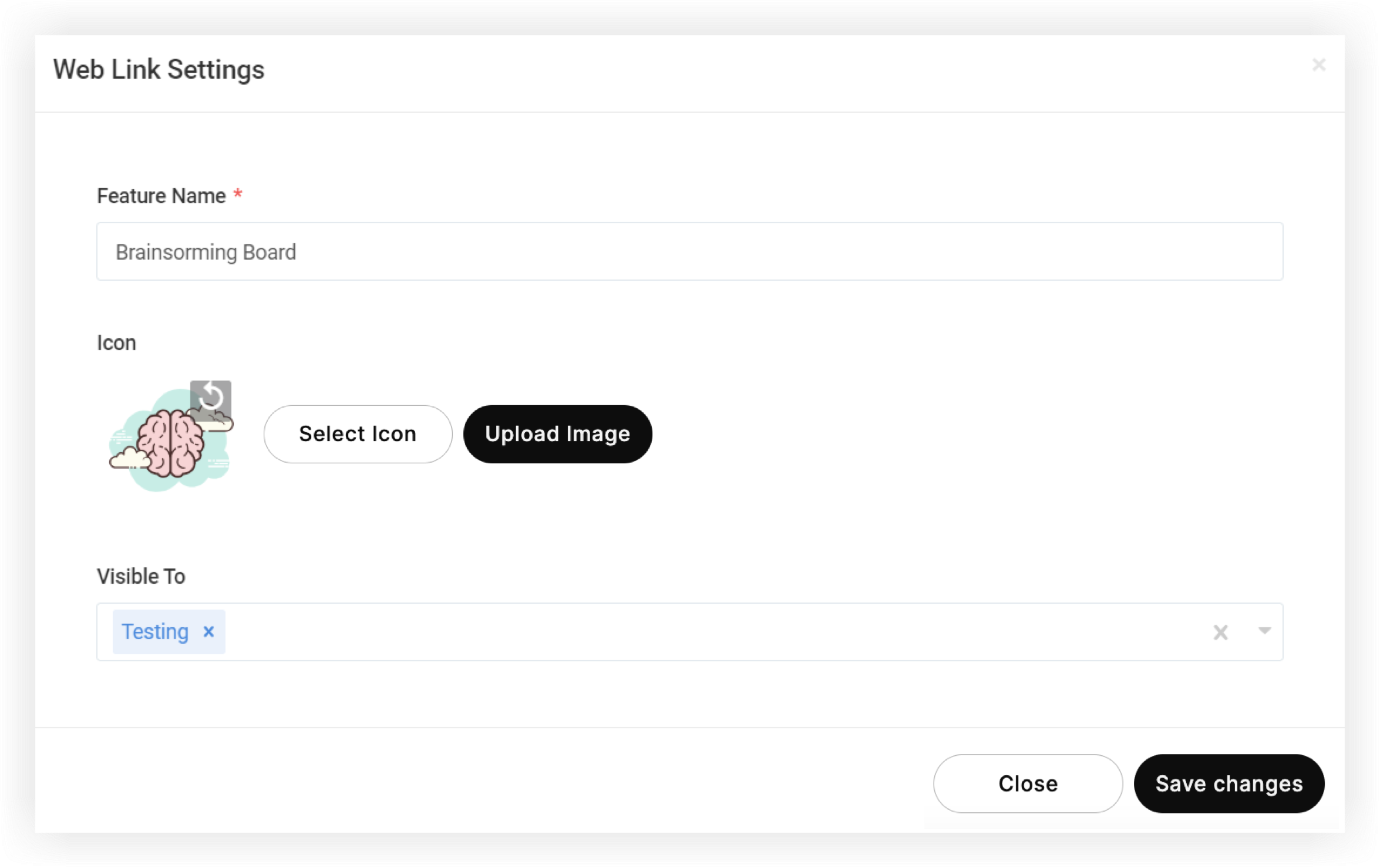
Now, attendees using the Web App can interact with your embedded content without leaving the Event App. Here's an example of a Pixieset photo gallery embedded in the Web App:
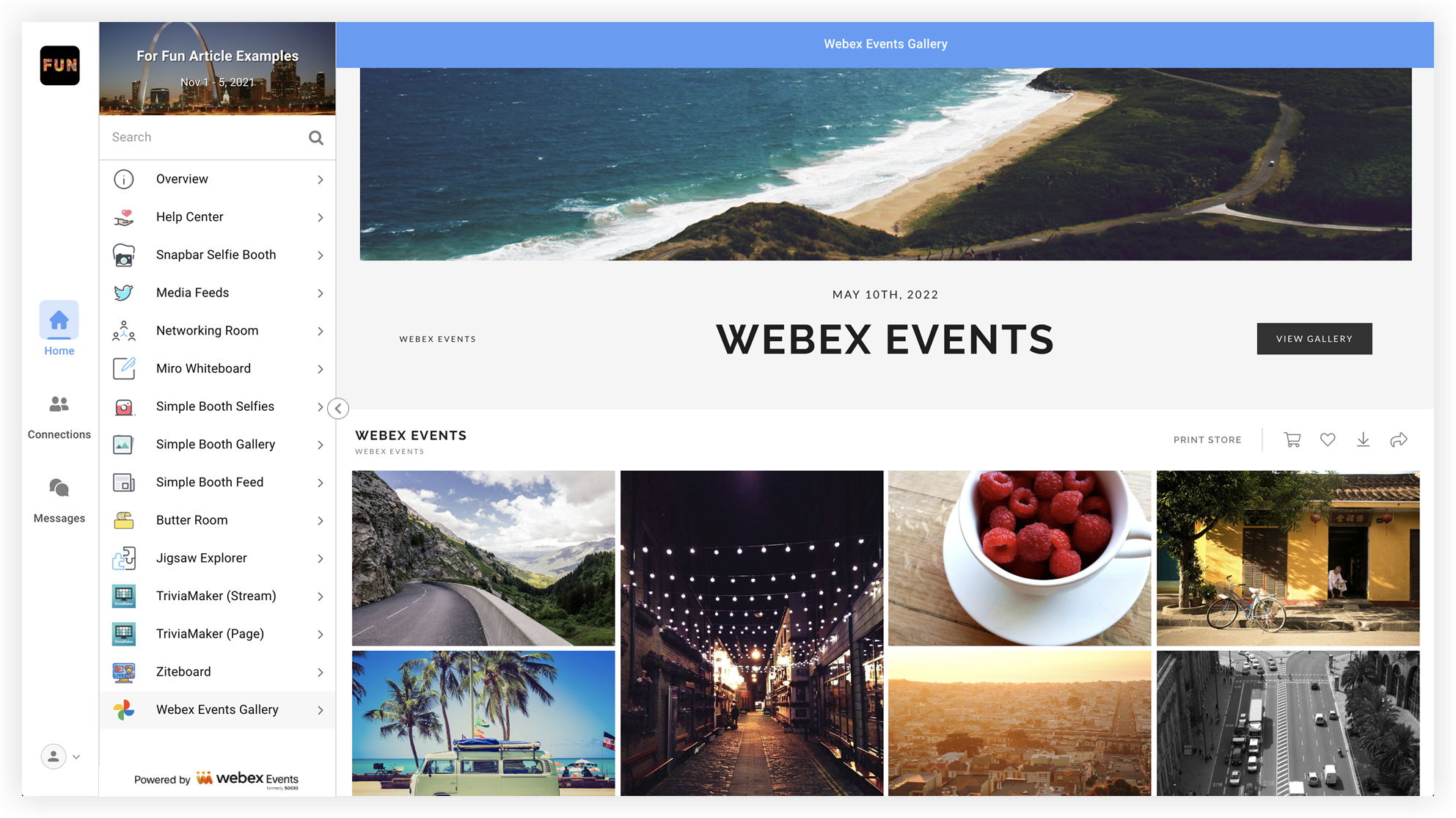
Mobile App users can click the feature to launch the content in their device's default browser.
3b. Use a Custom Tab
If you want to use your third-party platform to enhance your live streams, add it to a Live Stream feature or an Agenda Session with a Custom Tab. There's more information on using Custom Tabs in our Embed Web Content with Custom Tabs article. For now, here's a quick overview of the process:
-
When you create an Agenda Session or Live Stream feature, expand the Attendee Engagement section.
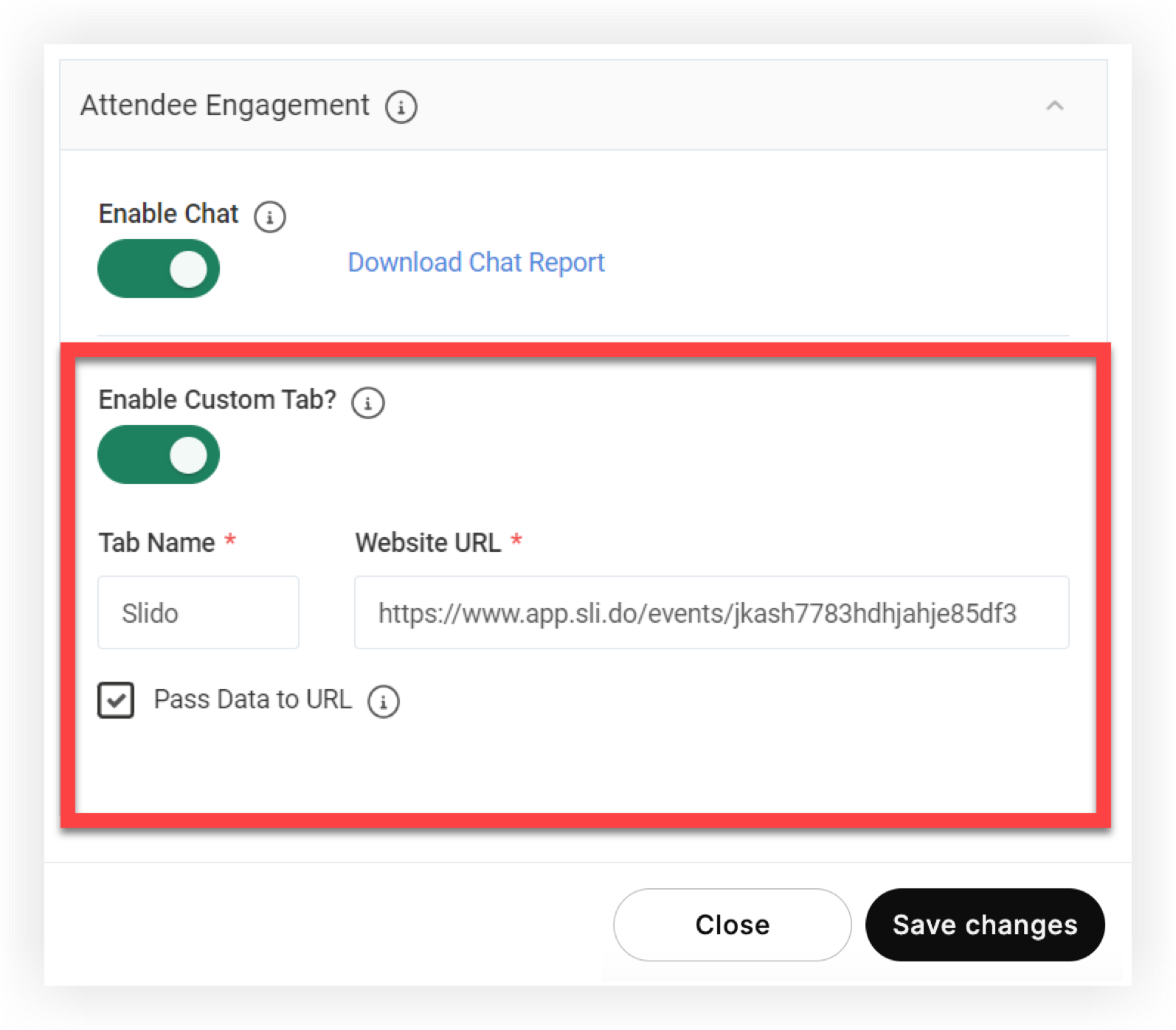
- Activate the Enable Custom Tab toggle and paste in an embeddable URL for the site or service.
- Enter a Tab Name so attendees know what to expect when they click on the tab.
- Click Save Changes , and you're done!
For attendees using the Web App, the embedded Custom Tab content appears in a tab to the right of the live stream panel, so they can interact without leaving the live stream or opening a new browser tab. Here's an example of a Yammer Feed embedded in a Custom Tab:
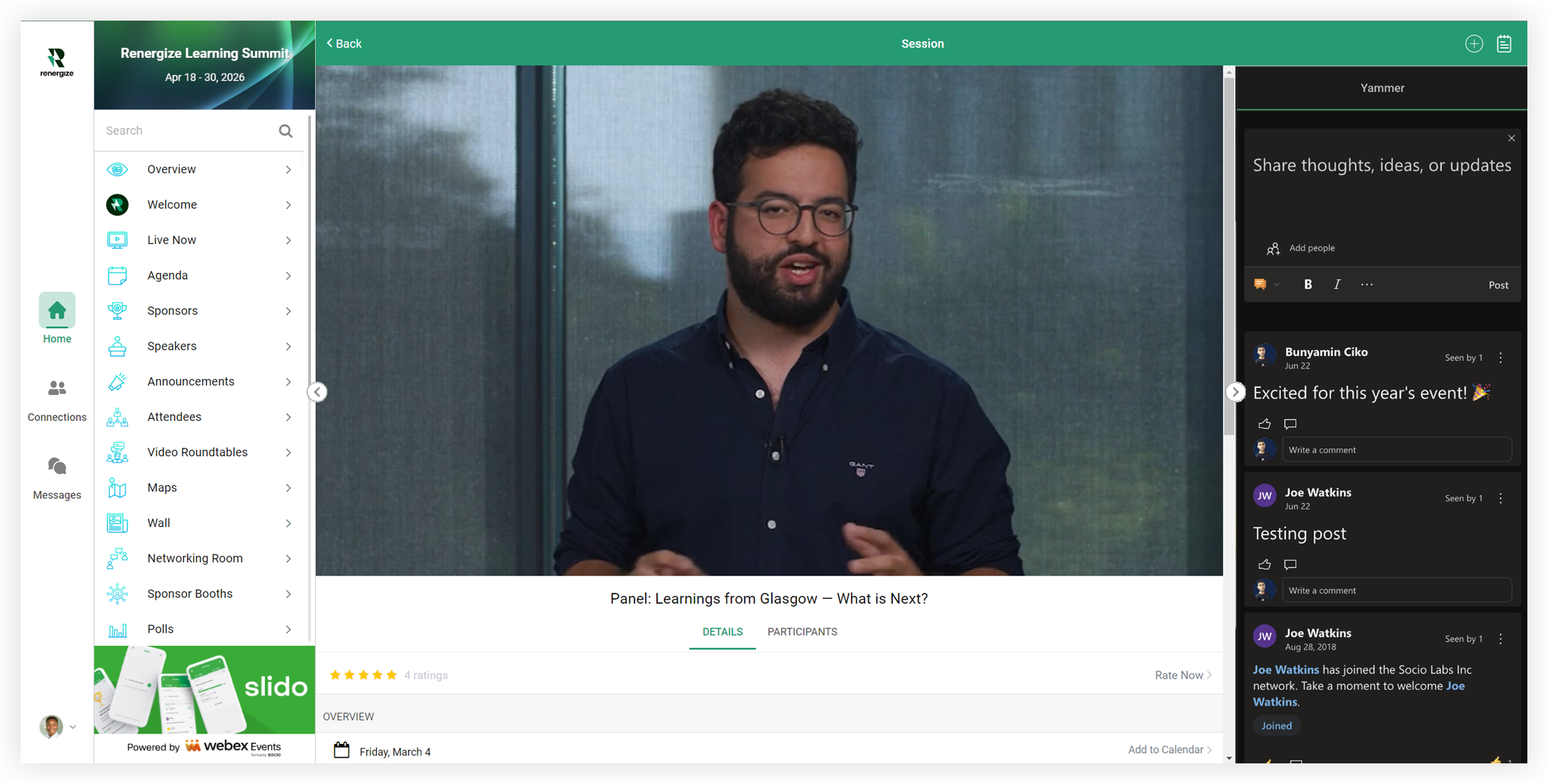
When Mobile App users tap on a Custom Tab, the content launches in their device's default browser. This will interrupt their live stream experience.
3c. Use the Content Provider field
When adding or editing a new item in the Sponsors, Exhibitors, Speakers, or Custom List features, click the Content Provider drop-down and select Website. If the provider you're using is listed as one of the other options in the drop-down, such as Wistia, select it instead!
Keep in mind, the Content Provider drop-down is only available when the feature is set to 'Grid View'.
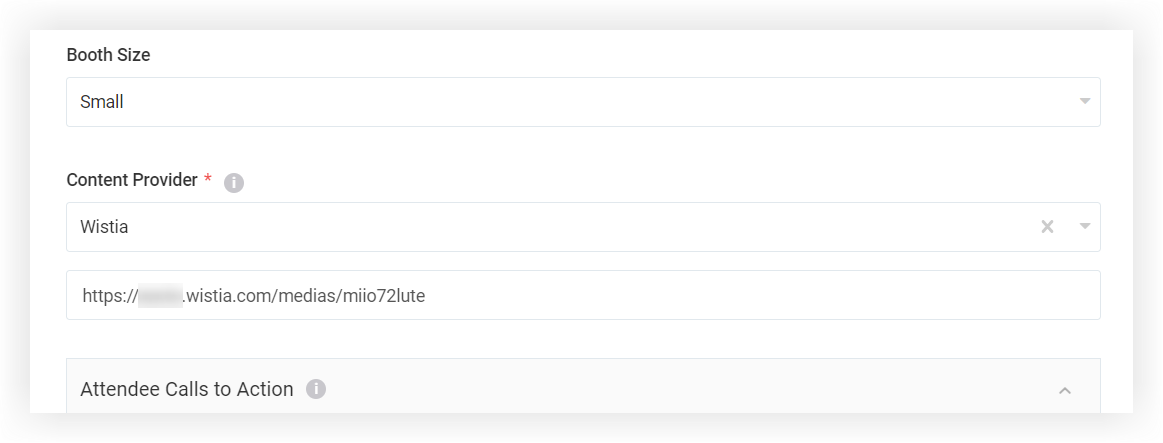
When attendees visit the item, the content appears embedded in the Web App. Mobile App attendees can tap the video link to open it in their device's default web browser. Here's an example of a Wistia video embedded in a Sponsor profile.
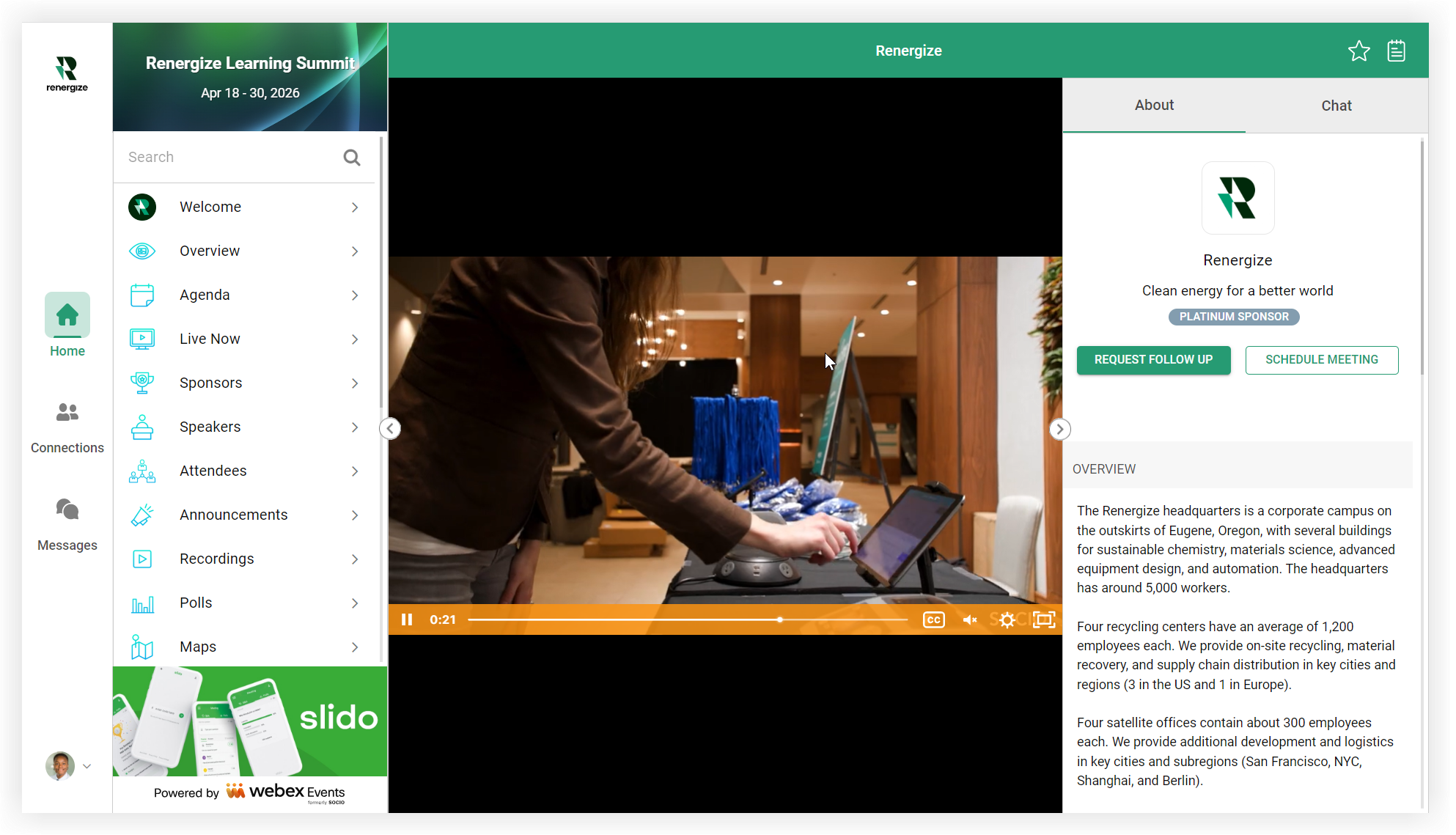
Embedding multiple third-party platforms for specific sponsor, exhibitor, or speaker profiles can create a high level of complexity to manage the platforms. Be sure that you or your partners have the staff and time to manage any attendee interactions the third-party tools may allow.
3d. Use an external link
Almost anywhere in the Event App where you can add an external link is an opportunity to embed content. There are too many places you can use external links to list here, so read our External Links article for a complete overview and instructions.
No matter where you put the external link, the embedded content always takes up the full content area in the Web App, just like in the image in the 'Use a Web Link feature' section above.
4. Test!
Our team and our customers have put in the work to test and use the platforms listed in the following section. However, it's always a good idea to log in to your Web App as an attendee and make sure everything is working properly.
Read our article about testing your Event App for complete instructions, pro tips, and more. If you're having trouble getting the embedded content to appear in your Web App, read our article about why websites or videos might not embed.
Now you know how to embed third-party platforms in your Event's Web App!
Verified platforms
Expand each section to reveal information, resources, and setup and usage tips for each platform.
Keep in mind, we don't have partnerships with any vendors listed in this article, and our team doesn't provide technical support for their products. For help with any outside vendors, contact their support.
To try out many of the platforms listed below, join our For Fun demo Event. 👇 Simply sign up for the Event App with your email or social login and start exploring!
Help and document platforms
Tawk.to knowledge base platform
Use tawk.to to easily create a customized help center that includes a knowledge base and live chat, then seamlessly embed it in your Event App.
Tawk.to resources
Setup tips
-
When setting up your knowledge base in tawk.to, on the Property Details step, paste in your Event's shareable Web App link found in the Webex Events platform. This lets Tawk.to embed the chat widget in your Web App.
-
As you add articles to your help center, answer common questions related to coat check and other venue logistics, questions about presentation slide decks and recordings, and questions about how to interact during sessions, to name a few. For more ideas and examples of attendee FAQs, read our article about creating attendee instructions and guides.
-
Copy your knowledge base Subdomain URL to embed it in a Web Link feature or Custom Tab! 👍
-
For the best results, embed with the Web Link feature or a Custom Tab.
FlippingBook document viewer
FlippingBook is a software and cloud service for creating and storing professional online publications with a page flip effect. It helps convert your static PDFs into interactive flipbooks with custom branding and videos for clear and meaningful communication with your audience.
FlippingBook resources
Setup tips
-
When your flipbook is ready to share, click the Shareable link button on the FlippingBook dashboard. In the modal that appears, click the Trackable link tab, then click the Copy link button.
-
For the best results, embed with the Content Provider field, the Web Link feature, or an External Link.
Social feed platforms
Flockler social media feeds
Use Flockler to embed an inspirational social media feed that connects your Event App with the rest of the world and increases engagement. Gather social media content from your organization, sponsors, speakers, and attendees. Display content automatically, or select specific content from sites like Instagram, TikTok, X (Twitter), YouTube, and LinkedIn.
Flockler resources
Setup tips
-
Copy the embed link from the Flockler dashboard's 'Display' tab. Simply click the Preview button below the feed you want to embed and copy the URL from the address bar in the new tab that opens.
-
For the best results, embed with the Web Link feature.
Tagbox social media field aggregator
Tagbox is a web-based platform that gathers social media posts from Facebook, Twitter, LinkedIn, and many more and displays them together in "feeds". Use Tagbox to create a social media feed within minutes and then embed it in your Event App!
Tagbox resources
-
How To Embed a Twitter Feed On a Website (Similar instructions for all social platforms)
Setup tips
-
When you're done adding Social Feeds, click the Publish button in the lower left corner of the screen and select the Wix option. In the window that appears under step 05, simply copy the URL into your Event App.
-
For the best results, embed with the Web Link feature.
Chat and wall platforms
Yammer corporate chat tool
Yammer, part of the Microsoft 365 enterprise suite, is a social-networking platform designed for communication and collaboration within organizations.
Yammer resources
Setup tips
-
First, copy this URL and paste it into a text editor: https://web.yammer.com/embed/groups/
-
Log in to your Yammer account and go to the Feed you want to embed in your Webex Event App.
-
In your browser's address bar, copy the unique identifier from within the URL. The unique identifier is usually a set of letters and numbers. In the following example, it comes after
/groups/. https://web.yammer.com/main/org/orgname.com/groups/eyJfdHlwZSI6Ikdyb3VwIiwiaWQiOiIwIn0/all -
Paste the unique identifier at the end of the URL you copied in the first step. In our example, the resulting URL is: https://web.yammer.com/embed/groups/eyJfdHlwZSI6Ikdyb3VwIiwiaWQiOiIwIn0
-
Add header, footer, and theme customizations to the URL if necessary. Read Yammer's article about feed customization for complete instructions.
-
header=true/false
-
footer=true/false
-
theme=dark/light
If you add every parameter, your URL will be formatted like this: https://web.yammer.com/embed/groups/eyJfdHlwZSI6Ikdyb3VwIiwiaWQiOiIwIn0?header=false&footer=false&theme=dark
-
- Copy the URL when you're done customizing it. Now you're ready to embed the Feed in your Event App.
- For the best results, embed with the Web Link feature or a Custom Tab.
Walls.io social wall
Walls.io is a comprehensive social wall tool that boosts real-time audience interaction, generates leads, and collects feedback for all types of events. Display user-generated content from platforms like X (Twitter), Instagram, and Facebook in one customizable feed. Walls.io offers interactive features that create a truly memorable experience, including polls, reactions, and a photo booth integration.
Walls.io resources
Setup tips
-
During step 6 of the Quickstart guide linked above, copy the 'Wall URL' on the Settings > Basics page instead of choosing the 'Embed & Display' option.
-
If you're using a Snapbar selfie booth in your Event App, integrate it with your social wall! Read Walls.io's Adding Snapbar to Your Wall article for more information.
-
For the best results, embed with the Content Provider field, the Web Link feature, or a Custom Tab.
Audience engagement platforms
Slido
We love Slido's live polling and Q&A platform so much that we wrote an article just for them. ❤️ Learn more in our article about Slido and Webex Events.
MeetingPulse audience response tool
MeetingPulse is a web-based event tool that helps you engage your audiences and teams with real-time Q&A, polling, and brainstorming tools.
MeetingPulse resources
Setup tips
-
After creating your meeting, simply copy the Attendee link to embed it in a Web Link feature or Custom Tab. Easy!
-
For the best results, embed with the Content Provider field, the Web Link feature, or a Custom Tab.
Butter.us interactive workshops
Butter.us is a user-friendly service that lets you create interactive workshops. Create an agenda, let participants queue up for questions, and create breakout rooms to increase participant networking opportunities.
Butter.us resources
Setup tips
-
When you're done setting up the Butter room, click the Start session button. In the new browser tab that opens, copy the URL from the address bar and paste it into a Web Link feature.
-
For the best results, embed with the Content Provider field or the the Web Link feature.
Jotform surveys and forms
Jotform is a powerful online application that lets anyone quickly create custom online forms. Its intuitive drag-and-drop user interface makes building forms incredibly simple. Using Jotform, create and publish forms, integrate them into your site, and receive responses by email.
Jotform resources
Setup tips
-
Jotform can auto-fill fields with Webex Events user data, such as first and last name and email address, using the Pass Data to URL function. To do this, replace each Jotform field's Unique Name with the corresponding Webex Events variable (e.g. First Name = first_name). Follow the instructions in the video on Jotform's Prepopulating Form Fields via URL Parameters guide to edit a field's unique name.
-
If you're using variables to auto-fill form fields, follow Jotform's instructions to copy the URL with the variables included.
-
If you're not using variables, simply click the Publish tab, then click Copy Link on the Quick Share sub-tab.
-
-
Jotform can be useful embedded with any of the embed options.
Typeform surveys and forms
Typeform provides a beautiful, conversational survey and form experience that works great on every device. Their intuitive admin interface, templates, and inspiration hub are excellent time savers. We particularly love their post-event survey template.
We love Typeform so much, we wrote a whole article about it. ❤️ Read our Typeform & Webex Events article for complete details on getting the most out of Typeform in your Event App.
Photo booth and gallery platforms
Simple Booth virtual photo booth
Simple Booth inspires user-generated content with a virtual photo app. Design a photo booth experience where participants can create personalized photos as digital souvenirs.
Easily create a virtual photo booth and embed it in your Event App, and consider embedding Simple Booth's Gallery and Live Feed so your attendees can browse others' photos.
Simple booth resources
Setup tips
-
After you've created and customized your booth, go to the Presets page and click the Copy button next to the Capture Link field to embed it in a Web Link feature.
-
For the best results, embed with the Web Link feature.
Snapbar virtual photobooth
Easily create a virtual photo booth and embed it in your Event App using Snapbar's Snapshot product. Snapbar is a browser-based software that lets you fully customize your virtual photo booth, including colors, logos, backgrounds, frames, stickers, and more.
Give your users the most cutting-edge, engaging experience with an AI Photo Booth — using the latest generative AI technology to transform users into amazing AI-generated portraits. Snapbar provides a browser-based software and works with you to fully customize your microsite, AI portrait styles, email delivery, and more. Learn all about Snapbar and Snapshot AI on the Snapbar website.
Snapbar resources
Setup tips
-
After you make your booth, simply copy the booth URL from the Overview page to embed it in a Web Link feature.
-
For the best results, embed with the Web Link feature.
Pixieset photo gallery
Pixieset is an all-in-one platform for modern photographers that offers client photo galleries, websites, online stores, and studio management software tools. Pixieset lets you create your own fully customized gallery with their user-friendly interface.
Pixieset resources
Setup tips
-
After you're done adding images, click theShare button, then click Get direct link. In the modal that appears, copy the URL to embed it in a Web Link feature.
-
The Photo Download Pin keeps attendees from downloading your photos unless they know the PIN. If you want attendees to download photos without a PIN, click the Download Settings link below the PIN field to deactivate that setting.
-
-
For the best results, embed with the Content Provider field, the Web Link feature, or an External Link.
Virtual space and game platforms
Ziteboard virtual whiteboard
Ziteboard is a simple, web-based whiteboard that lets attendees take private or collaborative notes and use the board's pen tool to draw, doodle, and write messages.
Ziteboard resources
Setup tips
-
When you've created a whiteboard, decide which link to embed in Webex Events. The default link to Ziteboard is https://app.ziteboard.com/. Using the default link, attendees can take individual, private notes. However, they can't collaborate on notes with others. If you want attendees to collaborate, refer to Ziteboard's information about creating a shared board.
-
For the best results, embed with the Web Link feature or a Custom Tab.
Miro virtual whiteboard
Miro is a browser-based whiteboard platform usually marketed to companies and organizations as a productivity tool. It can also be a fun way for your attendees to engage with your Event App and each other!
Miro resources
Setup tips
-
When your board is ready, click Share in the upper right corner of the board.
-
In the modal that appears, change 'Anyone with the link' to Can view, then click outside the modal to close it.
-
Click the Export this board icon next to the name of your board, then click Embed.
-
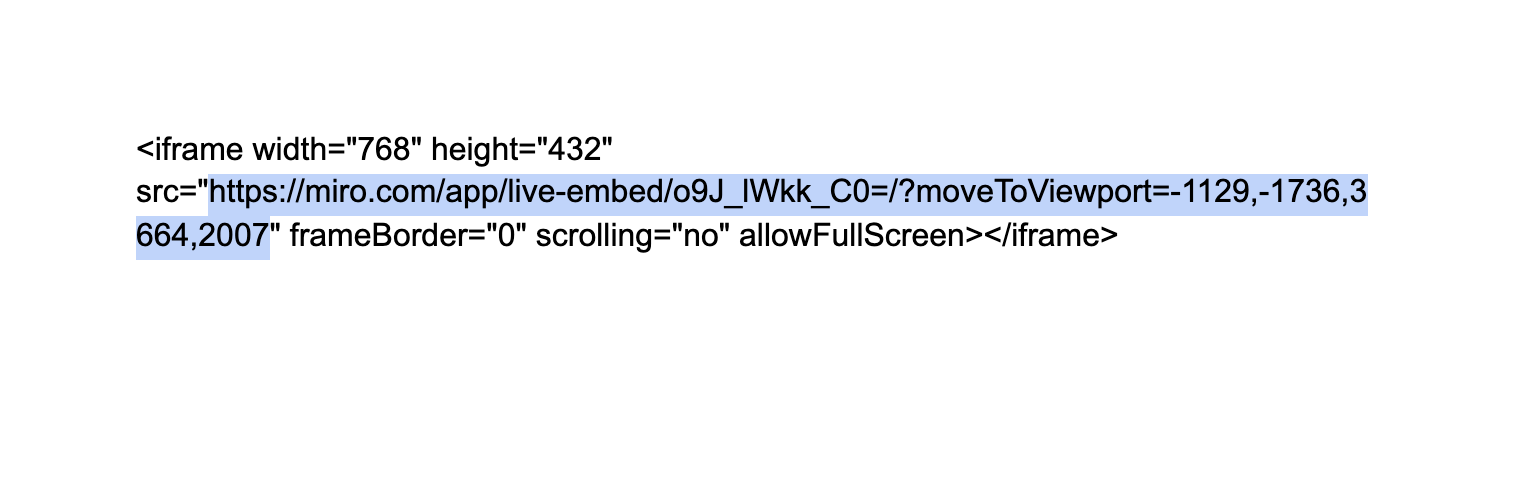
Now, copy the embed code and paste it somewhere else so you can copy only the URL link. The URL appears between the quotation marks after 'src=', as illustrated below. 👇
- Now you're ready to embed the Feed in your Event App.
- For the best results, embed with the Web Link feature or a Custom Tab.
Jigsaw Explorer virtual puzzles
Jigsaw Explorer is a free online puzzle builder that lets you set up and embed interactive puzzles directly into your event. Creating and embedding a custom puzzle is free and easy, and Jigsaw Explorer doesn't require sign-up!
Jigsaw Explorer resources
Setup tips
-
If you use a pre-made puzzle, simply open the puzzle and copy its URL from the address bar.
-
If you create your own puzzle, click the Copy link button on the 'Your Custom Jigsaw Puzzle is Ready' page.
-
For the best results, embed with the Web Link feature or an External Link.
Calendar platforms
Calendly calendar booking tools
Calendly is a free online appointment scheduling software that helps you set up meetings with other people.
Calendly resources
Setup tips
-
If you want Webex Events to auto-fill attendee information in Calendly using our Pass Data to URL function, configuring Calendly is easy! Simply edit your Calendly event, expand the 'Invitee Questions' section, and set the 'Name Input' field to 'First Name, Last Name'. Click Apply and then Save & Close to save your changes.
-
When your Calendly event is ready, go to the Home page and click Share on your event. In the modal that appears, click the Copy Link button.
-
For the best results, embed with the Content Provider field, the Web Link feature, or an External Link.
Video and meeting platforms
Webex meetings
Webex embeds differently than other platforms in this article, so read our Webex & Webex Events article for complete information.
Zoom meetings
Zoom embeds differently than other platforms in this article, so read our Zoom & Webex Events article for complete information.
Wistia video hosting platform
Wistia is a video platform created for marketers to make every video count. Edit, host, market, and measure the impact of your videos with ease! Learn all about Wistia's awesome features on their product page.
Wistia resources
Setup tips
-
Open a video in Wistia and click the Embed & Share button. In the modal that appears, click the Share tab, then the Copy link button.
-
For the best results, embed with the Content Provider field, the Web Link feature, or an External Link.
Vidcast asynchronous video broadcasts
Vidcast is a video messaging tool that makes recording, editing, and sharing short videos easy. It helps distributed teams collaborate more effectively and get time back in their day. Vidcast is free to use, and it's also part of Webex — simply sign in using your Webex credentials (or register for a free account) at app.vidcast.io.
Read our article about using Vidcast for more information and instructions.
Missing something?
If you used a platform not listed above in your event and loved it, or if we missed something that you think we should share with other customers, chat with us!


