- Home
- /
- Article

Thanks for your feedback.

 In this article
 Feedback?
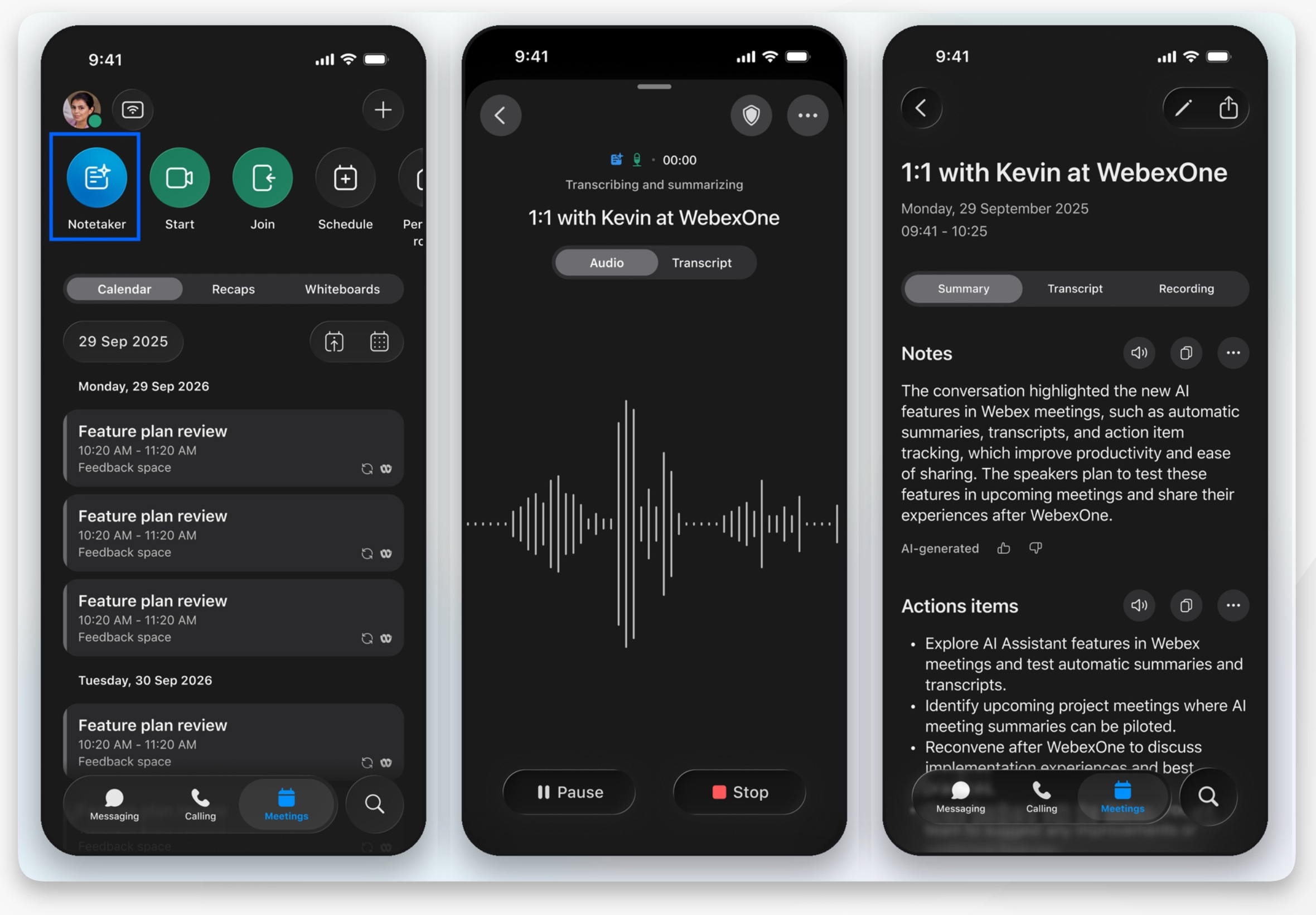
Stay focused on your conversation while Webex handles the note-taking. Simply launch Notetaker agent on your mobile device to capture every detail. AI Assistant transcribes the discussion and highlights action items for you. Since transcripts don't show individual names automatically, you can now easily tag speakers to clarify who said what, making it simple to review your meeting at any time.
Notetaker agent is available only when Cisco AI Assistant is enabled for your Webex account. If you can't see, or access Notetaker, contact your organization administrator.
Start Notetaker agent
| 1 |
Open Webex and sign in. |
| 2 |
Go to Meetings
Notetaker agent opens on your homescreen and you'll be reminded that the meeting will be transcribed. Action items will be refreshed every two minutes throughout the meeting, and the spoken language will be auto-detected when the session starts. On iOS devices, you can also long press Webex on the home screen, to start Notetaker from your quick actions. When Notetaker is active, you can select from the following:
|
| 3 |
When the meeting is over, tap Stop. |
 , and tap Notetaker.
 on iOS, or
 on Android devices, and select from the following:
Tag speakers in Notetaker
|
Notetaker agent automatically identifies speakers with a generic speaker label , but you can update the speaker name to tag specific individuals, either during an on-going session, or afterwards in the meeting recap.
|
 beside a speaker, to replace the generic speaker label
with the speakers name, and tap
Review your Notetaker session
When you stop Notetaker and end the in-person meeting, AI Assistant creates a meeting recap for the session.
| 1 |
Sign in to Webex App on your mobile device. |
| 2 |
Tap Meetings |
| 3 |
Then, tap the Notetaker session to open it. You can then review the meeting transcript, summary, action items, and identify and tag speakers. You can also review the recording, if you recorded the meeting. |


