- Home
- /
- Article

Thanks for your feedback.

 In this article
 Feedback?
Learn how to sign in, view meetings, manage settings, and join meetings in Webex App on your Samsung Galaxy XR device.
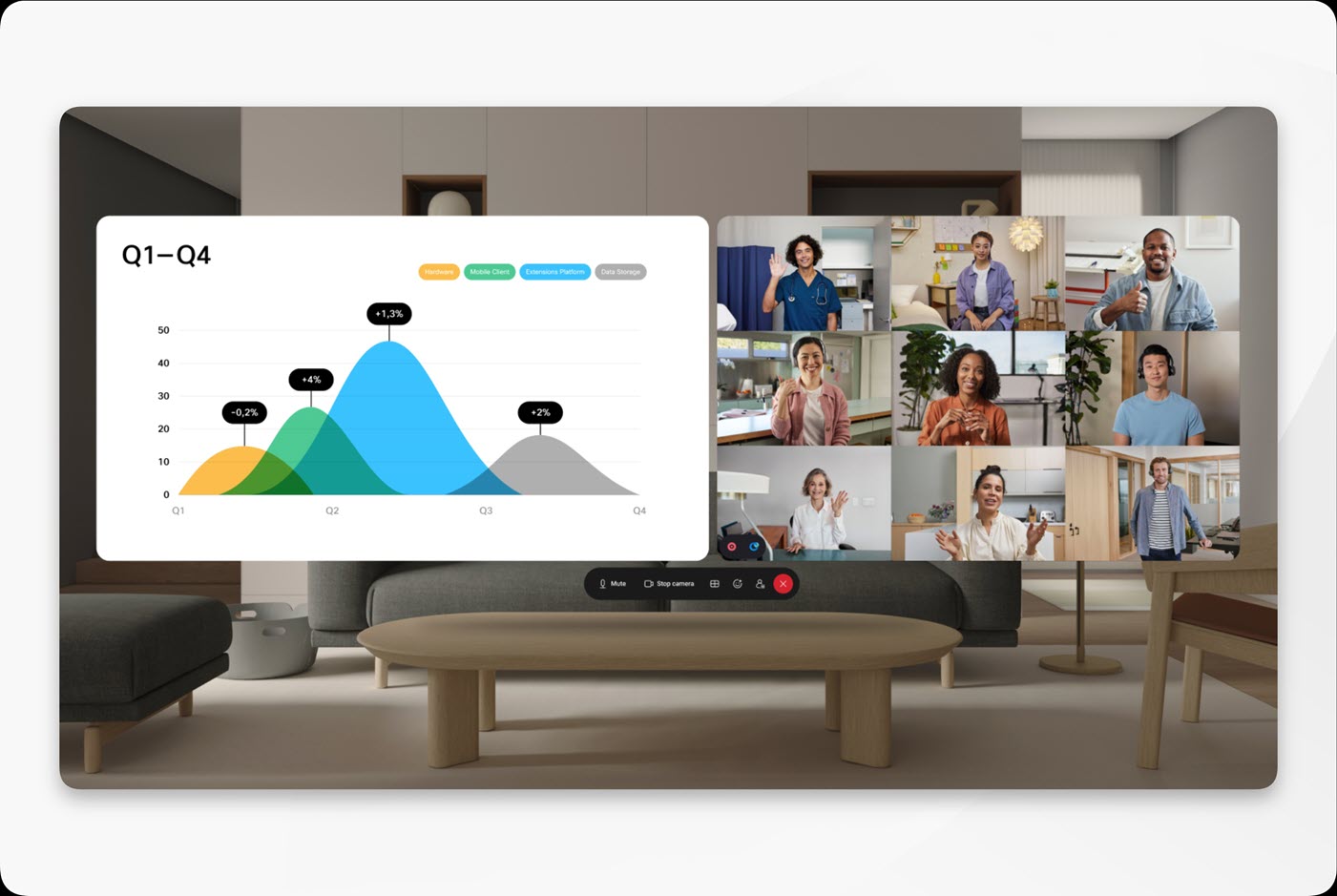
About Webex App on Samsung Galaxy XR
You can do the following:
-
Sign in with your Webex account or with Google.
-
View upcoming meetings from the Home tab.
-
Browse meetings by day from the Meetings tab.
-
Manage your availability, status message, notifications, audio, and meetings settings.
-
Resize the Webex window or use immersive mode during meetings.
-
Join scheduled meetings and use the audio, video, participant, reaction, and layout controls.
Set up and sign in to Webex App on Samsung Galaxy XR
Before you begin
Make sure that your Samsung Galaxy XR device is connected to the internet.
If you don't already have a Webex account, create one on another platform before you use Webex App on your Galaxy XR.
| 1 |
Download Webex App from the Google Play Store on your Galaxy XR device. |
| 2 |
Open Webex App. |
| 3 |
Choose a sign-in method:
|
| 4 |
When Webex prompts for permissions, allow the requested access:
If you don't allow a permission, some Webex features might not work as expected. You can manage permissions later from the Galaxy XR device settings. |
| 5 |
Complete sign-in. Webex opens to the Home tab, where you can see your upcoming meetings. |
View and manage meetings in Webex App on Samsung Galaxy XR
Use the Home and Meetings tabs to view your upcoming meetings and meeting details.
| 1 |
After you sign in, go to the Home tab to see your upcoming meetings. |
| 2 |
On the Meetings tab, review the meetings scheduled for the current day. Switch between the Home and Meetings tabs as needed. |
| 3 |
Use the left and right navigation controls to move back or forward one day at a time. |
| 4 |
Select the date picker to choose a specific day from the calendar. If you're viewing a day other than today, select Today to return to the current day's calendar view. |
| 5 |
Select a meeting from the list to open the meeting details page. |
Manage your profile, settings, and window size in Webex App on Samsung Galaxy XR
Update your preferences and adjust the Webex window size for a more comfortable Galaxy XR experience.
| 1 |
Select your profile picture or avatar to open the avatar menu. |
| 2 |
Choose the action that you want:
|
| 3 |
To resize the Webex window, pinch the top-right corner of the window, and drag outward to expand the window or drag inward to make the window smaller. |
Join and participate in meetings in Webex App on Samsung Galaxy XR
Join a scheduled meeting from the Galaxy XR device, choose your audio and video settings, and use the in-meeting controls.
Before you begin
- Set up your avatar in the Galaxy XR device Settings app if you want Webex to use it for your self view.
- Wait for the green Join button to appear in Webex App. It appears five minutes before the scheduled start time.
| 1 |
From the Home tab or Meetings tab, select Join for your scheduled meeting. |
| 2 |
On the meeting preview page, choose your meeting settings:
|
| 3 |
Join the meeting. |
| 4 |
Use the navigation bar at the bottom of your screen to do the following:
|
| 5 |
To use immersive mode, select the expand icon in the top-right corner. Continue using the meeting controls from the navigation bar at the bottom of your screen. |
Limitations for Webex App on your Samsung Galaxy XR
- You can't create a Webex account from your Galaxy XR device. Create your Webex account before on another platform.
- You can join scheduled meetings only.
- You can't schedule a new meeting from your Galaxy XR device.
- You can't start an instant meeting from your Galaxy XR device.
- You can't start a Personal Room meeting from your Galaxy XR device.


