Was this article helpful?

Thanks for your feedback.
Webex App | Use an external camera for calls or meetings on your iPad
 Feedback?
As good as the front-facing camera is in the iPad, you can take advantage of Center Stage, Apple's digital pan and zoom camera feature in Apple Studio Display, or use any other USB-C external camera.
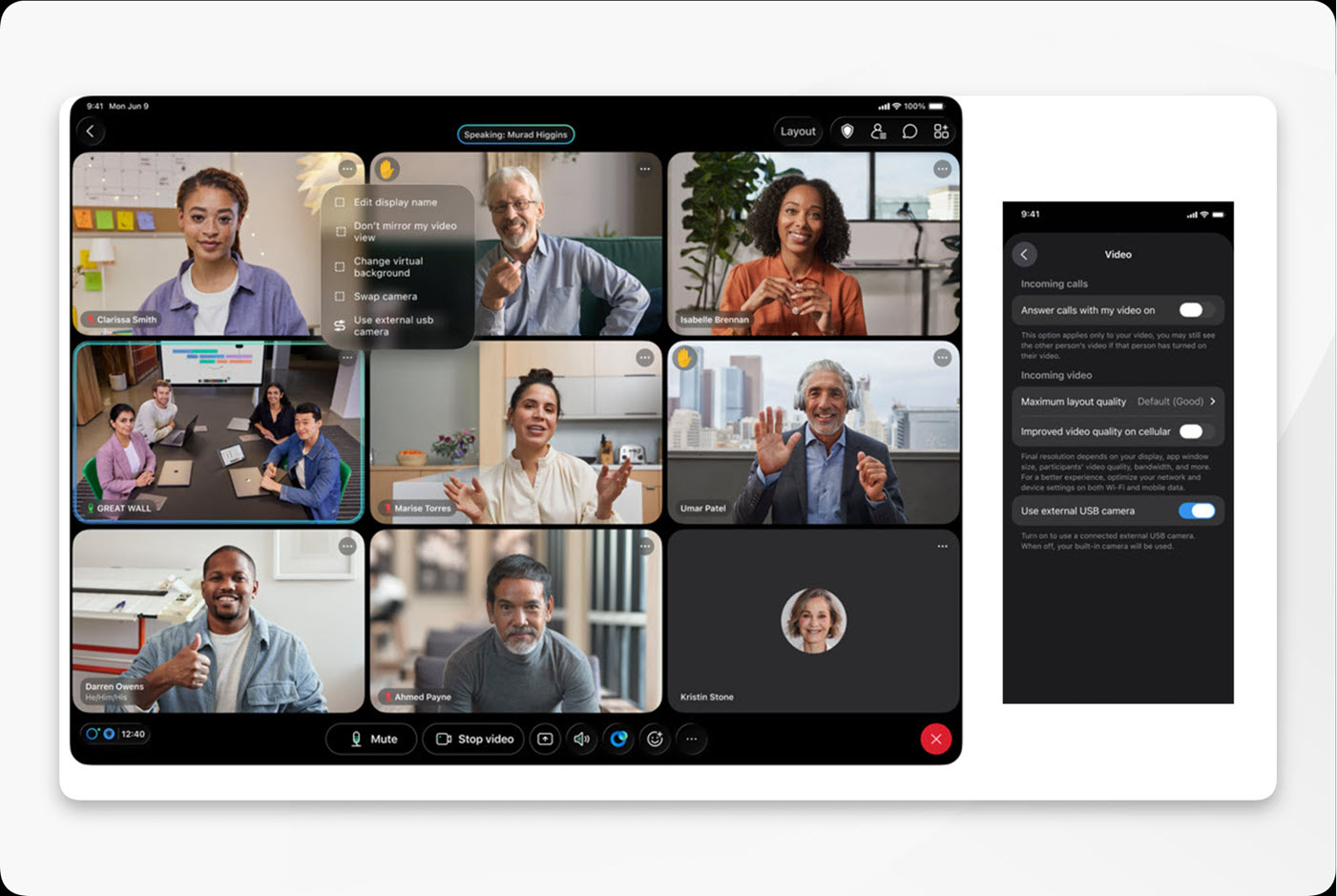
This feature is available on our Webex Suite meeting platform. Find out if your meetings use the Webex Suite meeting platform.
If you connect an external camera before you join a meeting, it becomes your default camera. You can switch to a different camera at any time before or during the meeting.
| 1 |
Connect the USB-C camera to your iPad. If you connect the camera before you join, you can preview your self-view video and
make sure that everything looks good.
|
| 2 |
Do one of the following:
|
| 3 |
To switch back to the iPad camera, do one of the following:
When you toggle off this setting, connecting or disconnecting an external camera won't interrupt your video or switch from the built-in camera. |
 in your self-view video, then tap
 Was this article helpful?


