- Home
- /
- Article

Thanks for your feedback.

 In this article
 Feedback?
Webex Webinars panelists can join and participate in webinars from Board, Desk, and Room Series devices.
On Cisco devices, Webex Webinars now support up to 5000 attendees.
Note: Support for 5000 attendees is being rolled out gradually by customer cohorts starting May 2026. Contact your Webex account team for availability and timing.
Joining as an attendee? See: Webex Webinars attendee support for Board, Desk, and Room Series.
Joining the Webex Webinar as a Panelist
Up to 150 Webex Webinars panelists can join webinars using Webex-registered or on-premises registered Board, Desk, and Room series devices. For more information about panelist options, read Join and Assist Cisco Webex Webinars as a Panelist.
Make sure to keep the email invitation of the webinar, where you can find the numeric password to join the webinar.
| 1 |
Tap join on your device if the webinar in scheduled, or tap Webex and enter the video system link or the webinar number from the email. |
| 2 |
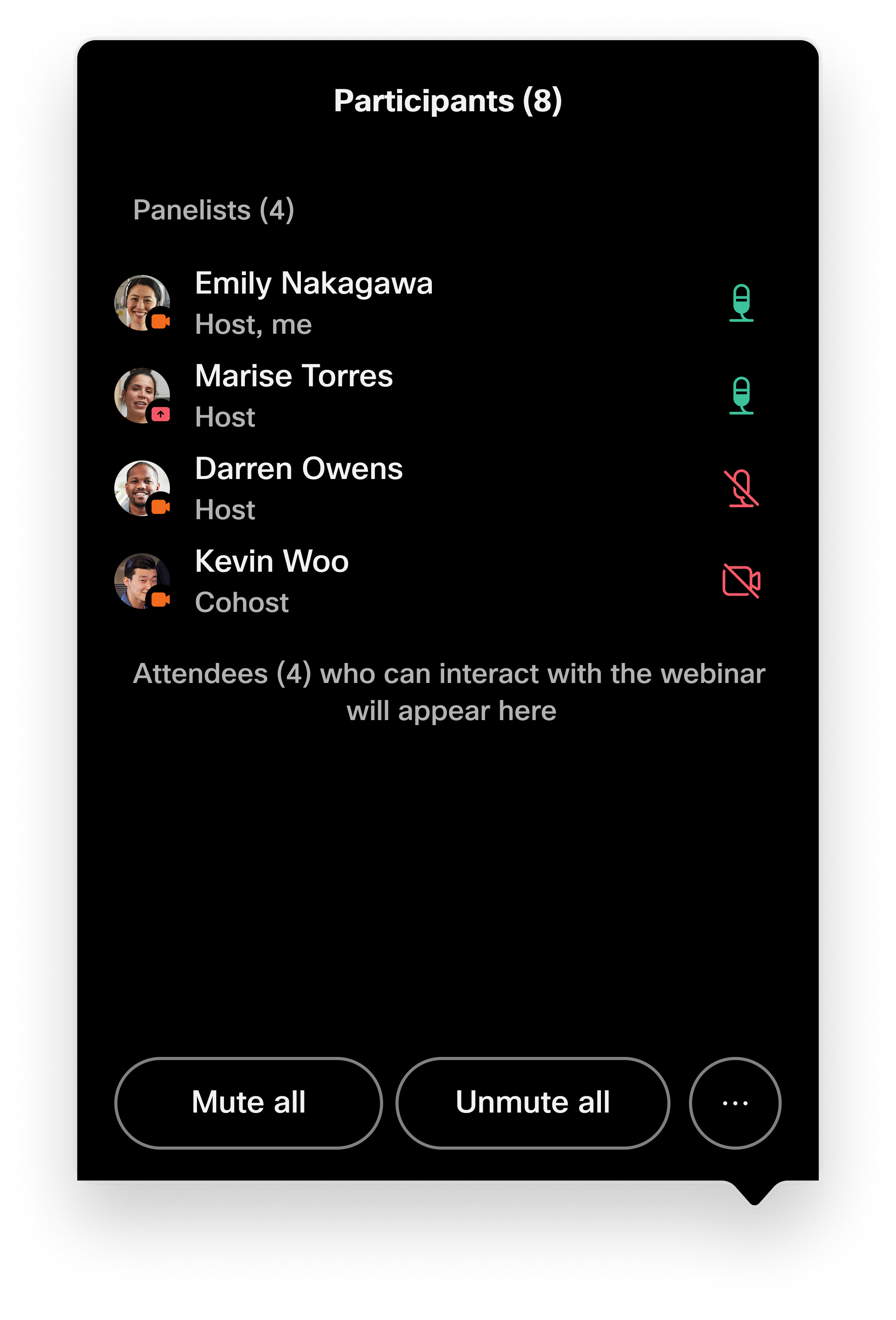
Enter the webinar password received by email if prompted. You can also join as a panelist by pairing with a device from the Webex App. Participant List in Webinars
|
Practice Session
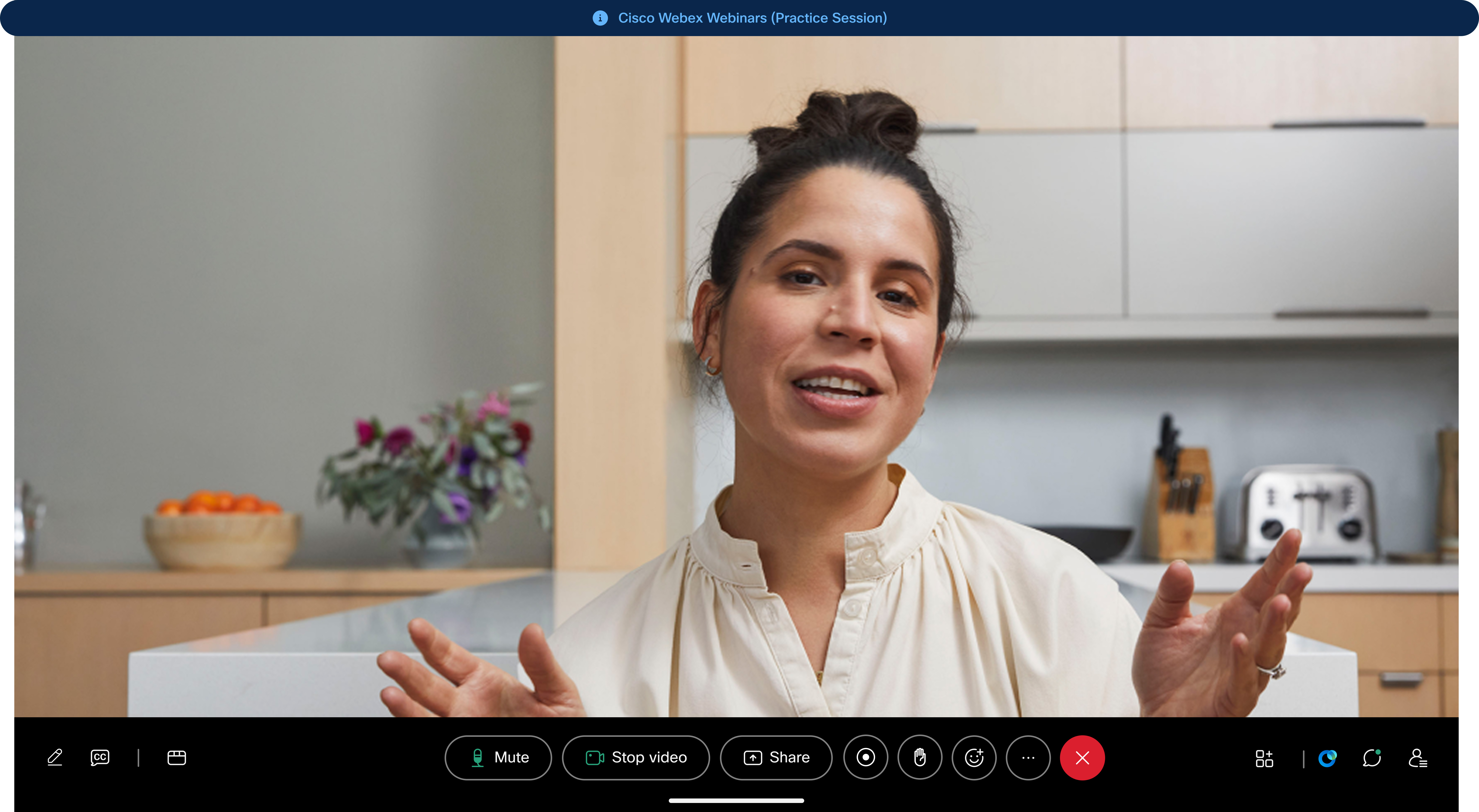
Practice sessions are a key part of webinars and allow the host and other panelists to test their audio, video and sharing capabilities before starting the webinar for everyone. While in a practice session, attendees can still join and wait for the webinar to start.
For more information about practice sessions, read Conduct a Practice Session in Cisco Webex Webinars.
Limitations
-
For webinars up to 5000 attendees, device versions RoomOS 26.6 or RoomOS 11.38 or later is required
-
Some webinar controls must be managed from the Webex App
-
Webinars that require Sign-In or Registration will only be accessible to devices that are registered on the same organisation as the Webinar is hosted on
-
Promotion or demotion of panelists must be managed from the Webex App
-
Devices cannot choose breakout rooms if a host chooses "self-assignment", they must be assigned


