
Thanks for your feedback.
 Feedback?
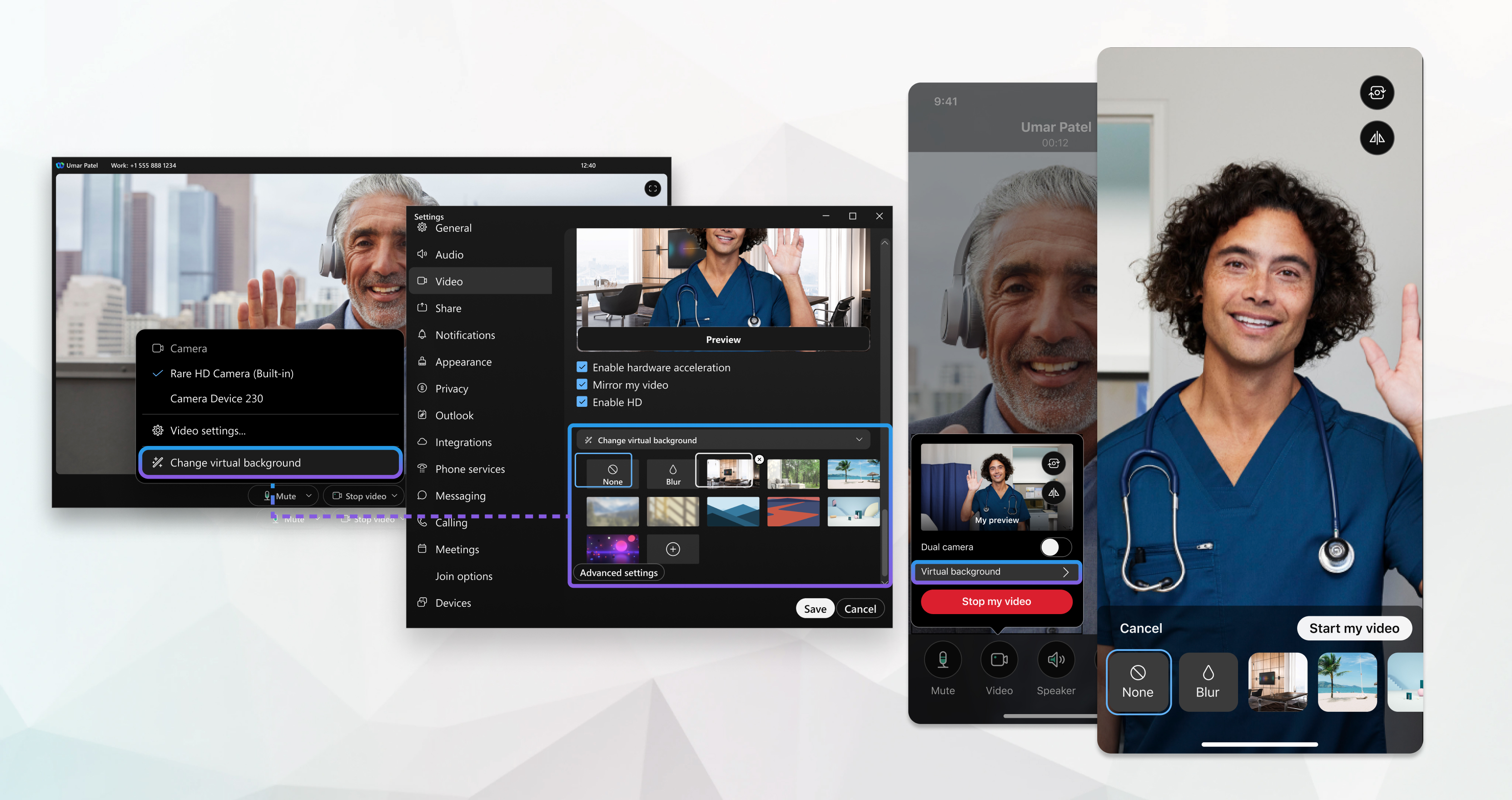
If you don't see this feature, contact your administrator, they can configure the options you have for blurred backgrounds.
Before you begin
Make sure that your device meets the following requirements:
-
Operating System—Windows 10 64-bit
If you're in a VDI environment, make sure you're using a supported platform for virtual backgrounds. See the VDI Release Notes for more information.
-
Processor:
-
Intel Core i3, i5, or i7 4000 series processor or higher (when less than 4 cores)
-
Intel Core i9 dual-core processor or higher
-
Intel Xeon dual-core processor or higher
-
Intel Pentium Silver: 4 cores or higher
-
Intel Processor: 4 cores or higher
-
Other Intel processors: 6 cores or higher
-
AMD Ryzen 5, 7, 9, or higher
-
Other AMD processor: 4 cores with at least 3.0 GHz; OR 4 cores or higher
-
Apple processor: 4 cores or higher
-
Non-Intel, non-AMD, or non-Apple processors: 8 cores or higher
-
-
Memory:
-
8 GB or more of RAM
-
2 GB or more of VRAM for dedicated GPUs
-
| 1 |
To set your virtual background before you join a meeting, click Video
options Personalize your background by adding up to 10 custom images of your own. Click the + icon and then find the image or video you want to use. The file you choose can be .jpg, .jpe, .jpeg, .png, .gif, .mov, and .mp4. We recommend that you use an image or video file that's 480 × 360 pixels in size or larger. Files can't be larger than 1920 × 1080. |
| 2 |
To change your background during a meeting, click Video options Webex App remembers your selection for your next call or meeting. You don't need to be in a call or meeting to change your background. You can do it
anytime and the change applies to all your future calls and meetings in Webex App. Click Settings
|

 on the navigation sidebar, select
 Before you begin
Make sure your device meets the following requirements:
-
If you're in a VDI environment, make sure you're using a supported platform for virtual backgrounds. See the VDI Release Notes for more information.
-
Processor:
-
Intel Core i3 8000 series dual-core processor or higher
-
Intel Core i3 8000 series quad-core processor or higher
-
Intel Core i5 6000 series dual-core processor or higher
-
Intel Core i5 3000 series quad-core processor or higher
-
Intel Core i7 5000 series dual-core processor or higher
-
Intel Core i7 3000 series quad-core processor or higher
-
Intel Core i9 dual-core processor or higher
-
Intel Xeon dual-core processor or higher
-
Intel Core m3 7000 series dual-core processor or higher
-
Intel Processor: 4 cores or higher
-
Other Intel processors: 6 cores or higher
-
AMD Ryzen 5,7,9 processor or higher
-
AMD processor: 4 cores with >= 3.0Ghz; OR 4 cores higher
-
Apple processor: 4 cores or higher
-
Non-Intel, non-AMD, and non-Apple processors: 8 cores or higher
-
-
Memory—2 GB or more of VRAM for dedicated GPUs
| 1 |
To set your virtual background before you join a meeting, click Video options in the preview window, and then choose the background that you want to use. After you choose the background, hide Video options . Personalize your background by adding up to 10 custom images of your own. Click the + icon and then find the image or video you want to use. The file you choose can be .jpg, .jpe, .jpeg, .png, .gif, .mov, and .mp4. We recommend that you use an image or video file that's 480 × 360 pixels in size or larger. Files can't be larger than 1920 × 1080. |
| 2 |
To change your background during a meeting, click Video options Webex App remembers your selection for your next call or meeting. You don't need to be in a call or meeting to change your background. You can do it anytime and the change applies to all your future calls and meetings in Webex App. Click Settings
|
| 1 |
From the meeting preview window, tap Virtual background During a meeting, tap More options
 > Change Virtual Background > Change Virtual Background  . . |
| 2 |
Choose one of the following options and tap Apply.
Webex App remembers your selection for your next call or meeting.
|

| 1 |
From the meeting preview window, tap Virtual background During a meeting, tap More options
> Advanced > Change virtual background . |
| 2 |
Choose one of the following options and tap Apply:
Webex App remembers your selection for your next call or meeting.
|
Before you begin
Make sure that your device meets the following processor requirements:
-
Intel Core i3, i5, or i7 4000 series processor or higher (when less than 4 cores)
-
Intel Core i9 dual-core processor or higher
-
Intel Xeon dual-core processor or higher
-
Intel Pentium Silver: 4 cores or higher
-
Intel Processor: 4 cores or higher
-
Other Intel processors: 6 cores or higher
-
AMD Ryzen 5, 7, 9, or higher
-
Other AMD processor: 4 cores with at least 3.0 GHz; OR 4 cores or higher
-
Apple processor: 4 cores or higher
-
Non-Intel, non-AMD, or non-Apple processors: 8 cores or higher
|
To set your virtual background before you join or during a meeting, click Video options Webex App remembers your selection for your next call or meeting. |


