Webex App | Connect to a device from the desktop app and mobile app
list-menuFeedback?
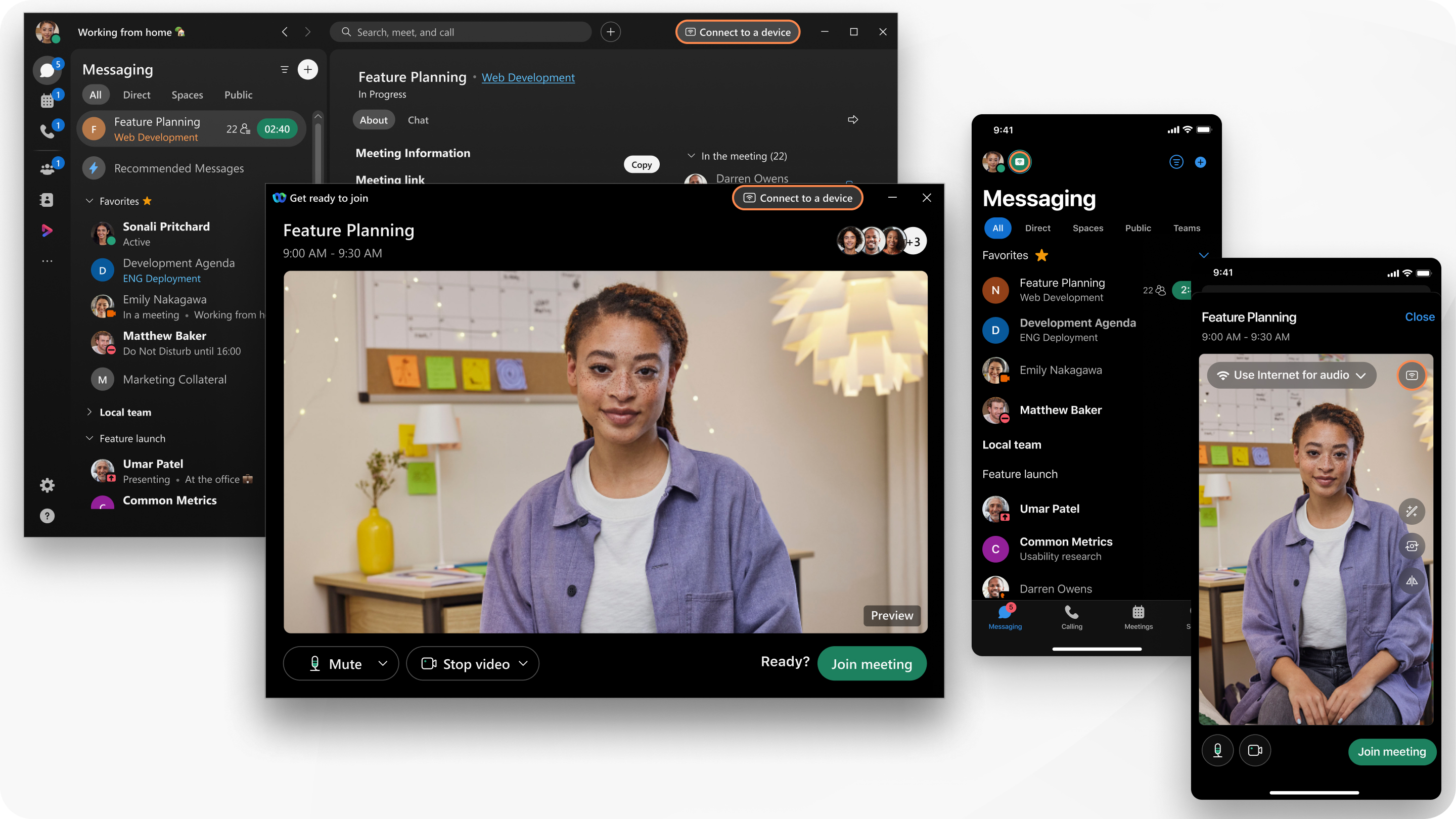
When you're all in the same physical space, you can wirelessly share your screen with a device, or connect seamlessly when joining a meeting. Webex App detects the device using ultrasound pairing. You can also simply scan a QR code to pair with a device quickly and easily.
connect to a device

1

Click Connect to a device.

2

Based on your Discover Devices setting:

  • If you choose Use my microphone when I search for devices, manually turn on ultrasound detection and connect to the device.
  • If you choose Always listen for devices, ultrasound detection is automatic. If Automatically connect to a nearest device is checked, you connect automatically when an available device is detected. Otherwise, you need to manually connect to the detected device.
  • If you choose Do not use my microphone, search for the device in the Room or device name search box and manually connect to the device.

If Webex App is integrated with your Cisco desk phone, the device is listed under Personal devices. Select the desk phone to connect to it.

If you're joining a meeting, the device joins the meeting automatically when you click Join.

1

Tap Connect Webex devices Connect to device.

2

Based on your device discover and reconnection setting:

  • If you choose, Use when I search, manually turn on ultrasound detection and connect to the device.
  • If you choose Always listen for devices, ultrasound detection is automatic. If Automatically connect to a nearest device is checked, you connect automatically when an available device is detected. Otherwise, you need to manually connect to the detected device.
  • If you choose Do not use my microphone, search for the device in the Search room or device name box and manually connect to the device.

If you're joining a meeting, the device joins the meeting automatically when you tap Join.

All meeting room devices display a QR code for pairing.

We recommend that Administrators turn off QR pairing, if third-party booking systems are in use.

1

Sign in to Webex on your phone, and scan the QR code on the device screen.

2

Your app will pair to the device. If you're not already signed in, and hotdesking is enabled, you'll be signed in automatically.

  • You can choose an action: Share on device, Open a space, Remote controls, Sign out, or Disconnect.
  • Join a call on the device from the main menu of your mobile app.

Was this article helpful?