
Thanks for your feedback.
Webex App | Your user interface
 Feedback?
Take a look around to get used to the app's interface and how we talk about it.
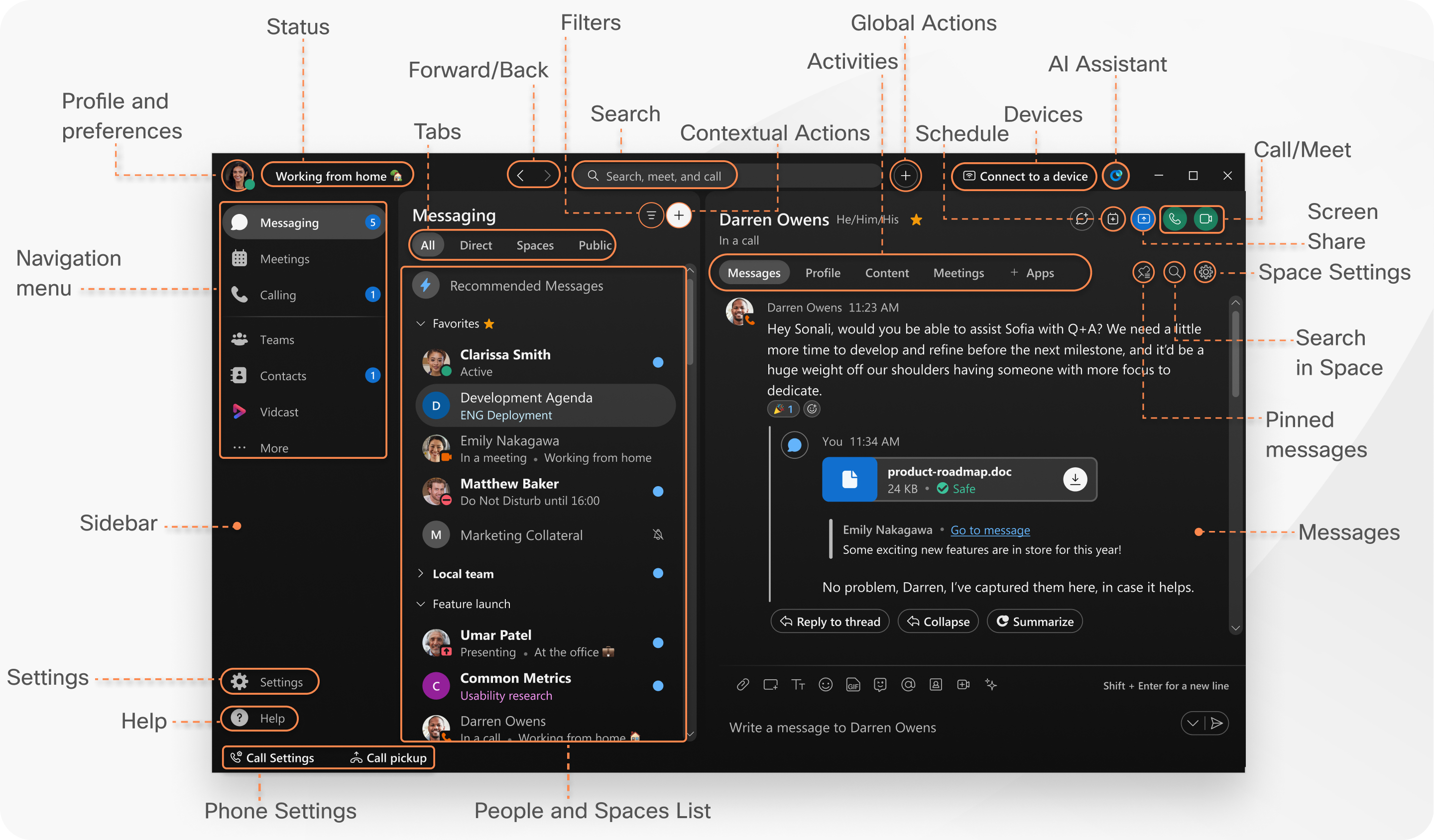
App header
In the app header, click your profile to update your picture or name, or to set your preferences, such as pronouns, and availability.

Click Set a status to select a status from the list or create and share any status you want, so your colleagues know what you're up to.
To take a step back or jump forward between previously
visited spaces or tabs, click Back or Forward
 .
.
Click and hold to see a history of the spaces or tabs you've recently visited.
Click  , and choose from:
-
Send a direct message —create a direct message space with another person.
-
Create a space — start a group conversation.
-
Schedule a meeting— schedule a meeting at a specified date and time.
-
Start a meeting—quickly start a meeting.
Click  Search to review your conversation
history to find people you're talking to, spaces you're in, messages you received,
and files you need.
Search to review your conversation
history to find people you're talking to, spaces you're in, messages you received,
and files you need.
You can also connect automatically with Webex devices from the Connect to a Device menu. When connected, you can share your screen, start a call, or open a space (on Webex Board).
Navigation sidebar
Switch easily between your Messaging, Meetings, and Calling views. These are your default tabs which are fixed in place.
You can reorganize the rest of your navigation menu to control what tabs appear in the sidebar, and get to the content you care about quicker. Drag and drop tabs, pin and unpin them, and reorder them to fit your needs. Choose from:
-
Teams
 —list of spaces categorized under a theme.
 -
Contacts
 —your contacts list.
 -
Voicemail
 —voice message list.
 -
Vidcast
 —Video messaging. See Vidcast for more information about using video messages.
In the More
 menu, you'll find tabs you've moved or unpinned from the sidebar.
Your App hub, and Personal insights tabs appear in the More
menu by default.
You can also add custom apps to the sidebar. Click App Hub, and choose an app to add to the sidebar. If you don't see this feature, contact your administrator for more information.
Your organization administrator may also add custom tabs to the sidebar menu.
You can collapse the navigation sidebar menu to icons only, or expand it to see the icons and their labels. Hover and click the arrow to the right of the column for the different viewing experience.
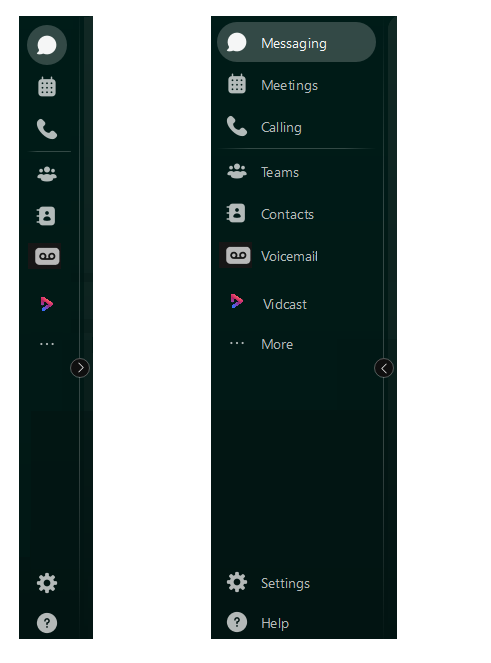
The app remembers your preferences. Every time you reopen the app the sidebar opens in the last view you selected.
You can also perform the most commonly used actions directly from the view you're in.
In the Messaging view, click at the top of the spaces list, and choose from:
-
Send a direct message —create a direct message space.
-
Create a space — start a group conversation.
-
Create a section— organize spaces into sections.
In your Contacts view, click at the top of the contacts list, and choose from:
-
Add a contact — direct message space with another person.
-
Create a group— start a group conversation.
Settings
You'll find your Settings
 at the bottom of the Sidebar. If you want to make changes to any of your Video, Audio, Appearance, or Notification settings, among others, they're now easily accessible from the Sidebar.
Help
The Help
 menu, is also located at the bottom of the Sidebar.
Click and choose from:
-
Check for updates
 —you can check for updates to the app.
 -
Keyboard shortcuts
 —opens the keyboard shortcuts menu.
 -
Help Center
 —brings you to the Webex App page on our Help site, but your administrator might customize that link to direct you to another site instead.
 -
What's new
 —opens the What's new feature list.
Filters, Tabs, and Spaces list
To see the available filters click  , then select a filter to show the messages or spaces you want to
see.
, then select a filter to show the messages or spaces you want to
see.
You can also organize your spaces list with tabs. You can then switch between direct messages and spaces and pick out your important conversations, choose from:
-
All—all spaces.
-
Direct—spaces with one other person.
-
Spaces—group spaces.
When you select a tab, the spaces list displays content which matches your selection. For example, if you select Direct, you'll see a list of your direct message spaces.
Your most recently active spaces show at the top of the spaces list. If anyone has added you to a new team or space, you'll see it here too. When someone posts a new message in the space, you'll see the bolded space name.
You'll sometimes see icons letting you know what's happening in your spaces. These notifications give you information about new messages you've received and spaces you've been added to.
The app also keeps drafts of your messages if you don't send them right away. You'll see  next to spaces with drafts left in them.
Your upcoming and ongoing meetings are always visible at the top of the spaces list, regardless of any space filters you've set.
Space activities
Your group work takes place in spaces, either in groups or in direct messages with another person. When you're in a space, click the activity menu tabs to access the different activities you can do:
Messages—see all messages in the space. We keep these messages secure so you can feel confident sharing your work ideas.
People—see who's in the space.
Content:
-
Files—find your shared files, photos and videos.
View files in a List view
 , or a Grid view
 .
. -
Whiteboards—create and share content on whiteboards.
-
Links—see all links shared in the space.
-
Recordings—see all recordings shared in the space.
Schedule—create a meeting from the space or view upcoming meetings scheduled for the space.
When you're in a space, you can make a call to a person or start an instant meeting with everyone in the space. Choose from:
-
 Audio—make an audio call to a person.
 -
 Video—make a video call to a person.
 -
 —start a meeting with everyone in the space.
To see all messages pinned in the space you're in, click  , or to search through the conversation history of the space you're in, click
Search in space.
, or to search through the conversation history of the space you're in, click
Search in space.
iPhone
Android
Navigation Menu
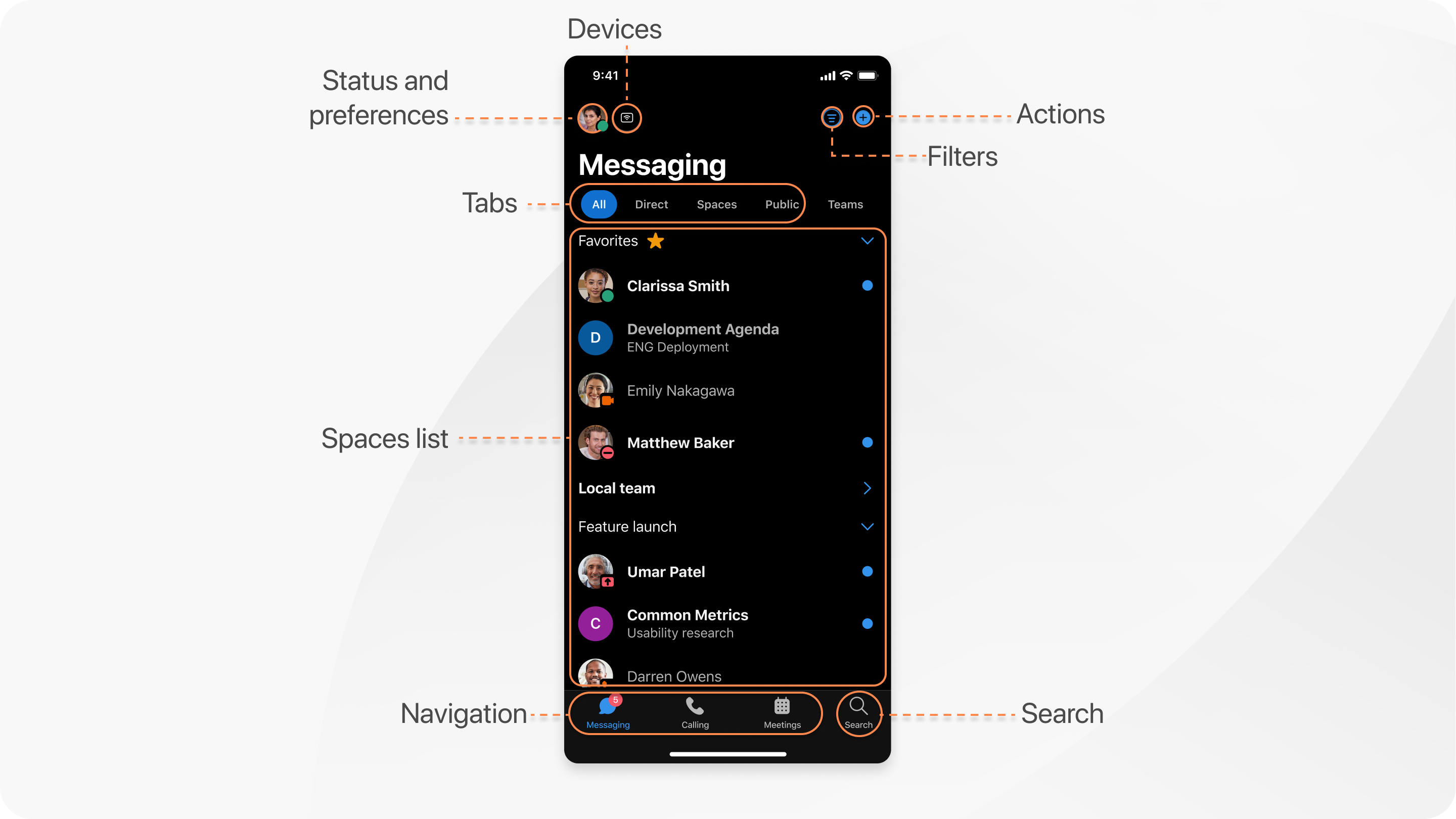
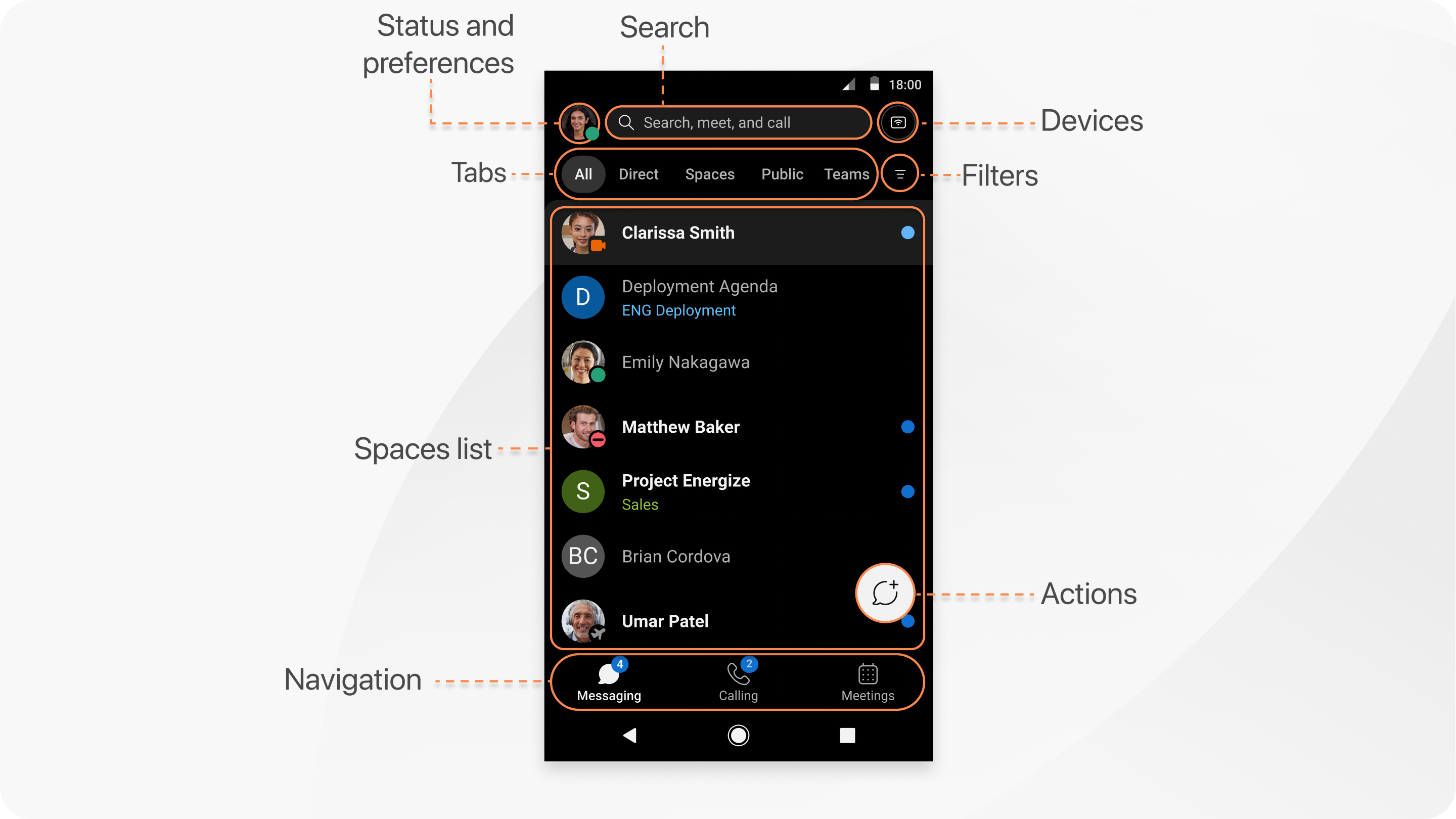
Switch easily among your Messaging, Calling, and Meetings views. Messages appear by default, but your Calls, and Meetings are just a tap away. When you have unread messages in your spaces or teams, you'll see counters next to Messaging.
Tap Search on iOS, or Search, meet and call on
Android, to search through the history of your conversations to find people you're
talking to, spaces you're in, messages you received, and files you need.
Status and Preferences
Tap your profile to update your picture or name, access your settings and preferences, set your status, and your availability.
Devices
You can also connect with Webex devices, just tap  .
.
Filters
To see the available filters, tap  on iOS, or on your Android device. Then, select a filter to show just the
messages or spaces you want to see.
on iOS, or on your Android device. Then, select a filter to show just the
messages or spaces you want to see.
Tabs and Spaces List
You can select from your spaces or teams using the tabs, choose from:
-
All—all spaces.
-
Direct—spaces with one other person.
-
Spaces—group spaces.
-
Teams—teams you're a member of.
When you select a tab, the spaces list displays content which matches your selection. For example, if you select Direct, you'll see a list of your direct message spaces.
Your most recently active spaces are at the top of the spaces list. If anyone has added you to a new team or space, you'll see it here too. When someone's posted a new message in the space, you'll see the bolded space name.
Your upcoming and ongoing meetings are always visible at the top of the spaces list, regardless of any space filters you've set.
You'll sometimes see icons letting you know what's happening in your spaces. These notifications give you information about new messages you've received and spaces you've been added to.
The app also keeps drafts of your messages if you don't send them right away. You'll see next to spaces with drafts left in them.
Space Activities
When you're in a space, tap  on iOS, or
  on Android, to access the different activities you can do:
People—see who's in the space.
Content:
-
Files—find your shared files, photos and videos.
-
Whiteboards—create and share content on whiteboards.
-
Links—view all links shared in the space.
-
Recordings—see all recordings shared in the space.
Pins—view messages pinned in the space.
Info—see space information.
Actions
Tap  on iOS, or
  on Android, and choose from:
-
Send a direct message —create a direct message space with another person.
-
Create a space — start a group conversation.
iOS Menu Bar
When you update to iPadOS 26, you'll see a new menu bar at the top of your screen. This menu bar is similar in functionality to the macOS menu bar and lets you quickly access key features and controls, even if you're in a meeting or on a call, helping to enhance your productivity.
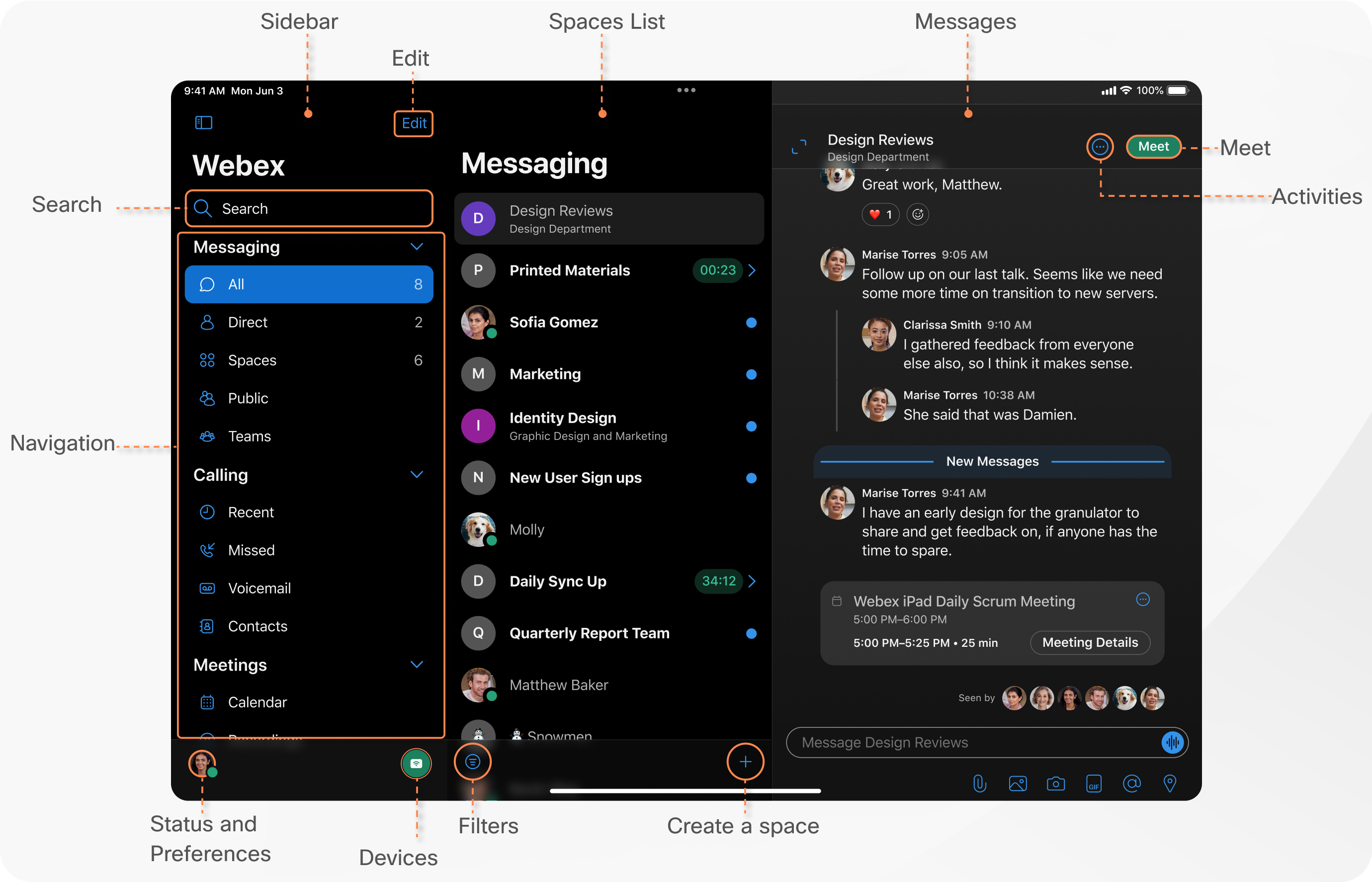
Navigation Sidebar
This is where you find your app-level navigation.
At the top of the navigation sidebar tap Search, to quickly search through the history of your conversations to find people, spaces you're in, messages you received, and files you need.
You can easily switch between your Messaging, Calling, and Meetings sections. Tap the drop-down arrow  , to expand or collapse each section.
Tap Edit to customize the contents of each section, so you can quickly get to the content you care about. In each section you can select the items you want to see, or drag and drop items into the order you prefer. When you're finished, tap Done.
Swipe left to hide the sidebar and create more room for your content, and just swipe right to open the sidebar again.
You'll find your Status and Preferences at the bottom of the sidebar. Tap your profile to update your picture or name, access your settings and preferences, and set your availability.
From the bottom of the sidebar you'll also be able to Connect to a Device, just tap .
Spaces List, Filters, and Actions
Here you'll see a list of your spaces, teams, calls or meetings, depending on which item you've selected from the Messaging, Calling, or Meetings sections.
Whenever you have your spaces list open, swipe left on a space or direct message space with another person to see the shortcuts menu, then select from:
-
Peek—peek into the space.
-
Favorite—favorite the space.
-
More—see more options, such as: Hide space, Mute notifications, and Copy Space link.
You'll sometimes see icons letting you know what's happening in your spaces. These notifications give you information about new messages you've received and spaces you've been added to.
The app also keeps drafts of your messages if you don't send them right away. You'll see next to spaces with drafts left in them.
Tap at the bottom of the spaces list, to see the available
filters. Then, select a filter to show just the messages or spaces you want to
see.
To start a conversation tap at the bottom of the list area, and select from:
-
Send a direct message —create a direct message space with another person.
-
Create a Space — start a group conversation.
-
Create a Team— create a team for your projects or department.
Space Activities
When you're in a space, tap to access the different activities you can do:
People—see who's in the space.
Content:
-
Files—find your shared files, photos and videos.
-
Whiteboards—create and share content on whiteboards.
-
Links—view all links shared in the space.
-
Recordings—see all recordings shared in the space.
Pins—view messages pinned in the space.
Schedule—create a meeting from the space or get a list of meetings scheduled for the space.
Info—see space information.
Tap the compose message area to open the onscreen keyboard to enter and edit text. To minimize the keyboard pinch it closed, you can press and hold the smaller keyboard with two fingers to move it around the screen. Pinch open the keyboard to return it to full size.
To hide or close the keyboard, tap  .
.
If you subscribe to Webex from your Service Provider, please note that Webex App for Web isn't integrated with your Service Provider's calling. We recommend that you download and use the desktop and mobile apps for the most up-to-date features and best user experience.
App Header
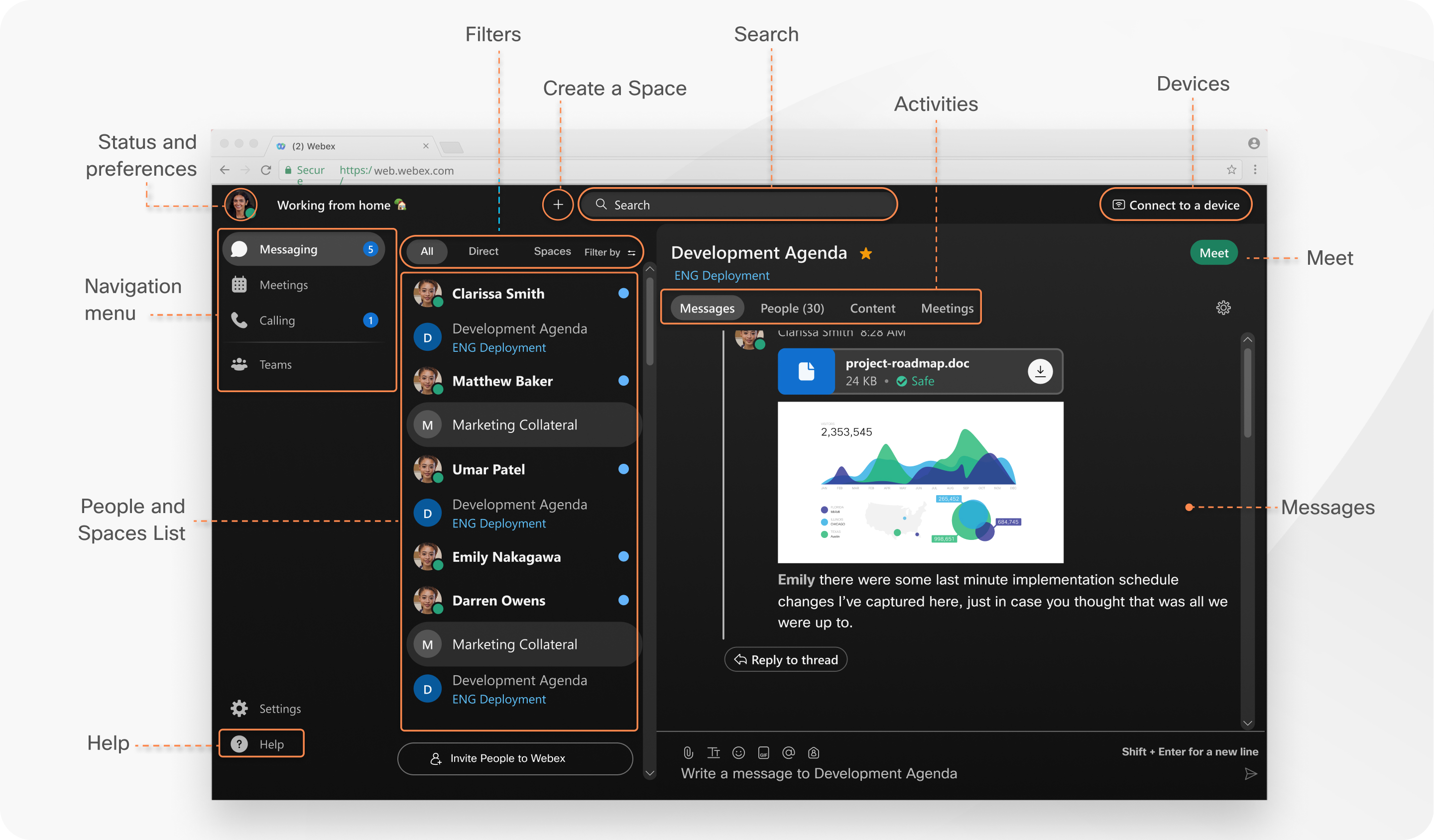
In the app header click your profile to update your picture or name, access your settings and preferences, and set your availability.
Click Set a status to select a status from the list or create and share any status you want, so your colleagues know what you're up to.
Click , and choose from:
-
Send a direct message —create a direct message space with another person
-
Create a Space — start a group conversation
-
Make a call — call someone
-
Add a contact —add someone to your contacts list
To search through the history of your conversations to find people you're talking to,
spaces you're in, messages you received, and files you need, click Search.
You can also connect automatically with Webex devices from the Connect to a Device menu. When connected, you can share your screen, start a call, or open a space (on Webex Board).
Navigation Menu
Switch easily among your Messaging, Teams, Calls, and Meetings views. Messages appear by default, but your teams, calls, and meetings are just a click away.
You'll see Help at the bottom of your spaces list. This brings you to the
Webex App
page on our Help site, but your administrator might customize that link to direct
you to another site instead.
Filters, Tabs, and Spaces list
Click to see the available filters. Then, select a filter to show
just the messages or spaces you want to see.
You can also organize your spaces list with tabs, just select Separate DMs and Spaces in the filters menu. You can then switch between direct messages and spaces and pick out your important conversations, choose from:
-
All—all spaces.
-
Direct—spaces with one other person.
-
Spaces—group spaces.
When you select a tab, the spaces list displays content which matches your selection. For example, if you select Direct, you'll see a list of your direct message spaces.
People and Spaces list
Your most recently active spaces are at the top of the spaces list. If anyone has added you to a new team or space, you'll see it here too. When someone's posted a new message in the space, you'll see the bolded space name.
You'll sometimes see icons letting you know what's happening in your spaces. These notifications give you information about new messages you've received and spaces you've been added to.
The app also keeps drafts of your messages if you don't send them right away. You'll see next to spaces with drafts left in them.
Your upcoming and ongoing meetings are always visible at the top of the spaces list, regardless of any space filters you've set.
Space Activities
Your group work takes place in spaces, either in groups or in direct messages with another person. When you're in a space, click the activity menu tabs to access the different activities you can do:
Messages—see all messages in the space.
People—see who's in the space.
Content:
-
Files—find your shared files, photos and videos.
-
Whiteboards—create and share content on whiteboards.
Schedule—view upcoming meetings in the space.
When you're in a space, you can make a call to a person or start an instant meeting with everyone in the space. Choose from:
-
 —make a video call to a person.
 -
 —start a meeting with everyone in the space.


