
Thanks for your feedback.
 Feedback?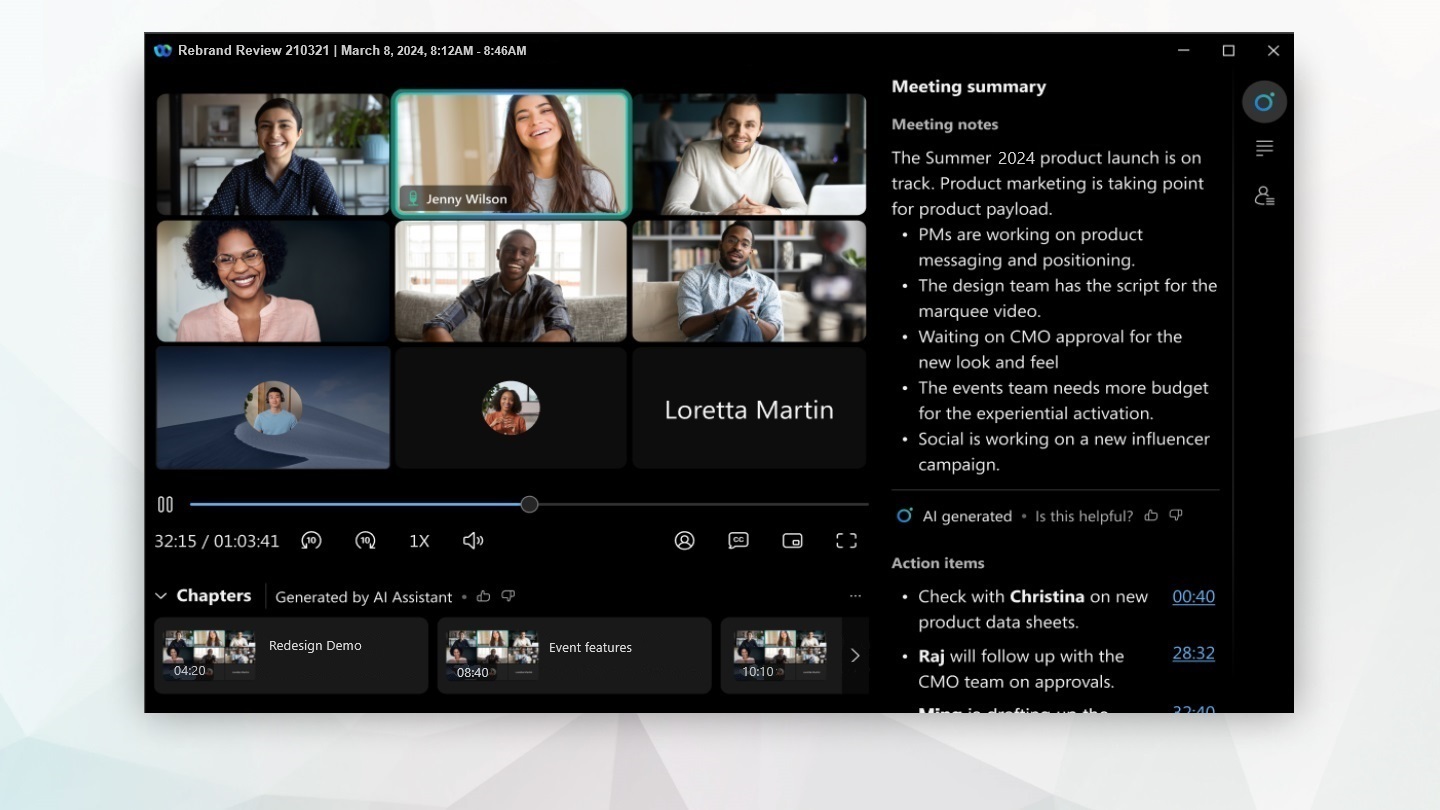
This feature is only available on the Webex Suite meeting platform. To check if you're on this platform and to read about key changes, and forthcoming features, see more about the Webex Suite meeting platform.
If you can't see the AI meetings summary in recordings feature, reach out to your organization administrator to enable it.
Before a meeting can be recorded, summarized, or transcribed, everyone participating needs to give their consent. This way, you’re fully informed and in control of your personal data.
Start your AI meeting summary recording
AI-generated meeting summaries in recordings are only available, when you select the cloud recording option, when you host a meeting.
| 1 |
Start your meeting. In the meeting controls, click Record. Participants receive an audio and visual notification, announcing the meeting is being recorded and summarized. |
| 2 |
To end the meeting summary, click Record, and select Stop recording. When the meeting ends, Webex generates the summary, action items, transcript, and chapters, and sends an email notification to the meeting host to review and share. When both AI Assistant and recording are enabled for a meeting, the post-meeting email includes the recording link or links, the recording password, if required, and the AI-generated meeting summary and action items. AI-generated recording chapters are not included in the email. To view chapters, open the meeting recap or recording. The meeting summary is generated in the spoken language set for the meeting. However, if you're using Auto-detection of spoken language during a meeting, the meeting summary will be generated in the language spoken for the maximum time. |
View AI generated meeting summary recordings
As the meeting host, you'll receive an email notification with details to view, edit, or share the meeting summary recording and AI-generated content. When both AI Assistant and recording are enabled for a meeting, the post-meeting email includes the recording link or links, the recording password, if required, and the AI-generated meeting summary and action items. AI-generated recording chapters are not included in the email. To view chapters, open the meeting recap or recording.
If you stop and restart recording during the same meeting, the post-meeting email includes each recording link. Chapters for each recording are available in the meeting recap or recording.
The recording is also saved to your Webex account in User Hub, and in Webex App. If your meeting is associated with a space, the recording link automatically appears in the space where the meeting took place.
| 1 |
Choose how you want to access the meeting summary recording.
You can also click Messages, Summary, Transcript, or Recording to go directly to that part of the recording. |
| 2 |
Click directly on the recording, to open and view the recording. The AI-generated summary contains chapters, summary notes, and action items, so you can quickly review the meeting content. Every chapter, and action item, contains a timestamp, so you can easily navigate to the part of the recording you're interested in. |
Edit AI generated meeting summary recordings
As the meeting host, you can edit the meeting summary recording generated by AI Assistant. You can add chapters, edit the summary notes, change the formatting, and structure the content to ensure it matches with what was discussed in the meeting.
| 1 |
Click , to see all available recordings. Click on a specific item in the recording: Messages, Summary, Transcript, or Recording, to directly open it. You can also click directly on the meeting recording to open and view the recording. |
| 2 |
With the recording, or a specific item in the recording open, you can select from:
When you make changes a notification is added, to let people know the content was edited by the meeting host. If your meeting recording settings in User Hub are toggled Off, you can always generate the meeting summary and chapters afterwards. |
 , and select
  to edit the notes, and add formating, then click
 to copy
  to translate the meeting summary notes and action items
into your preferred language.
to translate the meeting summary notes and action items
into your preferred language. to download content such as the recording, AI summary,
action items, and transcript.
to download content such as the recording, AI summary,
action items, and transcript.Share AI generated meeting summary recordings
Send the meeting summary recording link to people who couldn't attend the meeting. The meeting summary recording is available in your Webex account in User Hub, in Webex App, or via the email notification. Choose your preferred option to share the recording.
| 1 |
Sign in to your Webex account in User Hub, click Recordings, select the recording and click Share. Choose from:
If you want to hide the AI summary, or chapters, before sharing the recording, click Edit, go to Panel Display Options and uncheck the AI summary, and Chapters checkboxes. |
| 2 |
In Webex App, choose from:
Enter the name of a person, or space, then click Forward. |
| 3 |
Forward the meeting summary email notification. Enter the email address of each recipient, separated by commas. When both AI Assistant and recording are enabled for a meeting, the post-meeting email includes the recording link or links, the recording password, if required, and the AI-generated meeting summary and action items. AI-generated recording chapters are not included in the email. To share chapters, share the meeting recap or recording instead. |
Meeting summary limitations
-
When both AI Assistant and recording are enabled for a meeting, AI-generated recording chapters are not included in the post-meeting email. Open the meeting recap or recording to view chapters.
-
If you stop and restart recording during the same meeting, the post-meeting email includes each recording link. Chapters for each recording are available in the meeting recap or recording.
-
The AI-generated summary may not accurately identify multiple speakers in a single room.
-
The AI-generated summary may not accurately understand organization, or company specific vocabulary.
View AI generated meeting summary recordings
As the meeting host, you'll receive an email notification with details to view, edit, or share the meeting summary recording and AI-generated content. When both AI Assistant and recording are enabled for a meeting, the post-meeting email includes the recording link or links, the recording password, if required, and the AI-generated meeting summary and action items. AI-generated recording chapters are not included in the email. To view chapters, open the meeting recap or recording.
If you stop and restart recording during the same meeting, the post-meeting email includes each recording link. Chapters for each recording are available in the meeting recap or recording.
The recording is also saved to your Webex account in User Hub, and in Webex App. If your meeting is associated with a space, the recording link automatically appears in the space where the meeting took place.
|
Access the meeting summary recording in Webex App:
|
Edit AI generated meeting summary recordings
As the meeting host, you can edit the meeting summary recording generated by AI Assistant. You can edit the summary notes, change the formatting, and structure the content to ensure it matches with what was discussed in the meeting.
|
With the meeting recording open, select from:
The ability to edit Summary notes is only available on Android. |


