- Home
- /
- Article

Thanks for your feedback.


 In this article
 Feedback?
Speed dials allow you to reach frequent contacts with a single key on the phone or a connected Key Expansion Module (KEM). Busy Lamp Field (BLF) keys with speed dial allow you to quickly dial a number and monitor a coworker’s line, or answer calls for them if the key is configured with Call Pickup.
Make a call with speed dial
Once added, speed dials and BLF with speed dials are available in the following locations:
- On the line keys of your phone or the connected Key Expansion Module (KEM)
- The speed dial list, which can be accessed by pressing the Down navigation key.
The speed dial list displays both basic speed dials and BLF with speed dials. In the list, the BLF with speed dials work as basic speed dials and don't show the monitored line status.
Before you begin
Speed dial numbers have been added to your phone.
|
Do any of the following actions as needed:
|
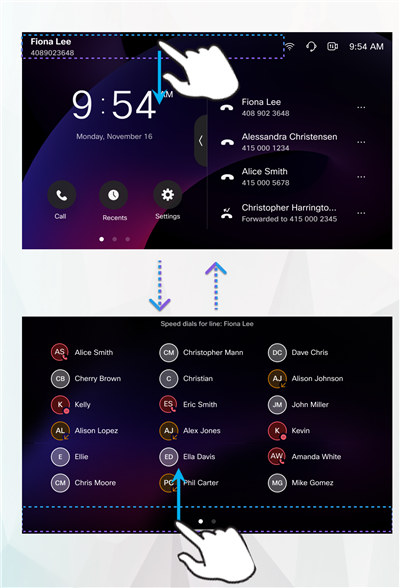
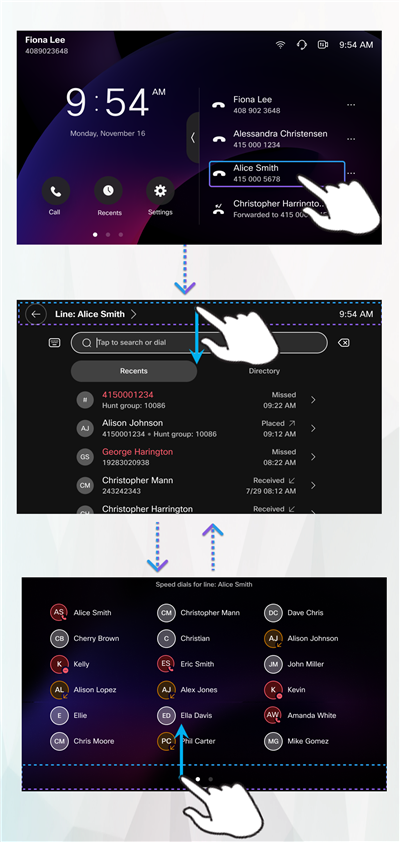
You can find your speed dials or BLF with speed dials in the pull-down speed dial list or on the Speed dials tab.
If multiple lines are configured, select the line you want to use for the call. Otherwise, the primary line is used.
| Use the primary line | Use a specific line |
|---|---|
 |
 |
Before you begin
Speed dial numbers have been added to your phone.
|
Follow the steps that are applicable to the configuration on your phone:
|
Check speed dial status
The following tables list the status indicators for BLF with speed dial on different phone models.
| Icon (9811 / 9841) | Icon (9851) | Icon (9861) | Line key LED | Status | Description |
|---|---|---|---|---|---|
 |  |
|  LED off | Idle |
The monitored line is in idle mode. You can press the line key to call the speed dial number. |
 |  |  |  Solid amber |
Alerting |
A call is alerting on the monitored line. The alerting status is only available on phones that are registered with Cisco BroadWorks or Webex Calling. |
 |  |  |  Solid red | In use |
The monitored line is on a call. If you press the line key, a call is placed to the speed dial number. You’ll hear a busy tone or be redirected to the voicemail depending on the configuration on your coworker's line. |
 |  |  | Solid red | DND |
The monitored line is set to Do Not Disturb (DND). The calls to the line don't alert. The DND status of the monitored line is only available on phones that are registered with Cisco Unified Communications Manager. |
 |  | | LED off | Unrecognized |
The server can't retrieve the status information of the monitored line. The unrecognized status is only available on phones that are registered with Cisco BroadWorks or Webex Calling. |
 |  | | LED off | Unknown |
The server can't retrieve the status information of the monitored line. The unknown status is only available on phones that are registered with Cisco Unified Communications Manager. |
| | | LED off | Local DND | The DND is enabled on the local phone. The BLF speed dial key doesn't show any
status of the monitored line, including idle status. The Local DND status is only available on phones that are registered with Cisco Unified Communications Manager. |
| Icon | Status | Description |
|---|---|---|
|
| Idle |
The monitored line is in idle mode. You can tap the shortcut to call the speed dial number. |
|
|
Alerting |
A call is alerting on the monitored line. The alerting status is only available on phones that are registered with Cisco BroadWorks or Webex Calling. |
|
| In use |
The monitored line is on a call. If you tap the shortcut, a call is placed to the speed dial number. You’ll hear a busy tone or be redirected to the voicemail depending on the configuration on the monitored line. |
|
| DND |
The monitored line is set to Do Not Disturb (DND). The calls to the line don't alert. The DND status is only available on phones that are registered with Cisco Unified Communications Manager. |
|
| Unrecognized |
The server can't retrieve the status information of the monitored line. The unrecognized status is only available on phones that are registered with Cisco BroadWorks or Webex Calling. |
 | Unknown |
The server can't retrieve the status information of the monitored line. The unknown status is only available on phones that are registered with Cisco Unified Communications Manager. |
| Local DND | The DND is enabled on the local phone. The BLF speed dial key doesn't show any
status of the monitored line, including idle status. The Local DND status is only available on phones that are registered with Cisco Unified Communications Manager. |
For more information about the BLF with both speed dial and call pickup, see Answer calls for your coworkers (on Unified CM) or Answer calls for your coworkers (on BroadWorks or Webex Calling).
Manage speed dials in user portals
The way you manage speed dials depends on the calling system your phone is registered with.
-
Webex Calling: User Hub
-
Unified CM (UCM): Self Care Portal
-
Cisco BroadWorks: No user portal for adding speed dials
Configure speed dials in User Hub
Speed dials offer one-key access to contacts through the phone or Key Expansion Module (KEMs). This feature is only supported on devices that display speed dials on line keys configured as Open. Appearance may vary by phone model.
| 1 |
Sign in to User Hub. |
| 2 |
Go to . |
| 3 |
In Speed Dial section, click Add speed dial. 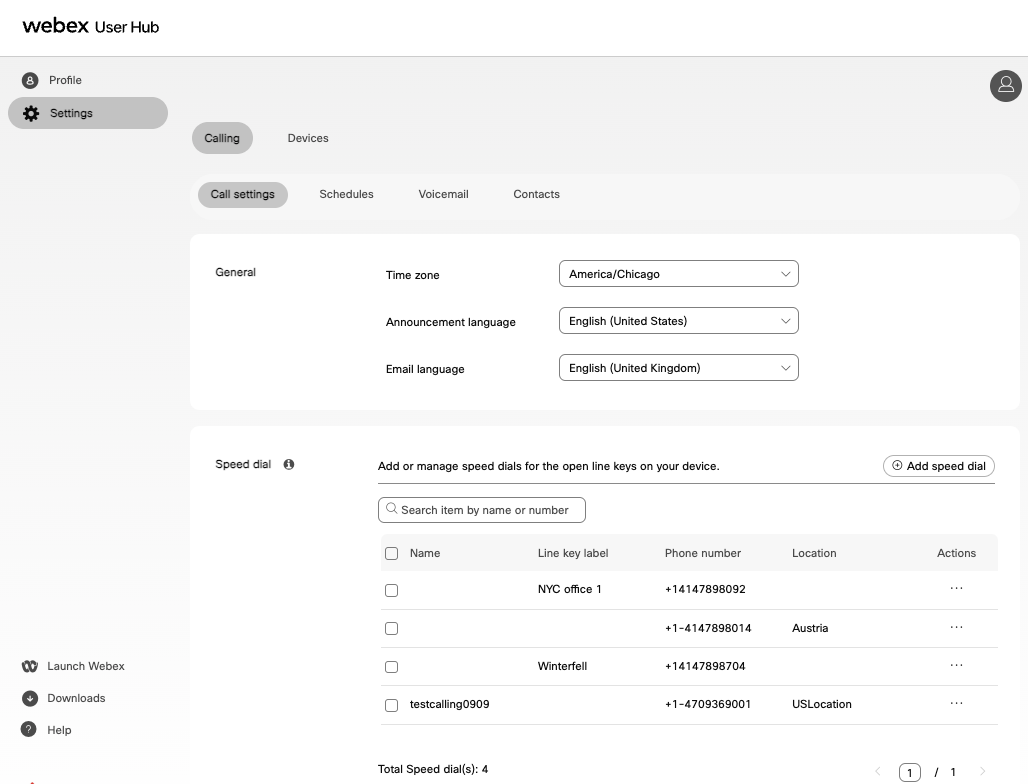
|
| 4 |
Add a speed dial by choosing the following options:
|
| 5 |
If you have selected Organization directory, perform the following steps: 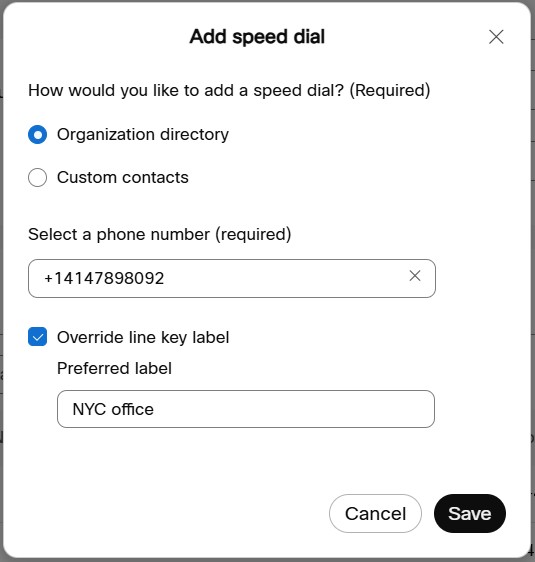
|
| 6 |
If you have selected Custom contact, perform the following steps: 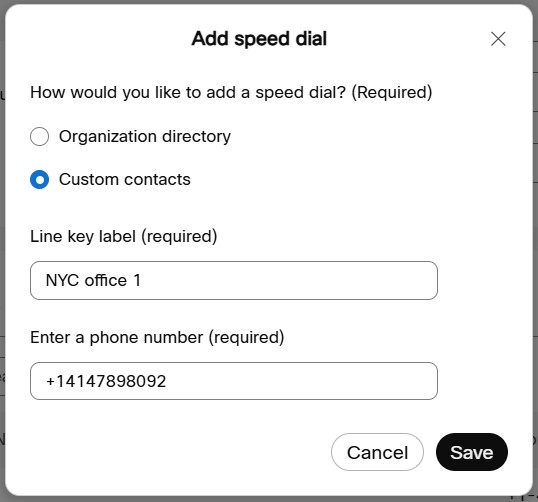
|
| 7 |
Click Save. 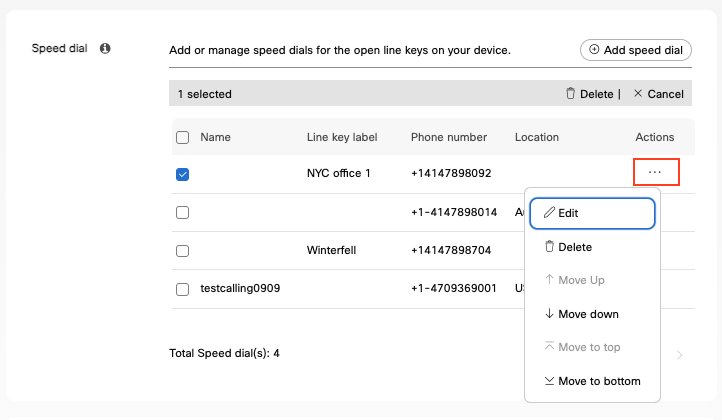
A speed dial is created. From Actions ellipses icon you
can edit, delete, or reorder the speed dials. The updates will show on the open lines on
the phone within seconds.
|
Manage speed dials in Self Care Portal
If your phone is registered with Cisco Unified Communications Manager, you can manage speed dials with the web-based Cisco Unified Communications Self Care Portal.
| 1 |
Log in to Cisco Unified Communications Self Care Portal. |
| 2 |
Choose . |
| 3 |
Do the following to add a speed dial:
|
| 4 |
Enter the following information:
|
| 5 |
Click Save. |
| 6 |
To edit a speed dial, click |
| 7 |
To remove a speed dial, click |
 .
. .
.Tips for special speed dial numbers
When you dial a number on your phone, you enter a series of digits. When you set up a speed dial number, it must contain all the digits you need to make the call. For example, if you need to dial 9 to get an outside line, you enter the number 9 and then the number you want to dial.
You can also add other dialed digits to the number. Examples of additional digits include a meeting access code, an extension, a voicemail password, an authorization code, and a billing code.
The dial string can contain the following characters:
-
0 to 9
-
Pound (#)
-
Asterisk (*)
-
Comma (,)—This is the pause character, and gives a 2 second delay in the dialing. You can have several commas in a row. For example, two commas (,,) represent a pause of 4 seconds.
The rules for dial strings are:
- Use the comma (,) to separate the parts of the dial string.
- An authorization code must always precede a billing code in the speed-dial string.
- A single comma is required between the authorization code and the billing code in the string.
- A speed-dial label is required for speed dials with authorization codes and additional digits.
Before you configure the speed dial, try to dial the digits manually at least once to ensure that the digit sequence is correct.
Your phone does not save the authorization code, billing code, or extra digits from the speed dial in the call history. If you try to redial a number after you connect to a speed-dial destination, the phone prompts you to enter any required authorization code, billing code, or additional digits manually.
To set up a speed dial number to call a person at a specific extension, and if you need an authorization code and billing code, consider the following requirements:
- You need to dial 9 for an outside line.
- You want to call 5556543.
- You need to input the authorization code 1234.
- You need to input the billing code 9876.
- You must wait for 4 seconds.
- After the call connects, you must dial the extension 56789#.
In this scenario, the speed-dial number is 95556543,1234,9876,,56789#.
The maximum number of speed dials allowed depends on the number of supported lines on your phone and the connected KEMs.
Manage speed dials on the phone
The Speed dials list may include entries added on the phone and those added through the web-based user portal or admin portal.
-
On phones registered with Webex Calling or Cisco Unified CM, you can edit or remove only speed dials added from the phone. These speed dials don’t sync with the portals and may be overridden by configurations from the portals.
-
On phones registered with BroadWorks, the speed dial changes sync between the phone and the admin portal.
Assign a speed dial to a line key
You can add a speed-dial number on any idle line key on the phone or on the connected KEMs. After you configure the speed dial, you can press the line key to call the associated number.
| 1 |
Long-press an available line key to open the speed dial setup page. |
| 2 |
Choose an option from the list. The available options depend on the calling system that your phone is registered with.
|
Edit speed dials
An updated list of speed dials makes your communication more efficient. You can edit the existing speed dial on a line key, or replace it with another.
| 1 |
Long-press the line key configured with a speed dial. |
| 2 |
Select an options to edit the speed dial information or replace it with another feature. The availability of these options vary from phone settings and the calling system that it is registered with.
|
| 3 |
Update the speed dial with the desired information. |
| 4 |
Select Save. |
Remove speed dials from your phone
When a speed-dial number is no longer a frequently used contact, remove it from the designated line key.
| 1 |
Long-press the line key configured with a speed dial. |
| 2 |
Select Remove. |
| 3 |
Confirm the removal when prompted. |
You can add, edit, and remove speed dials in the speed dial list only on phones that are registered with Cisco Unified Communications Manager. The speed dials you add are for dialing purposes only and don't support Busy Lamp Field (BLF) functionality.
Speed dials will be added after the last configured line key. If the last line on the phone (without a KEM) or on the last connected KEM has already been configured, no additional speed dials can be added to the phone. The maximum number of speed dials allowed depends on the number of supported lines on your phone and the connected KEMs.
-
You can edit and remove only the speed dials added locally on the phone. Speed dials added remotely through the Self Care Portal or by your administrator on Cisco Unified Communication Manager cannot be edited or removed directly on the phone.
-
The speed dials you’ve added on the phone can be overwritten by the line key feature configured by the administrator for the same position.
| 1 |
Swipe down from the top of any screen on the phone to open the speed dials list. |
| 2 |
Do one of the following actions as needed:
|


