
Thanks for your feedback.
Webex App | Call someone using their name, email, or video address
 Feedback?
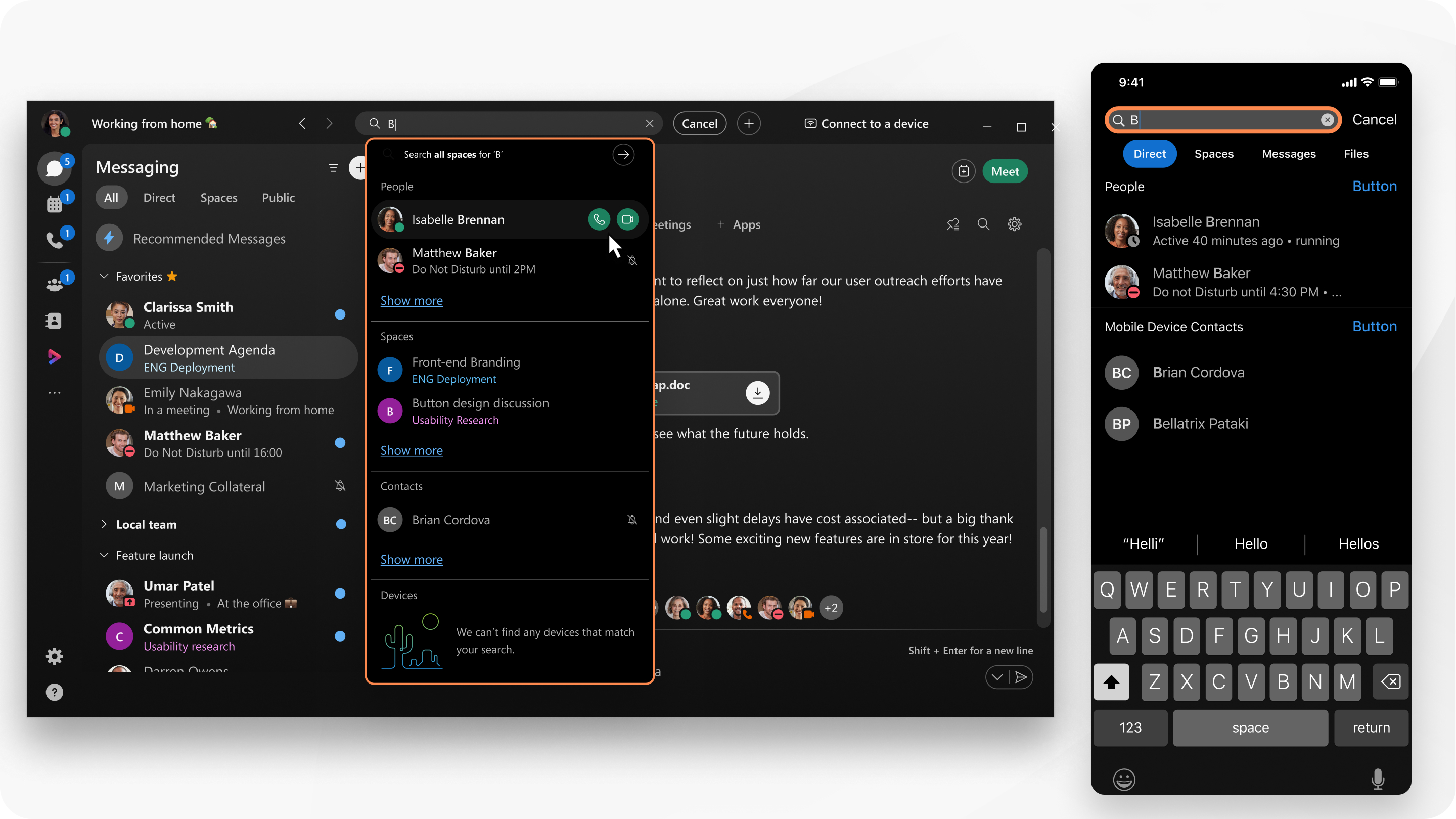
If your administrator adds external contacts, these contacts appear in search results.
You can use the app header in Webex App to call someone else who uses the app. The system automatically dials the phone number assigned to the contact. If there's not a phone number to dial, the assigned email address is used.
|
On your desktop app, click On your web app, click If you're set up with a phone service such as Unified CM, Webex Calling, or Calling hosted by a Service Provider, you also have access to a dial pad and can make a call from there. Just click For a better understanding of how your desk phone can interact with Webex App, see Make Webex calls from your desk phone. |
 Search, meet, and call, type the name, email address, or video address, and then click
  to make an audio call, or
  to make a video call.
 in the app header, and then select
  and enter a person's name, email address, or video address (such as for a room device) in the dial pad.
|
Tap If you're set up with a phone service such as Unified CM, Webex Calling, or Calling hosted by a Service Provider, you also have access to a dial pad and can make a call from there. Just tap |
 and enter a person's name, email address, or video address (such as for a room device) in the dial pad.


