
Благодарим вас за обратную связь.
 Отправить обратную связь?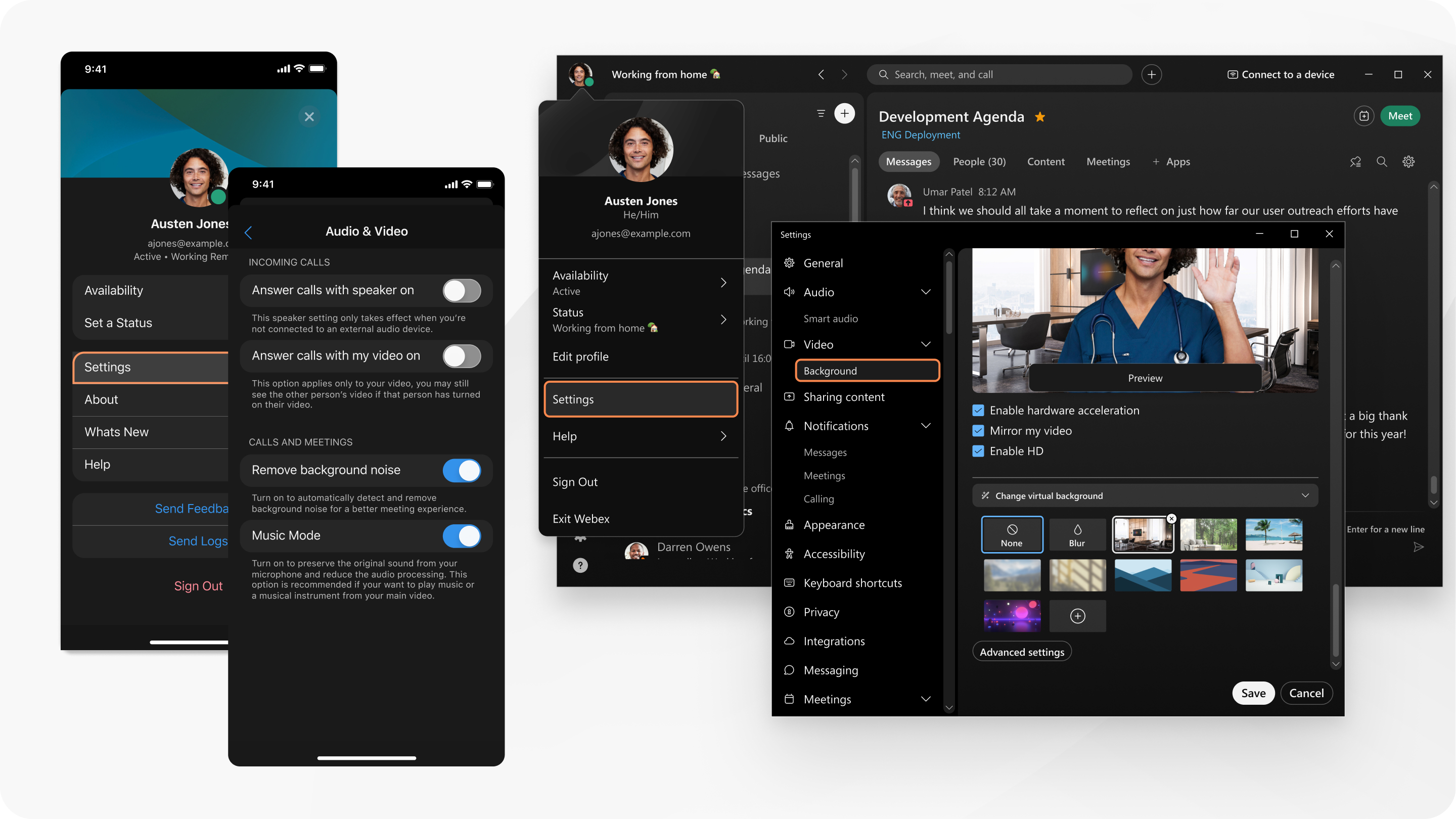
| 1 |
When you're not in a meeting or webinar, click Settings
When you're in a meeting or webinar, hover over your self-view video, click More options |
| 2 |
Choose the camera you'd like to use from the Camera drop-down list. |
| 3 |
(Optional) Turn off mirror view for your self-view video. |
| 4 |
(Optional) Fit your camera video in self-view. |
| 5 |
(Optional) Turn on hardware acceleration if you're having CPU issues when you're on a call or in a meeting. |
| 6 |
(Optional) Set the resolution of your camera. |
| 7 |
(Optional) Touch up your appearance in calls and meetings. |
| 8 |
(Optional) Correct the lighting in your video. |
| 9 |
(Optional) Adjust the brightness and contrast of your video. |
| 10 |
(Optional) Change your self-view location. |
| 11 |
(Optional) Choose the maximum layout quality for incoming video. |
| 12 |
(Optional) Turn off GPU acceleration for virtual backgrounds. |
| 13 |
(Optional) Under Video, click Background to use a virtual or blurred background in calls and meetings. |
 in the
| 1 |
When you're not in a meeting or webinar, click Settings
When you're in a meeting or webinar, hover over your self-view video, click More options |
| 2 |
Choose the camera you'd like to use from the Camera drop-down list. Virtual cameras may or may not be enabled by your system administrator. |
| 3 |
(Optional) Turn off mirror view for your self-view video. |
| 4 |
(Optional) Fit your camera video in self-view. |
| 5 |
(Optional) Turn on hardware acceleration if you're having CPU issues when you're on a call or in a meeting. |
| 6 |
(Optional) Set the resolution of your camera. |
| 7 |
(Optional) Touch up your appearance in calls and meetings. |
| 8 |
(Optional) Correct the lighting in your video. |
| 9 |
(Optional) Adjust the brightness and contrast of your video. |
| 10 |
(Optional) Change your self-view location. |
| 11 |
(Optional) Choose the maximum layout quality for incoming video. |
| 12 |
(Optional) Under Video, click Background to use a virtual or blurred background in calls and meetings. |
| 1 |
While in a call or meeting, tap Video |
| 2 |
(Optional) Android only: Turn off high definition video. |
| 3 |
(Optional) iPad only: Use an external camera for calls or meetings. |
| 4 |
(Optional) Use a virtual or blurred background in calls and meetings. |


You must be using Chrome, Safari, or Firefox.
|
Click the activity menu |
 and choose
  . Select the device to use to make the call by clicking
  .
.


