
Благодарим за обратната връзка.
Supported calling options in Webex App
 Обратна връзка?
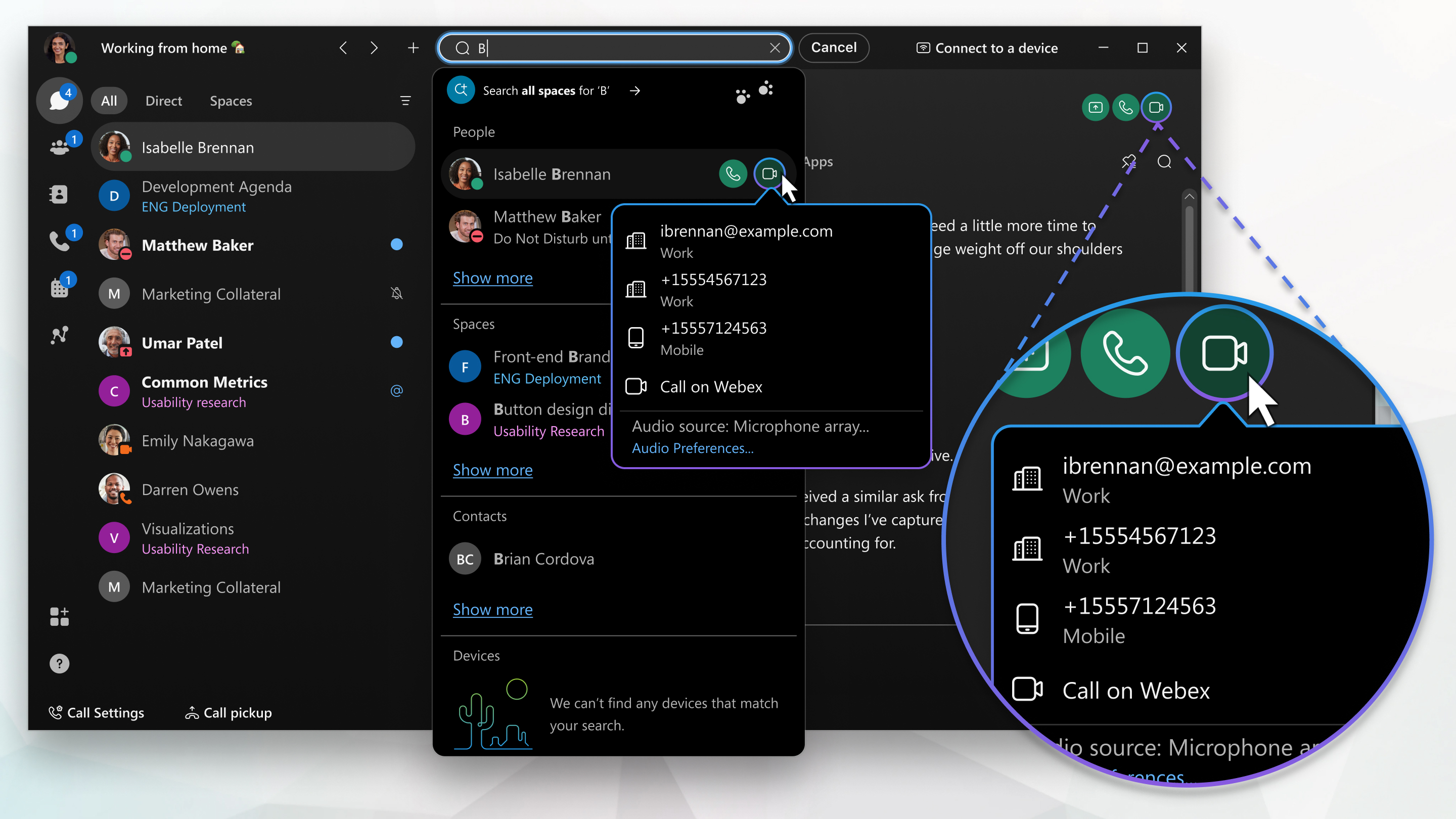
You can make a call from many different places in Webex App. Just look for the Audio  or Video
  call icons whenever you're sending a direct
message, looking at a contact card, or
entering a name, email address, or video address into the Search bar.
call icons whenever you're sending a direct
message, looking at a contact card, or
entering a name, email address, or video address into the Search bar.
If you don't see the option to make a video call, it could be because your administrator only wants you to make audio calls.
Calls on Webex App
Your administrator can turn off the Call on Webex option.
If you have the option for your Webex App account (on desktop, mobile, or web), you can call anyone else using Call on Webex, regardless of whether they're part of the same organization.
You don't need to use their phone number; you just need to be connected to them in the app to call or answer calls from someone with a Webex App account. In-call options include adding guests to the call, sharing your whiteboard, and sharing your screen.
For example, after reviewing the final marketing plan shared in a direct message with a vendor, you can call them immediately to let them know about a last-minute logo change.
You can also manually enter a video address (SIP address) in the search bar if you want to call a non-Webex App user with an address, or dial into a meeting bridge (such as username@example.webex.com.)
For Webex Calling users: To invite someone to a call using an email address they must be searchable, for example, the contact is in your organization or directory. When attempting for the first time to call to a user outside your organization or directory contacts with an email address, you can:
- Initiate contact using Webex App Messaging so that they appear in your contacts.
- Use Webex Meetings when email invites are required.
Call phone numbers within your organization
If your organization has configured your Webex App account to let you call other people's phone numbers, you can call other people within your organization on their work numbers, mobile numbers or video addresses. You can also answer their calls. This gives you access to advanced calling features beyond just calling someone in the app.
To see which calling service you've been set up with, see Find out what calling service you have.
Call anyone with a phone number
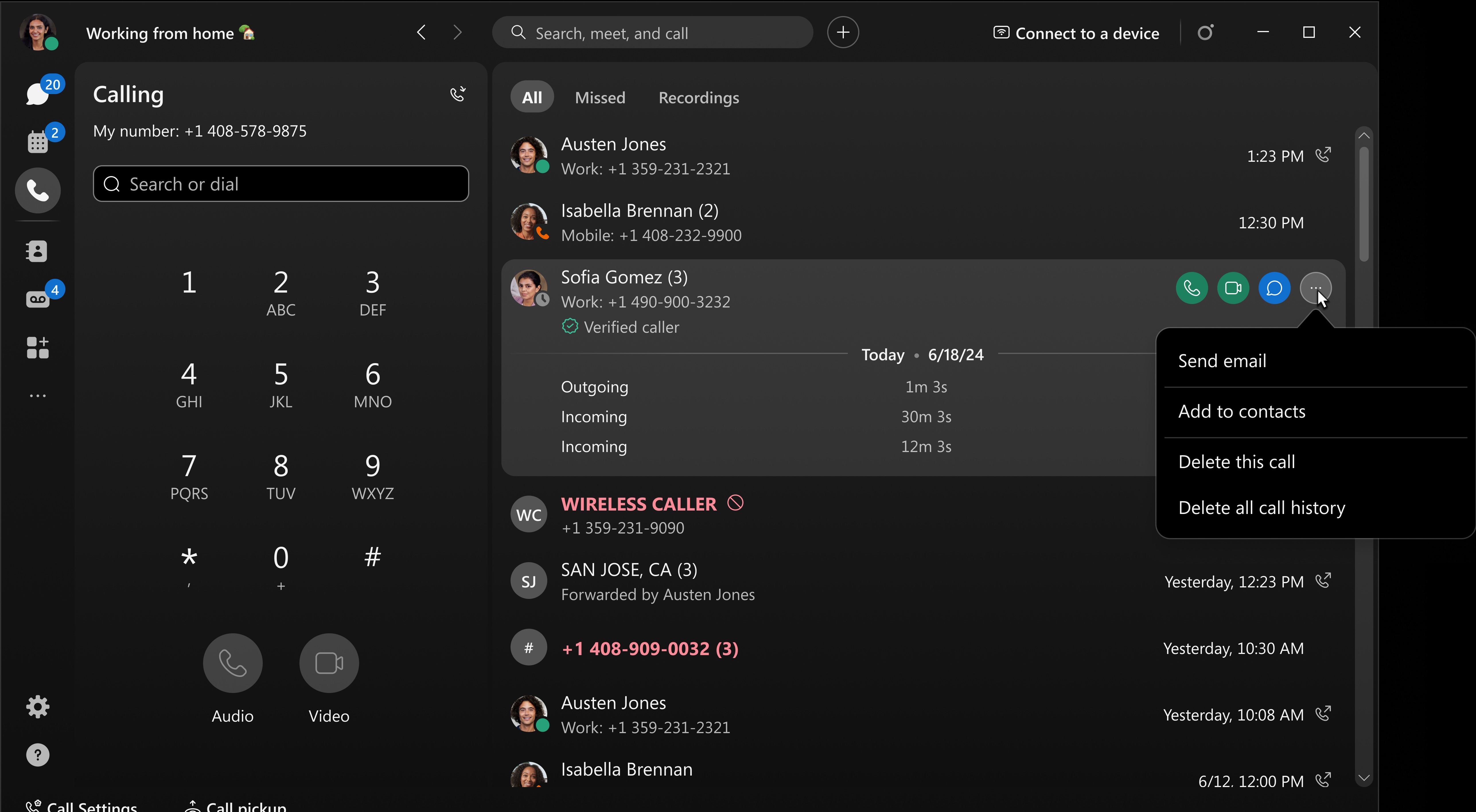
If your organization is using Unified CM or Webex Calling, you can also call anyone with a phone number or answer calls from anyone calling your work number. When you make these types of calls, it's just like making a regular phone call from any other phone. When it's time to make reservations for your team's celebration lunch, you can call the restaurant right from Webex App too. Just go to Calls and enter the phone number.
If you're not set up with Unified CM, Webex Calling, or calling hosted by a service provider, you won't see a dial pad.
|
Feature |
Calling service | |||||||
|---|---|---|---|---|---|---|---|---|
|
Call on Webex |
Unified CM |
Webex Calling |
Calling hosted by a Service Provider | |||||
|
(Free and Paid) | ||||||||
|
Desktop |
Mobile |
Desktop |
Mobile |
Desktop |
Mobile |
Desktop |
Mobile | |
| ✓ | ✓ | ✓ | ✓ | |||||
|
Automatic Answer (Unified CM) and (Webex Calling and Calling hosted by a Service Provider) | ✓ | ✓ | ✓ |
| ||||
| ✓ | ✓ | ✓ | ✓ | ✓ | ✓ | ✓ | ✓ | |
| ✓ | ✓ | ✓ | ✓ | ✓ | ✓ | |||
| ✓ | ✓ | |||||||
| ✓ | ✓ | |||||||
| ✓ | ✓ | ✓ | ✓ | ✓ | ✓ | |||
|
|
| ✓ | ✓ | ✓ | ✓ | ✓ | ✓ | |
| ✓ | ✓ | |||||||
|
|
| ✓ | ✓ | ✓ |
| ✓ |
| |
|
|
|
|
| ✓ | ✓ | ✓ | ✓ | |
| ✓ | ✓ | ✓ | ✓ | |||||
| ✓ | ✓ | ✓ | ✓ | |||||
| ✓ | ✓ | ✓ | ✓ | |||||
| Click to Dial Protocol Handler | ✓ | ✓ | ✓ | ✓ | ✓ | ✓ | ||
| ✓ | ✓ | ✓ | ✓ | ✓ | ✓ | |||
| ✓ | ||||||||
| ✓ | ✓ | ✓ | ✓ | ✓ | ✓ | ✓ | ✓ | |
|
|
| ✓ | ✓ (tablets only) | ✓ | ✓ (tablets only) | ✓ | ✓ (tablets only) | |
|
|
|
|
| ✓ |
| ✓ |
| |
| ✓ | ✓ | |||||||
| ✓ | ✓ | ✓ | ✓ | |||||
| ✓ | ✓ | ✓ | ✓ | ✓ | ✓ | |||
| ✓ | ✓ | ✓ | ✓ | ✓ | ✓ | |||
|
|
| ✓ | ✓ | ✓ | ✓ | ✓ | ✓ | |
| ✓ | ✓ | ✓ | ✓ | ✓ | ✓ | ✓ | ✓ | |
|
|
| ✓ |
|
|
|
|
| |
| ✓ | ✓ | ✓ | ✓ | ✓ | ✓ | |||
|
|
| ✓ | ✓ |
|
| |||
| Make a call using an alternate device (extend and connect) | ✓ |
|
| |||||
|
|
| ✓ | ✓ | ✓ | ✓ | ✓ |
| |
| ✓ | ✓ | ✓ |
| |||||
| Make work calls using an alternate phone connection (Unified CM) |
|
|
| ✓ |
|
|
| |
| Make work calls using call back |
|
|
|
|
| ✓ |
| ✓ |
| ✓ | ✓ | ✓ | ✓ | ✓ | ✓ | |||
| ✓ | ✓ | ✓ | ||||||
| ✓ | ✓ | ✓ Webex Go Only | ✓ MNO only | |||||
| ✓ Windows only | ✓ Windows only | ✓ Windows only | ||||||
| ✓ | ✓ | ✓ | ✓ | ✓ | ✓ | |||
|
|
| ✓ | ✓ | ✓ | ✓ | ✓ | ✓ | |
| ✓ |
|
|
| ✓ |
| ✓ |
| |
| ✓ | ✓ | ✓ | ✓ | ✓ | ✓ | ✓ | ✓ | |
| ✓ | ✓ | ✓ | ✓ | |||||
| ✓ | ✓ | ✓ | ✓ | ✓ |
| |||
| ✓ | ✓ | |||||||
| ✓ | ✓ | ✓ | ✓ | ✓ | ✓ | |||
| ✓ | ✓ | ✓ | ✓ | ✓ | ✓ | ✓ | ✓ | |
| Virtual and blurred background | ✓ | ✓ | ✓ | ✓ | ✓ | ✓ | ✓ | ✓ |
| ✓ | ✓ | ✓ | ✓ | ✓ | ✓ | |||
Your call settings
You can access your call settings from Webex App. Click , then choose an option, depending on your setup:
-
Advanced Call Settings—This link takes you to some more call settings, such as voicemail, block caller ID, and more call forwarding options.
-
Access User Portal—You see this option if you're set up with Webex Calling or if your service provider has enabled this option for you. Here, you have access to a few more settings that aren't available from Advanced Call Settings. For example, voicemail PIN reset, scheduling for certain features (such as call forwarding, call rejection, and others), and Executive assistant settings.


