
Thanks for your feedback.
Webex App | Start a Personal Room meeting
 Feedback?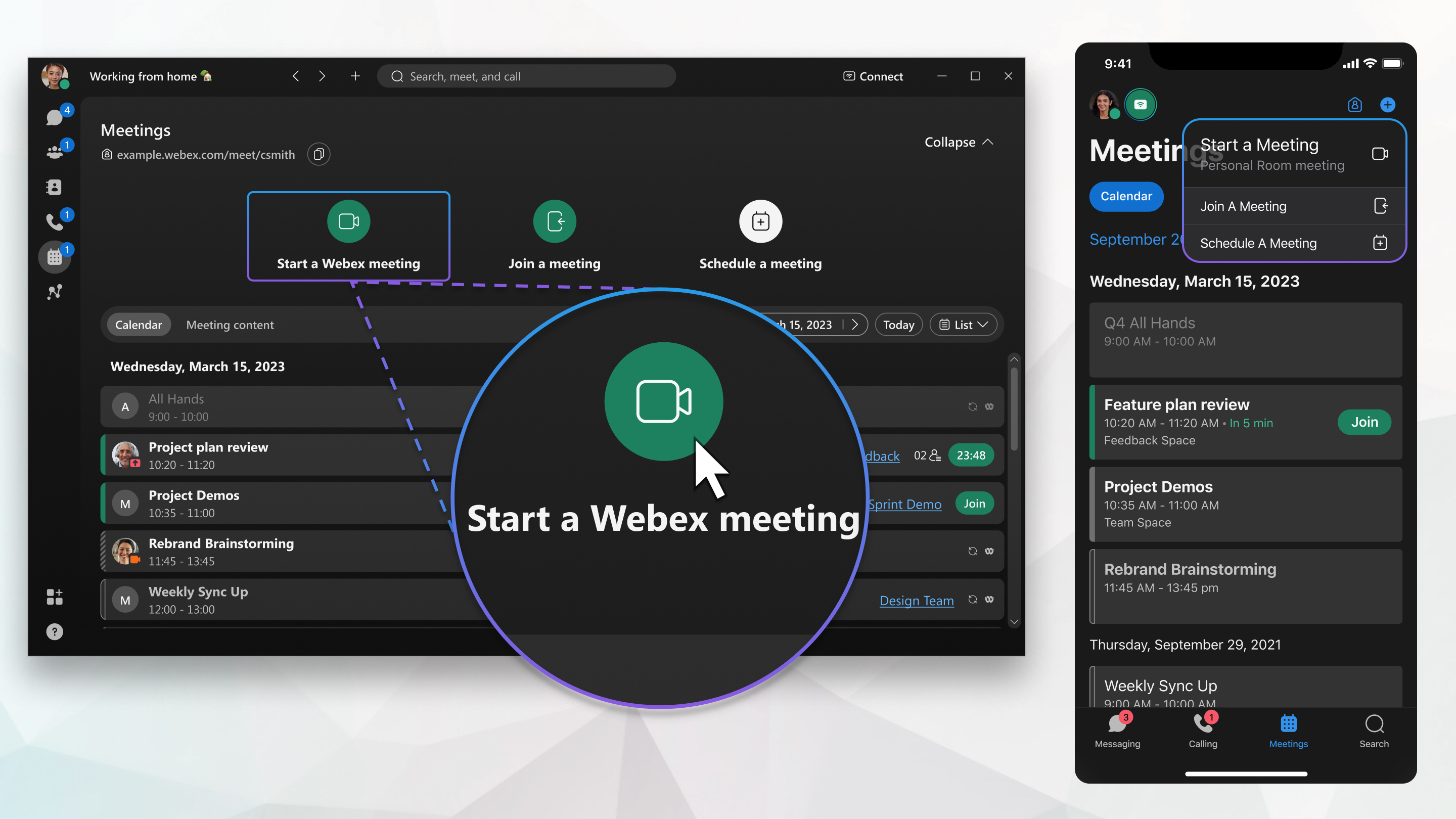
If you subscribe to Webex App from your Service Provider, contact your Provider’s customer support team if you have any questions.
Invite others to your meeting anytime by sharing a link to your Personal Room in a message. After you've started the meeting, you can also go to More options  > Invite and remind, and follow the prompts.
End-to-end encryption for Webex App meetings
Personal Room meetings support end-to-end encryption. For more information on how to encrypt all your meetings by default, see Webex App | Set end-to-end encryption for meetings
| 1 |
Go to Meetings
If you don't see Start a meeting, it could be because:
If your Personal Room link doesn't appear here, you need to set it up in the app first. See Set Up Your Personal Room for more information. |
| 2 |
Choose your audio and video settings before you join the meeting. |
| 3 |
Click Connect to a device to Connect to a device from the desktop app and mobile app. |
| 4 |
Click Start meeting. |
 and then choose
| 1 |
Go to Meetings |
| 2 |
Tap Start If your Personal Room link doesn't appear here, you need to associate it with the app first. See Set up your Personal Room for more information. |
| 3 |
Choose your audio and video settings before you join the meeting. |
| 4 |
Click Connect to a Device to Connect to a device from the desktop app and mobile app. |
| 5 |
Tap Start meeting. |


| 1 |
Go to Meetings |
| 2 |
Tap the floating action button If your Personal Room link doesn't appear here, you need to associate it with the app first. See Set up your Personal Room for more information. |
| 3 |
Choose your audio and video settings before you join the meeting. |
| 4 |
Click Connect to a device to Connect to a device from the desktop app and mobile app. |
| 5 |
Tap Start meeting. |

| 1 |
Sign in to Webex and then choose . If you don't see Start meeting , you can still schedule a meeting . If your Personal Room link doesn't appear here, you need to set it up in the app first. See Set Up Your Personal Room for more information. |
| 2 |
Choose your audio and video settings before you join the meeting. |
| 3 |
Click Connect to a device. |
| 4 |
Click Start meeting. |
If you stepped away from your computer or you don't have a good internet connection, start a meeting in your Personal Room from your phone by dialing a phone number. You hear the audio portion of the meeting only, like a normal phone call.
| 1 |
Find your call-in number, access code, and host PIN. To find the call-in numbers, access code, and host PIN:
|
| 2 |
Dial one of the call-in numbers. |
| 3 |
Enter the access code, then press #. |
| 4 |
If prompted, say your saved phone number. If you call from a phone number that you didn't save in Webex, you're prompted to say one of the phone numbers that Webex uses for call-in authentication. You can find these phone numbers in your audio and video preferences, under My phone numbers.
|
| 5 |
Enter your host PIN, then press #. During the meeting, use your phone's keypad to manage the meeting.
|
What to do next
You can also start a scheduled meeting by phone only.


