- Home
- /
- Article

Thanks for your feedback.


Cisco AI Assistant for Webex Contact Center
 In this article
 Feedback?
Get ready to transform your contact center operations and enhance customer satisfaction with the Cisco AI Assistant and its capabilities. For agents, it empowers them to work smarter and prevent burnout, ensuring they deliver the best possible service. For supervisors and analysts, it provides insights into customer satisfaction and common contact drivers, enabling data-driven decisions to improve service quality in their contact center.
The Cisco AI Assistant for Webex Contact Center presents agents and supervisors with AI-powered assistance, offering automated guidance, context, insights, and summaries to optimize customer interactions. Today, the AI Assistant is generally available and ready to order for the Webex Contact Center customers.
Built on Cisco’s AI platform, the AI Assistant features support the agents and supervisors to achieve business results more quickly and with less stress. The following features are available in the Webex Contact Center Agent Desktop. The AI Assistant proactively notifies you when it can help. Also, you can click on the AI Assistant icon to use its intuitive features.
- AI-generated summaries provide quick recaps of interactions, helping human agents to seamlessly handle dropped calls, wrap-up notes at the end of a call, and mid-call consults or transfers.
- Automated Wellbeing breaks identifies signs of agent burnout in real time, providing insights that enable proactive actions such as automatic breaks, schedule changes, and capacity management across channels.
- Real-time transcripts provide live transcriptions of customer conversations, helping agents improve focus, reduce misunderstandings, and ensure seamless communication during interactions.
The AI Assistant also includes AI-powered analytics to help operate a smarter, more efficient contact center using the following features:
- Automatic CSAT scoring uses operational data and transcripts to evaluate 100% of voice interactions, effectively overcoming the challenge of low customer survey response rates. This capability will be extended to also delve deeper to help train and coach agents. Auto CSAT reports help agents evaluating their performance, by identifying which calls were successful and which ones need improvement.
- Topic Analytics uses historical data to help users quickly identify the reasons for incoming calls and analyze them to enable proactive action such as training, FAQs, or process updates.
Your organization's administrator controls the AI Assistant features that are available for your organization. If you can't see the AI Assistant icon, contact your organization's administrator.
AI-generated summaries
You can now handle customer conversations better with AI-generated summaries. These give quick recaps of interactions, helping you manage dropped calls or transferred calls from the AI agent. This reduces repetition for customers and speeds up resolutions.
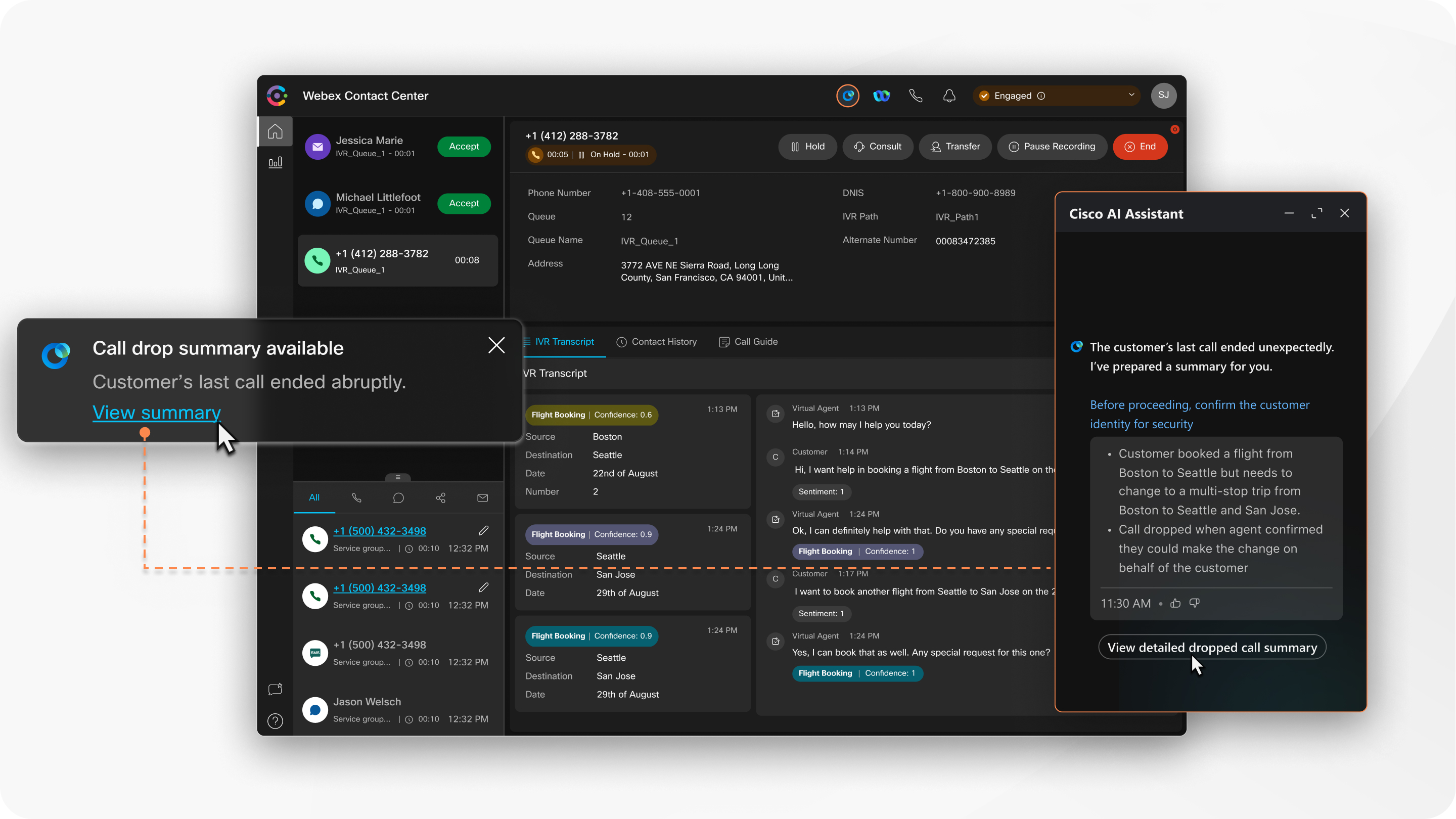
Dropped call summaries: If a call gets disconnected unexpectedly, the AI Assistant instantly creates a summary of the conversation. When the customer calls back, you can seamlessly continue the conversation, saving time and enhancing the customer experience.
Virtual agent transfer summaries: If a call gets transferred from a virtual agent, you receive summaries of interactions with the virtual agent, ensuring you have all the information needed to assist customers quickly and efficiently.
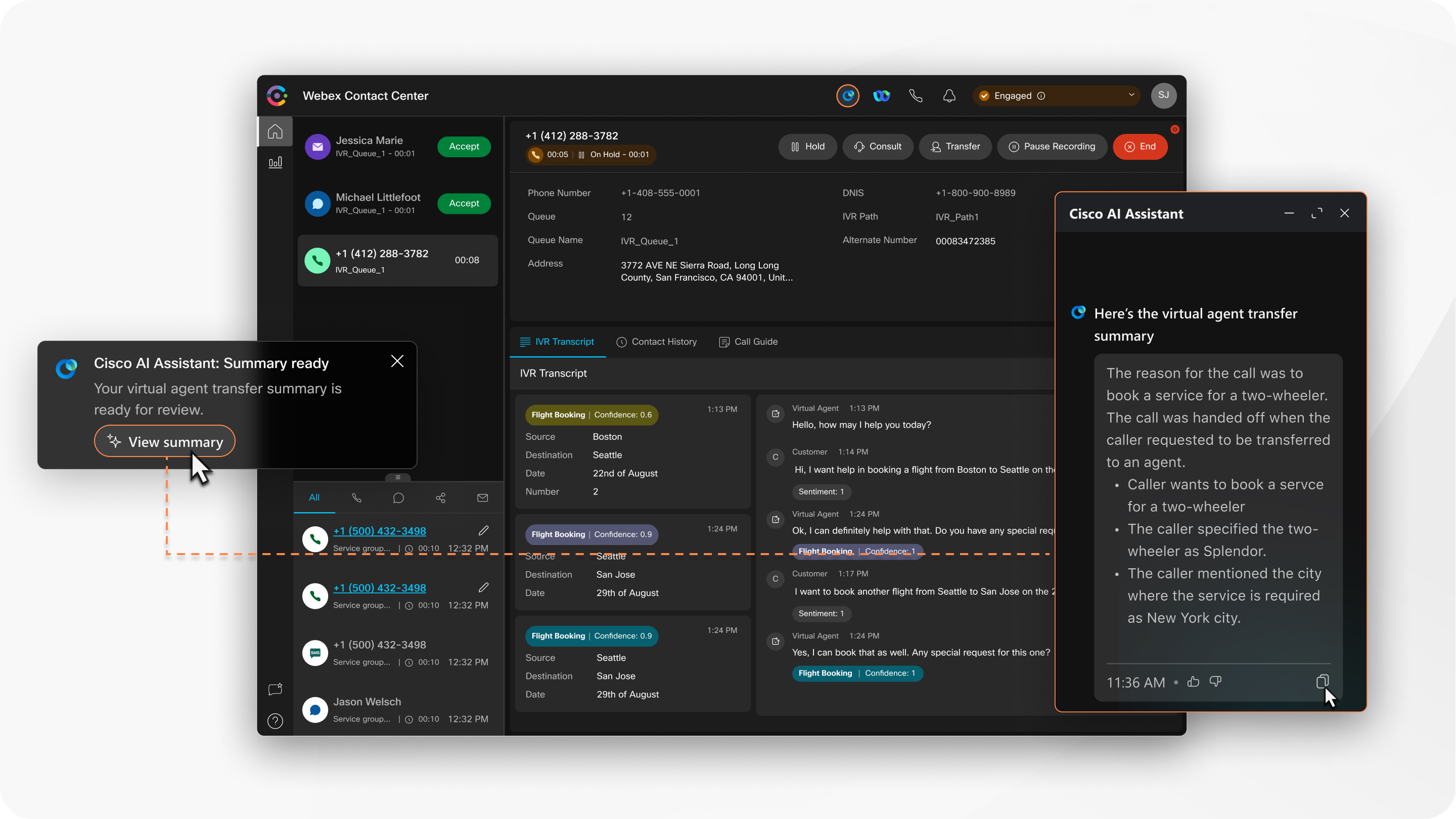
For more information on how to use AI-generated summaries, see Enhance your efficiency using AI-generated summaries.
Wellness breaks
Automated wellness breaks encourage you to take brief 1-minute breaks between your routine tasks. These breaks help you manage stress, maintain focus and performance, and provide outstanding customer experiences. You can access these breaks through the AI assistant or through Thrive’s 'Resets' notifications, which are customized using AI-driven real-time insights.
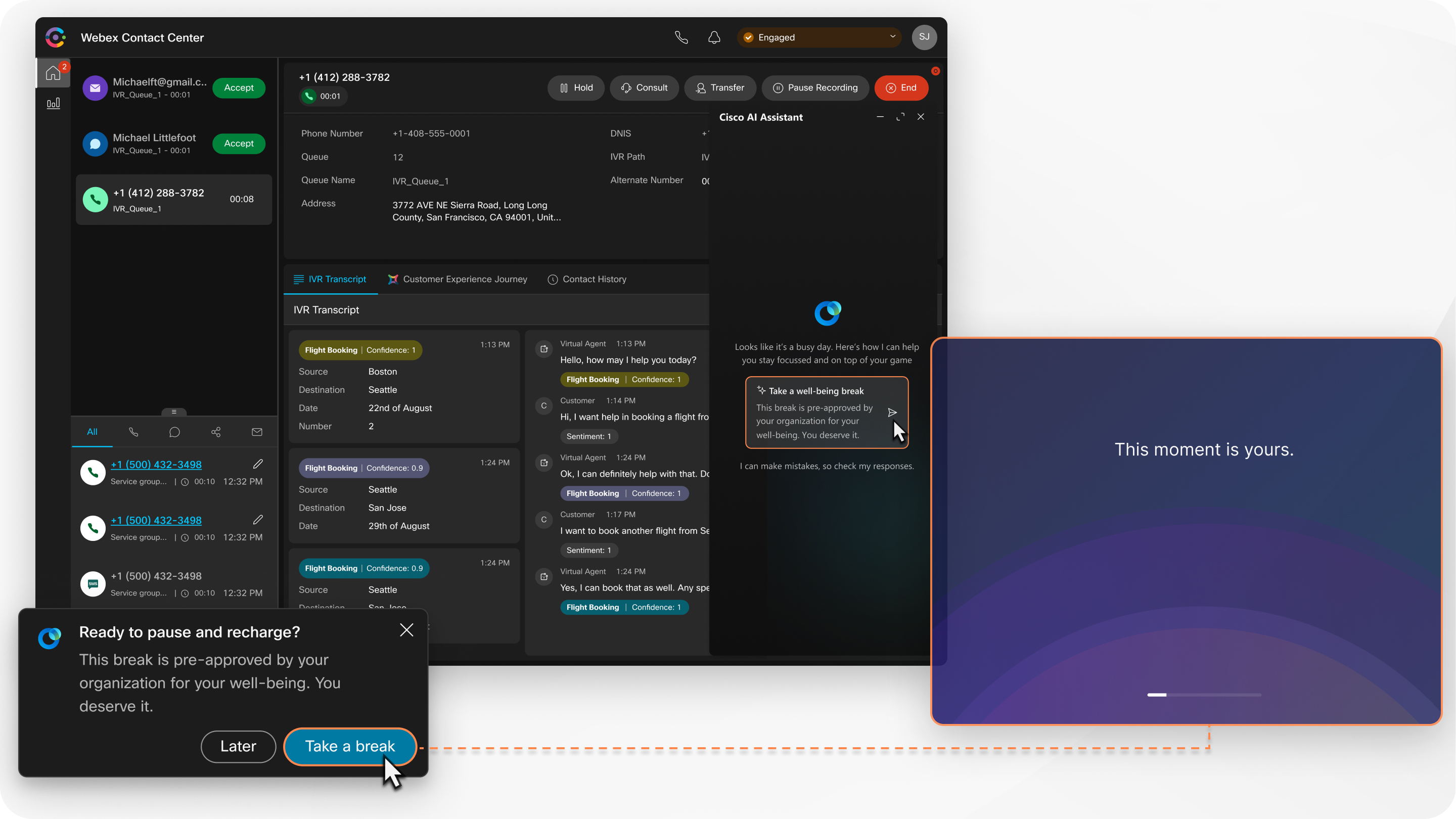
To know more about how to use this feature, see Enhance agent wellbeing and engagement with automated wellness breaks.
Real-time transcripts
Real-time transcripts help agents enhance communication and focus during customer interactions by providing live transcriptions directly on the Agent Desktop. This feature improves clarity, reduces misunderstandings, and supports agents in delivering high-quality service. Agents can view ongoing transcriptions, gain instant insights, and seamlessly manage multi-party conversations, ensuring smooth communication and continuity across interactions.
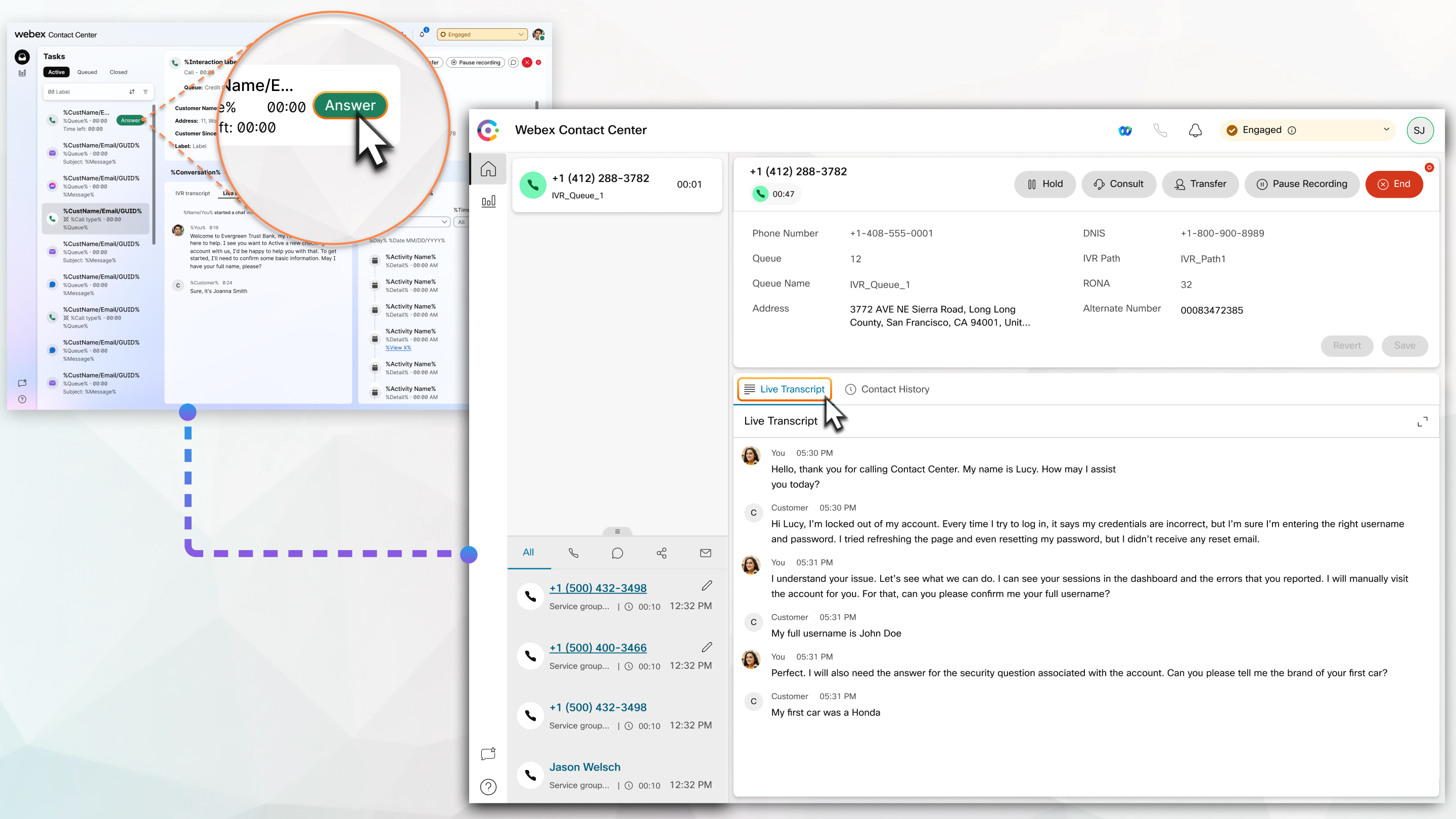
To know more about how to use this feature, see Enhance efficiency and communication with real-time transcripts.
Auto CSAT
As a supervisor, you can measure customer satisfaction (CSAT) after agent-customer interactions, helping contact centers see how happy customers are with their service. Auto CSAT uses operational data, interaction transcripts, and surveys to predict CSAT scores for each engagement. These scores provide insights that help in decision-making to enhance customer satisfaction and agent performance. You can view the Auto CSAT scores in the Webex Contact Center Analyzer reports and on the Interactions Details page in the Supervisor Desktop.
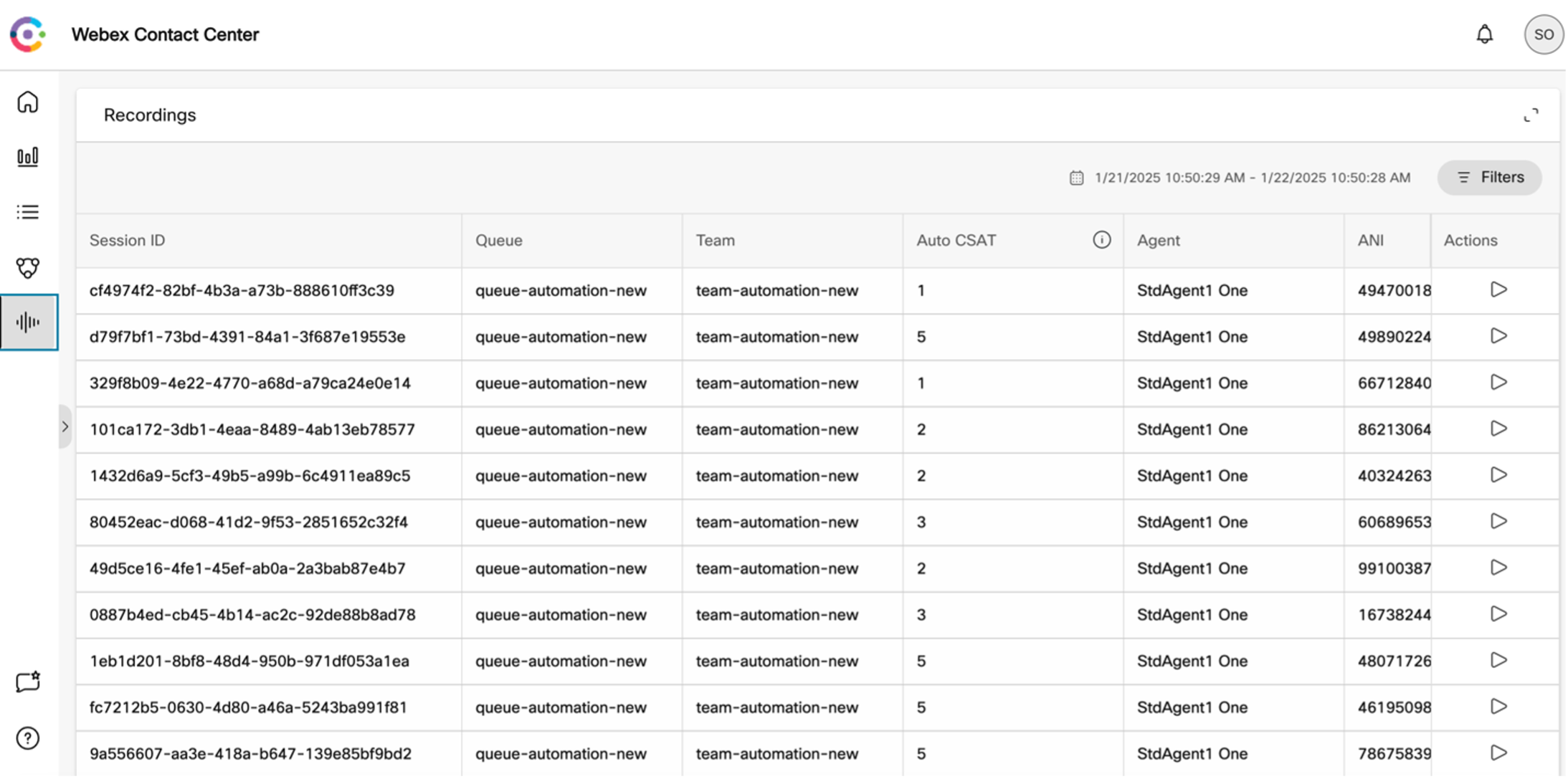
To know more about how to use this feature, see Measure customer satisfaction with Auto CSAT.
Topic Analytics
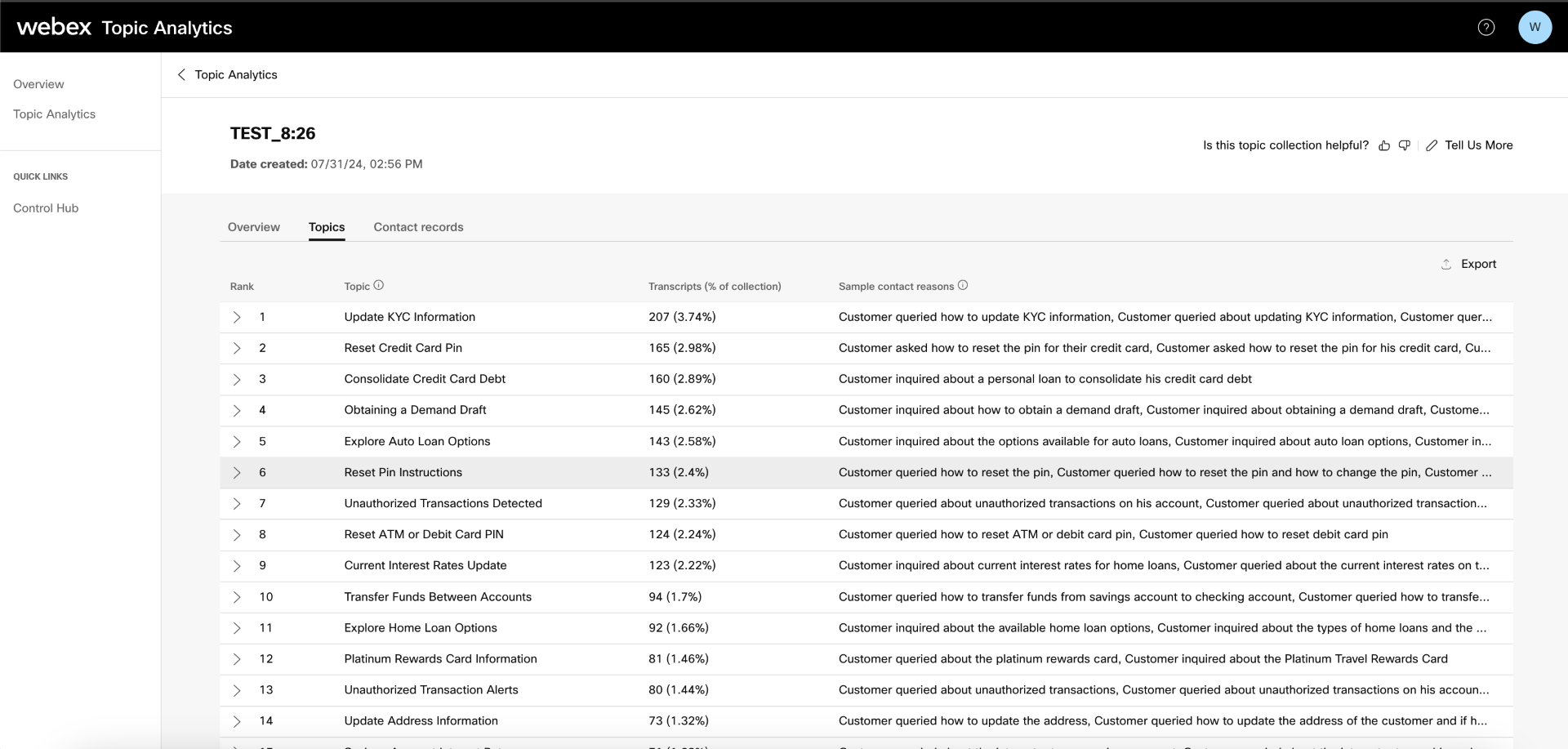
As a contact center administrator, you can identify the primary reasons your customers are calling the contact center. You can filter interactions by specific topics, access detailed interaction information, including transcripts, call recordings, and contact details.
The suggested responses is a real-time AI Assistant feature, providing instant, contextual guidance on what to say and actions to take. Integrated directly into your Agent Desktop for both inbound and outbound voice calls and inbound digital chats, this tool is designed to enhance your efficiency and improve customer interactions. Suggested responses will help streamline your workflows, reduce response times, and ensures consistent, high-quality service delivery.
This article guides you through accessing and using suggested responses to simplify your workflow, maintain consistent communication, and deliver exceptional customer service.
Benefits
-
Enhanced communication: Receive instant suggestions to improve conversation flow and clarity, helping you communicate complex information effectively.
-
Improved efficiency: Spend less time searching for answers or consulting supervisors. Suggested responses puts information at your fingertips, allowing you to focus on resolving customer issues efficiently.
-
Reduced after-call work: Complete recommended actions during interactions, decreasing post-call workload.
-
Consistent service: Access quick, relevant responses that help you perform at the level of your most experienced colleagues, ensuring a high standard of service.
-
Increased confidence: Handle diverse customer queries confidently, knowing you have intelligent support.
Benefits for agent personas
-
New agents: Acts as a real-time mentor, accelerating learning and ensuring best practices from day one, boosting confidence and reducing onboarding time.
-
Skilled agents: Reduces the need to consult others or transfer calls, especially during busy periods or when handling diverse queues, making complex scenarios easier to manage.
-
Tenured agents: Streamlines work by reducing reliance on external support, allowing focus on complex problem-solving and delivering exceptional service, rather than routine information retrieval.
Accessing and using suggested responses
How suggestions work?
Watch this brief video that demonstrates how Suggested Responses can help agents during a live conversation with the customer.
The AI Assistant provides real-time, contextual suggestions to help you during both inbound and outbound voice and inbound digital (chat/email) interactions. These suggestions dynamically adapt as the conversation evolves, ensuring you always have the most relevant guidance. When a customer asks multiple questions, the AI Assistant provides comprehensive suggestions to cover all aspects of their query. For immediate context, the customer's most recent query is displayed with each suggestion in the AI Assistant widget. All suggestions remain visible in the widget until the interaction concludes. If you are handling multiple interactions, the widget intelligently displays suggestions only for your active conversation, helping you maintain focus.
Prerequisites
-
Your administrator must enable AI Assistant features for your organization.
-
Notifications must be enabled on your Agent Desktop.
For digital (chat/ email) interactions
Follow these steps to access, review, and apply suggested responses when handling digital interactions like chat or email:
| 1 |
Log in to your Agent Desktop and set your availability to Available. |
| 2 |
Accept an incoming digital interaction (chat or email). The AI Assistant notification will appear in your desktop interface, and the AI Assistant will monitor chat/email text from the start of the interaction. |
| 3 |
Open the AI Assistant by clicking the notification, then click Get Suggestions. You can request suggested responses at any point during an active interaction by clicking the AI Assistant icon, even if you missed or dismissed the initial notification. |
| 4 |
Review the suggested text responses in the AI Assistant widget. Always review each suggestion carefully before using it. This ensures the response fits the specific customer situation and maintains accuracy. |
| 5 |
The AI Assistant provides suggested text responses that you can use directly or edit, if required.
|
| 6 |
Continue the conversation, using suggestions to address queries efficiently. |
For Voice interactions
Follow these steps to access, review, and apply suggested responses when handling voice calls:
| 1 |
Log in to your Agent Desktop and set your availability to Available. |
| 2 |
Accept an incoming voice call or initiate an outbound voice call. The AI Assistant notification will appear in your desktop interface. For voice calls, conversations are transcribed in real time in the Live Transcript tab. For more information, see Enhance efficiency and communication with real-time transcripts. |
| 3 |
Open the AI Assistant by clicking the notification, then click Get Suggestions. You can request suggested responses at any point during an active interaction by clicking the AI Assistant icon, even if you missed or dismissed the initial notification. |
| 4 |
Review the suggestions in the AI Assistant widget. Always review each suggestion carefully before using it. This ensures the response fits the specific customer situation and maintains accuracy. |
| 5 |
The AI Assistant provides guidance on what to say.
|
| 6 |
Continue the conversation, using suggestions to address queries efficiently. |
Provide feedback
Your feedback is essential to improving the accuracy and relevance of suggested responses. Each suggestion displayed by the AI Assistant appears within a card that contains key information and interactive features:
-
Customer query: The customer's most recent query is associated with each suggestion, providing immediate context. While it may appear prominently, its exact placement can vary depending on the card's layout and whether multiple suggestions are presented for a single query.
-
Suggestion content: This section presents the AI Assistant's suggested response or guidance.
-
Source: Click the Source link on the card to view a snippet or citation from the Knowledge Base article or document used to generate the suggestion. This enables you to verify the origin and accuracy of the information without leaving your desktop.
In some cases, clicking the Source link may open the full Knowledge Base article in an external browser window.
-
Feedback icons: Use the
 or
or  icon on each card to rate the suggestion. Your feedback helps the system learn
and improve over time. For feedback, providing additional details (if a feedback window is prompted) is
particularly valuable for the system's learning and refinement.
icon on each card to rate the suggestion. Your feedback helps the system learn
and improve over time. For feedback, providing additional details (if a feedback window is prompted) is
particularly valuable for the system's learning and refinement. -
Copy to clipboard: For digital channels such as chat and email, a Copy button is available. Click this button to quickly copy the suggested text to your clipboard for easy pasting.
-
Timestamp: Each suggestion card displays a timestamp indicating when the suggestion was generated.
How to provide feedback
To rate a suggestion, click or icon on the relevant suggestion card.
This feedback mechanism applies only to suggested responses. To provide feedback on real-time transcription accuracy, use the dedicated transcription feedback option.
What's next?
In addition to real-time conversational guidance, suggested responses can recommend and help you execute specific actions directly within your Agent Desktop. To learn more about this capability, refer to the Understand and manage AI-suggested actions article.
Frequently Asked Questions (FAQs)
This section answers frequently asked questions about using the AI Assistant for your organization.
-
Why can't I find the AI Assistant? What might be wrong?
Your organization's administrator controls the AI Assistant features that are available for your organization. Your administrator can choose to turn on specific AI features and leave other AI features turned off. If you can't see an AI Assistant, contact your organization's administrator.
-
Which languages does the AI Assistant support?
For now, the AI Assistant supports English only. More language support will be available in the future.
-
I can't see the AI Assistant. How do I access the features?
The AI Assistant is a paid add-on for Webex Contact Center. The features are visible only to those who've paid for the add-on. Administrators may choose to turn on specific AI features and leave other AI features turned off.
-
What are other features that are a part of AI Assistant?
We’ll be adding more advanced capabilities such as suggested responses, real-time transcription for agents, wrap-up summaries, mid-call summaries and agent coaching highlights soon. APIs for the features will be published on the developer portal. Visit Coming Soon to learn more.
AI Development, Data Privacy, Security, and Safety
For more information, see AI Development, Data Privacy, Security, and Safety.


