- Home
- /
- Article

Thanks for your feedback.


 In this article
 Feedback?
Topic Analytics helps you gain real-time visibility into customer trends by automatically identifying and labeling topics during interactions. This allows your team to make faster, data-driven decisions, adapt to evolving customer needs, and proactively address issues to optimize operations.
Overview
Topic Analytics automatically analyzes and labels every customer conversation, identifying the underlying topics and reasons behind each contact. This enables teams to gain immediate visibility into what is changing and what matters most to customers. By providing faster insights into the top contact reasons within the contact center, Topic Analytics helps organizations stay informed and responsive. It helps in:
- Near real-time topic discovery and labeling—Automatically detects common and emerging themes from customer interactions, providing timely insights through post-call analysis.
- Analysis dashboard and reporting—Offers visibility into trending topics alongside key operational metrics, enabling quick, data-driven decisions. Reporting is also available in Analyzer.
- Drill down into individual topics—Allows deeper understanding of topic drivers and evolution over time, including associated interactions and full transcripts.
- Predefined topics at configuration—Users can define topics during setup to ensure consistency with business jargon and reduce ongoing management.
- Topic management—Users can manually manage the topic list in addition to AI-powered discovery, including editing topic names, merging topics, and adding new topics.
Benefits
- Faster, data-backed decisions
- Smarter automation and containment strategies
- More efficient operations and improved customer experiences
- Early awareness of emerging issues before they scale
Access Topic Analytics
- Customers must purchase the new AI Assistant add-on SKU (A-FLEX-AI-ASST) for their organization. This add-on includes Topic Analytics and all AI Assistant features.
- Access to Topic Analytics is determined by your assigned role and access privileges.
Role Access level Licensed Contact Center Service Administrator / Full Administrator Full access to all Topic Analytics features. Supervisor View-only access to the Topics page. Unlicensed Administrator Access to topics configuration settings only. - Supervisors can access Topic Analytics data in Contact Center Desktop or in Analyzer through custom reports in the AI Assistant dashboard.
For administrators and Supervisors:
- Sign in to Contact Center Desktop.
- From the left-hand navigation pane, choose Monitor > Topics.
Configure Topic Analytics
Enable Topic Analytics to start analyzing all interactions or a selected subset. After enabling, an initial list of topics is generated automatically, based on their interactions. By default we look for 5,000 most recent interactions or allow them to upload historical interactions (up to 50000 interactions) as a sample set to be analyzed.
We recommend providing a historical sample of interactions for analysis, with a minimum of 2,000 and ideally 7,000 interactions. If you do not specify a historical date range, the system analyzes up to 5,000 of your most recent interactions based on the selected queues.
You can also provide a list of topics during configuration to improve initial categorization.
- In Contact Center Desktop, navigate to page and enable Topic Analytics.
- Select the queues you want to analyze. You can choose all queues or select specific queues.
- (Optional) Customize the initial topic list by adding data:
- Use the Select date range for interaction data option to specify a historical time frame containing between 2,000 and 50,000 interactions for analysis.
- Use the Enter topics manually option to provide a list of known business terms (for example, 'Billing Inquiries') for immediate AI categorization.
- Click Create topics.
Your initial topic list may take up to 4 hours to create.
Topic Analytics requires calls to be recorded. Currently, only voice transcriptions in English are supported.
Topic Analytics Data Descriptions
- Contact driver — AI-generated summary of the initial reason for the contact.
- Topic name — An AI-generated label summarizing the main reason behind a customer interaction. Topics are generated by clustering similar contact drivers across interactions into meaningful labels.
View Your Topic Analytics Dashboard
Analysis
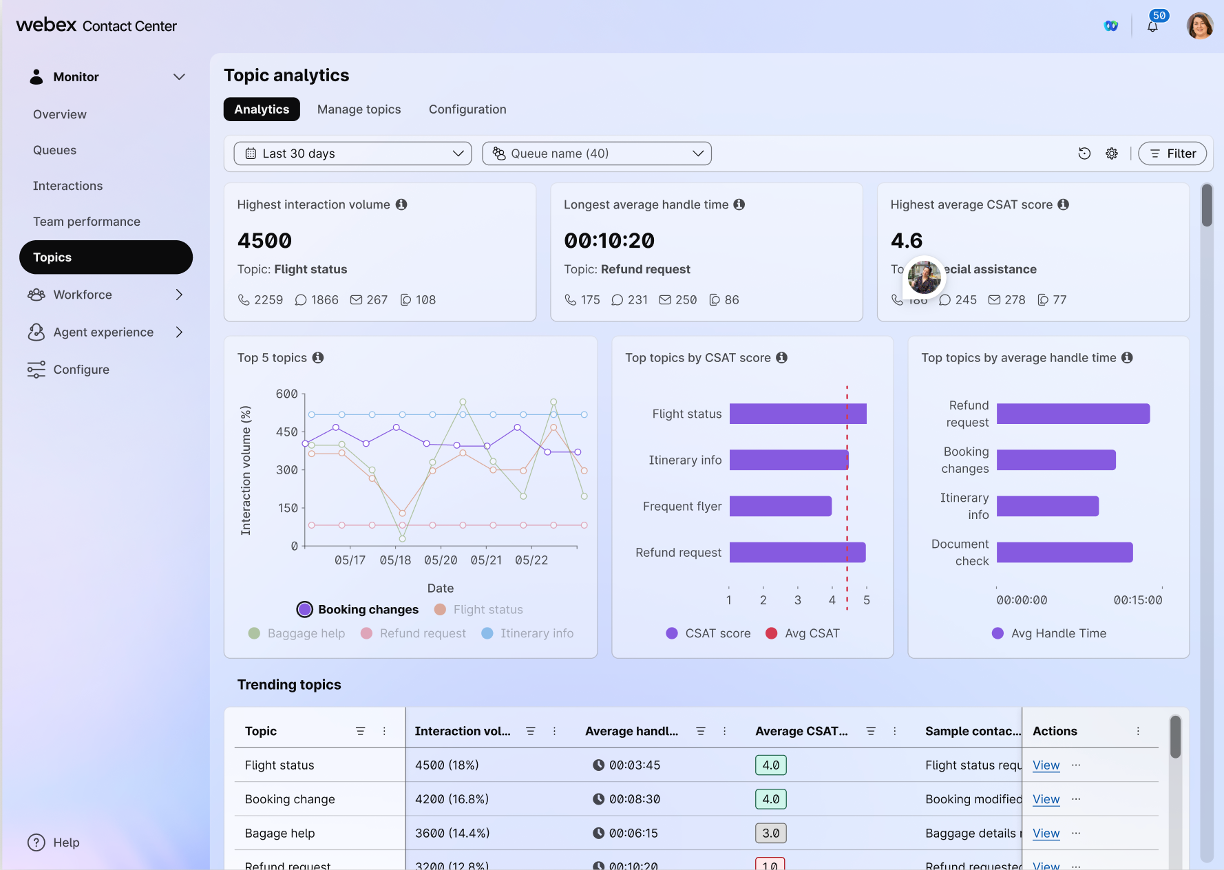
The Topic Discovery Dashboard highlights emerging and trending customer topics in near real time, along with key operational metrics. Quickly spot what’s changing, understand why it matters, and drill into any topic to see trends, related interactions, and full conversation transcripts for deeper context.
- In the Supervisor Desktop, navigate to Monitor > Topics to monitor the dashboard.
- View the Trending Topics section to see results for your selected time frame. You must manually refresh the page to view the most current data.
- To drill down into individual topics, click View in the Action column next to a topic to open the drill-down page.
- Review specific interactions, including recordings and transcripts.
Topic Analytics reports in Analyzer
Access to top topics and call drivers in Analyzer enables teams to make data-driven decisions. This insight helps optimize staffing, refine agent training, improve routing strategies, and increase automation. Access Topic Analytics reports in Analyzer as part of AI Assistant Dashboard. For more information, see Topic Analytics Reports.
Manage your topics
Topic Analytics enables you to modify your topic list to better fit specific business needs, language, and terminology. You can edit topic names, merge topics, or add new topics.
| 1 |
In Supervisor Desktop, navigate to Configure > Topic Configuration and review the AI-generated topics. |
| 2 |
To edit a topic name, click the Edit Topic icon in the right column to rename topics. For example, change |
| 3 |
To merge topics, choose two or more topics using the check boxes and click Merge topics in the top-right corner to consolidate similar items. For example, merging |
| 4 |
To add new topics, click Add topic to manually define topics individually. This allows proactive tracking of initiatives such as marketing campaigns or product launches from day one. |
Frequently Asked Questions (FAQs)
- What are the requirements to enable Topic Analytics?
Topic Analytics is available for organizations using the AI Assistant Add-on (SKU: A-FLEX-AI-ASST) with version Flex 3.0.
- Why is Topic Analytics only offered as part of a bundle?
It is bundled with the AI Assistant to provide a comprehensive suite of features at a consistent cost. This ensures all interactions are analyzed efficiently while allowing the tool to evolve with future enhancements like expanded channel support and advanced routing strategies.
- Which user roles can access this feature?
Licensed users with the Contact Center Service Administrator or Full Administrator roles have full access. Analysts and supervisors can view data via Contact Center Desktop or Analyzer. Unlicensed administrators are restricted to configuration settings only.
- Does Topic Analytics support multiple languages?
Currently, the system only supports voice transcriptions in English. Multi-language support is coming soon.
- How does the system handle third-party storage like Calabrio WFO?
Topic Analytics is optimized for recordings stored in Cisco’s S3 storage. While recordings in third-party solutions like Calabrio WFO may be accessible, full functionality and support are guaranteed when using Cisco’s native storage. Contact your account manager for the latest integration updates.
- What should I do if I encounter transcription errors or content inaccuracies in Topic Analytics?
Transcription errors or inaccuracies often occur when call recordings have low-quality audio or contain too few exchanges between the agent and the contact. In cases where the AI cannot effectively process the interaction due to these factors, it will assign the following labels:
- Topic—No topic assigned
- Contact reason—Transcript issue
To improve analysis accuracy, ensure your recordings are clear and contain sufficient dialogue. If you continue to see these labels despite having high-quality, meaningful recordings, contact technical support for further assistance.
- Why is my Topic Analytics data showing as 'Null' in Analyzer?
If an interaction has not been selected to be analyzed, the Topic Name and Contact Driver fields will appear as 'Null.'
- Why am I seeing so many interactions with Miscellaneous as the topic?
When you first start using Topic Analytics, you may see a "Miscellaneous" category while the system learns your data. This is perfectly normal.
Here is how the system organizes your interactions:
- Emerging Topics: Once the system identifies enough interactions with similar themes, a new topic will automatically form. Until that threshold is met, these calls are grouped under "Miscellaneous."
- Stable Results: You will see a consistent, stable list of topics once you reach approximately 2,000-7,000 interactions, though this can vary depending on the diversity and nature of your calls.
- Transcript Issues: If a transcript does not meet the requirements for analysis, you will see "No topic assigned" as the Topic Name and "Transcript issue" listed as the contact driver.
- Why am I seeing issues with my transcripts?
To ensure Topic Analytics can successfully categorize your customer interactions, each transcript must meet a few basic requirements. If you notice a transcript hasn't been assigned a topic, it is often because the conversation was too brief to analyze.
For a topic to be assigned, the transcript must meet the following criteria:
- Length: At least 25 words.
- Interaction: At least 3 turns (back-and-forth exchanges between the agent and the caller).
- Vocabulary: A sufficient variety of unique words is required to analyze.


