
Thanks for your feedback.
Webex App | Add and edit your Contacts
 Feedback?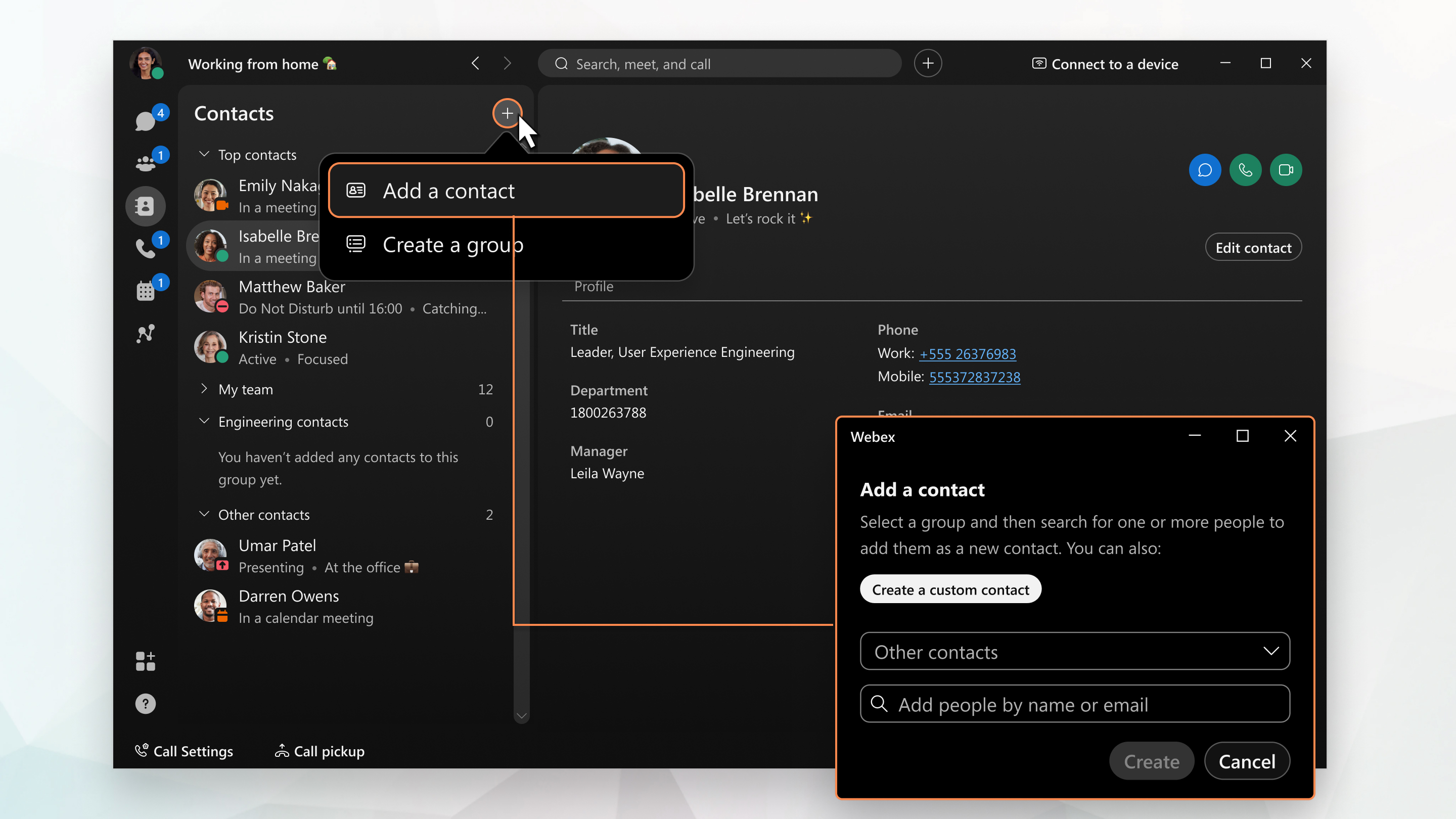
Add a contact
When you search for someone in Webex App, your search automatically includes your local Outlook contacts (Windows) or local address book (Mac) as well, so you can easily find people outside the app and make a call. You just need to give Webex App permission to access your address book if you're using a Mac.
On Windows, you must have only one Outlook mailbox configured to see your Outlook contacts in search results. This is due to a limitation with Microsoft Outlook MAPI.
| 1 |
Go to You can also right-click at the bottom of your Contacts list or in a space with another person from your Spaces list and select Add to contacts from there. In Webex App for Windows, you can also right-click a person's name in Search results and add them as a contact from there. |
| 2 |
Choose one of the following options:
The person now appears in your Contacts list
 under the appropriate group and you can send them a message or
call them right from there. You can add them to additional groups by right-clicking the
contact and then choosing Copy to group. You can move the contact
to another group, as well. under the appropriate group and you can send them a message or
call them right from there. You can add them to additional groups by right-clicking the
contact and then choosing Copy to group. You can move the contact
to another group, as well.If you want to add extra phone numbers or a SIP address to one of your saved
contacts, you can open the contact, click Edit contact |
 at the top of your
  , and then click
 Edit a contact
| 1 |
Click on a contact in your list. |
| 2 |
Click Edit contact. |
| 3 |
Edit the fields to update the contact. For company directory contacts, you can only edit the display name for that contact up to a maximum of 70 characters. When you edit and save the display name, it is only visible to you and is shown throughout Webex App products including messaging and meetings. |
| 4 |
Click Save. |
Add a contact
When you search for someone in Webex App, you're also looking through your local phone contacts, so you can easily find people outside the app and make a call. You'll just need to give the app permission to access those contacts.
| 1 |
At the bottom of your app, go to Calling, tap You can also Create a Group from here. |
| 2 |
Choose one of the following options:
|
| 3 |
Tap Done. The person now appears in your Contacts list
under the appropriate group. Tap their name and you can send
them a message or call them right from there. The call remains in Webex App; your device's phone app isn't used.If you want to add extra phone numbers or a SIP address to one of your saved
contacts, you can open the contact, tap |
 , and then select
 Edit a contact
| 1 |
Tap on a contact in your list. |
| 2 |
Tap Edit. |
| 3 |
Edit the fields to update the contact. For company directory contacts, you can only edit the display name for that contact up to a maximum of 70 characters. When you edit and save the display name, it is only visible to you and is shown throughout Webex App products including messaging and meetings. |
| 4 |
Tap Done. |


