
Thanks for your feedback.
 Feedback?
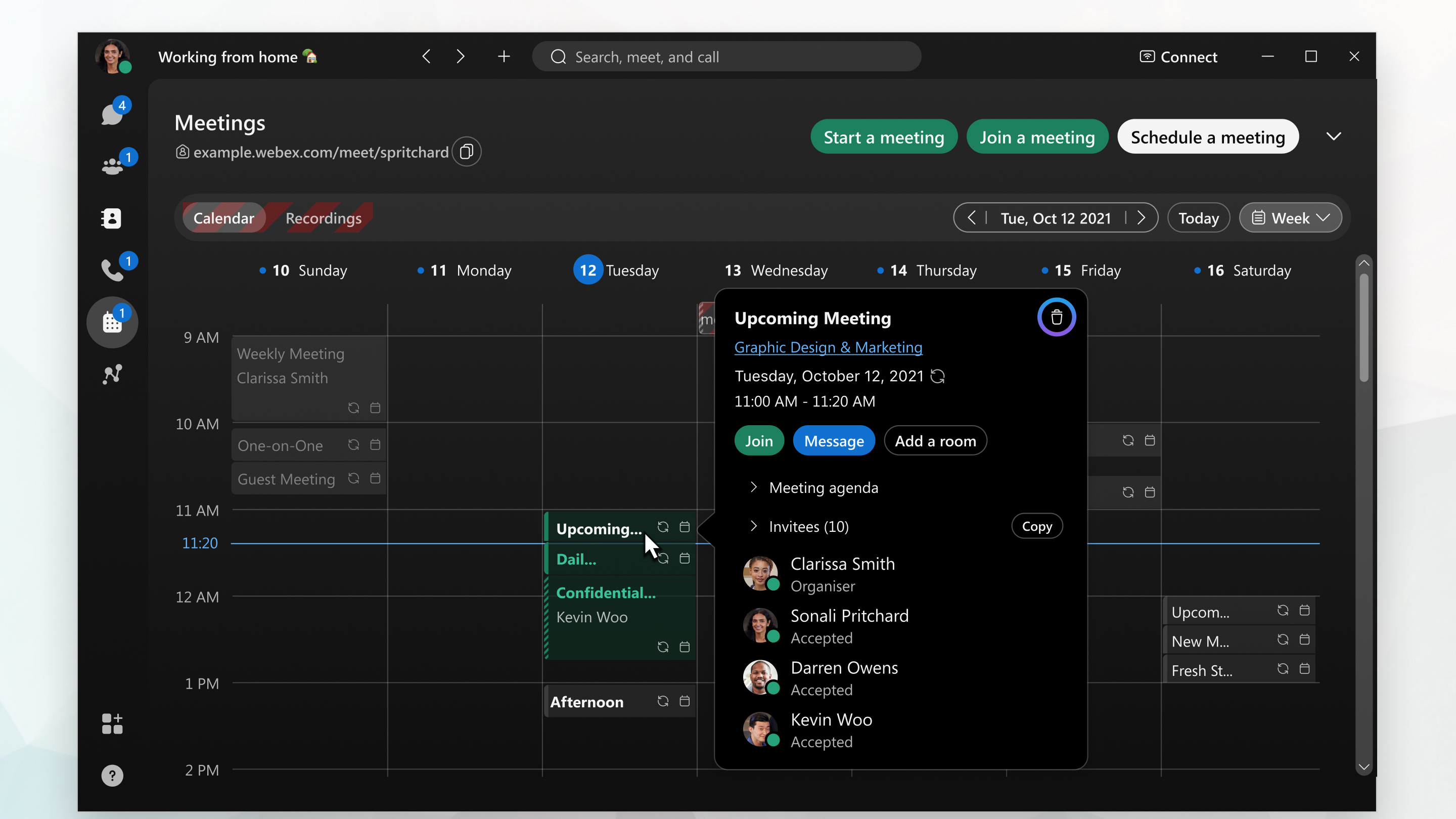
If you didn't schedule the meeting but you want to remove it from your calendar, decline the meeting. Click or tap the meeting in your calendar and select Decline or right-click the meeting and select Decline. The app sends an email to the meeting host, notifying them that you declined the meeting.
To change the meeting details, such as the time, date, or who you invite, update the meeting instead of canceling it.
If your meeting is scheduled more than four weeks ahead, it won’t appear in Webex App so you'll be unable to cancel it there. However, if Hybrid Calendar is enabled and you scheduled the meeting using Microsoft Outlook, you can cancel it in Outlook.
| 1 |
Go to Meetings |
| 2 |
Find the meeting in your calendar. |
| 3 |
Click the meeting, then click Delete You can also double-click the meeting, click Delete the meeting at the bottom of the screen, and then click OK. The app sends a meeting cancellation email to the invitees and removes the meeting from everyone's calendar. |
 .
.
| 1 |
Go to Meetings |
| 2 |
Find the meeting in your calendar. |
| 3 |
Click the meeting, then click Delete |
| 4 |
Choose whether you want to delete a single meeting in the series or the entire series, then click Delete. The app sends a meeting cancellation email to the invitees and removes the meeting from everyone's calendar. |
| 1 |
Go to Meetings |
| 2 |
Find the meeting in your calendar. |
| 3 |
iPhone and iPad: Tap the meeting and then tap Android: Tap the meeting and then tap The app sends a meeting cancellation to the participants and removes the meeting from everyone's calendar. |


