
Thanks for your feedback.
Dim flashing videos and images in a Webex meeting
 Feedback?
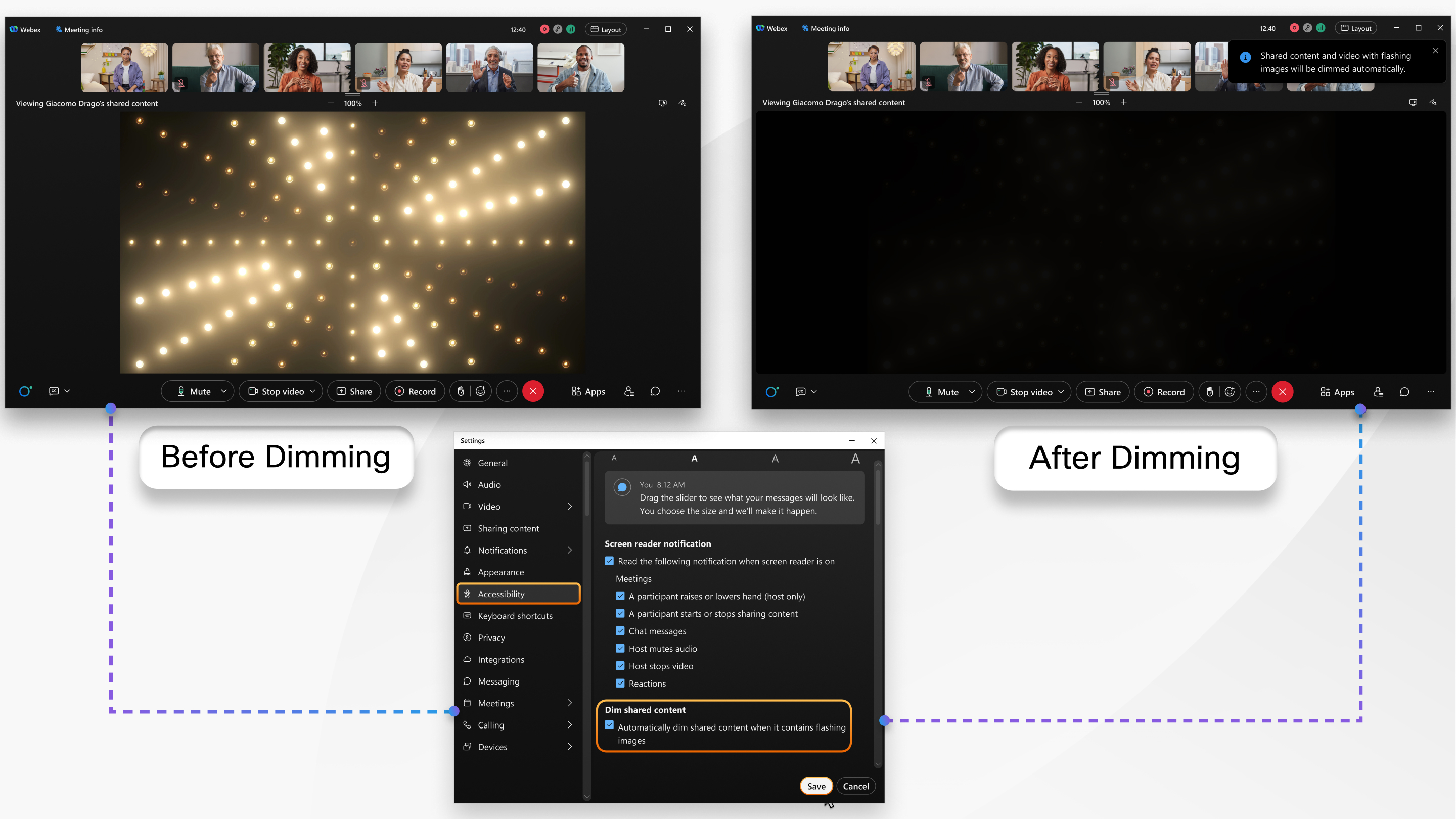
The content is dimmed only for you, not for other meeting participants.
When flickering is detected, the virtual background or shared content dims. When the flashing light is in shared content, the following notification appears at the top of your meeting window: Shared content and video with flashing images will be dimmed automatically. The content remains dimmed for at least four seconds after the flickering stops.
Before you begin
This feature is available on our Webex Suite meeting platform. Find out if your meetings use the Webex Suite meeting platform.
This feature is available for Windows and Mac users.
| 1 |
Open Webex and sign in. |
| 2 |
Click Settings |
| 3 |
Scroll down to View and share content, and check Dim flashing lights in a video and share content. |
| 4 |
On Windows, click Save. |


