- Home
- /
- Article

Thanks for your feedback.


 In this article
 Feedback?
Your meetings are now even more user-friendly by automatically detecting the spoken language in real-time during a meeting—as people speak what they say appears above the meeting controls, no need to manually select a language.
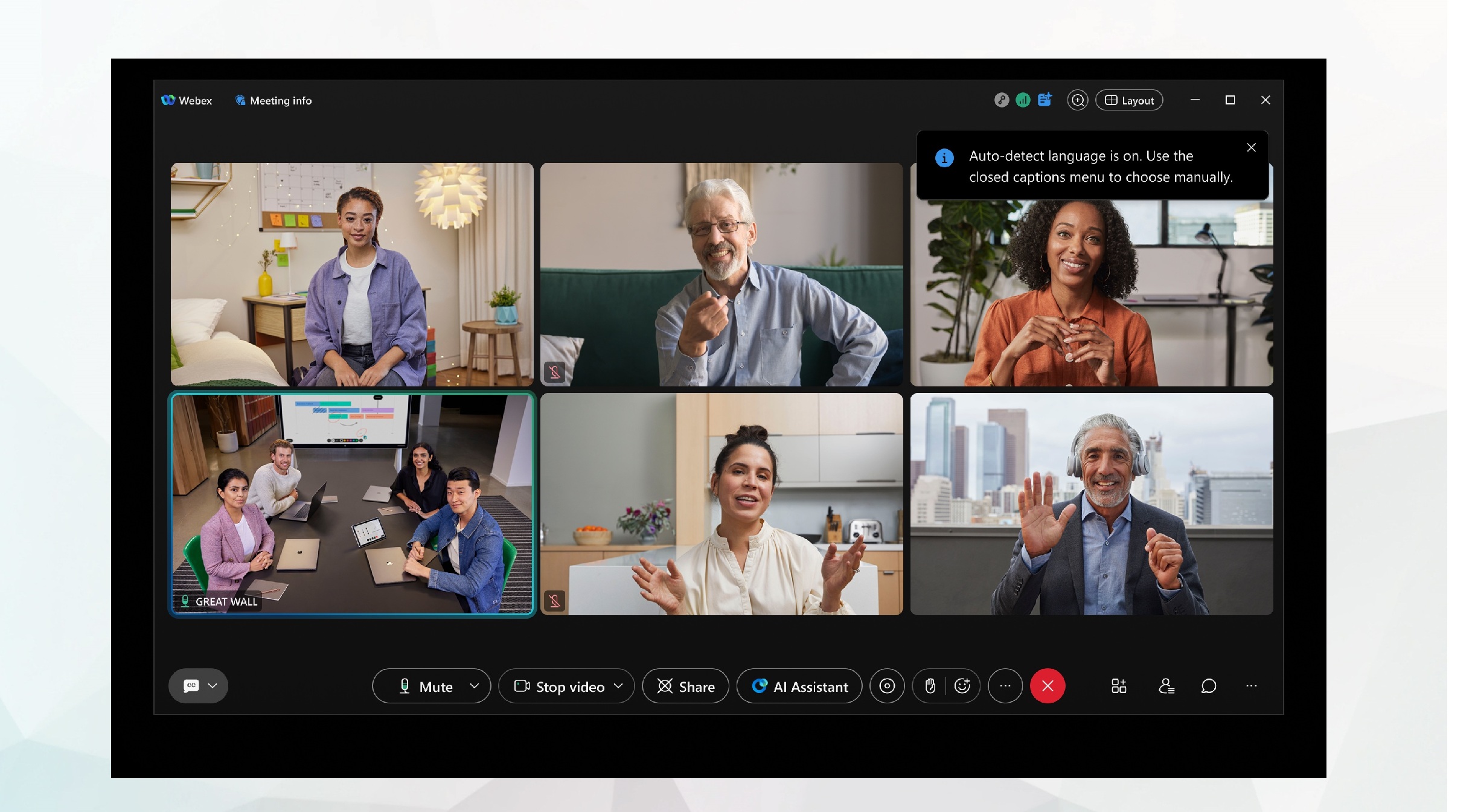
How it works
The AI advanced language recognition system listens to the meeting conversation and identifies what language participants are using. This allows AI to provide more accurate transcriptions and translations throughout your meeting.
-
Auto-language detection occurs within 5–10 seconds and automatically updates both the closed-caption overlay and the live transcript in the Transcript panel.
-
The Transcript panel displays the conversation in a scrollable view and updates as participants speak.
-
Auto-language detection supports one spoken language at a time. When the conversation changes to another supported language, Webex detects the current language and updates the transcript and closed captions.
Auto-language detection, must be enabled by your organization administrator.
Real-time detection
The language detection model runs throughout the entire meeting. It detects the current spoken language as the conversation changes from one supported language to another.
For example, a meeting begins in English, one participant shares their updates in French, and the discussion then shifts into Spanish. Live auto-detection identifies each change and updates the closed-caption overlay and the live transcript in the Transcript panel to use the newly detected spoken language.
Manage spoken language
Live auto-detection of spoken language is on by default for your meetings and offers a hands-off language experience. It updates both the closed-caption overlay and the live transcript in the Transcript panel as participants speak.
|
In a meeting, click Show closed captions
|
 to show or hide the closed-caption overlay. To view the live transcript, open the
 Supported languages
You can choose from 16 different spoken languages for your meetings, without requiring a Real-time Translation license.
-
English (default)
-
Arabic
-
Chinese Mandarin (Simplified)
-
Chinese Mandarin (Traditional)
-
Danish
-
Dutch
-
French
-
German
-
Hindi
-
Italian
-
Japanese
-
Korean
-
Polish
-
Portuguese
-
Spanish
-
Turkish
-
There are 16 supported languages for transcription, and spoken language in meetings.
-
Auto-language detection works with 15 of those languages. Currently, Guoyu is not supported.
-
If you manually select Guoyu as a language, the auto-language detection turns off, but you are still provided with an accurate transcription.
-
-
If someone is speaking in a language that isn't supported, the transcript won't be accurate, even if auto-detect is on.


