
Thanks for your feedback.
Webex App | Skip the confirmation when leaving a meeting
 Feedback?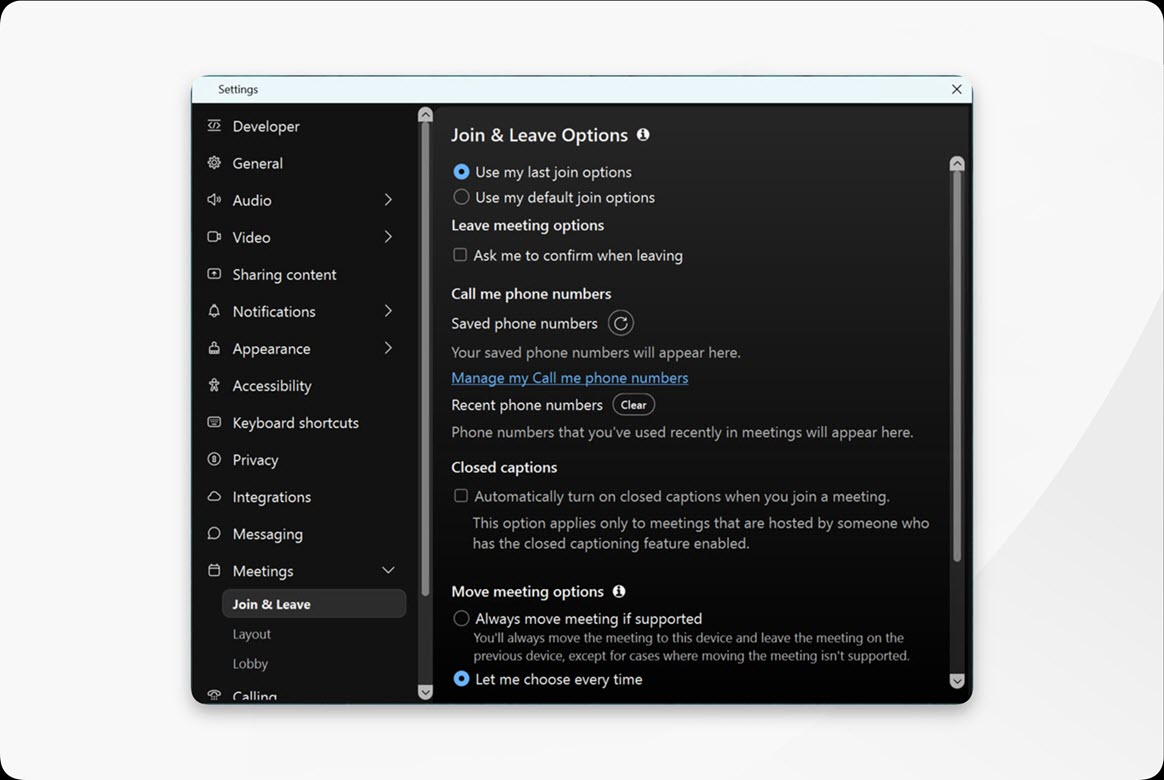
Alternatively, you can remove the confirmation step when you exit a meeting. In the confirmation message that appears, check Skip the confirmation next time.
If you're the meeting host:
- To prevent you from accidentally ending a meeting when other participants are in the meeting, you'll still have the option to end the meeting for all or leave the meeting and choose another host. If your Webex administrator hasn't allowed meeting hosts to leave a meeting without ending it, you can only end the meeting.
- If you're the only person in the meeting, clicking
 ends the meeting immediately.
 - When you leave a breakout session, you'll return to the main meeting without a confirmation prompt.
If you're an attendee:
- When you leave a meeting, you'll still leave immediately after you click .
- When you leave a breakout session, you'll still to have the option to leave the session—unless the host has restricted this option—or leave the meeting.
If you're connected to a video device, you’ll still have the option to leave the meeting on just your computer or on both your computer and the device.
| 1 |
Open Webex and sign in. |
| 2 |
Click Settings |
| 3 |
Under Leave meeting options, uncheck Ask me to confirm when leaving. |

What to do next
If you change your mind and want to turn confirmation back on, check Ask me to confirm when leaving.
| 1 |
Open Webex and sign in. |
| 2 |
Tap your profile picture, and then tap . |
| 3 |
On the Join & Leave tab, under Leave meeting options, toggle off Ask me to confirm when leaving. |
What to do next
If you change your mind and want to turn confirmation back on, toggle on Ask me to confirm when leaving.


