
Thanks for your feedback.
 Feedback?
As a host, you can stream the contents of your meetings or webinars to Vbrick Rev. All streams include the audio, video, and content that is shared while the meeting is active.
Sharing a whiteboard and sharing a file using Share File, including sharing a video file, aren’t supported while live streaming.
When you stream a meeting or webinar to Vbrick Rev, you continue to have full functionality of your Webex meeting or webinar. You can start or stop your stream at any time.
Streaming using Vbrick Rev must be enabled by your site administrator.
Before you begin
Applies to:
-
All active Meetings versions with the Meet, Business, and Enterprise plans
-
All Webinars versions
| 1 |
Sign in to your Webex site and start your meeting or webinar. |
| 2 |
Select More Options
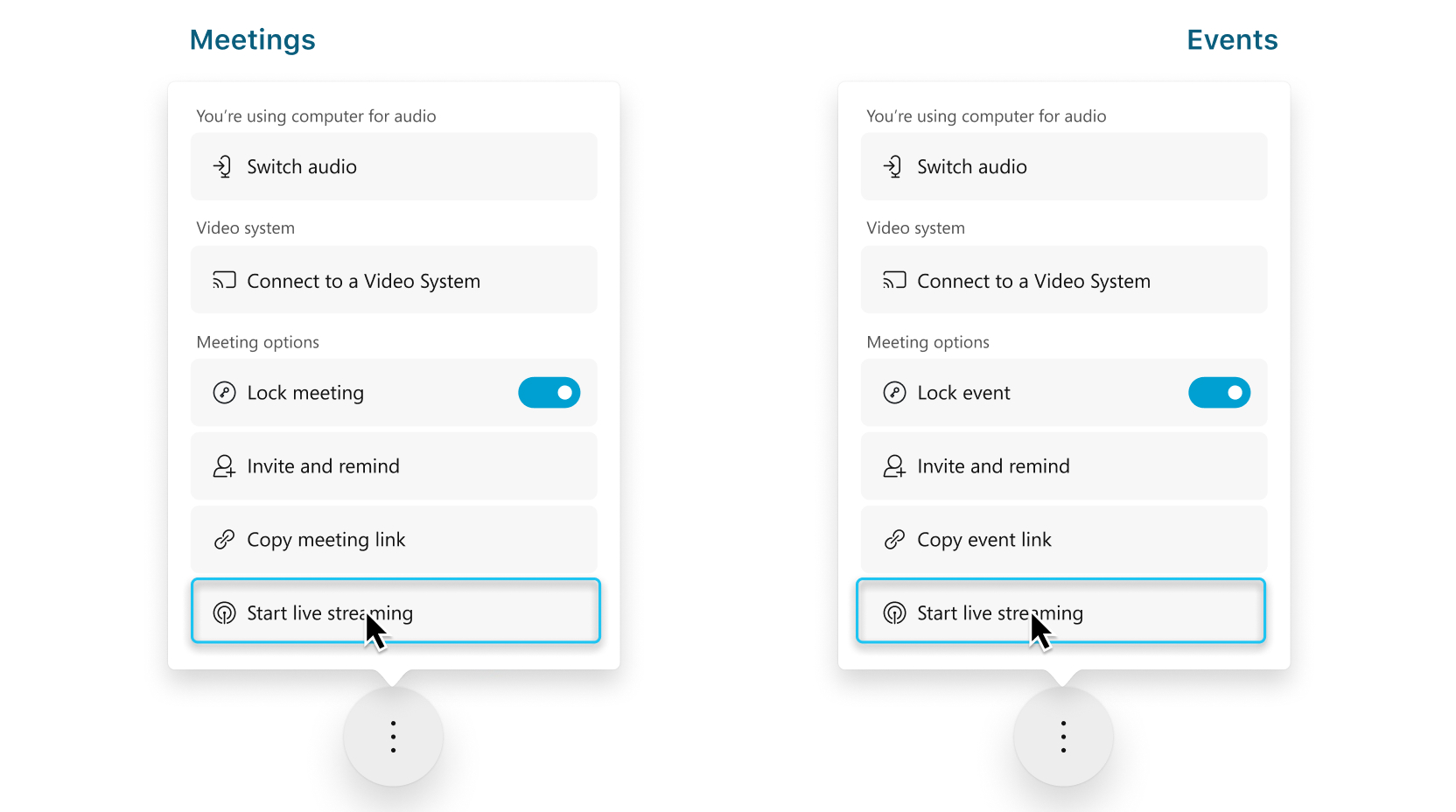 Live streaming isn't available during a practice session in a webinar. |
| 3 |
(Optional) Click Change streaming layouts to set the video layout of your stream. For more information about selecting your streaming video layout, see Live stream your Webex meetings or webinars. 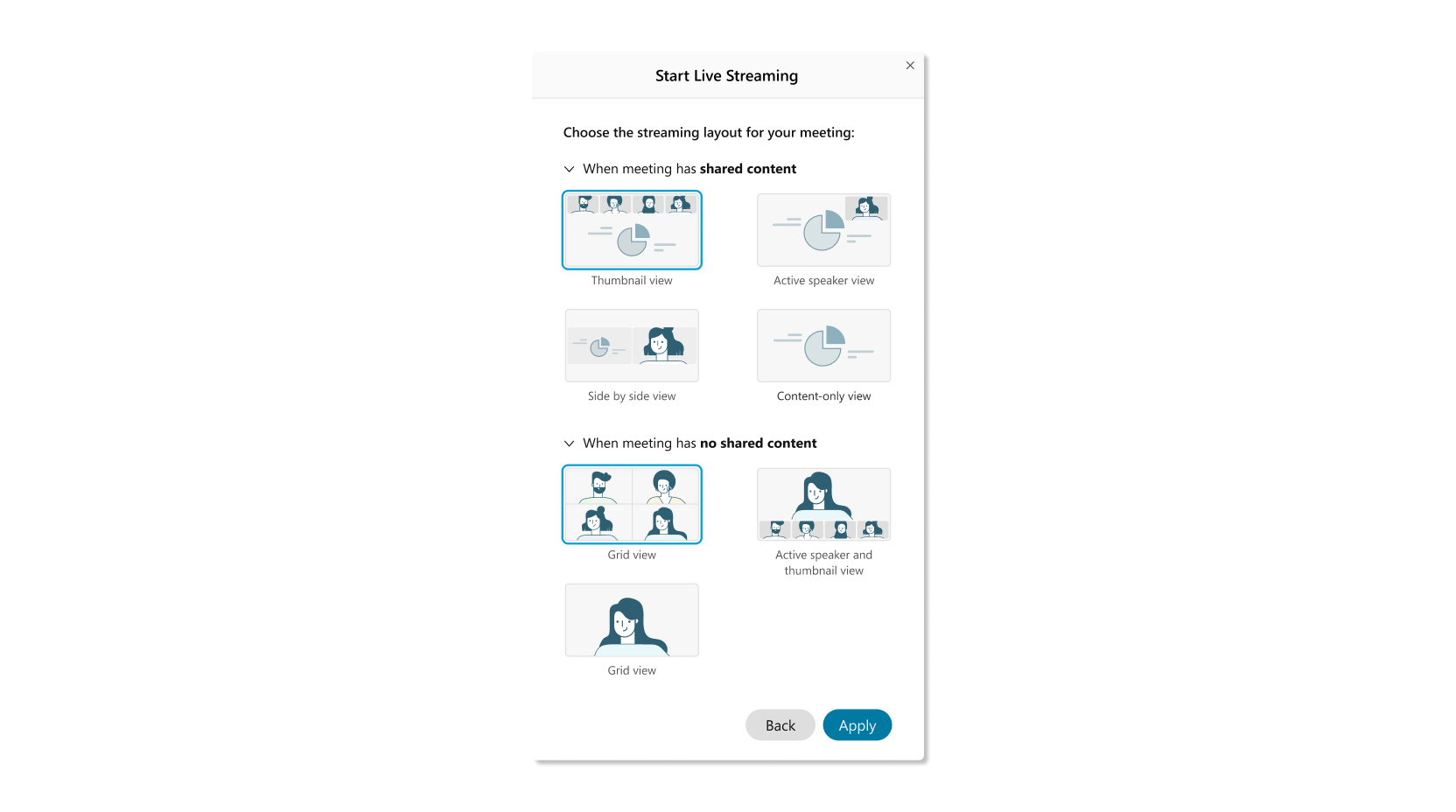 |
| 4 |
Select the Vbrick Rev target available to you and enter your Vbrick Rev username and password, then click Sign In. If your Rev site is set up for SAML, you may be taken to the sign-in page of your organization. After you sign in, your Vbrick Rev account information is saved on the site that you use for your meeting. |
| 5 |
Select Existing Webcast or Record Video.
|
| 6 |
To confirm that you're streaming, check for the Live indicator |
| 7 |
When you want to end your stream, select More options
|
 and then choose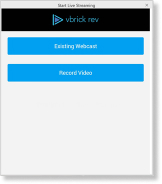
 in your meeting or webinar.
Before you begin
Applies to:
-
All active Meetings for Android and iOS with the Meet, Business, and Enterprise plans.
-
Live streaming for Android and iOS currently only supports Meetings.
| 1 |
On your device, start your meeting, go to More options
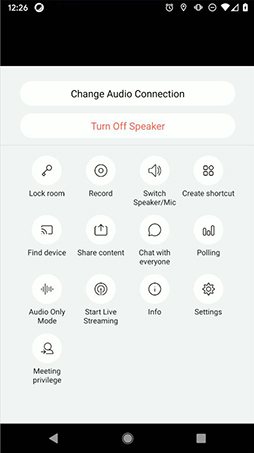 |
| 2 |
Select the Vbrick Rev target available to you and enter your Vbrick Rev username and password, then click Sign In. If your Rev site is set up for SAML, you may be taken to the sign-in page of your organization. After you sign in, your Vbrick Rev account information is saved on the site that you use for your meeting. |
| 3 |
Select Existing Webcast or Record Video.
|
| 4 |
To confirm that you're streaming, check for the Live indicator |
| 5 |
When you want to end the live stream, go back to your meeting, select More options
|
 , and tap
You can view each meeting or webinar that is streamed to Vbrick Rev live or as a recording. Your stream automatically becomes available as a recording in your Vbrick Rev account when it ends.


