
Thanks for your feedback.
 Feedback?
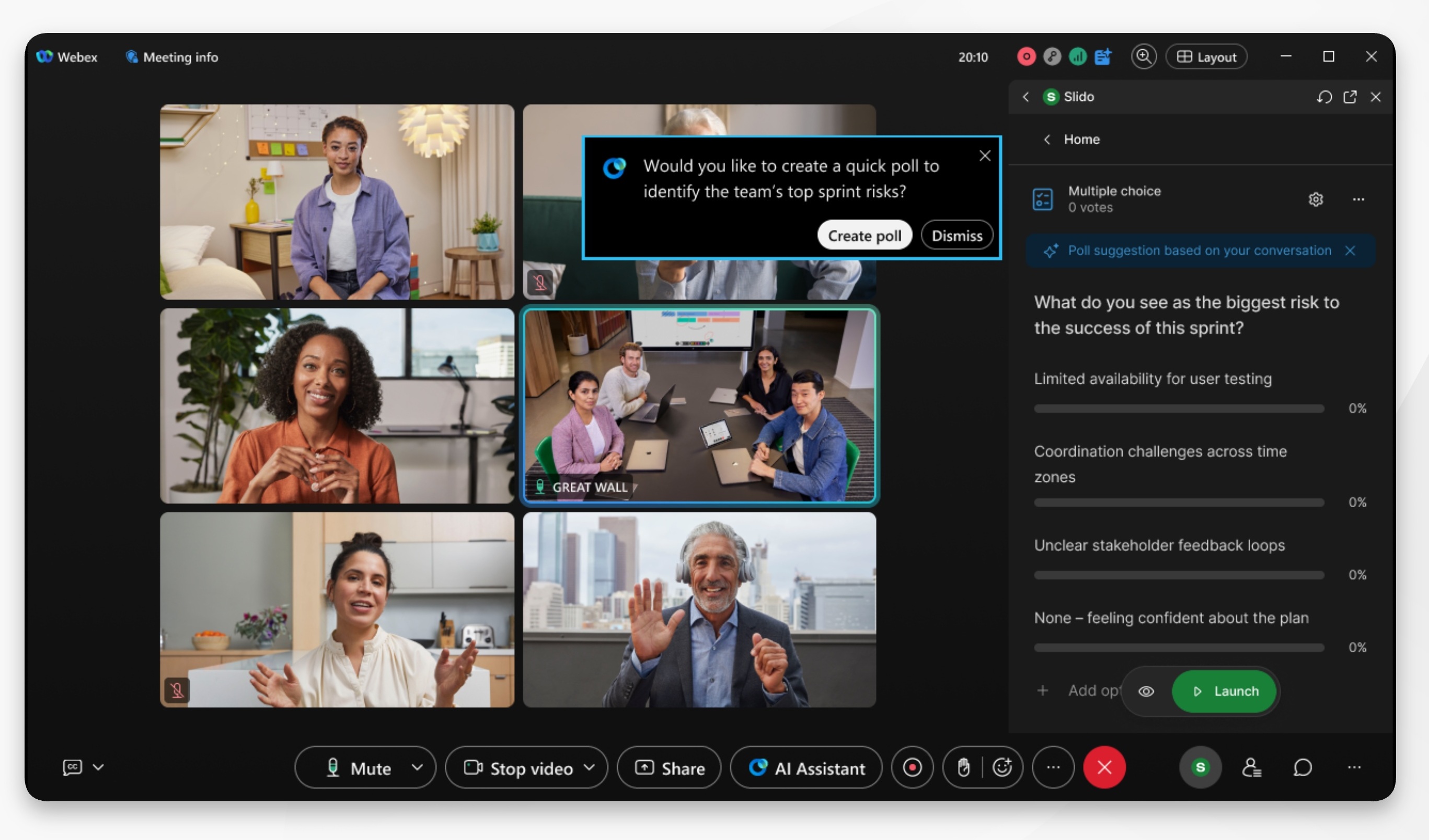
AI Polling Agent suggestions are available to meeting hosts on desktop only. However, meeting attendees on mobile or web can still view and respond to polls launched from a suggestion.
If you don’t see the AI Polling Agent feature, ask your organization administrator to enable it.
AI Polling Agent is not available for breakout sessions.
During the meeting, AI Assistant uses the live transcript to suggest relevant Slido polls. Polling suggestions will be English only, and limited to one suggestion every five minutes.
Before you begin
Start, or join a meeting as the host, with access to Slido. Ensure AI Assistant, the meeting transcript, and Slido are active.
There must be a minimum of 5 participants in the meeting before the polling agent will make suggestions.
| 1 |
When AI Assistant suggests a poll, click Create poll in the meeting notification. Slido opens in the meeting sidebar with a suggestion. Click Dismiss if you don’t want to use the suggestion. Meeting hosts can also click the dropdown arrow next to the Dismiss button, and select from:
|
| 2 |
Review the suggested interaction in Slido. You can edit the questions, answer choices, poll type, or settings as needed. Click Dismiss if you don’t want to use the suggestion. |
| 3 |
When you're happy with the poll, click Launch. Meeting attendees can then answer the poll, or questions, and view live results as you share them. When polling is complete, click Deactivate poll. Hosts and cohosts can review the results in Slido after the meeting. AI Polling Agent is available at no cost for a limited time. Pricing and terms may change. |


