
Thanks for your feedback.
Hide Calling settings in a user account
 Feedback?
| 1 |
Sign in to Control Hub. |
| 2 |
In the Management section, click Users. |
| 3 |
Search and select a user account for which you want to edit the Calling settings. |
| 4 |
Click the Calling tab. Calling settings as per the selected template for the user are displayed. You can
update the settings to override the template settings at the user level.
|
| 5 |
Go to Hide Calling Settings, click the Define custom user settings radio button. |
| 6 |
On the Call Settings tab, toggle on or off the settings to show or hide on the device, in Webex App, and in User Hub. 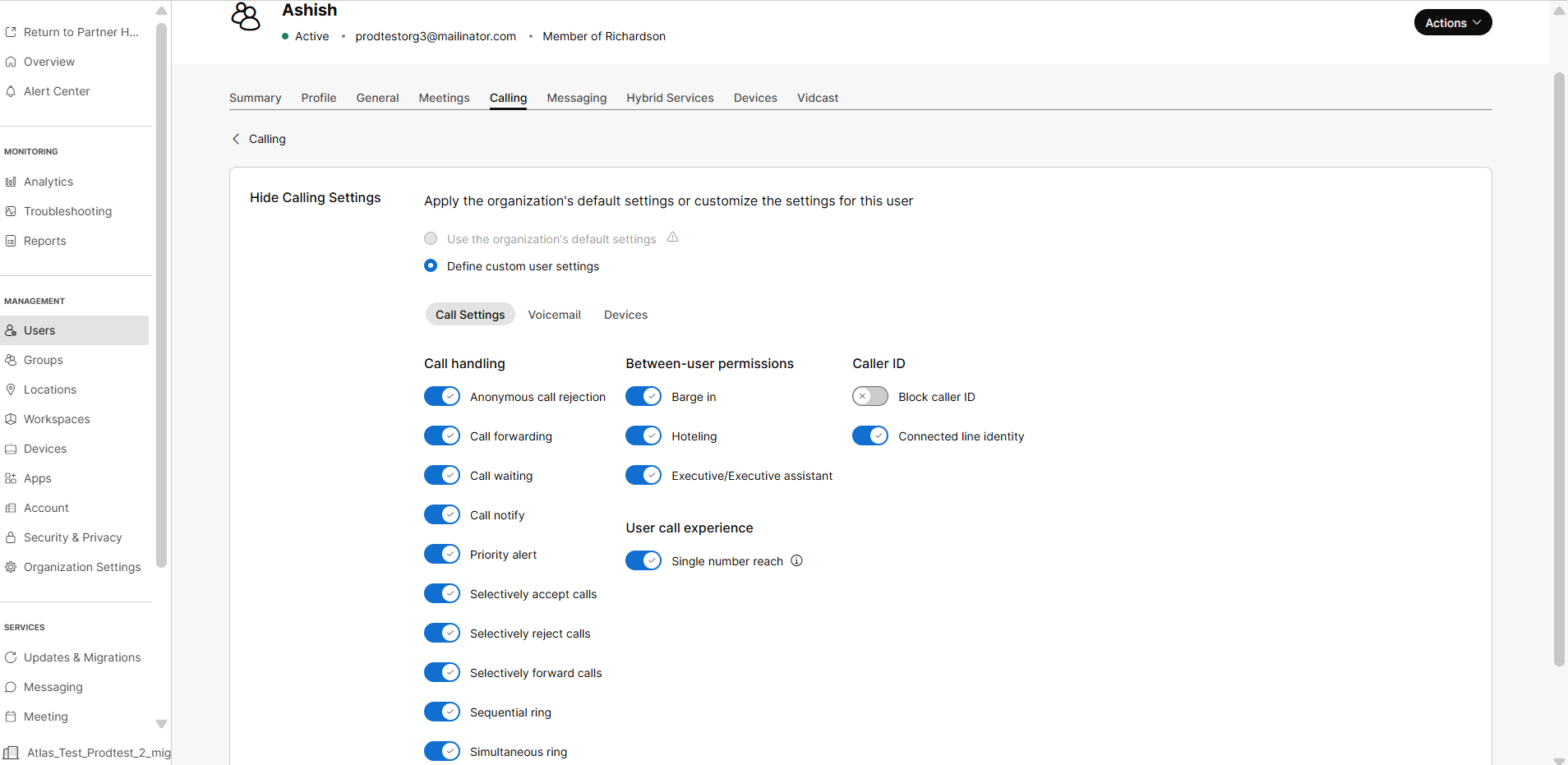
If a Calling Feature template is assigned to a user, they can't revert to the organization's default settings. Therefore, the Use the organization's default settings radio button is disabled. If you want to apply the organization's default settings, you must first remove the user from the group or location to which this template is assigned. |
| 7 |
Click Save. |
| 8 |
If the user is a part of a Calling Feature template, the Override template settings ? alert message appears. Click Override setting to apply the changes. Only the updated settings override the template settings, while other settings remain attached to the applicable template for the user account. The Hide Calling Settings for the selected user are updated.
|


