
Thanks for your feedback.
 Feedback?
This section applies to meetings that run on the Webex Suite meeting platform. For meetings that don't run on the Webex Suite meeting platform, go to Meetings not on the Webex Suite meeting platform.
Browser support
Join a meeting
When you receive an email invitation to a meeting, it looks something like this.
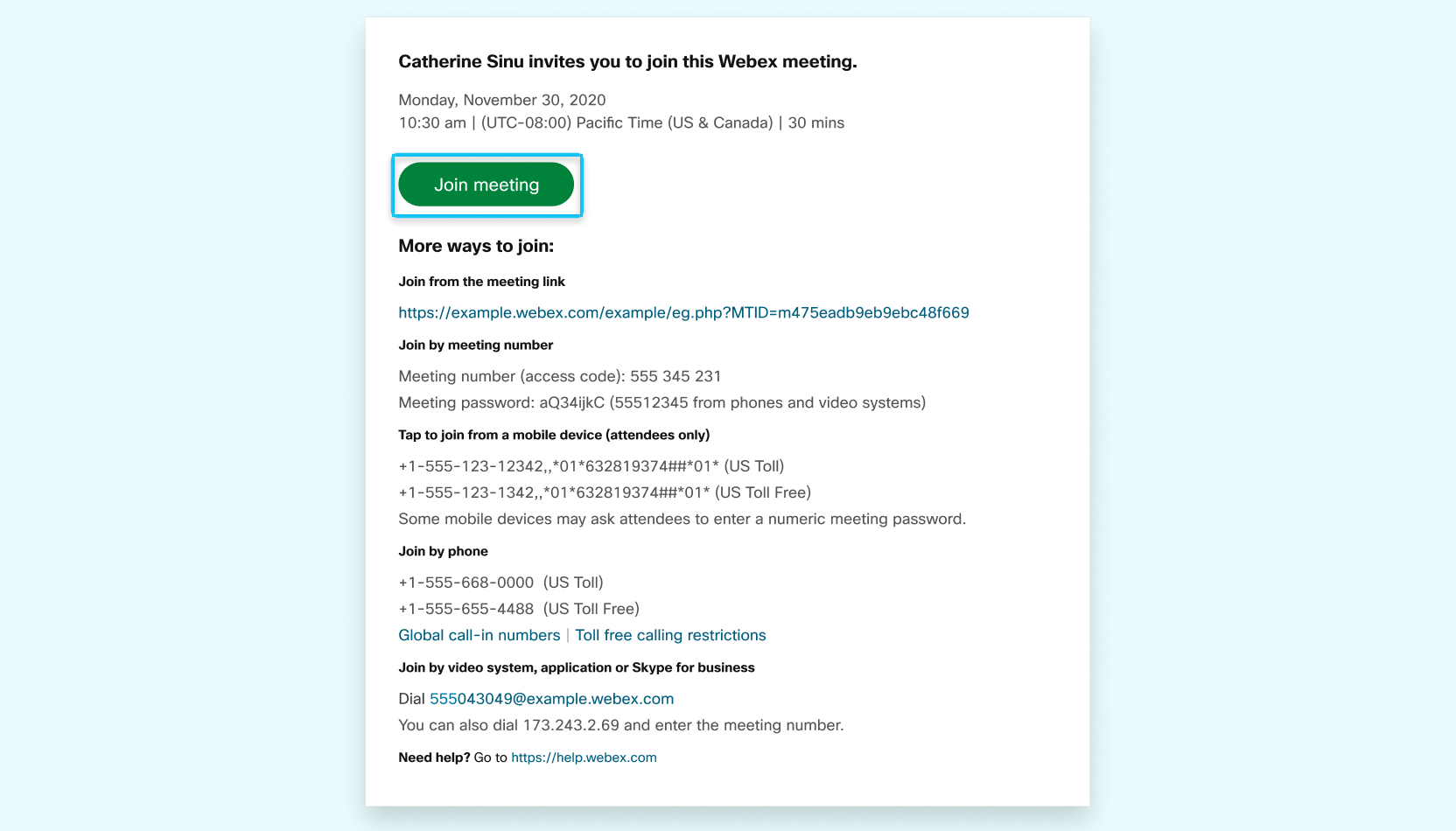
Click Join meeting or, if the host sent you the meeting link, click the link.
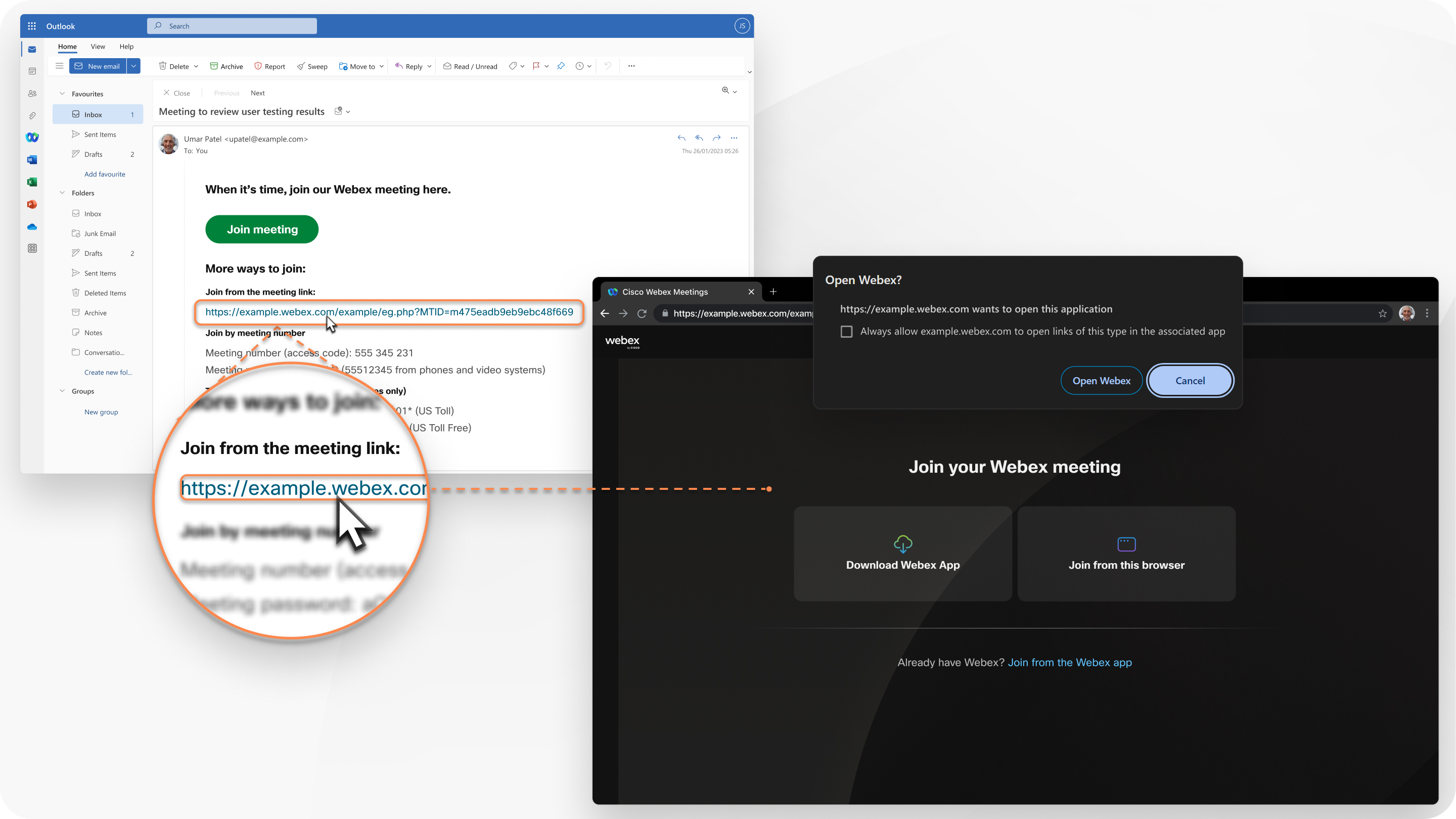
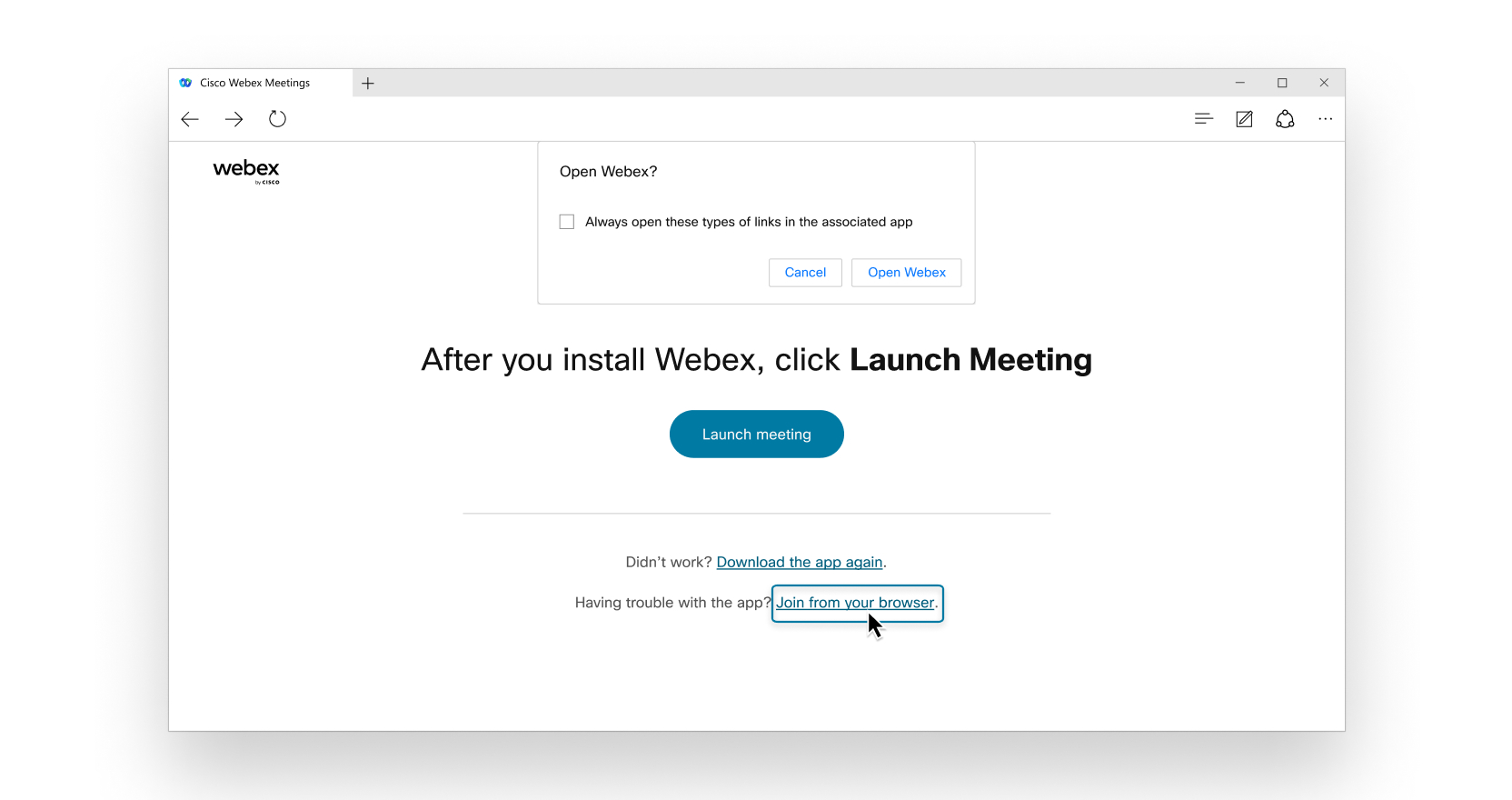
If Webex App is installed on your device, a message appears prompting you to open Webex. To join from your browser and not the desktop app, click Join from this browser.
Alternatively, you can sign in to your Webex site and join your meeting from User Hub.
You can join the meeting as a guest or, if you have a Webex account, you can sign in.
Join as a guest:
-
If you just want to join a meeting quickly without signing in.
-
If you don't mind waiting in the lobby until the host admits you.
-
If you don't need access to the full list of meeting features.
Sign in:
-
If you have more meetings later.
The next time you join a meeting, you'll join automatically as a fully authenticated user.
-
If you don't want to wait in the lobby.
You join the meeting right away.
-
If you need access to the full list of meeting features.
Connect to audio and start your video
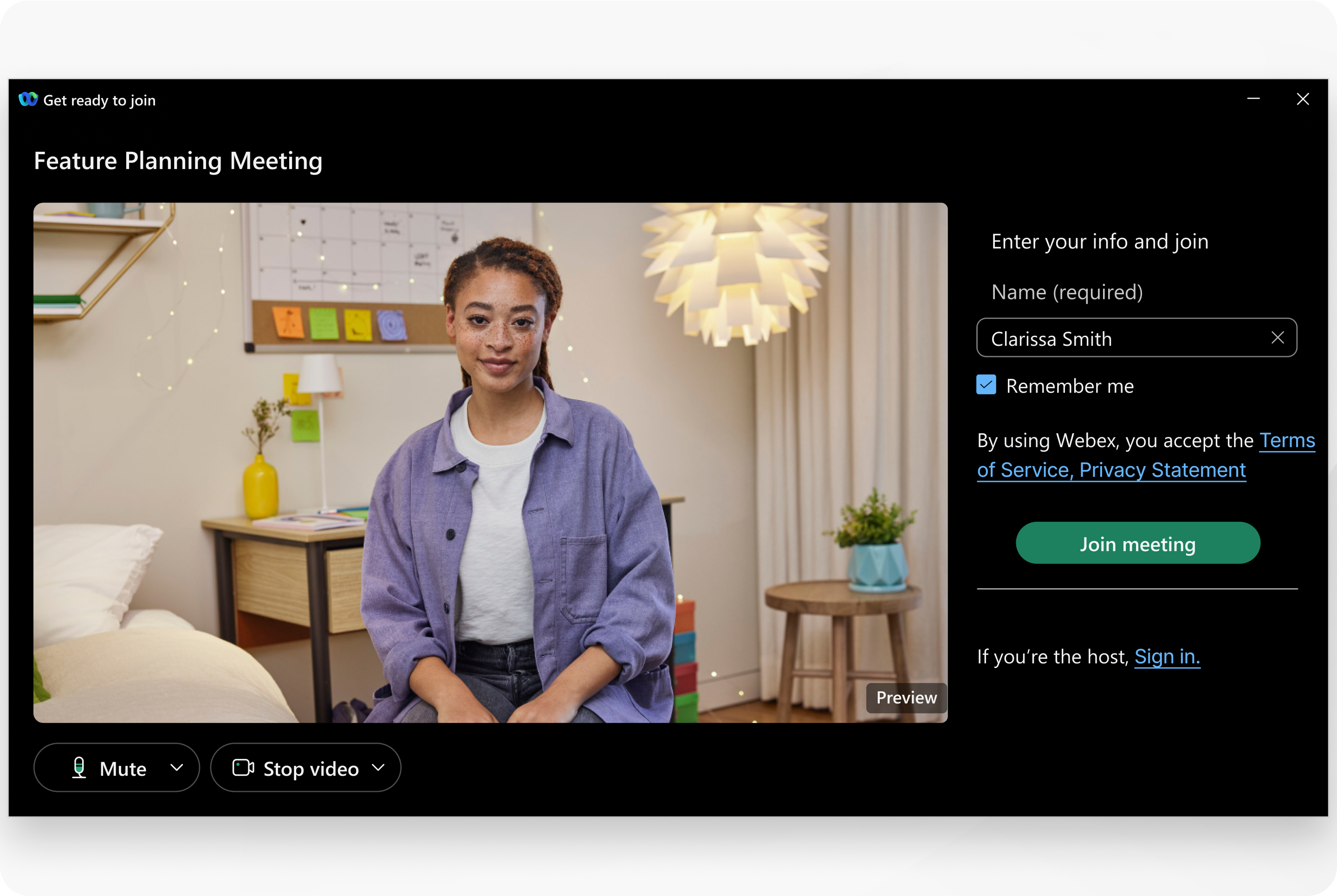
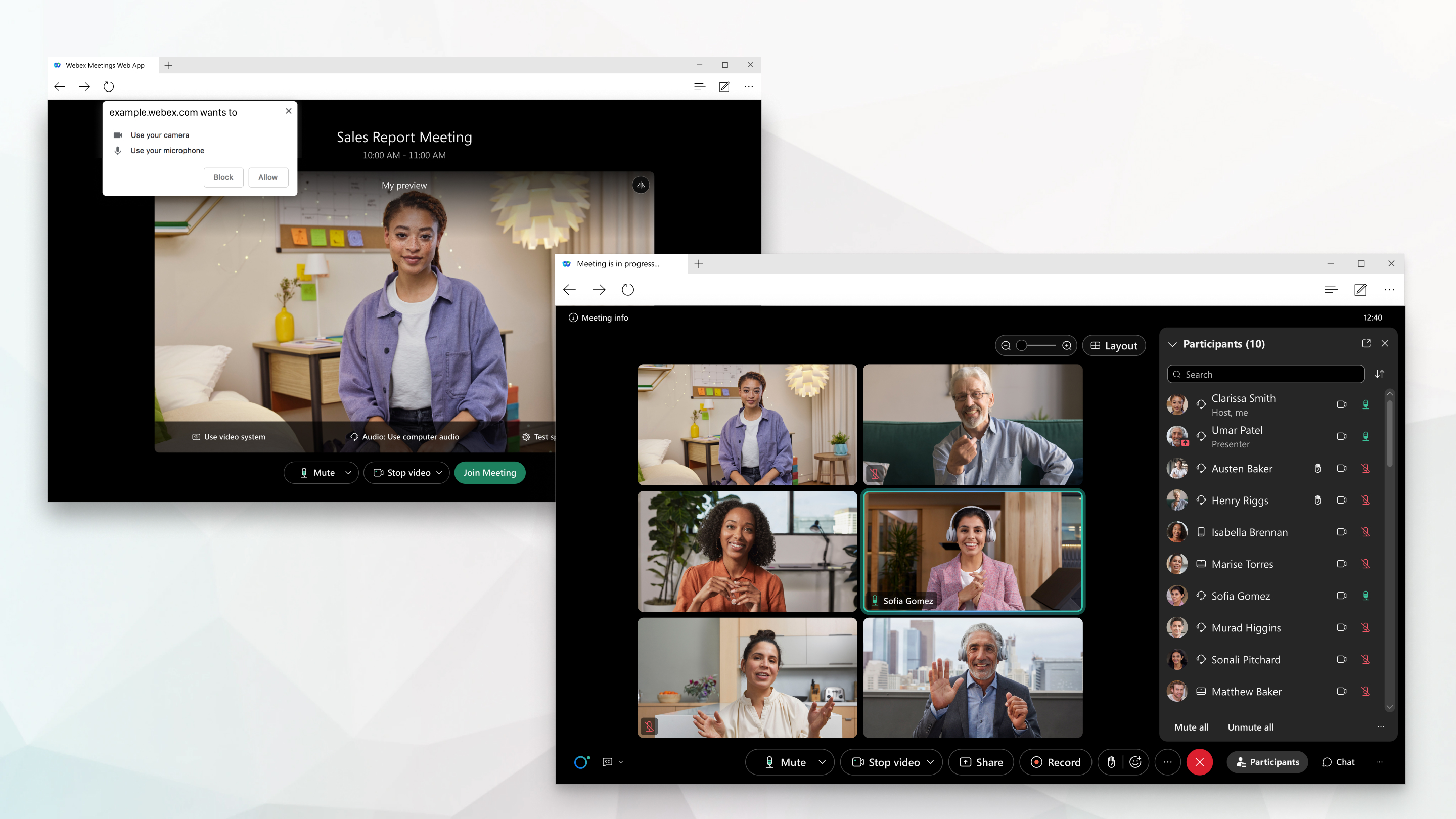
Connect your audio and video in the preview window before you join the meeting. That way, you can make sure that everything sounds and looks good. Make sure to grant your browser permission to access your camera and microphone when prompted so you can be seen and heard in the meeting.
Make your meeting experience your own
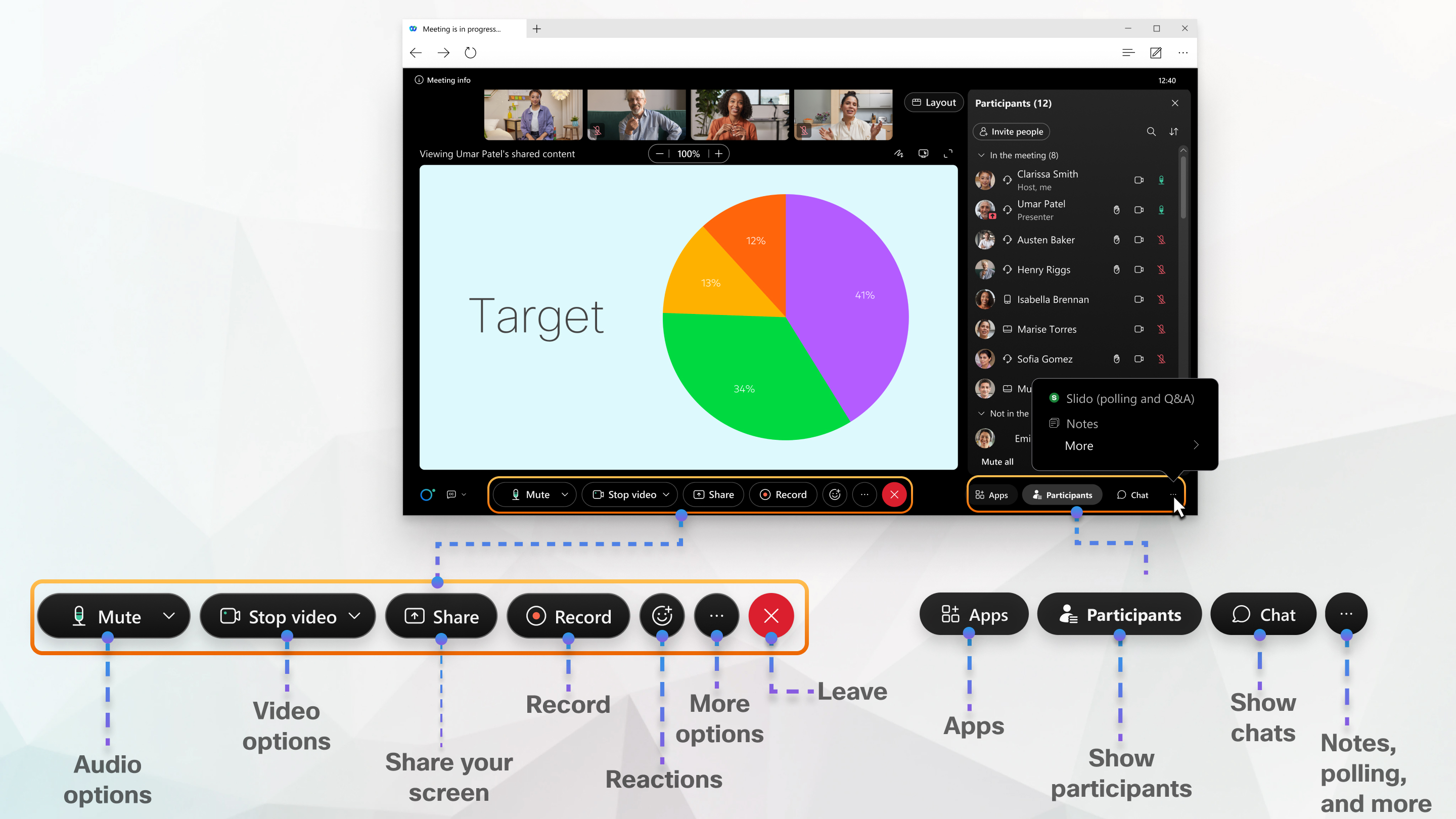
The web app is easy to navigate, with shared content or participant's video in the center and meeting controls underneath. You can chat with people, share your screen, and share a whiteboard, among other things.
Need more functionality?
Learn more
Browser support
The Meetings web app supports the following browsers:
-
Chrome
-
Chromium
-
Edge
-
Firefox
-
Safari
Go here for more detailed information about operating system and browser support.
Join your meeting
When you receive an email invitation to a meeting, webinar, event or training session, it looks something like this.
If you're using Linux or ChromeOS, the web app opens directly after you click Join meeting.
When joining from Windows or Mac, a new browser window opens, prompting you to launch the desktop app. But if you're having trouble, you can join from your browser.
Alternatively, you can sign in to your Webex site and join your meeting from there:
-
Go to the Calendar tab on the left navigation panel. There, you can see a list of your meetings. Find the one you want to join.
-
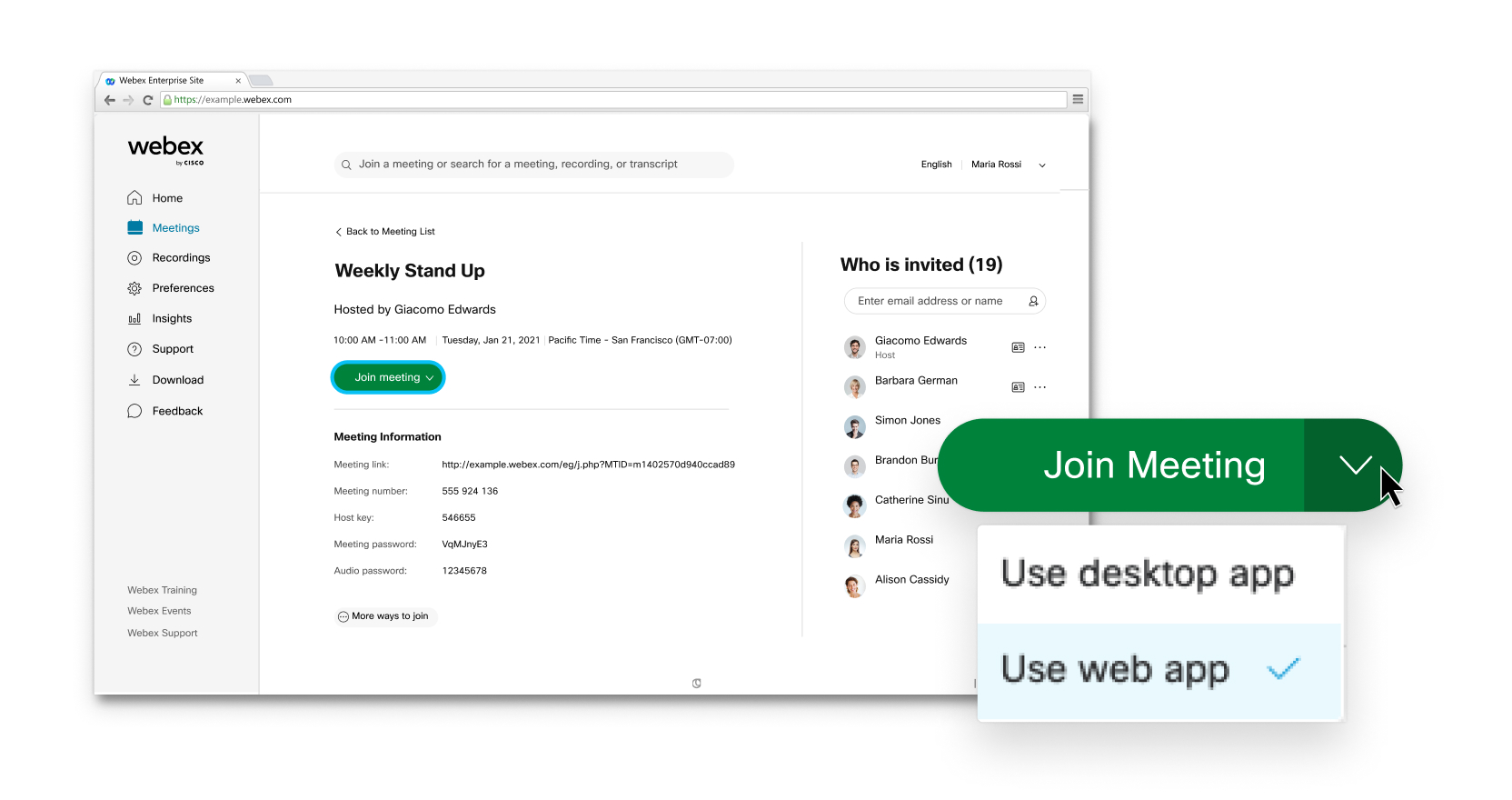
Sign in to your Webex site, enter the host or meeting name, Personal Room ID, or meeting number in the Search bar at the top.
Then, select the drop-down arrow on the right side of the Join Meeting button and choose Use web app.
Check your email invitation if you're prompted for a password.
You can join the meeting as a guest or, if you have an account, you can sign in.
Join as a guest:
-
if you just want to join a meeting quickly without signing in.
-
if you don't mind waiting in the lobby until the host admits you.
-
if you don't need access to the full list of meeting features.
Sign in:
-
if you have more meetings later. The next time you join a meeting, you'll join automatically as a fully authenticated user.
-
if you don't want to wait in the lobby. You join the meeting right away.
-
if you need access to the full list of meeting features.
Connect to audio and start your video
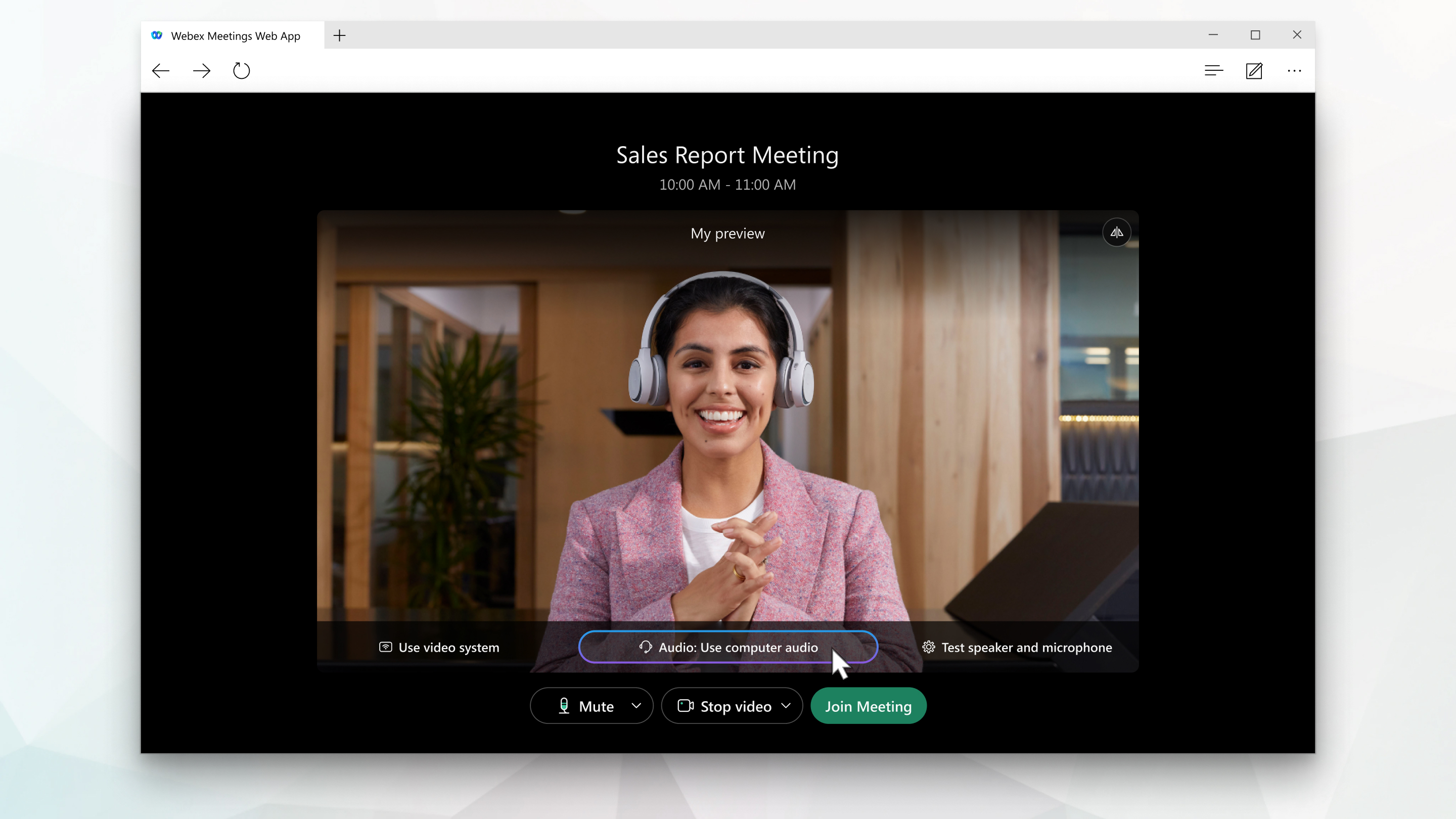
You can easily connect your audio and video in the preview window before you join a meeting, webinar, event, or training session. That way, you can make sure that everything sounds and looks good. Make sure to grant your browser permission to access your camera and microphone when prompted so you can be seen and heard in the meeting.
Make your Meeting experience your own
The Meetings web app is easy to navigate, with shared content or video in the center and meeting controls underneath. You can chat with people, share your screen, and see who else is in the meeting, among other things. 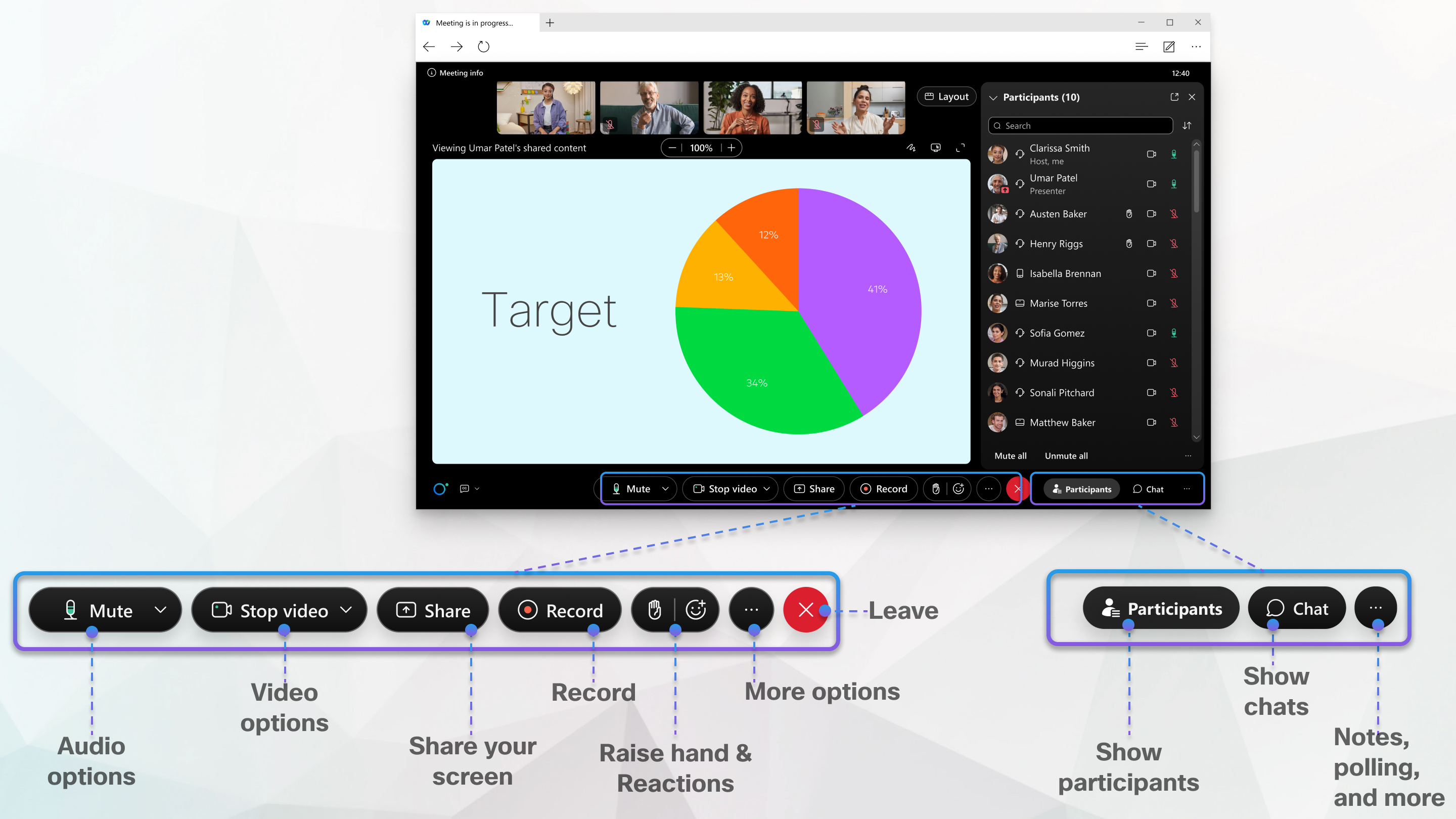
Switch to the desktop app
If you need more functionality, you can switch seamlessly to the desktop app on Mac and Windows. Click More  , and then click Switch to desktop app.
Learn more
Release notes for Webex Meetings


