
Thanks for your feedback.
Webex App | Use a whiteboard in a breakout session
 Feedback?
If your meetings run on our Webex Suite meeting platform, you can join a breakout session, create or share an existing whiteboard, start a whiteboard that you created in another meeting, closed earlier in the current meeting, or prepared using Webex Whiteboards.
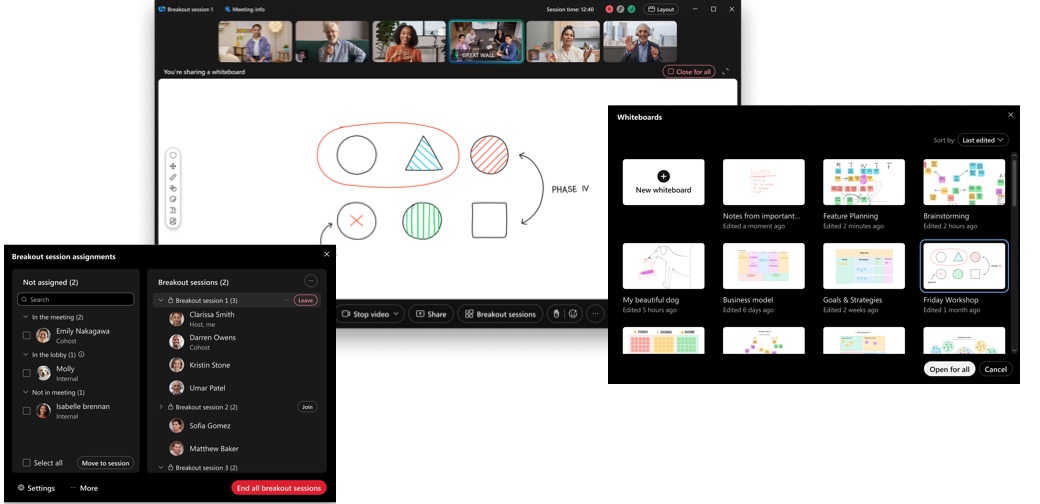
When you sign in to Webex Whiteboards, you can see all your whiteboards and create new ones there or share an existing one. To open a whiteboard just click anywhere on it.
To create a whiteboard:
| 1 |
To join the breakout session when it starts, click Join now in the message that appears, or to join an existing breakout session, go to the Participants panel and click Join. |
| 2 |
Click More options |
| 3 |
Click New whiteboard or select a whiteboard, and then click Open for all. If you're not sure which whiteboard to open,
preview it. Hover over a whiteboard and click |
| 4 |
Use the following whiteboard tools:
|
| 5 |
Use the following whiteboard controls:
In the minimap located at the bottom right of the whiteboard:
You can also use keyboard shortcuts to zoom in and out of the whiteboard area:
|
| 6 |
When you finish using the whiteboard, select . |


 —Hold and drag the mouse button to move around the
whiteboard canvas.
—Hold and drag the mouse button to move around the
whiteboard canvas. —Click the mouse button on an area on the whiteboard, and
drag the mouse to select items, and move them on the whiteboard.
—Click the mouse button on an area on the whiteboard, and
drag the mouse to select items, and move them on the whiteboard. —Hold and drag the mouse button to draw a line with the pen.
 —When you select the pen, click the magic pen to make lines or shapes you add with the pen tool automatically smoother and straighter.
 —Hold and drag the mouse button to erase any annotation on
the whiteboard.
—Hold and drag the mouse button to erase any annotation on
the whiteboard. .
. —Add emphasis to something important while you're talking
about it. Click the button and draw attention to content on the board by, for example,
circling or underlining it. Your marks will fade away after a couple of seconds.
—Add emphasis to something important while you're talking
about it. Click the button and draw attention to content on the board by, for example,
circling or underlining it. Your marks will fade away after a couple of seconds. —Select from a circle, square, or diamond. When selected, drag the shape to the area you want, and resize. You can also fill the shape with color. When you right-click the shape, you can choose bring to front, send to back, copy, paste, duplicate, and delete.
 —When selected, click on the area you want to add text. You
can choose to display your text with a range of rich text formats: bold, italic,
underline, size, color, alignment, and list options.
—When selected, click on the area you want to add text. You
can choose to display your text with a range of rich text formats: bold, italic,
underline, size, color, alignment, and list options. —When selected, click on the area you want to add sticky notes. Drag the note to the place you want, and select the color of the sticky note. Click the
  —Use the emoji picker to select an emoji and place it on the whiteboard. When selected, you can drag to the area you want, and resize. When you right-click the emoji, you can choose to bring to front, send to back, copy, paste, duplicate, and delete.
 —Add an image from a local folder, and place it on the
whiteboard.
—Add an image from a local folder, and place it on the
whiteboard. —Click to redo changes made to the whiteboard.
 —This hides the minimap view. Click again to reopen the minimap.
 —Zoom to the width of the area where participants are making edits.
 —This controls the view of the entire whiteboard area.
If the host has chosen to have you join the breakout session automatically, you see the following message when the breakout session starts. You automatically join the session.
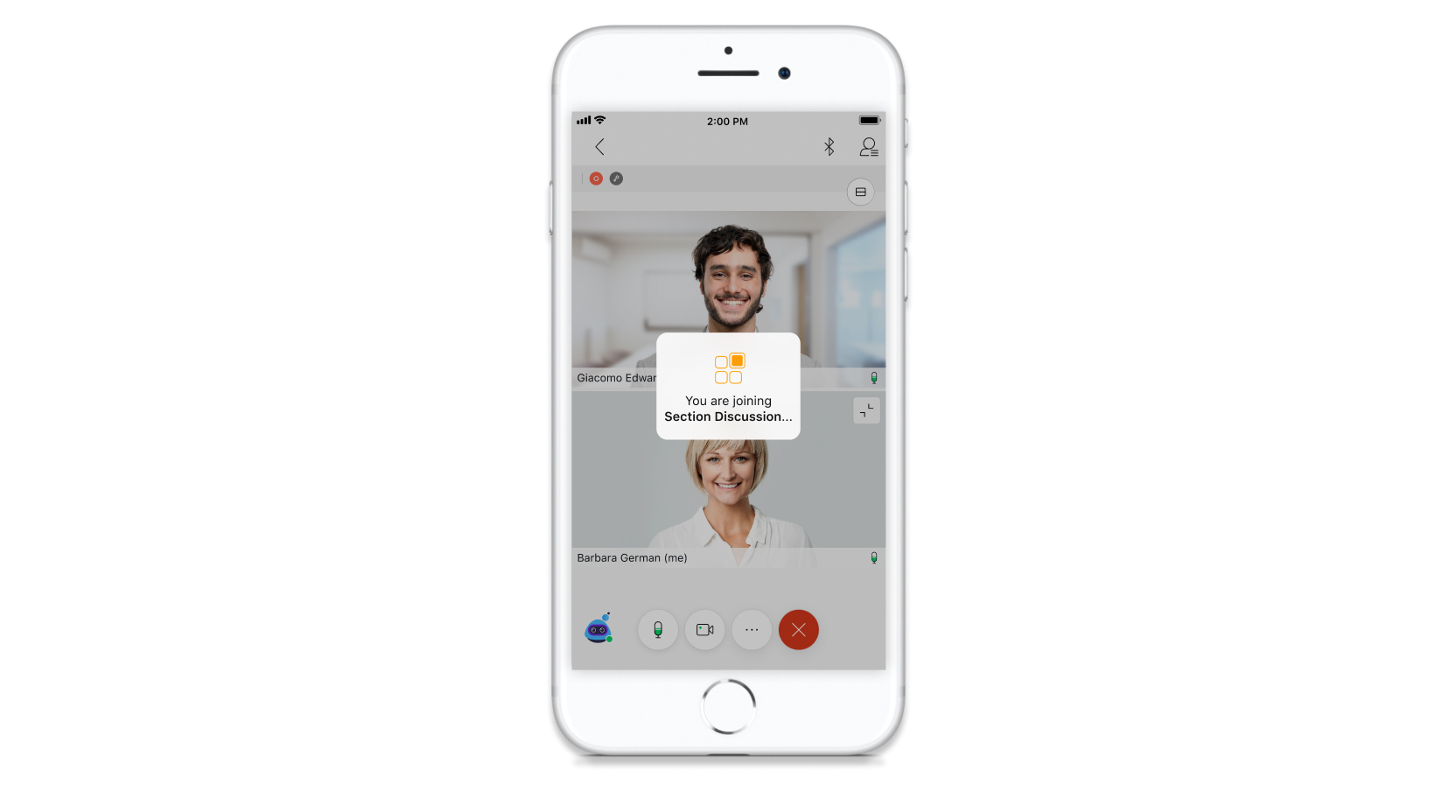
Otherwise, you're notified when the breakout session starts. You can manually join the breakout session that you're assigned to now or later.
| 1 |
To manually join the breakout session when it starts, tap Join now.  |
| 2 |
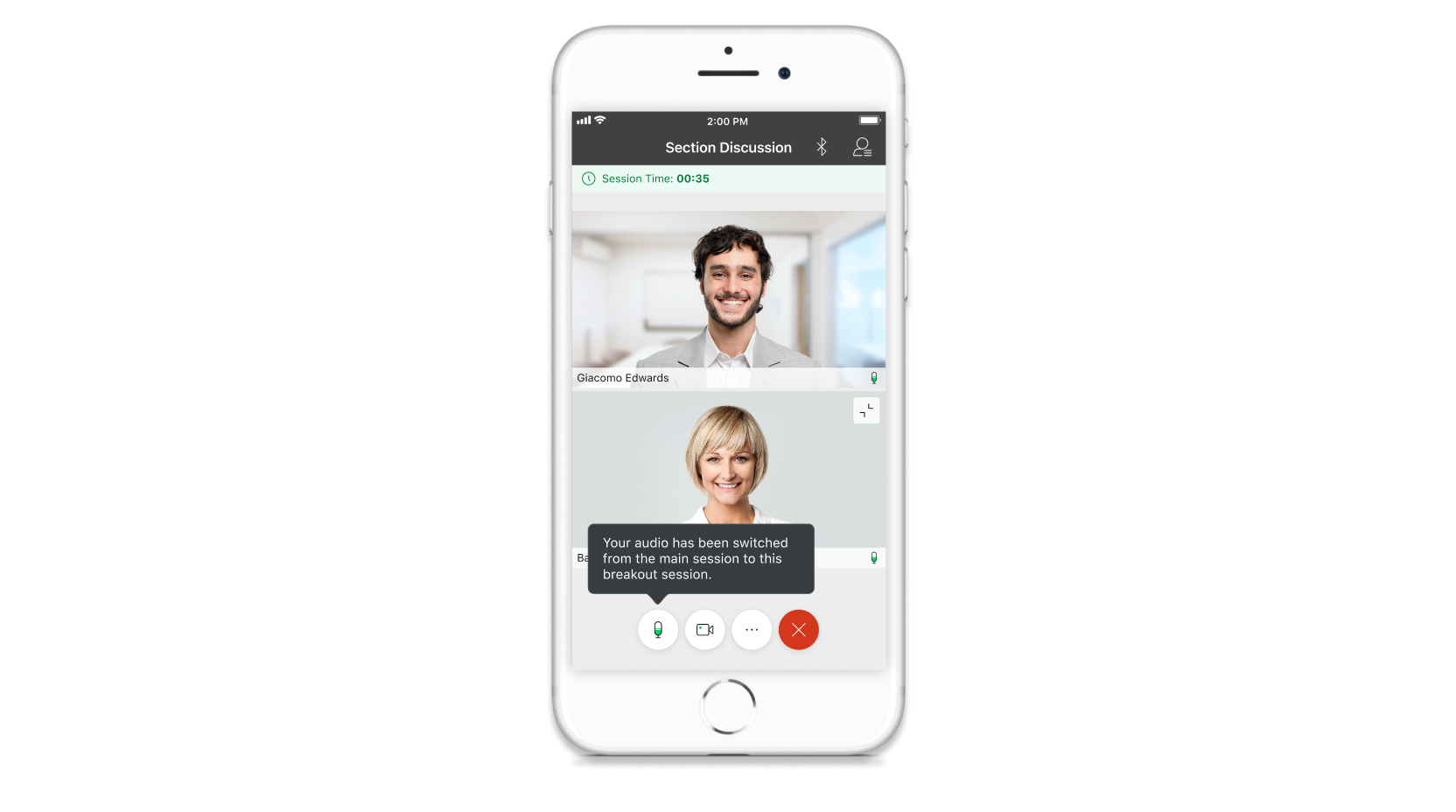
To join the breakout session later, tap Join later. When you're ready to join, tap Participants 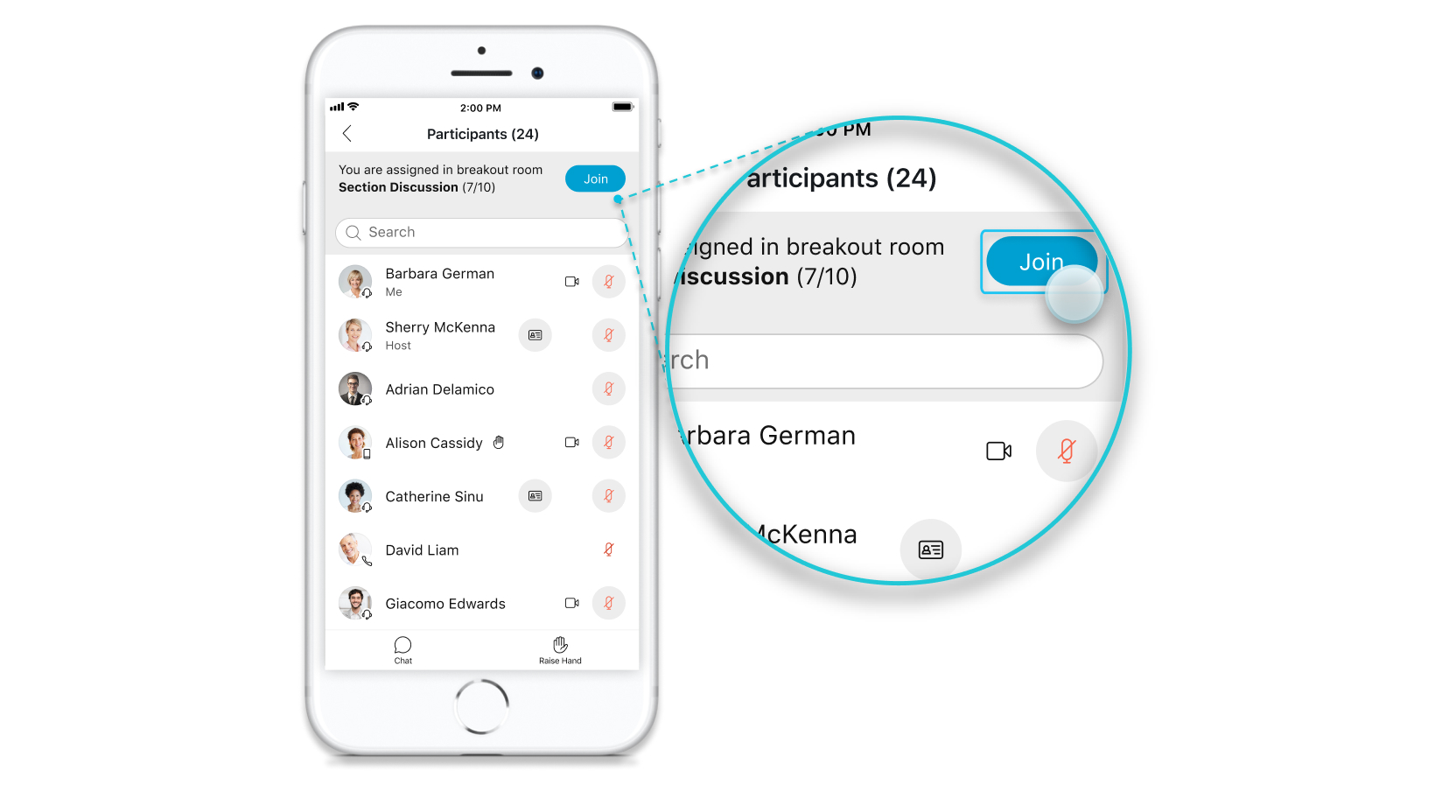 You join the breakout session and your audio switches from the main meeting to the breakout session. See Best practices for participating in breakout sessions.
 |
| 3 |
During a meeting, go to More options |
| 4 |
Tap If you're not sure which whiteboard to open,
preview it. Tap |
| 5 |
Use the following whiteboard tools:
|
| 6 |
In the top-right corner, click More actions
|
| 7 |
Tap Close for all to stop sharing your whiteboard. |

 Whiteboards
 and choose bring to front, send to back, copy, paste,
duplicate, or delete.
and choose bring to front, send to back, copy, paste,
duplicate, or delete.


