
Thanks for your feedback.
Add a participant to an ongoing call or meeting on Board, Desk, or Room Series
 Feedback?
You can add someone to an ongoing call, Webex meeting, or personal room meeting by tapping the Add button.
When hosting a meeting, you can also add SIP participants from the same or different organizations, including cloud, on-premises, or edge-registered devices.
Note: To add on-premises or edge SIP devices, prepend "sip:" to the URI (for example, "sip:username@company.com") because the system does not recognize the URI without this prefix.
Both internal and external PSTN numbers can also be added as participants to an ongoing Webex meeting. However, these PSTN numbers must first be provisioned and managed by administrators in Cisco Control Hub. Control Hub is responsible for the activation, modification, and management of phone numbers, ensuring they are recognized and able to join meetings. Therefore, provisioning in Control Hub is required before PSTN numbers can be added to meetings.
| 1 |
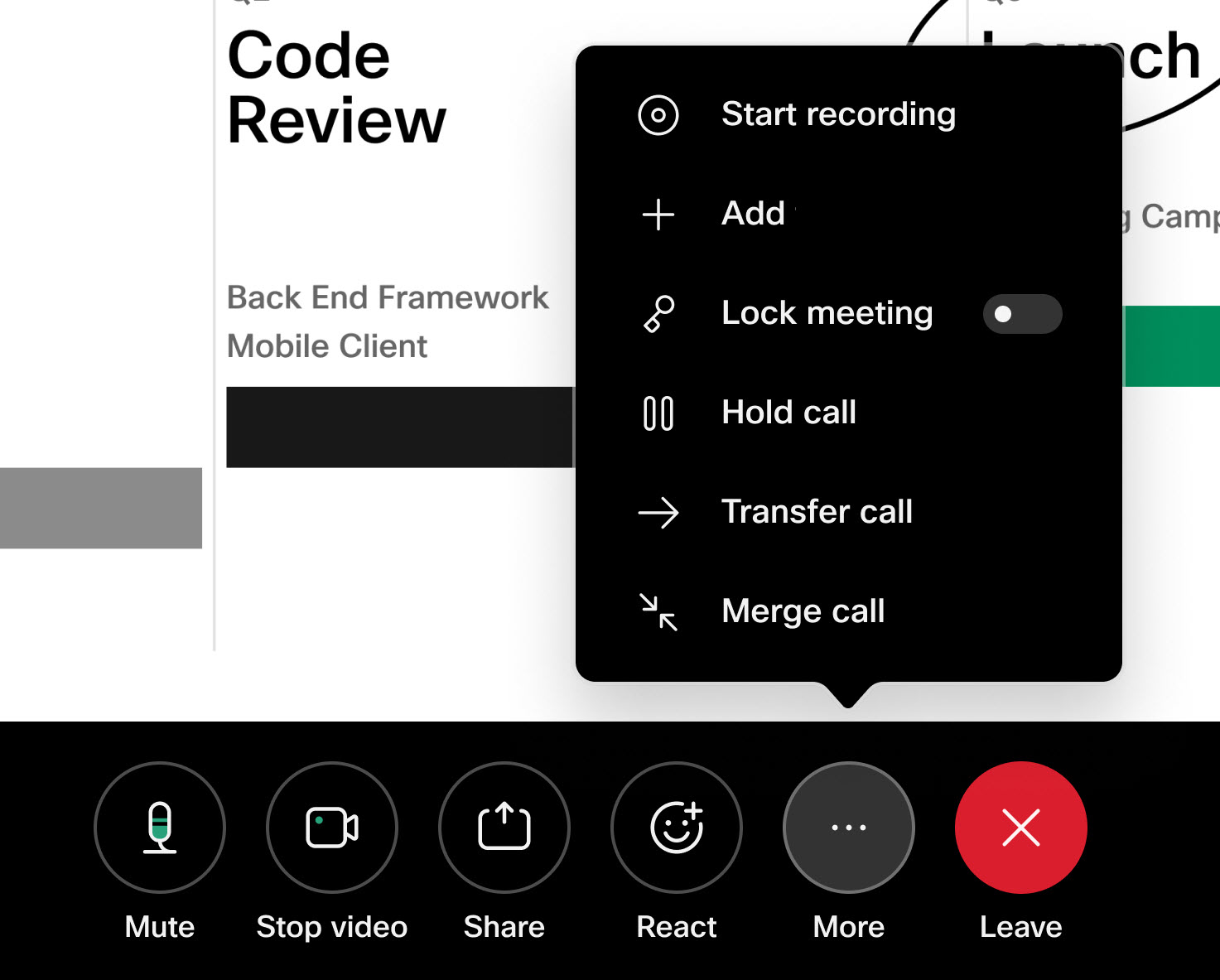
When you're in a call or a meeting, access the call controls on your device or touch controller. Tap the Add
If you don't see it, you might need to tap More
|
| 2 |
Tap Add participants and choose a contact. You can also send an email invitation to the people you want to add. 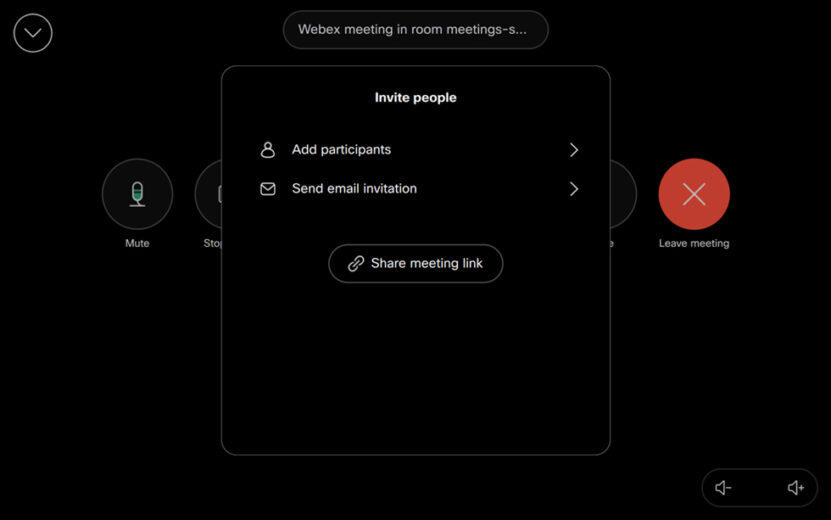
You can cancel the invite by tapping the participant list and selecting cancel invite. Once the participant has joined the call or meeting, you can't cancel the invite anymore. |
| 3 |
On personal mode devices, the user receives a One Button To Push (OBTP) Join notification on their device and can then join the meeting or call at any time. On shared devices, an incoming call appears and needs to be answered. The call dialog shows who invited the device, and the participants of that meeting or call. |
 button.
  first and then select
 | 1 |
When you're in a call or a meeting, tap anywhere on the screen. When the buttons appear, tap More and then Add. |
| 2 |
Select a contact and tap Add. 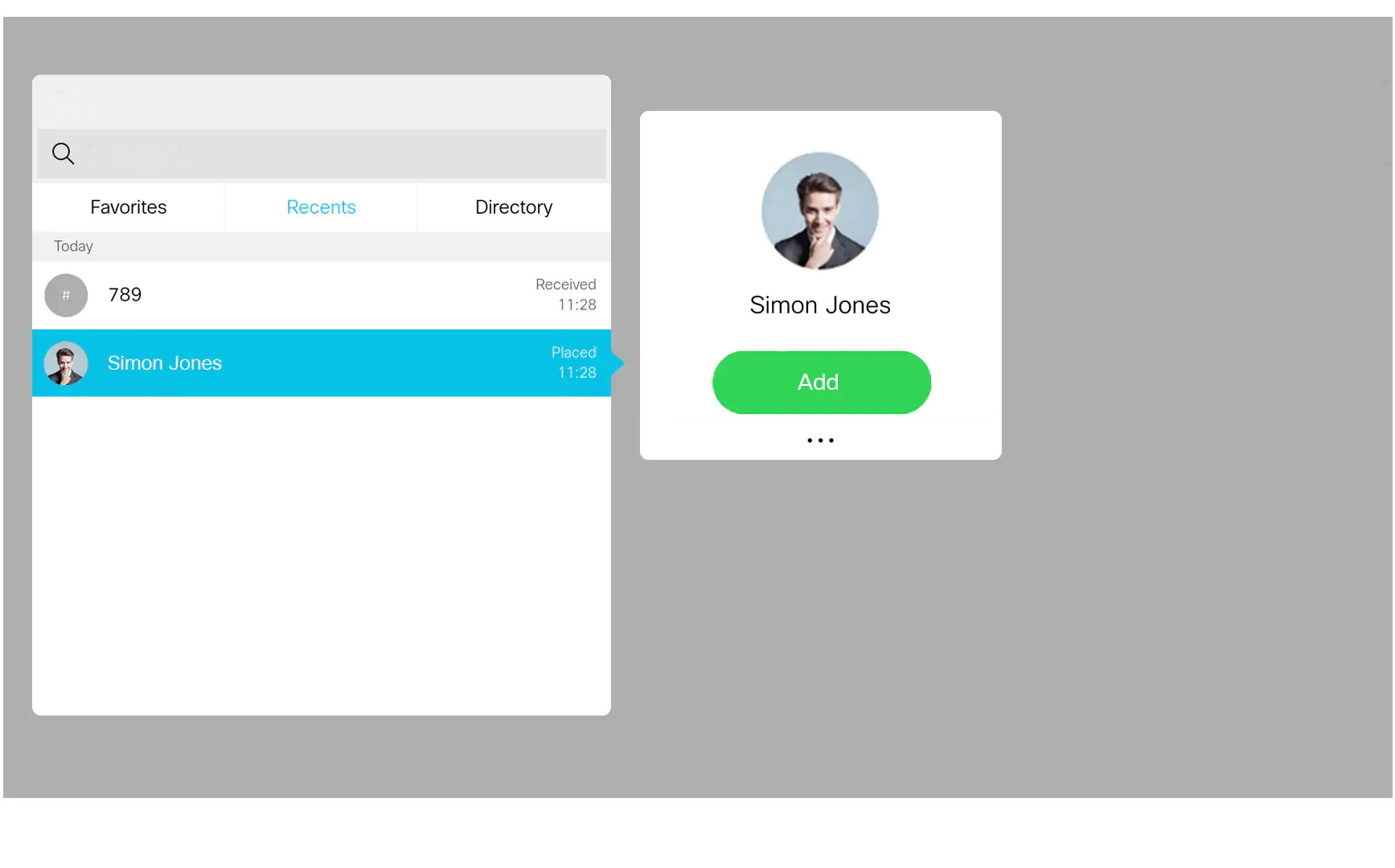
You can cancel the invite by tapping the participant list in the right corner and select cancel invite. Once the participant has joined the call or meeting, you cannot cancel the invite anymore. 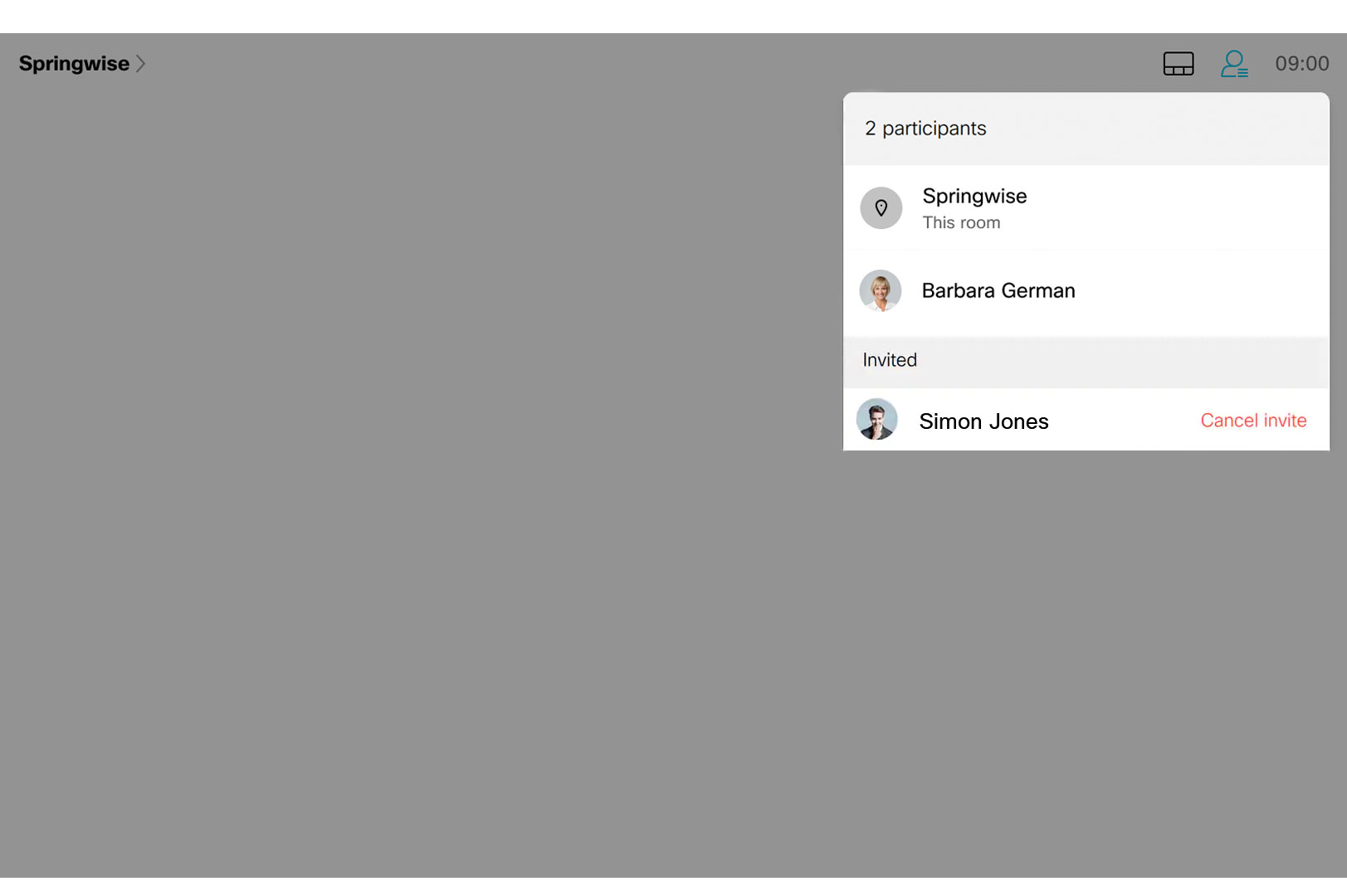
|
| 3 |
On personal mode devices, the user receives a One Button To Push (OBTP) Join notification on its device and can then join the meeting or call at any time. On shared devices, an incoming call appears and needs to be answered. The call dialog shows who invited the device, and the participants of that meeting or call. |


