- Home
- /
- Article

Thanks for your feedback.

 In this article
 Feedback?
When you've installed the app, you're ready to start getting work done. Learn how to send messages, create new sections and spaces, read messages, and share files.
Space sections
Organize your spaces into sections that you create. Drag and drop spaces into sections to keep related work together. Expand and collapse sections to keep your space list easy to scan. If you need help organizing your spaces, see Webex App | Space sections.
Spaces and public spaces
A space is where you can share ideas about a specific topic with other people. The space could be for a new project, an upcoming event, or just somewhere to share fun ideas. As you send messages or share files, everyone in the space can participate. Your company may add you to spaces automatically, or you can create a space.
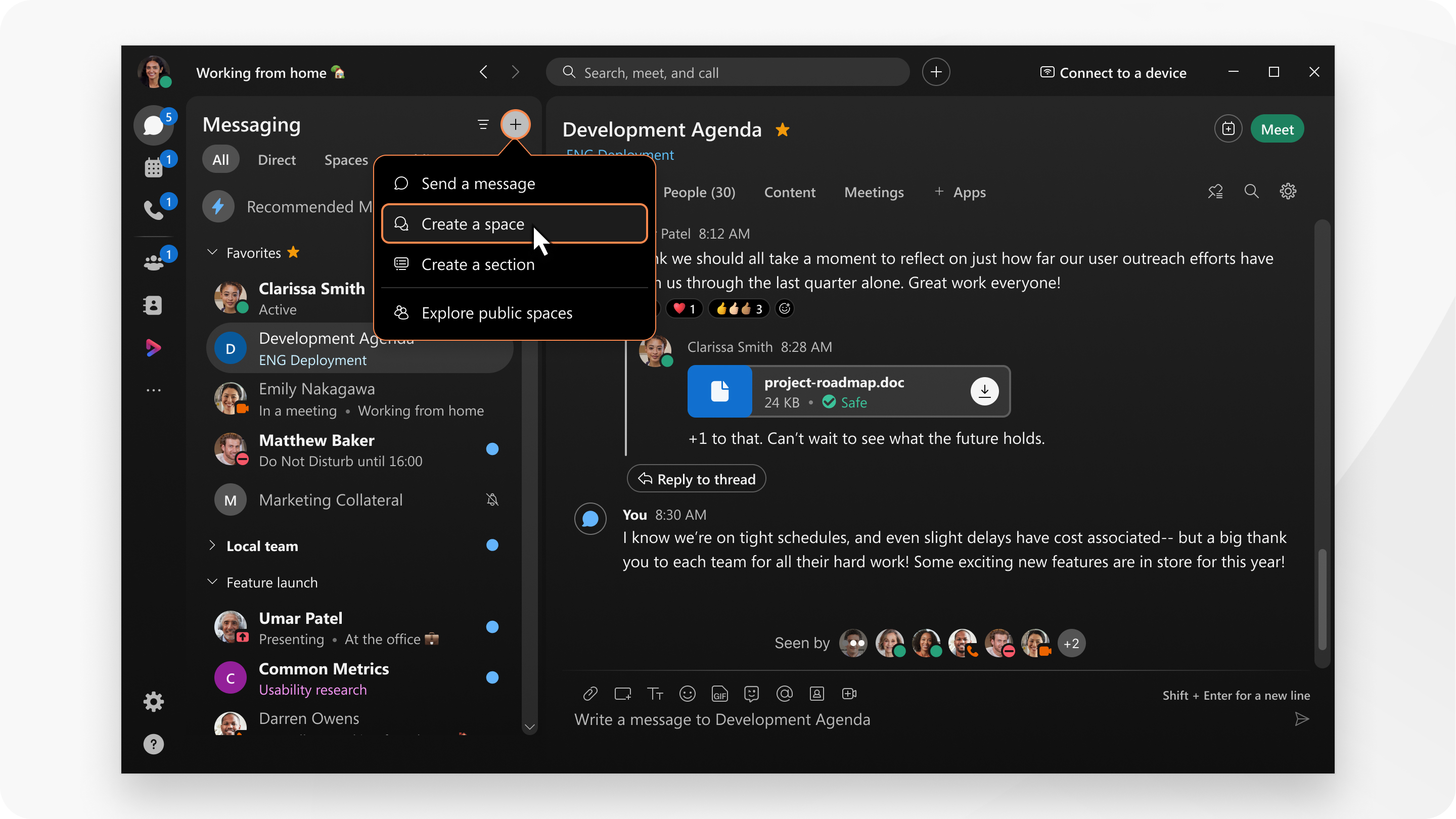
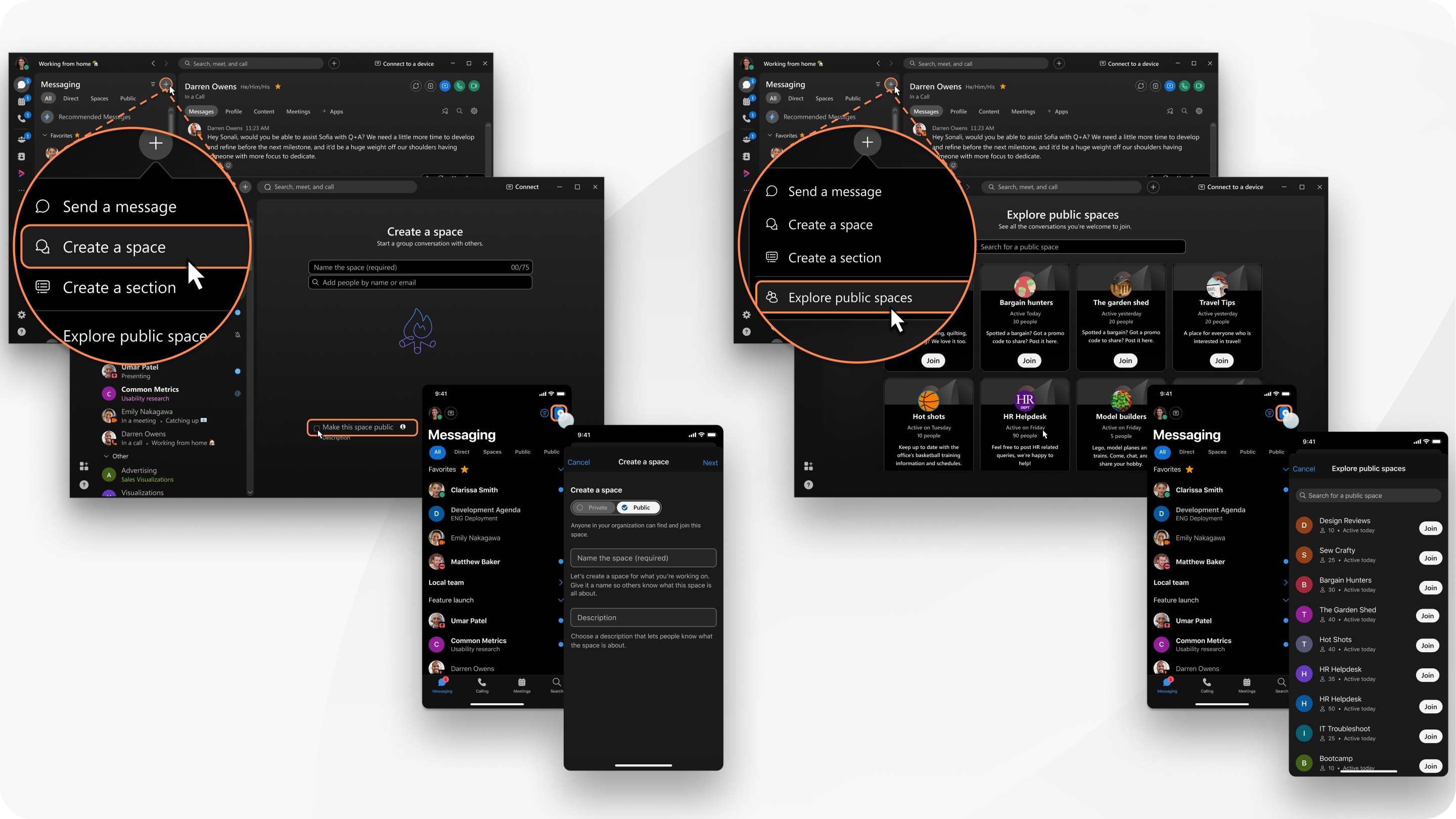
Public spaces are spaces that are created within your organization and are easy to discover. Discover, join, or create public spaces to connect with people who have similar interests or to keep up with the latest news. Public spaces are different from other spaces because they are not tied to a specific team. Anyone in your organization can find a public space that you create. If you change your mind, you can make a public space private again at any time.
Send a message
You can send a message to someone or send a message at a scheduled time in the future. All you need is the person's name or email address, or you can quickly start a conversation.
Share files, add personality with emojis, or use animated GIFs.
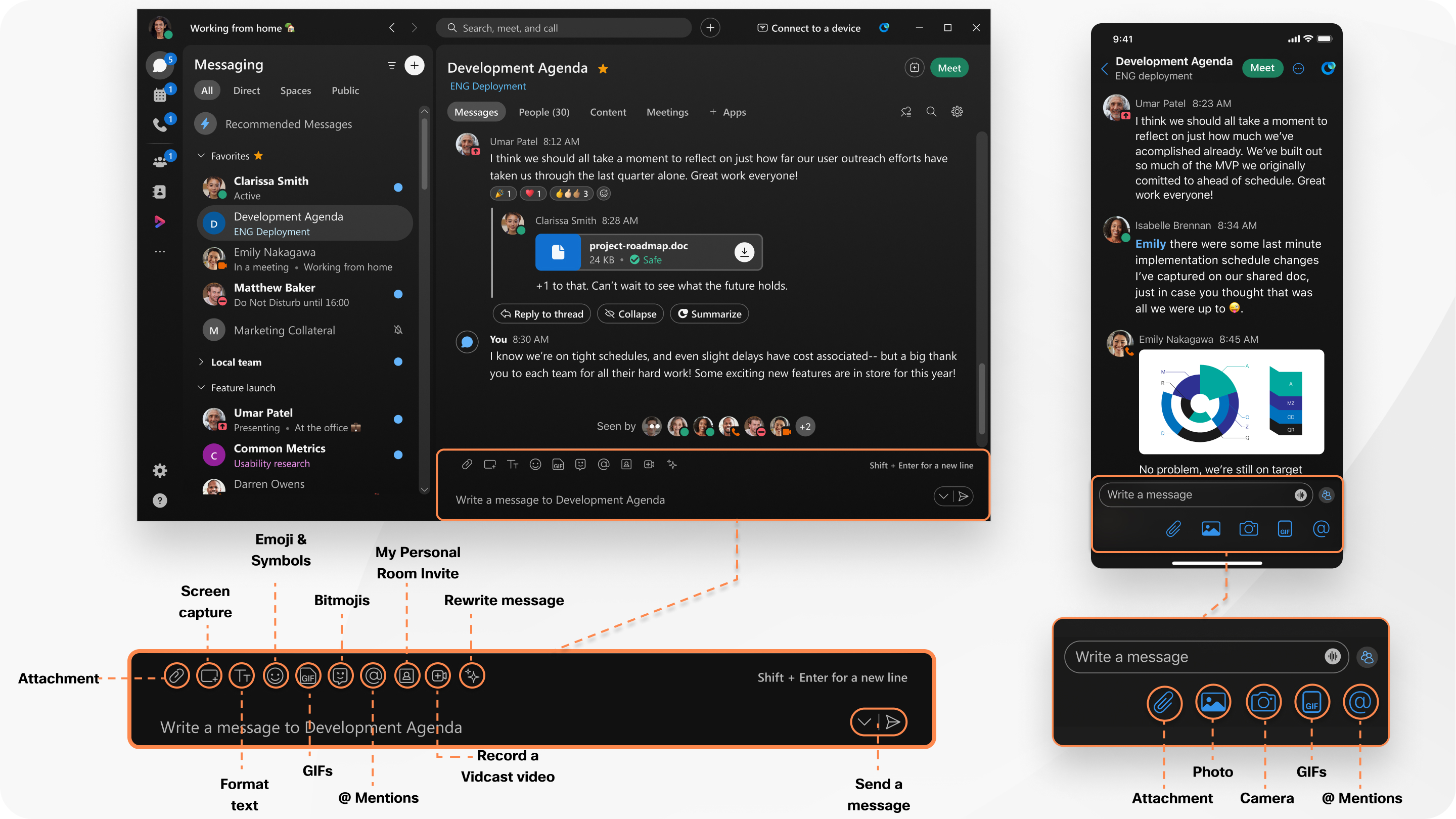
Use @Mentions to get someone's attention in a space, or use @all to get everyone's attention in a group space.
Respond to a message
When you click a space in the space list, you see all the messages that were posted in that space. You can add a quick response with an emoji, create a thread, quote someone's message, forward the message, flag important messages, or delete your own message.
If a message contains a link, you can right-click the link to get a Copy Link option in the Shortcut menu.
You can also change the font size for messages to a size you prefer so you do not miss any details.
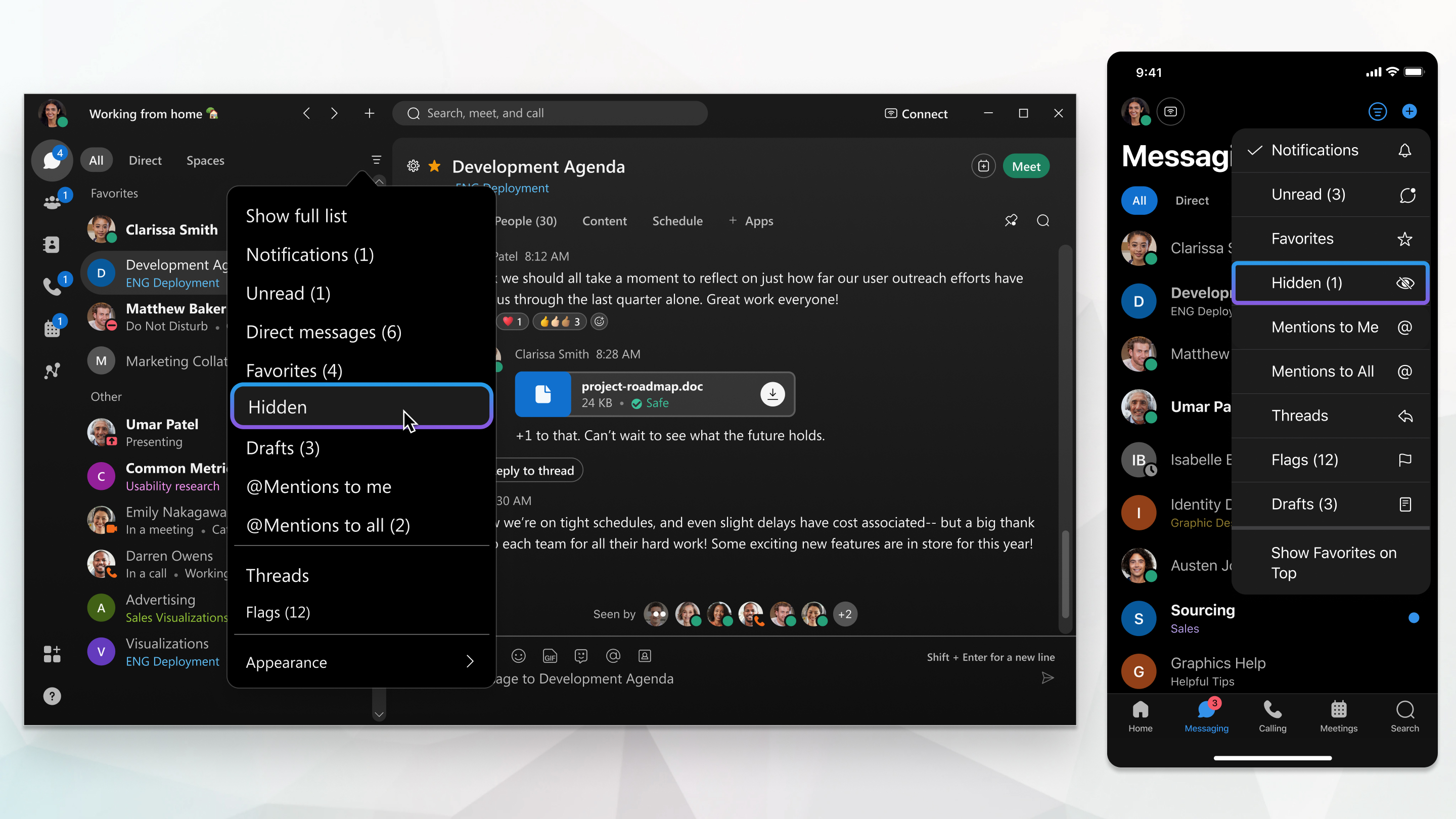
Filter the space list
When you are added to spaces or you create a space, you see a space list. At a glance, you can see spaces with new messages, new spaces you have been added to, or spaces where you have been mentioned. You can filter this list if you want to focus on spaces that have unread messages.