- Home
- /
- Article

Thanks for your feedback.


Webex Cloud-Connected UC for Government supported services
 In this article
 Feedback?
Enable Webex Cloud-Connected UC for Government services in Control Hub by navigating to Connected UC, selecting your cluster group and cluster, and viewing node details.
Enable Webex Cloud-Connected UC for Government services
| 1 |
From the customer view in Control Hub, go to Services > Connected UC. On the UC Management card, click Inventory. The list of cluster groups with the description, status, clusters, and nodes
appear.
|
| 2 |
Click Details next to the cluster group to which the node belongs. The Inventory page with the list of clusters belonging to the selected cluster
group appears.
|
| 3 |
Click Details next to the cluster to which the node belongs. The Node name with the version, product, and status appears.
|
Cisco Call for Government
To configure your Microsoft Teams app with Cisco Call options. The  icon is added to the left navigation
and as a Messaging extension. With the Teams calling option turned off, everyone in the
organization uses the same platform to make and receive calls. For more information, refer to
Cisco Call for Government.
icon is added to the left navigation
and as a Messaging extension. With the Teams calling option turned off, everyone in the
organization uses the same platform to make and receive calls. For more information, refer to
Cisco Call for Government.
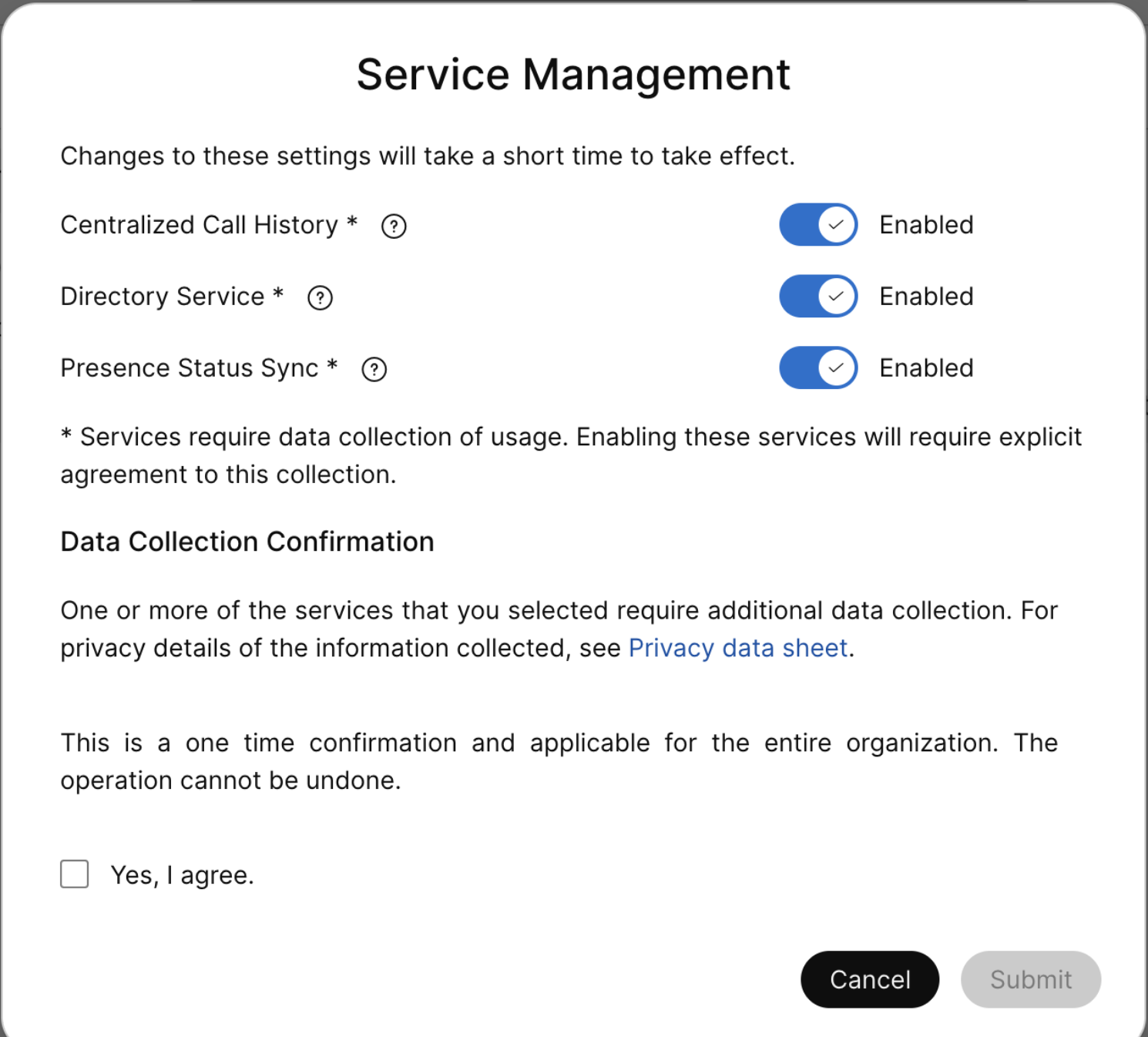
Directory Service
You can synchronize and manage users from cloud Active Directory (for example, Microsoft Entra ID) into on-premises or cloud hosted UC infrastructure like Cisco Unified Communications Manager (Unified Communications Manager) and Cisco Unity Connection (Unity Connection) with the Webex Cloud-Connected UC for Government Directory Service. During synchronization, the system imports a list of users and associated user data from the Entra ID (or a similar Cloud Directory service) that is synchronized into the Webex Common Identity Service. You must select the Unified CM cluster from Control Hub that needs synchronization, select the appropriate Unified CM User ID field mapping, and then select the required synchronization agreement to perform synchronization.
For more information, see Directory Service.
Centralized call history
You can configure the centralized call history on the Control Hub. For more information, see Centralized call history.
Presence sync status
When you need time to focus and don’t want any incoming call notifications to disturb you, now you don’t have to enable Do Not Disturb (DND) on each of your Unified CM Calling registered clients separately. There’s synchronization of your desk phone on-call status with the Webex App, enabling your coworkers to see your desk phone status on their Webex App.
For more information, see Call Presence and Do Not Disturb Synchronization.


