Was this article helpful?

Thanks for your feedback.
Webex App | Play background music or audio during a meeting without sharing content
 Feedback?
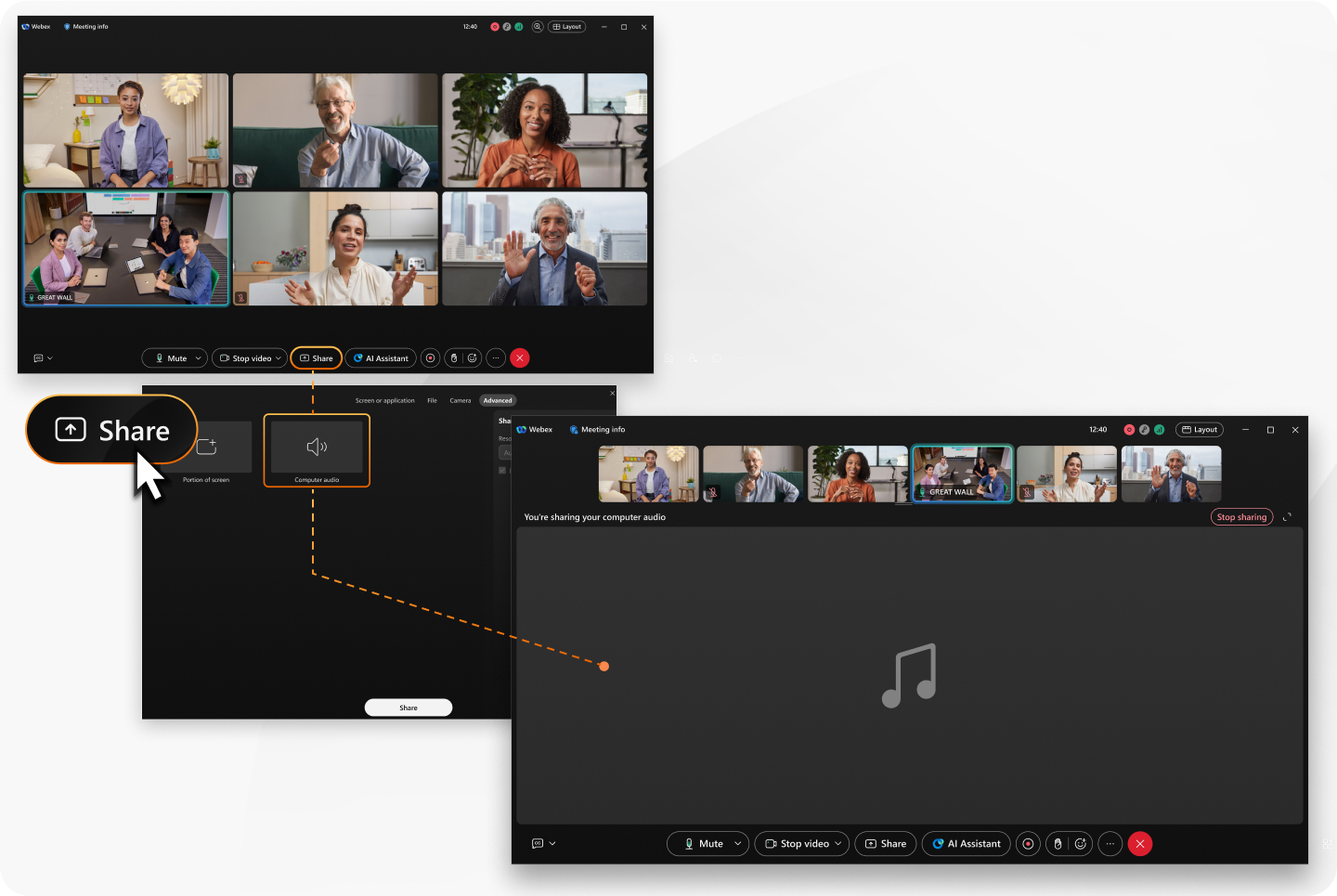
Share the audio from your computer, such as background music or any other sound, without sharing your screen or an application. When you share your computer audio only, a music note appears on the stage to let everyone know that audio is being shared.
Before you begin
This feature is available on our Webex Suite meeting platform. Find out if your meetings use the Webex Suite meeting platform.
| 1 |
Open Webex and sign in. |
| 2 |
During a meeting, play the audio on your computer and click Share content |
| 3 |
Click . |
| 4 |
Click Share. The message, You’re sharing your computer audio displays at the top of your meeting window to confirm that sound is being shared with others in the meeting. |
| 5 |
To stop sharing your computer audio, click Stop sharing. |

Was this article helpful?


