- Home
- /
- Article

Thanks for your feedback.

 In this article
 Feedback?
This Help article explains how to turn your Cisco Wireless Phone 9821 on or off, wake the display, lock or unlock the screen, and access your voice mail.
Read the Product safety and security information before installing or charging the battery.
Your phone is powered by a rechargeable Lithium-ion battery. Before using your phone, you must install the battery and fully charge it.
To operate, your phone must connect to the corporate wireless network and the IP telephony network. Depending on your organization’s setup, your administrator may configure your new wireless phone, or you may need to set it up yourself.
Once the phone is set up, it is ready for use.
Turn on your phone
When you turn the phone on, you may need to enter a username and password to access the wireless network. After the phone authenticates and registers with the call control system, the main screen displays and you can make or receive calls.
|
Press and hold Power/End Call |

Wake up the screen display
By default, the phone screen dims after 10 seconds of inactivity. After 10 more seconds of inactivity, the screen display turns off. When the screen display is off, the phone uses less battery power.
If the screen display is off, you must wake it up to make a call.
|
Press any key. |
Turn off your phone
To conserve the battery, turn off the phone when you are not using it to make or receive calls.
|
Do one of the following actions:
|
Lock the phone keypad
You can lock the keypad so that you don't press any key by mistake.
|
Press and hold Zero (0) |

Unlock the phone keypad
If you lock the keypad, you need to unlock it to use the phone.
| 1 |
Press Unlock. |
| 2 |
Press Zero (0) |
Access the Phone app
We make it easy for you to make and receive calls with the Phone app.
If your home screen is line view, then you are already in the Phone app.
|
Use one of these ways to access the Phone app:
|

Access the Settings app
You use the Settings app to set up, manage, and customize your phone.
Menu entries that are unavailable mean that your administrator has restricted access to the menu.
| 1 |
From the Line view screen, press the left arrow of the navigation cluster to view the Applications screen. |
| 2 |
From the Applications screen, press the down arrow of the Navigation Cluster to select
Settings |

Access the Contacts App
You can access the Contacts app from the Applications view screen.
| 1 |
From the Line view screen, press the left arrow of the Navigation Cluster to view the Applications screen. |
| 2 |
From the Applications screen, press the left arrow of the Navigation Cluster to select
Contacts |

Access the Recents app
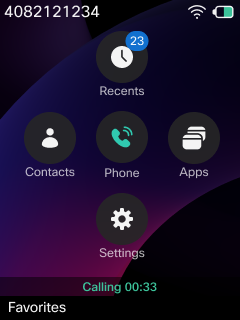
You can access the Recents app from the Applications screen. From the Recents app, you can see your voicemail messages, missed calls, and recent calls.
A digit appears on the Recents  on the Application screen when your phone has new missed calls, voice
messages, or both. The digit represents the total number of new missed calls and voice
messages on the phone (including all lines).
on the Application screen when your phone has new missed calls, voice
messages, or both. The digit represents the total number of new missed calls and voice
messages on the phone (including all lines).
| 1 |
From the Line view screen, press the left arrow of the Navigation Cluster to view the Applications screen. |
| 2 |
From the Applications screen, press the up arrow of the Navigation Cluster to select
Recents |
Access your voicemail
You can access your voicemail by calling the voicemail system phone number. But, if your administrator has configured the Shortcut softkey in the Applications view as Voicemail, you can access voicemail by pressing this softkey. This action automatically dials the voicemail system for you.
Your voicemail system is separate from the phone. If you need information about the voicemail system phone numbers for internal and external access and other voicemail system information, contact your administrator.
| 1 |
Access your voicemail using one of the following ways, depending on your preference.
|
| 2 |
Follow the voice instructions. |