- Home
- /
- Article

Thanks for your feedback.

 In this article
 Feedback?
This Help article provides information about Cisco Wireless Phone 9821 screen features.
The Cisco Wireless Phone 9821 phone home screen shows information such as directory number, active call and line status, softkeys, speed dials, and placed calls. The home screen is made up of these sections:
-
Header section—displays the phone number, Wi-Fi strength, battery capacity, and a number of feature icons. The feature icons display when features are active.
-
Middle section—displays the Application icons or phone lines.
-
Footer section—displays the current date and time or softkey labels. Each softkey label indicates the action for the softkey button below the screen.
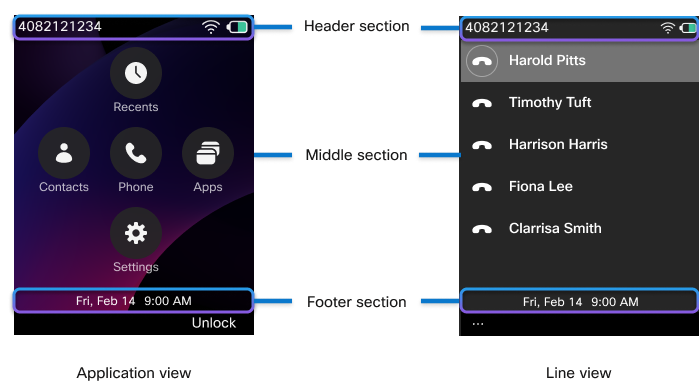
Depending on your administrator's configuration, the Cisco Wireless Phone 9821 home screen can be either the Application view or the Line view. If you frequently make or receive calls, you may prefer the Line view as your default home screen.
Application view
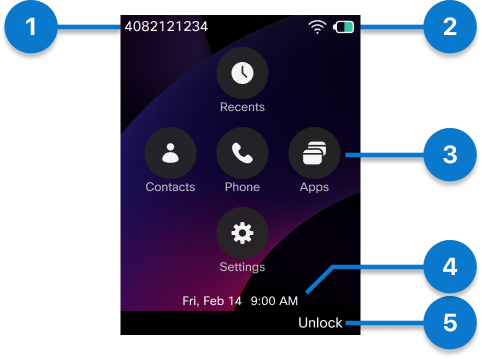
The following figure is a home screen in Applications view.
|
Number |
UI element |
Description |
|---|---|---|
|
1 |
Directory number |
Displays the directory number. On multi-line phones, this field displays the directory number of the currently selected line. |
|
2 |
Header icons |
Displays the Wi-Fi strength, battery capacity, and so on. The icons display when the corresponding features are active. See Header icons for details. |
|
3 |
Application icons |
Entries to the respective applications.
The Phone app icon indicates the existing call session type.
|
|
4 |
Time and date |
Displays the current time and date. |
|
5 |
Softkey label |
Displays the action for the softkey button below the screen. |
 : The phone is in an active call.
 : The phone is in an intercom call.
 : Any line on the phone has an incoming call or reverting call.
 : The shared line is in use.
 : Any line on the phone has a call on hold.
 : The shared line is on hold.
 : The shared line is in use with privacy
turned on.
: The shared line is in use with privacy
turned on. : The phone is on park.
 : The currently selected line on the phone is set to forward all
calls.
: The currently selected line on the phone is set to forward all
calls.Line view
To see your phone lines from the Application view, press
the Select button in the center of the Navigation Cluster to access
the Phone
 app. Depending on configurations, your phone can have a single line or multiple
lines.
app. Depending on configurations, your phone can have a single line or multiple
lines.
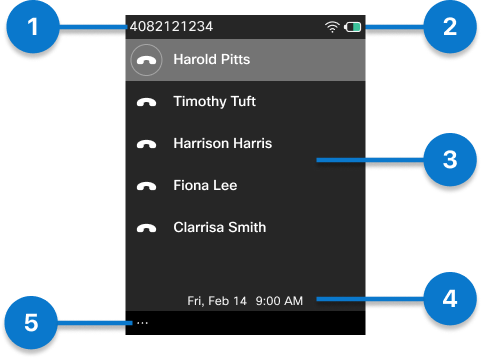
The following figure is a home screen in Line view.
|
Number |
UI element |
Description |
|---|---|---|
|
1 |
Directory number |
Displays the directory number. On multi-line phones, this field displays the directory number of the currently selected line. |
|
2 |
Header icons |
Displays the Wi-Fi strength, battery capacity, and so on. The icons display when the corresponding features are active. See Header icons for details. |
|
3 |
Lines |
Your phone supports up to six lines, which can be configured as directory numbers or intercom numbers. Additionally, feature line keys appear as dedicated lines, allowing you to access assigned features quickly. Each line supports multiple calls, with the specific capacity determined by your system administrator. While a line can manage several calls simultaneously, only one call can be active at a time; all other calls are automatically placed on hold. |
|
4 |
Time and date |
Displays the current time and date. |
|
5 |
More softkey |
Label for the More softkey below the screen. Press the More softkey on a line to access a list of menus or functions. |
To return to the Applications view when all lines are idle, press More
 and select Exit. Alternatively, press the left
arrow on the Navigation Cluster.
and select Exit. Alternatively, press the left
arrow on the Navigation Cluster.
The following figures are screens in Line view with ongoing calls.
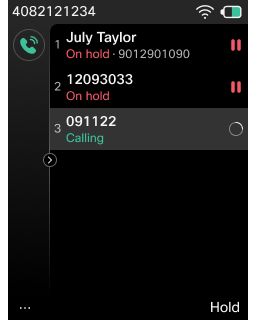
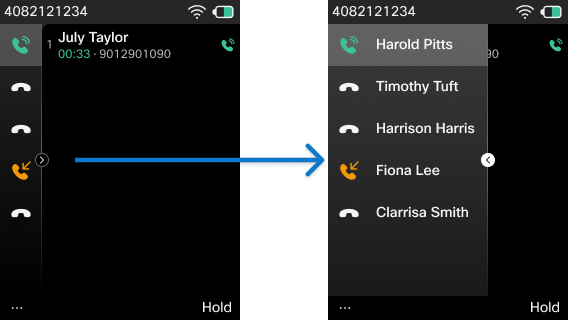
Press the right arrow on the Navigation Cluster to expand the Lines panel. The line that is currently selected displays at the top of the list.
When the Lines panel is expanded, press the left arrow on the Navigation Cluster to collapse the Lines panel.
Header icons
The following table lists some of the screen header icons that will appear on your Cisco Wireless Phone 9821.
|
Icon |
Description |
|---|---|
|
|
The speakerphone or desktop charger speaker is active. |
|
|
A wired headset or Bluetooth headset is active. |
|
|
The microphone is muted. |
|
|
There is a new voice message. |
|
|
The phone ringer is muted. |
|
|
Bluetooth is turned on. |
|
|
Wi-Fi connection status. The number of bars indicates the signal strength. |
|
|
The phone is connected to the Ethernet. |
|
|
The phone is in DND mode. |
|
|
The Action button has configuration issues. |


By default, your phone displays the battery charge icons. You can enable the phone to display the battery level as a percentage. For more information, see Set battery level display.
|
Not charging |
Charging |
Description |
|---|---|---|
|
|
|
The battery is fully charged. |
|
|
|
The battery remaining capacity is approximately 10% to 100%. |
|
|
|
The battery remaining capacity is approximately 3% to 10%. |
|
|
|
The battery remaining capacity is approximately 2% or lower. Recharge the battery or exchange it for a charged battery. |


