
Thanks for your feedback.
Connect your iPhone camera to Webex Meetings using Continuity Camera
 Feedback?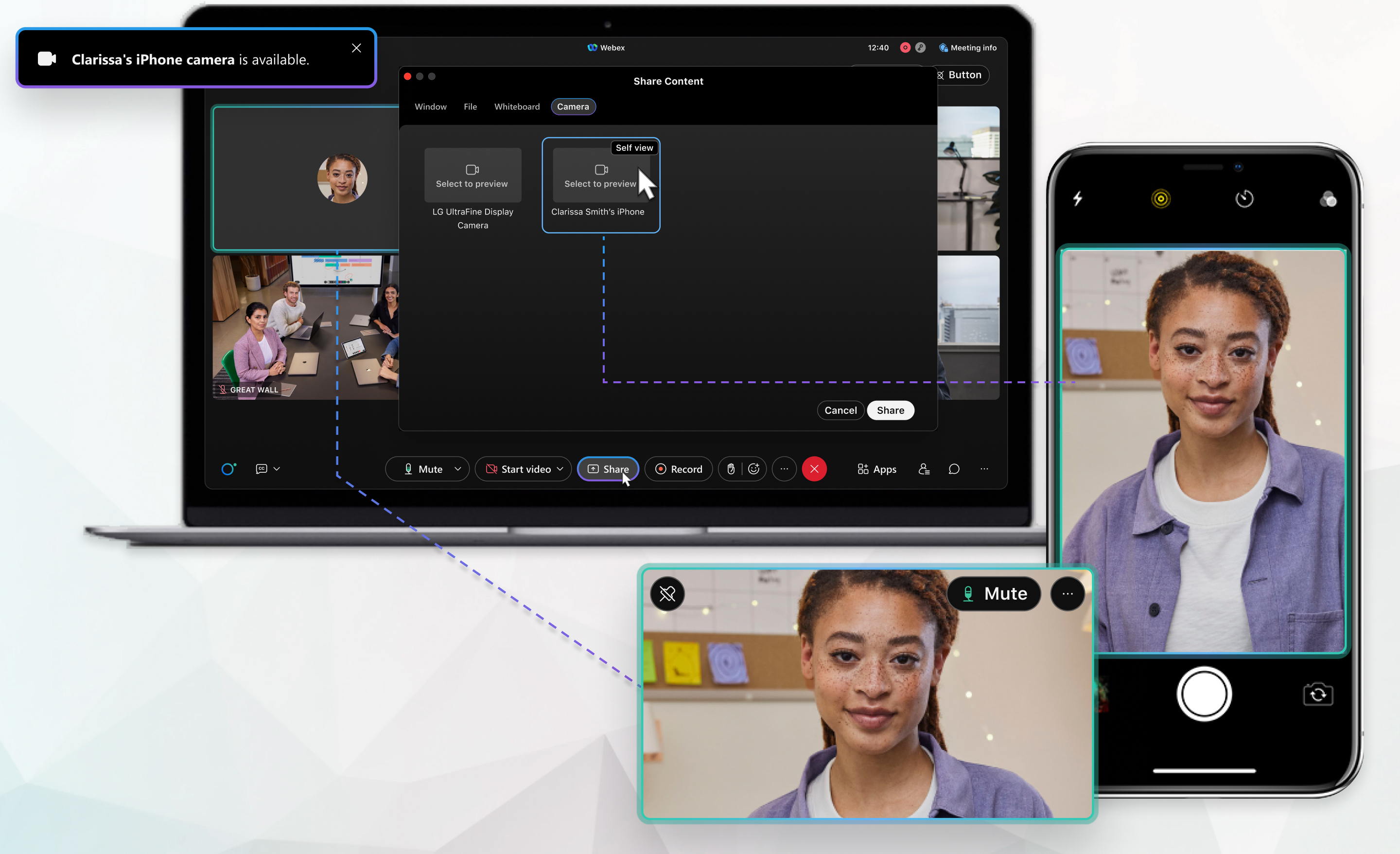
To use Continuity Camera, your Mac must have macOS Ventura or later. Your iPhone must have iOS 16 or later. Connect your Mac and iPhone to the same Wi-Fi and Bluetooth® network. Sign in with the same Apple ID that uses two-factor authentication on both devices and make sure Continuity Camera is on. If you don't know whether you can use Continuity Camera, review the requirements and best practices.
With Continuity Camera on, Meetings detects your connected iPhone. While detected, you can choose it from the available cameras or microphones connected to your Mac. Choose the iPhone camera and microphone from the available options, as Meetings doesn't select them automatically.
Continuity Camera features that you apply to your iPhone, such as Portrait and Desk View, carry over to your meeting video.
Connect your iPhone as your camera and microphone
| 1 |
Before or during a meeting, click Video options, then select your iPhone from the camera list. |
| 2 |
Before or during a meetingm, click Audio options, then select your iPhone from the microphone list. |
Share your iPhone's camera
| 1 |
During a meeting, click Share |
| 2 |
Select Camera, and then choose your iPhone or iPad. |
| 3 |
Click Share. |
 .
.Share Desk View
| 1 |
During a meeting, click Share |
| 2 |
Select Window, and then choose Desk View. |
| 3 |
Click Share. |


