
Thanks for your feedback.
 Feedback?
Stream Webex Meetings or Webex Webinars on YouTube
Before you begin
Applies to:
-
All active Meetings versions with the Meet, Business, and Enterprise plans
-
All Webinars versions
Sharing a whiteboard and sharing a file using Share File, including sharing a video file, aren’t supported while live streaming.
You must have a Google account to sign in to YouTube. Live streaming must be enabled for your YouTube channel.
Make sure that you have signed in to YouTube Live and become familiar with the process of live streaming well before you intend to live stream your meeting or webinar.
| 1 |
Sign in to YouTube with your Google account. |
| 2 |
In the upper right corner, go to Create a video and more and click Go live. 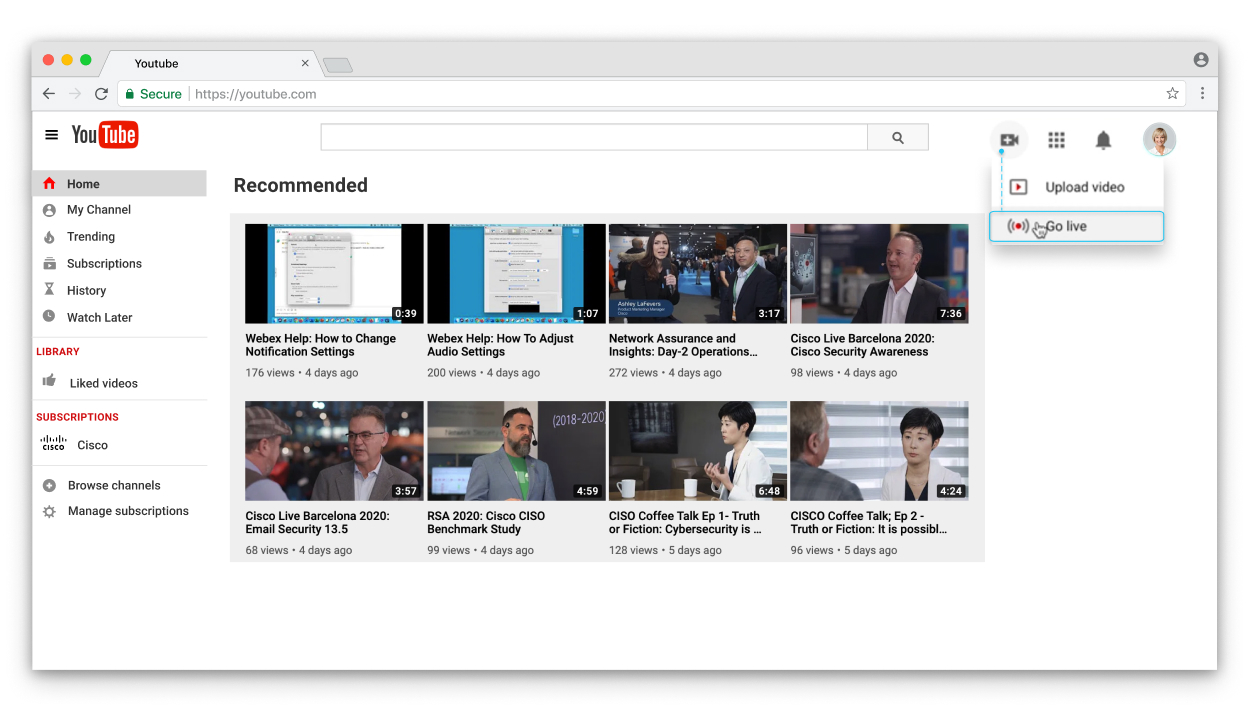
|
| 3 |
Click . 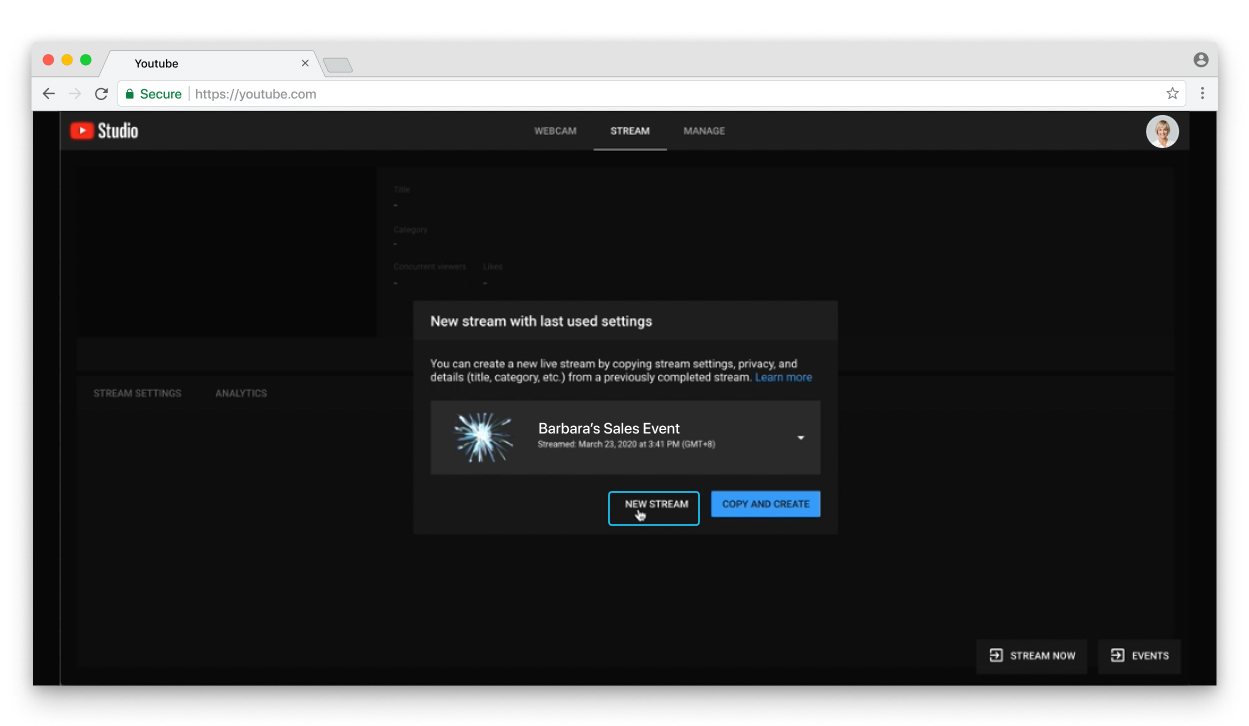 |
| 4 |
Fill out the form and click CREATE STREAM. 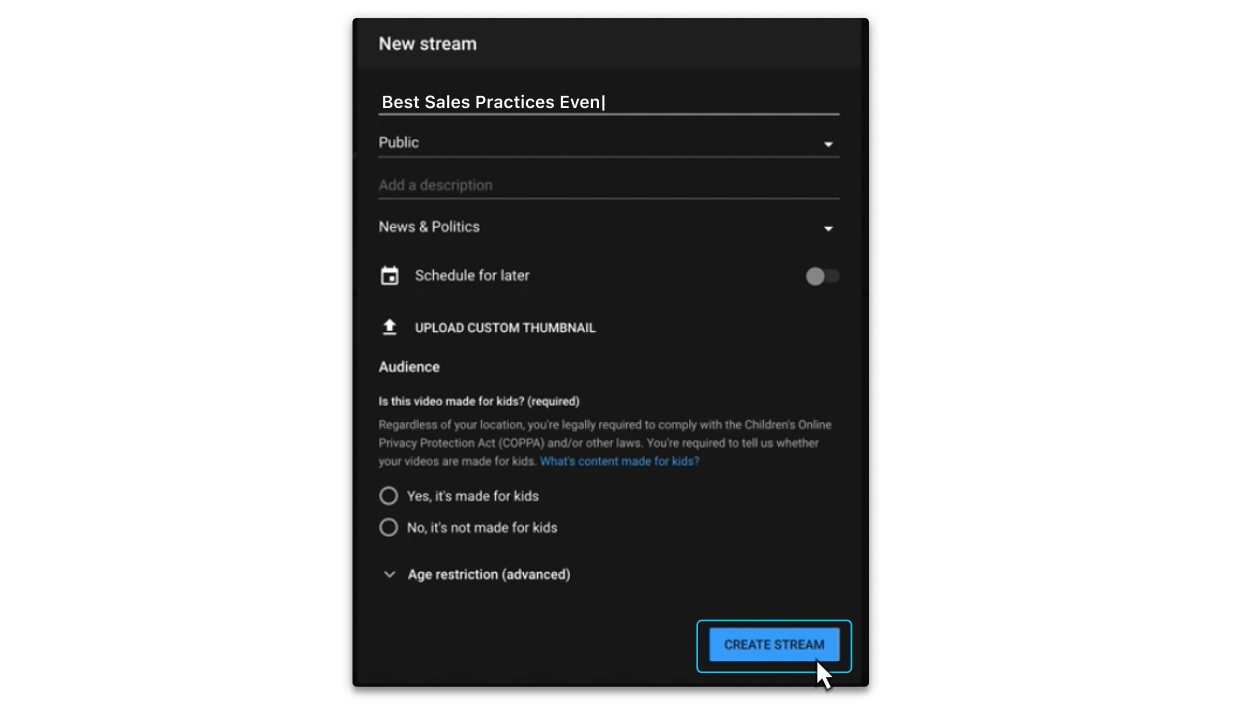 You see the stream key and stream URL. You'll need to copy and paste these in Step 7. 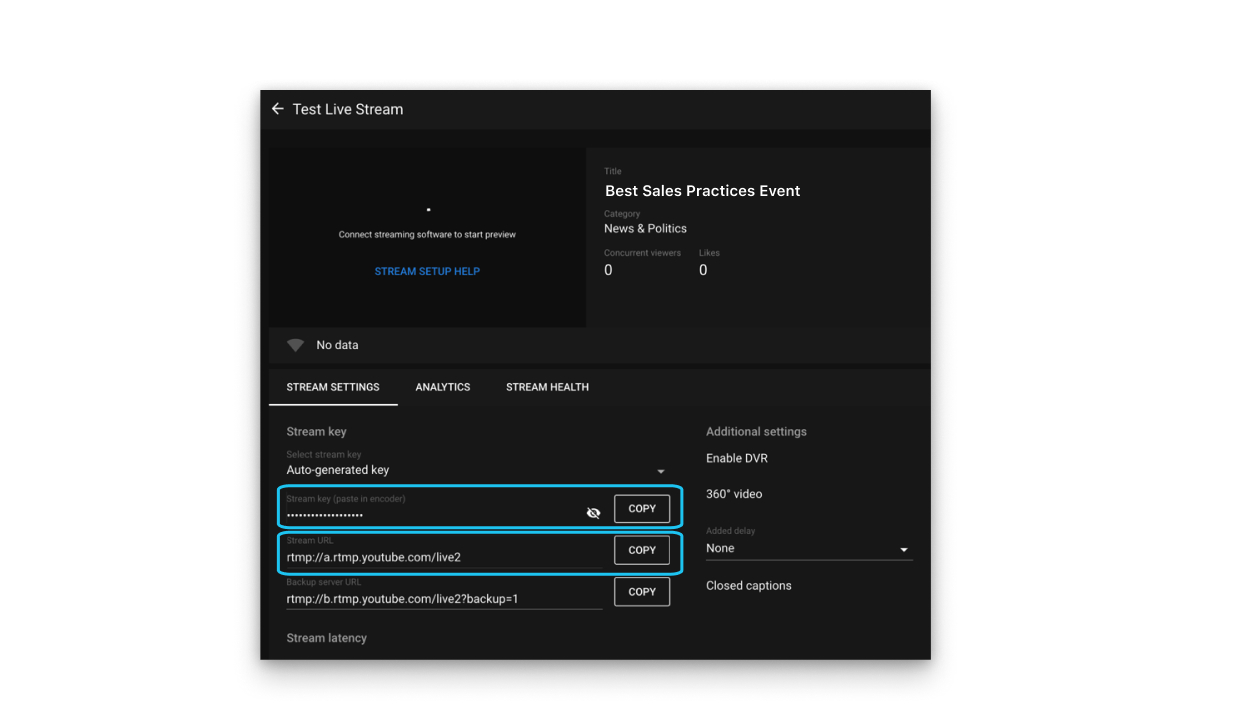 Click the Share button to get a link to share the live stream with your audience. 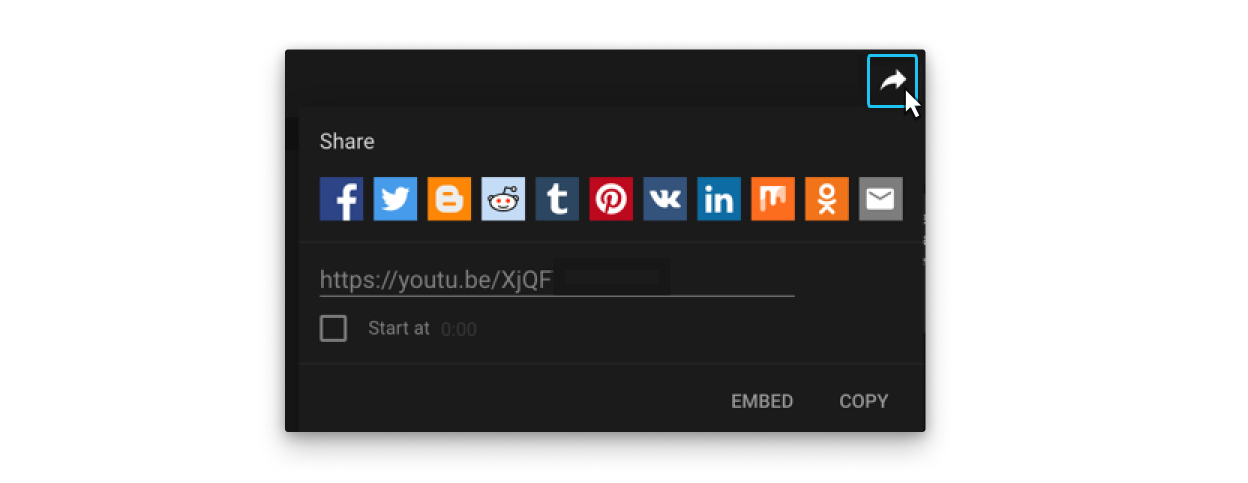 |
| 5 |
Sign in to your Webex site, start your meeting or webinar, go to More options
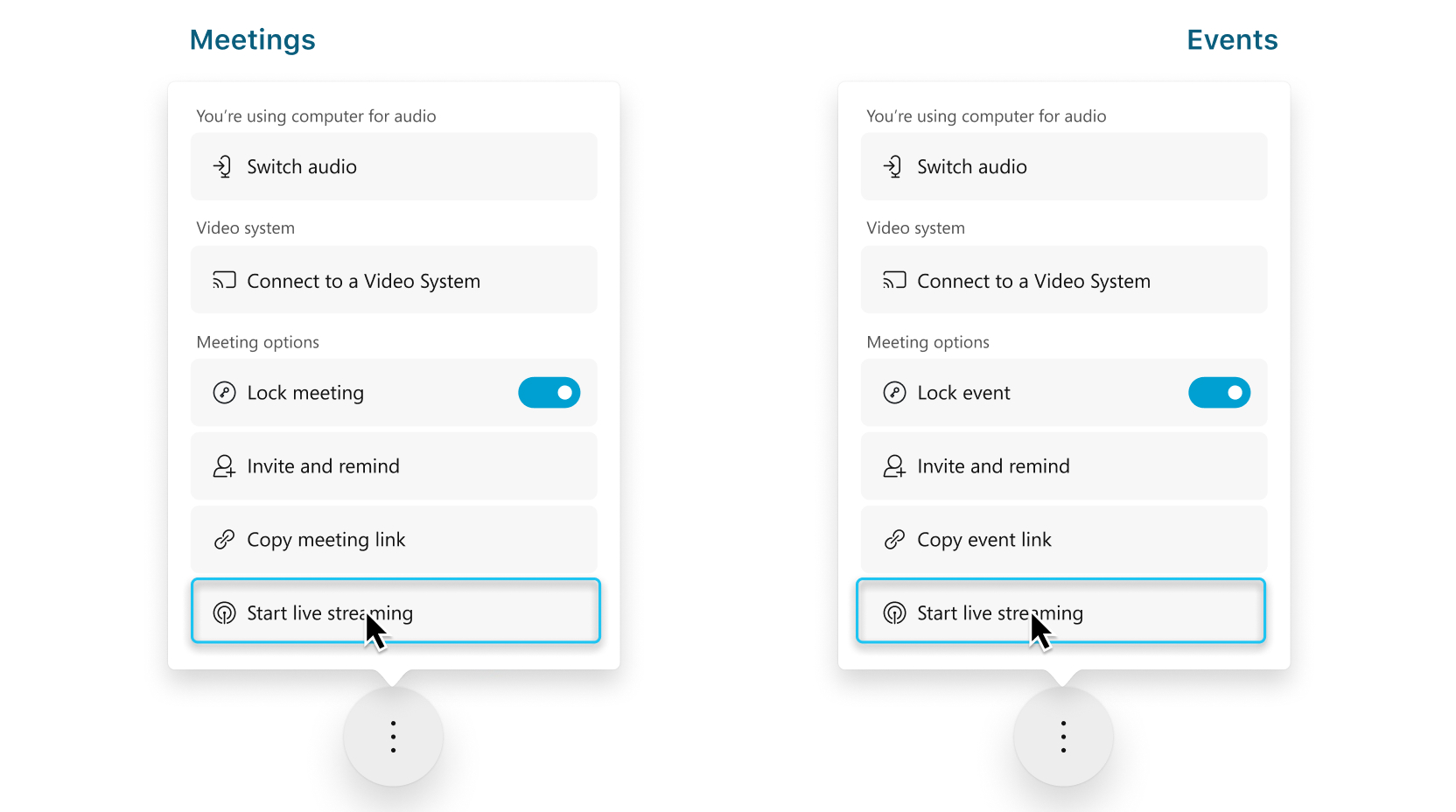 Live streaming isn't available during a practice session in a webinar. |
| 6 |
(Optional) Click Change streaming layouts to set the video layout of your stream. For more information about selecting your streaming video layout, see Live stream your Webex meetings and webinars. 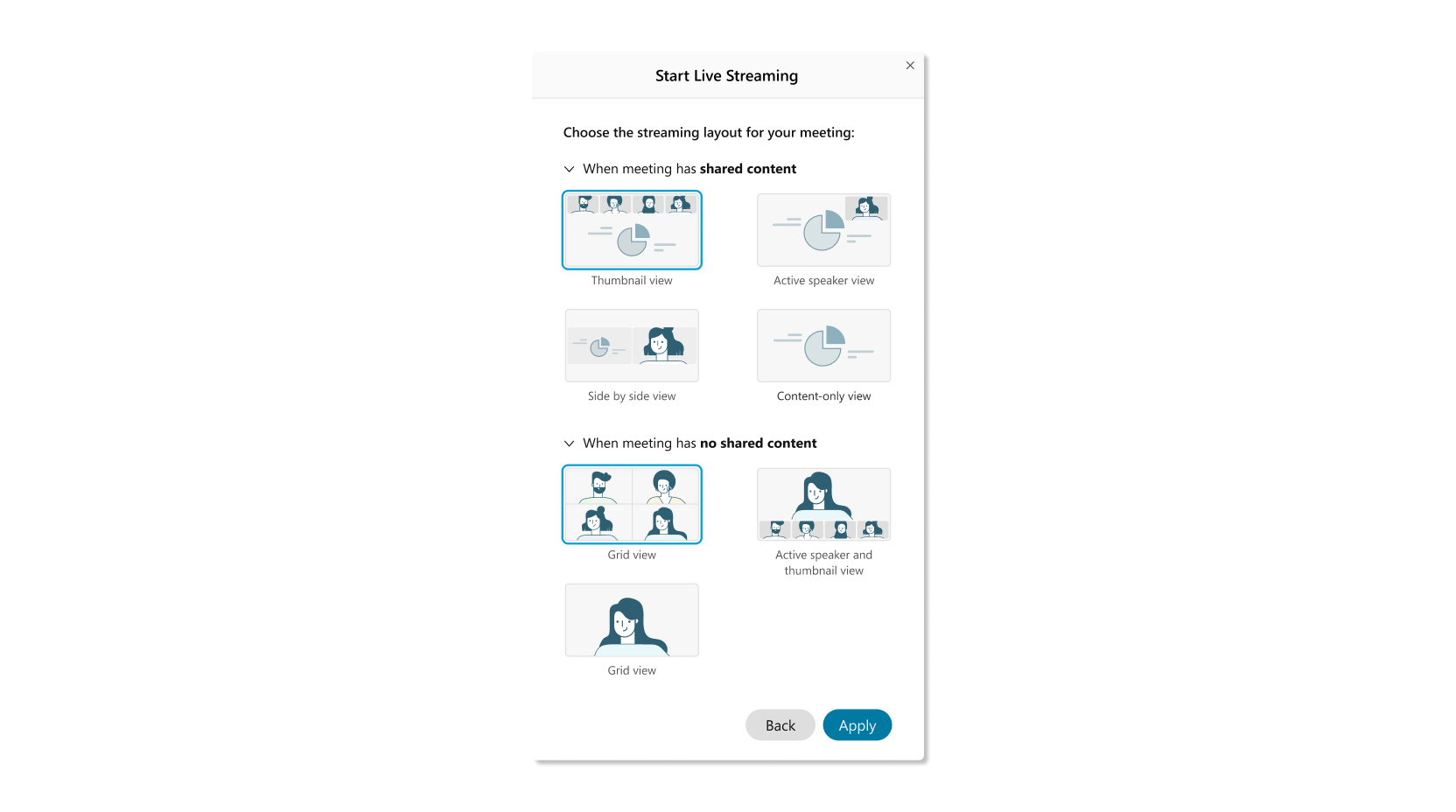 |
| 7 |
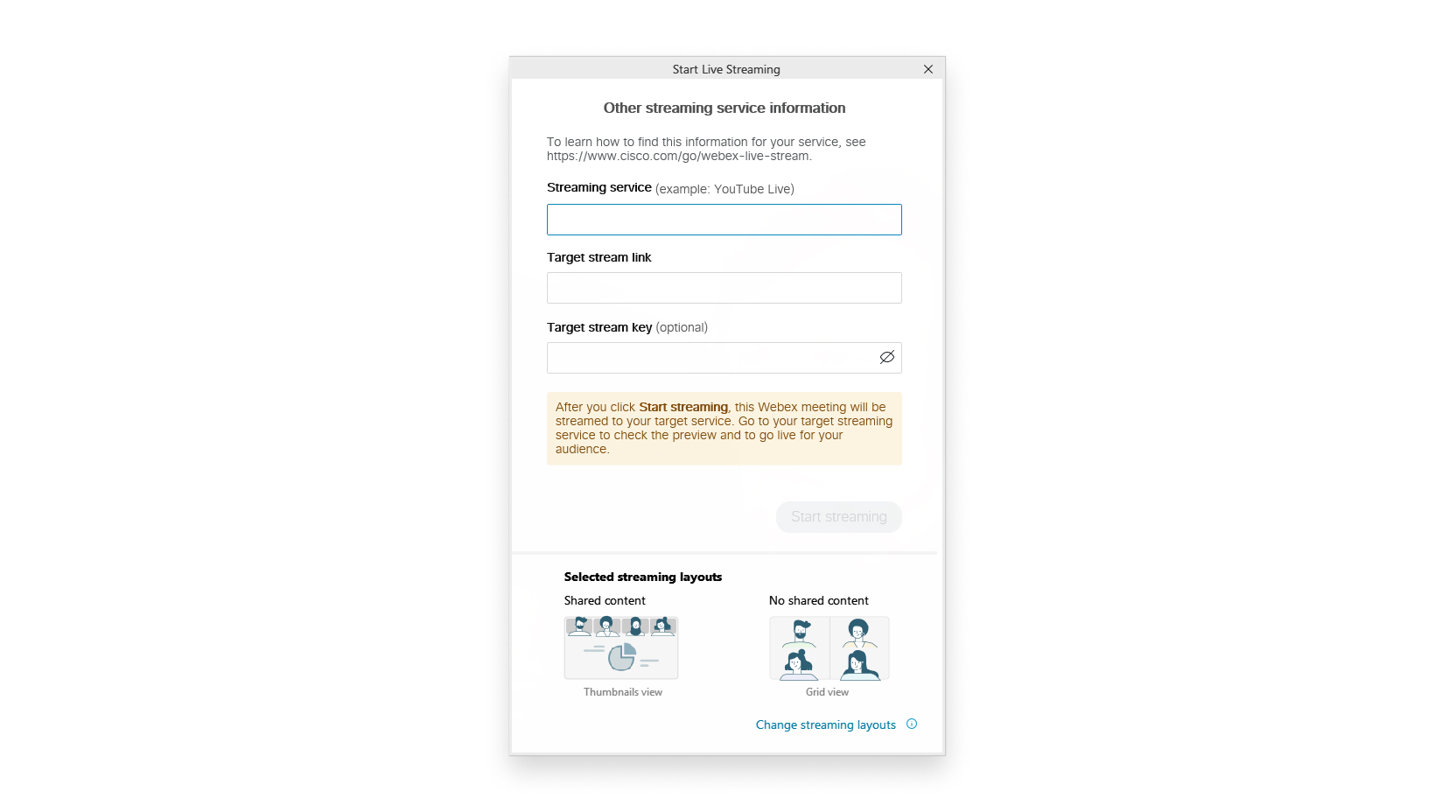
Select Other streaming services. |
| 8 |
Enter the following:
 |
| 9 |
Click Start streaming to start streaming from Meetings or Webinars. To confirm that you're streaming from Meetings or Webinars check for the Live |
| 10 |
When you're ready to start streaming your meeting or webinar on YouTube, go back to YouTube, and wait until you see a preview of a live stream of your meeting or webinar. 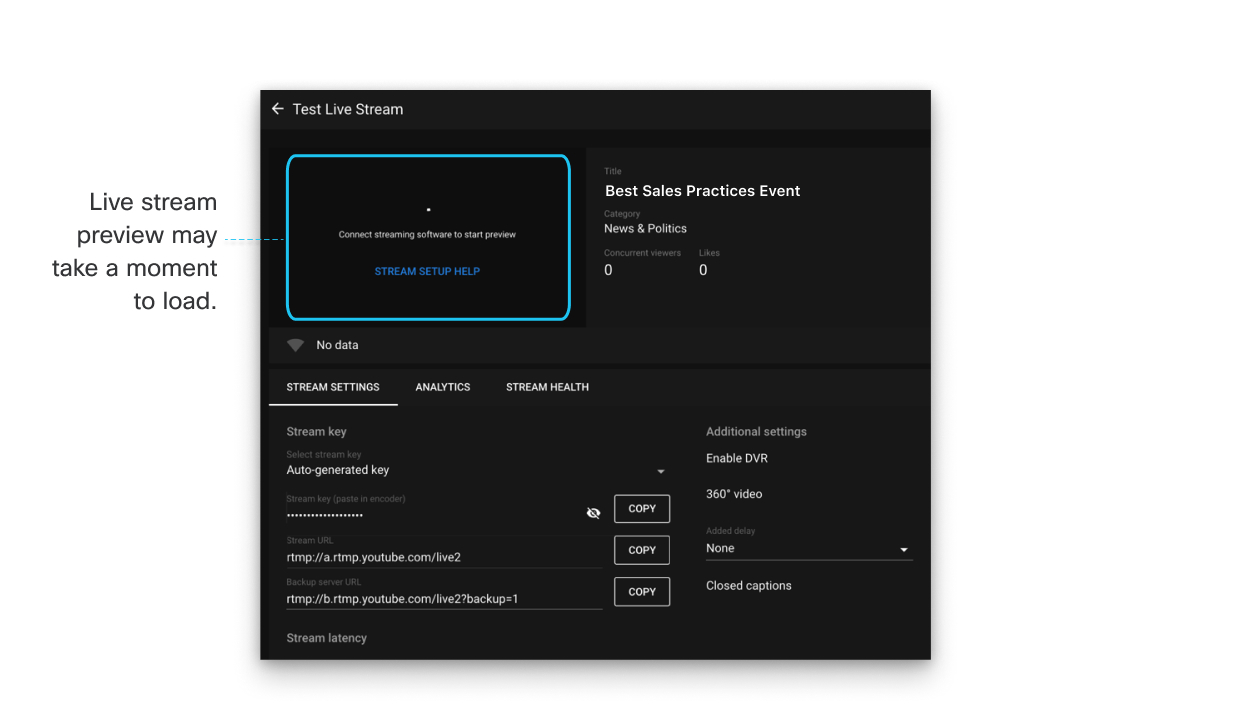 |
| 11 |
When you see a preview of the live stream, click Go Live in the upper right of the screen. 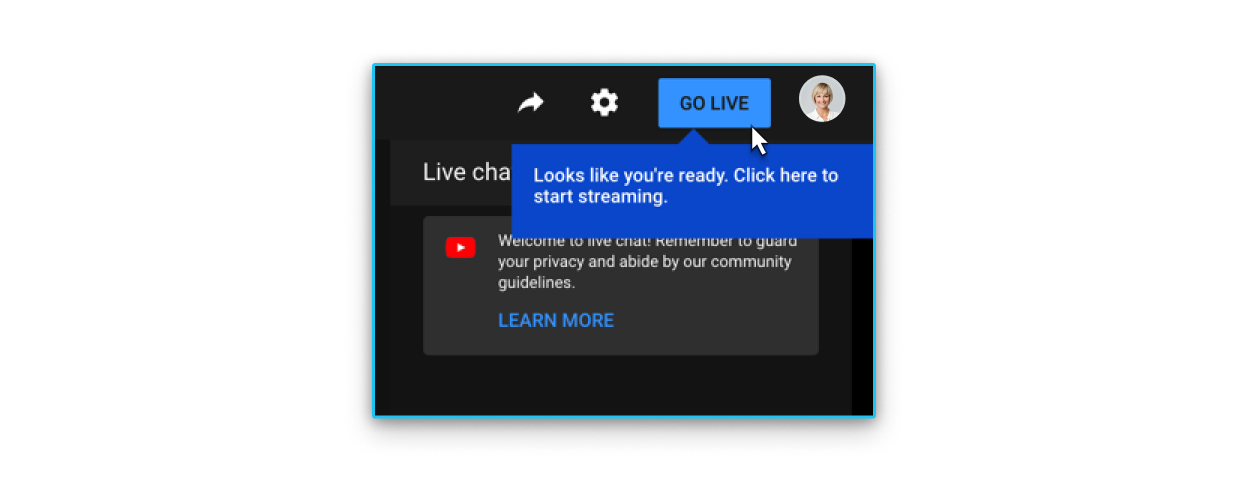 Now you can view a live stream of your meeting or webinar on your YouTube channel. Click Share under the video to share the live video with other people. When you stream a Webex meeting to YouTube, a Webex logo appears. Currently, the logo can't be removed. |
 indicator in the upper-right corner of your meeting or webinar.
What to do next
When you want to end the live stream:
-
Go back to YouTube Studio and select .
-
Go back to your meeting or webinar, select More Options
 , and then select Stop streaming.


