Was this article helpful?

Thanks for your feedback.
Export privacy data in Control Hub
 Feedback?
You can export a ZIP file that contains data for a user's Webex usage and profile information.
Export usage and profile data
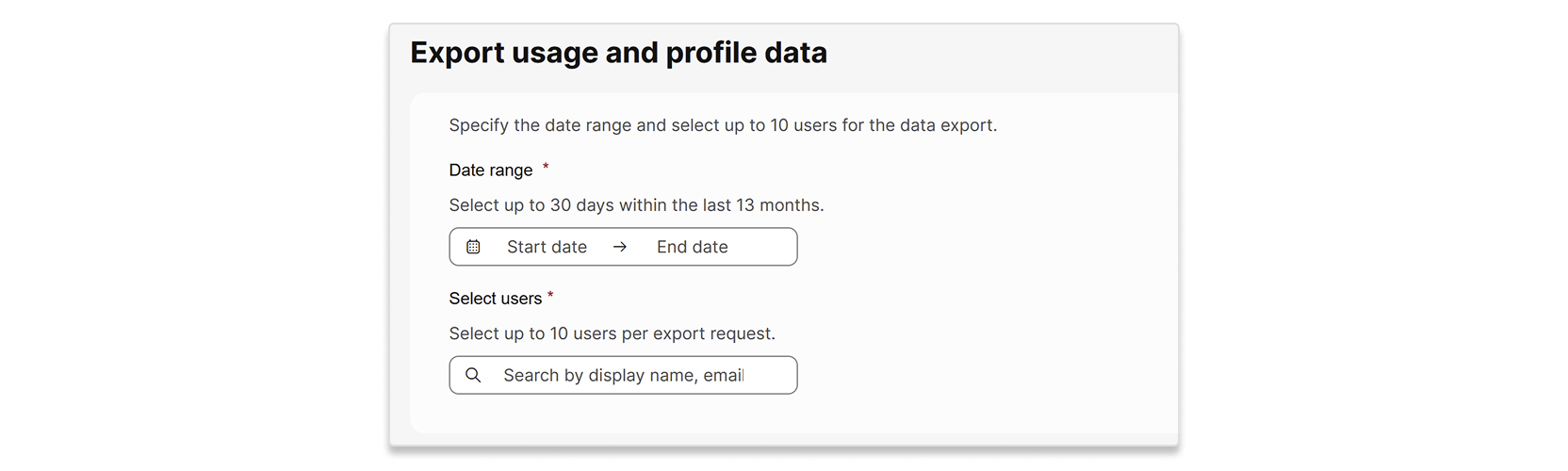
You can export data for up to 10 users per request. The date range you select can be up to 30 days, and must fall within the past 13 months. Once you submit a request, the export process can take up to 7 days to complete.
Profile data is the individual user's attributes. Usage data is the individual user's data contained in the following reports:
| 1 |
Sign in to Control Hub and go to . |
| 2 |
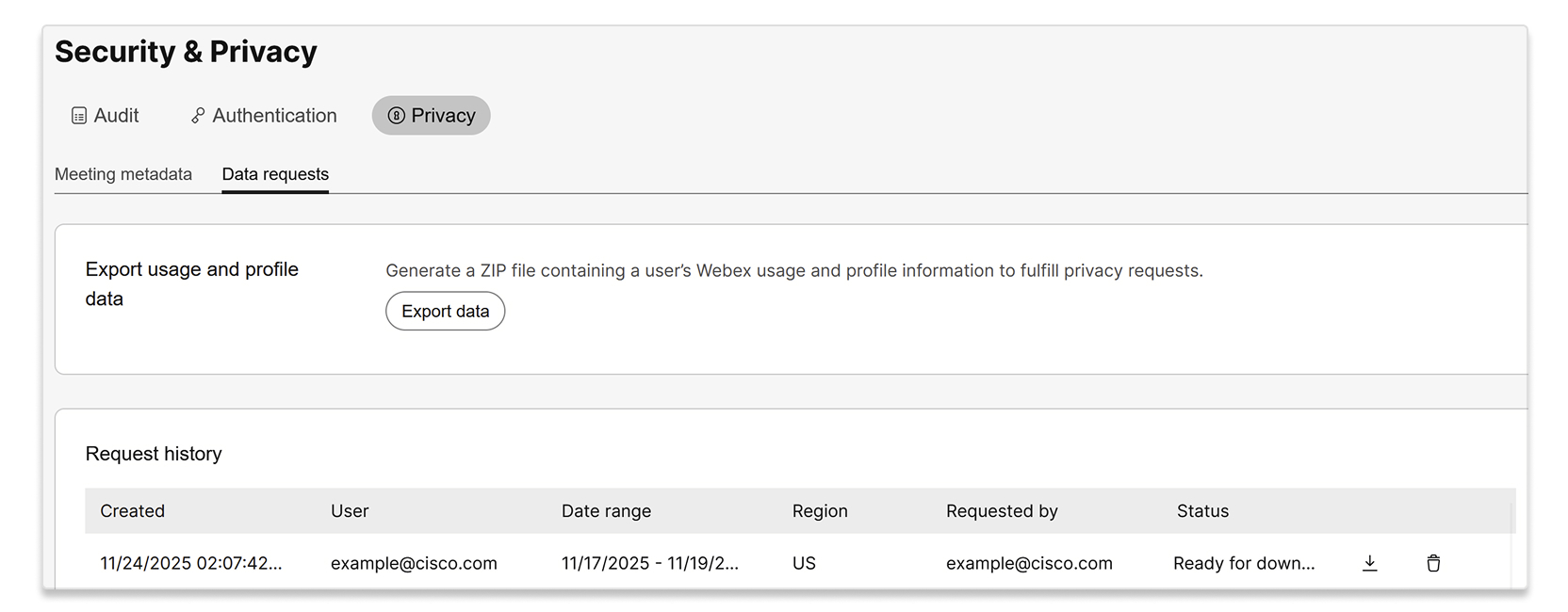
Select Export data.
|
| 3 |
Enter the date range and users that you want to export data for.
|
| 4 |
Select Export. |
| 5 |
Your request shows up in the Request history list with the Processing status. You can download the ZIP file once the status changes to Ready for download. |
Was this article helpful?


