
Thanks for your feedback.
Webex App | Conversational search: Unified Ask AI Assistant
 Feedback?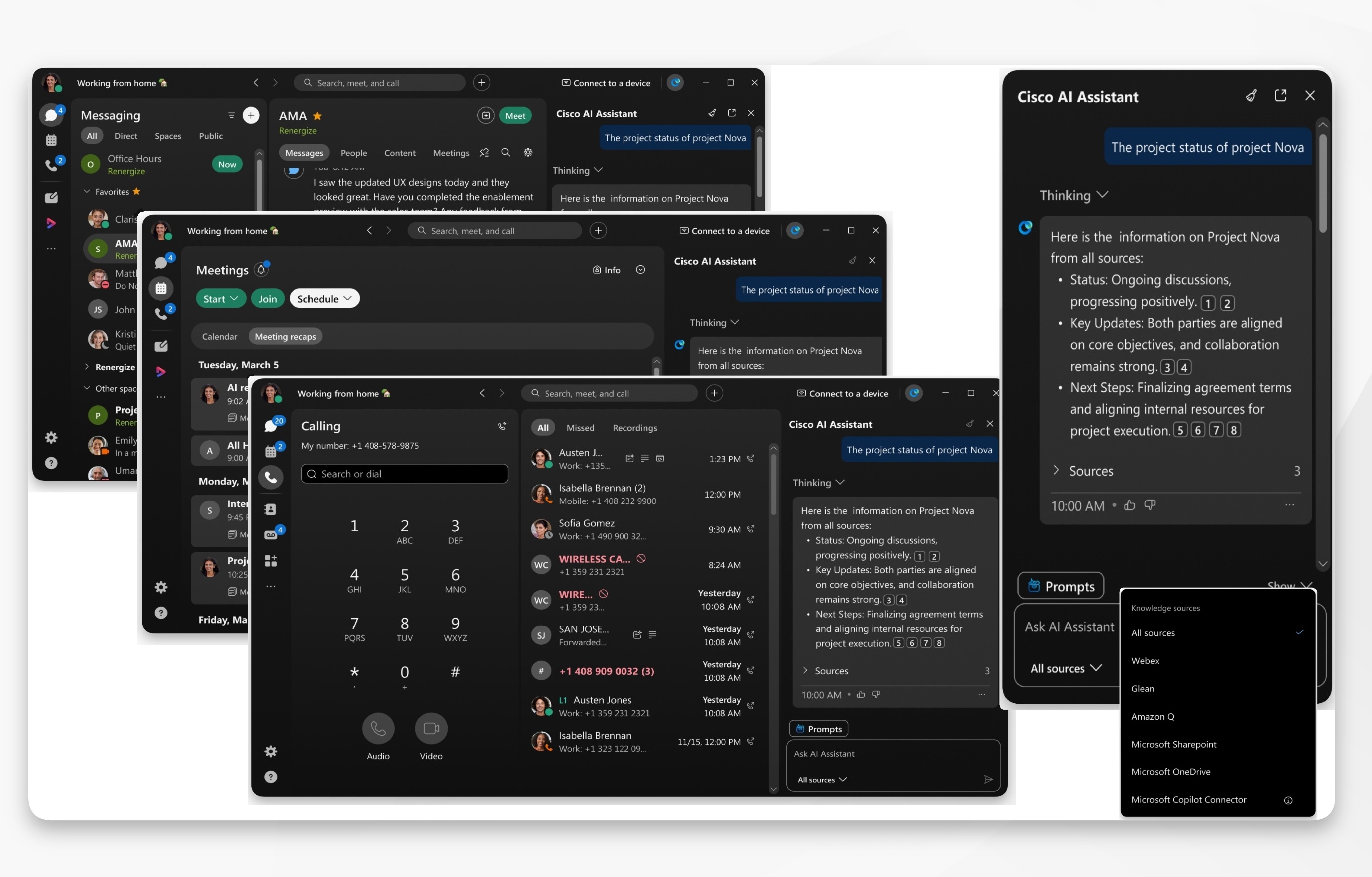
The integrated Ask AI Assistant brings a unified AI experience to the app, making it easier than ever to get things done.
It gathers the information you're looking for from:
-
Messaging—finds the context you need from past messages and conversations.
-
Meetings—access to recordings, summaries, transcripts, and meeting messages.
-
Calling—pulls up key points from your call summaries and transcripts.
This cross-tab and cross-workload availability ensures you have consistent AI support, wherever you're working within the app, enhancing productivity and collaboration without needing to switch context.
You can search across external sources, if you have them set up for your account. In the AI panel go to Sources , and select from the available options, such as: Glean or Amazon Q.
If you've also set up the AI integrations with your Jira, and Salesforce accounts, you can interact with, and search across your Salesforce data, and set up and retrieve Jira issues and tasks directly with AI Assistant.
Before you begin
Open Webex and sign in.
| 1 |
Go to the app header and click AI Assistant
You can access AI Assistant no matter which tab you're in. |
| 2 |
In the Cisco AI Assistant panel, select:
You can also click Prompts, and select from:
Click Stop generating to cancel an AI Assistant reply. Or, click Copy
AI Assistant has trouble with subjective questions and may return some inaccurate results. Ask questions that start with: find, what, who, or use keywords, such as a project name. |
 .
.  , to copy answer content and share elsewhere.


