Webex App | Integrate Jira with Cisco AI Assistant

list-menuFeedback?
AI Assistant for Jira provides a direct connection between your Jira instance and Webex App, allowing you to create, update, and retrieve Jira issues and tasks directly from the app.

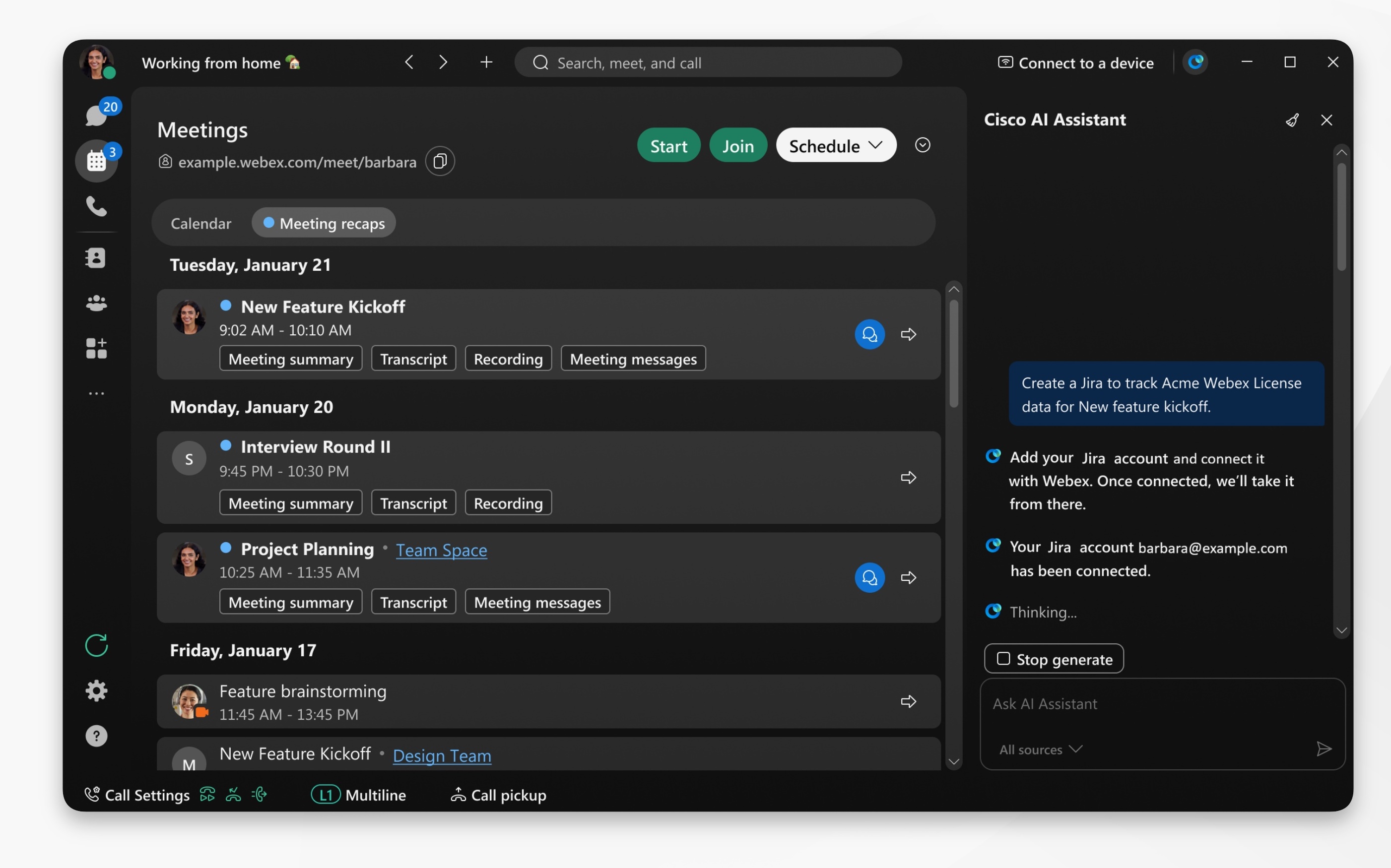
Webex App meeting tab showing AI Assistant panel - asking to create Jira

The AI Assistant Jira integration must be enabled by your organization administrator, If you don't see the option, reach out to your administrator to have it enabled.

1

Open Webex and sign in.

2

Click SettingsSettings button represented by a cog icon, then click Integrations

Go to Complete tasks from third party apps with Cisco AI Assistant, select Jira and click Add connection.

You'll be redirected to the Jira authorization page. Sign in with your Jira account, select the Jira site to authorize (if you have access to more than one), and then click Accept to authorize the Webex application.

3

Then, click Save.

When configured, you can use AI Assistant to do the following:

  • Create Jira issues and tasks.

  • Update and modify Jira issues.

  • Clone Jira issues

For Example: After a project meeting, you're assigned action items to create and update Jira tickets. Go to Meetings Meetings icon > Meeting recap and select the meeting summary:

  • AI Assistant identifies and highlights actionable items in the meeting summary, such as:

    • create a Jira ticket to fix the brand design logo color.

    • update the Jira description for fixing the brand design logo color.

    Click the link and AI Assistant automatically creates and provides a link to, or updates a Jira ticket.

  • You can also go to the AI panel directly and just ask AI Assistant to create a jira, such as: Create a jira to track the server outage, AI Assistant may prompt you for further details, before creating and providing the jira link.

    Or, you can ask AI Assistant to clone an existing Jira ticket, and then modify the context as needed.

Was this article helpful?