
Thanks for your feedback.
 Feedback?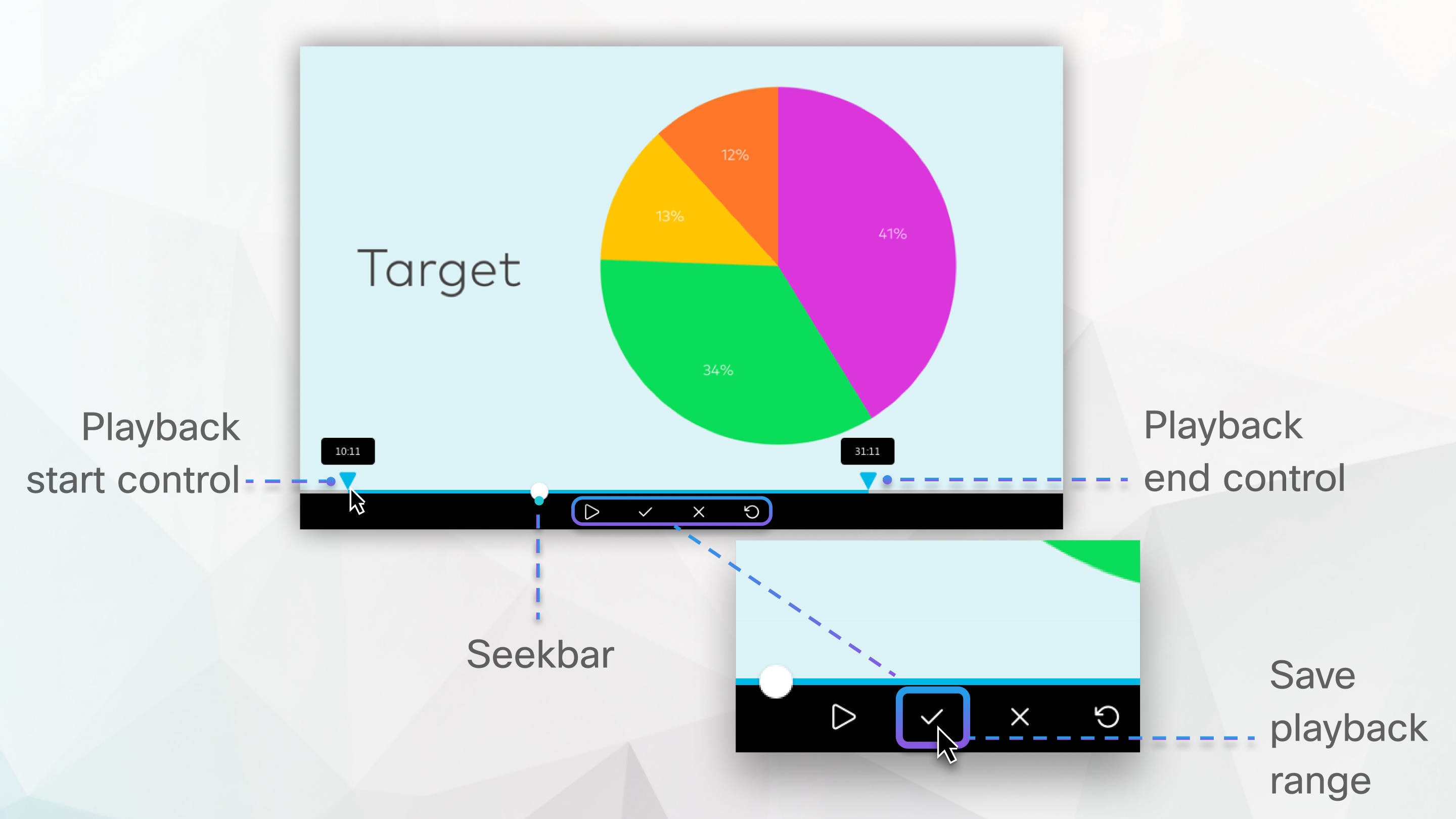
This feature is available for video-centric network-based MP4 recordings.
The feature isn't available for data centers in China or Video Platform version 1.0 sites. FedRAMP-authorized Webex sites must upgrade to Webex for Government to get the feature with Video Platform version 2.0. For browser requirements, see Browser support for video-centric network-based MP4 recordings.
If you shared a video file using Share File during the meeting, webinar, or event, the MP4 recording won't be saved in video-centric format.
The trimmed recording is only available when played back from the Webex site or the recording link. When downloaded and played back, the full recording is available.
| 1 |
Sign in to your Webex site and go to Recordings. |
| 2 |
Locate the recording that you want to edit and select its name. |
| 3 |
Click Play |
| 4 |
To trim the beginning of the recording, select Preview playback range |
| 5 |
To trim the end of the recording, select Preview playback range |
| 6 |
Select Save playback range |
| 7 |
From Recordings, click and open the recording again to make sure it starts and ends where you expect. If you want to revert the changes that you made, select Edit playback range |


