Was this article helpful?

Thanks for your feedback.
Webex App | Turn off your camera and mic when your screen is locked
 Feedback?
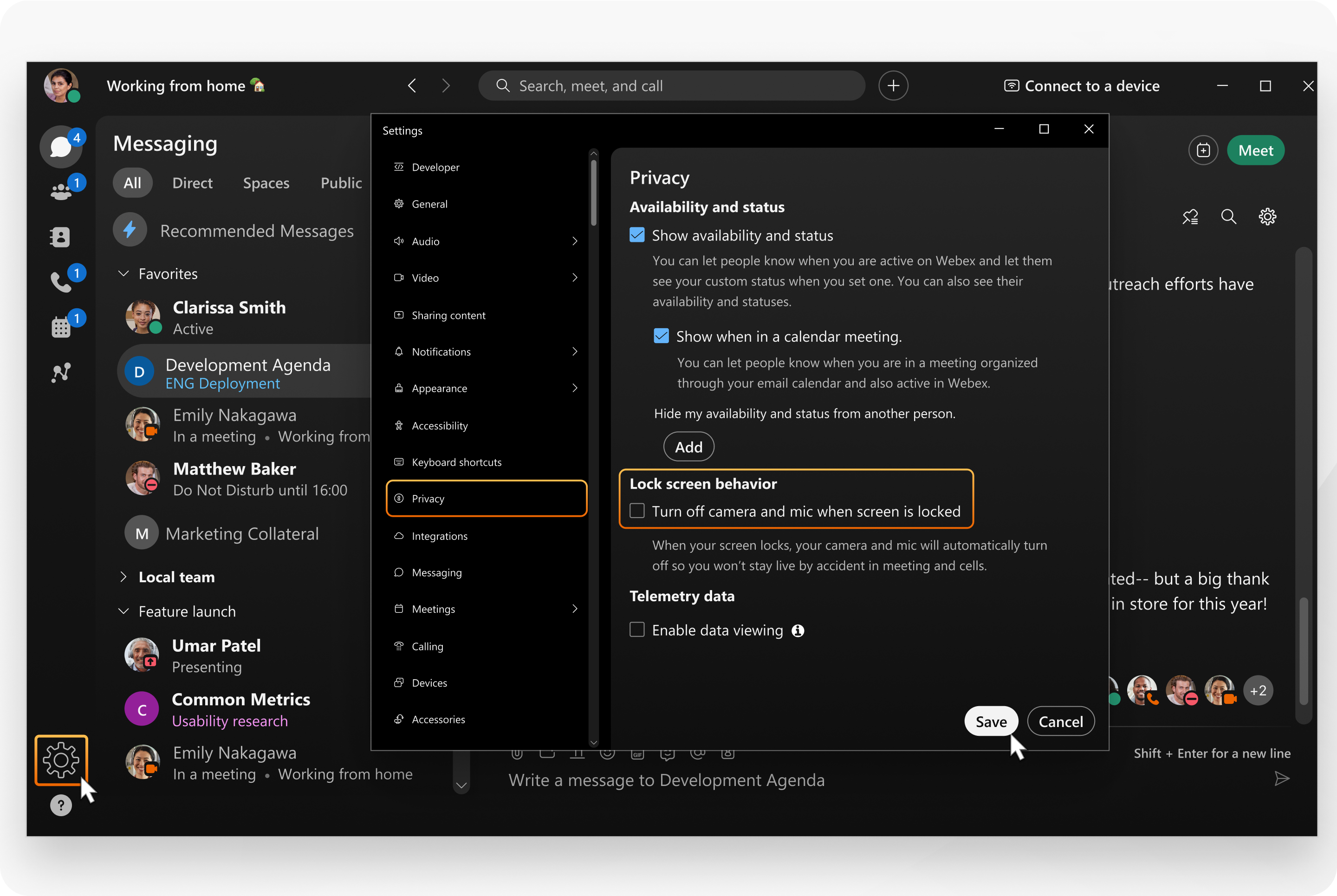
Set the app to automatically turn off your camera and microphone whenever you lock your screen. This way, you won’t accidentally stay live in calls or meetings, and your audio and video will stay private while you’re away.
| 1 |
Open Webex and sign in. |
| 2 |
Click Settings |
| 3 |
Under Lock screen behavior, check Turn off camera and mic when screen is locked. |

Was this article helpful?


