
Thanks for your feedback.
Webex App |Conversational search: Ask AI Assistant for Calling
 Feedback?
Before you begin
Open Webex and sign in.
| 1 |
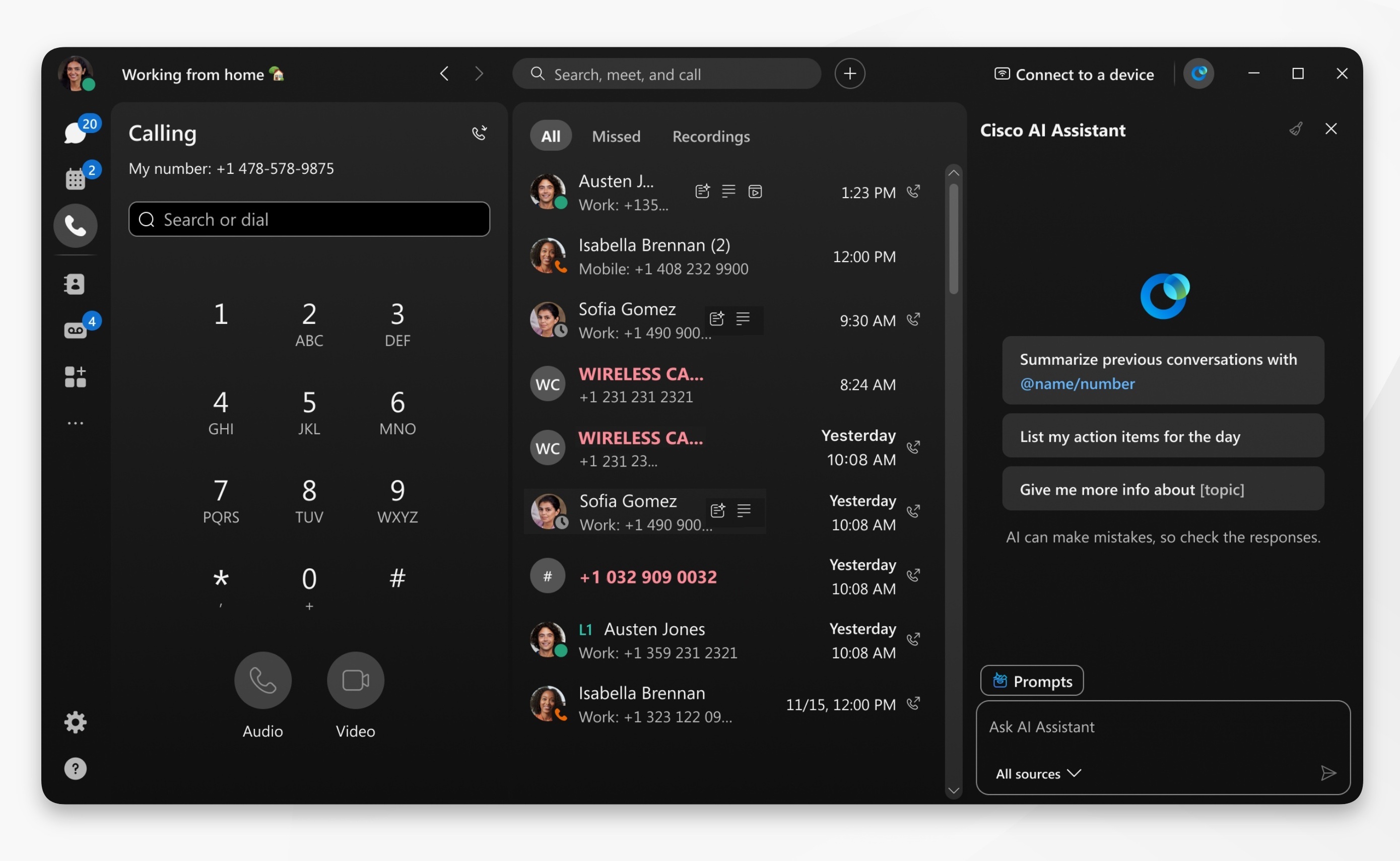
Click Calling, then go to the app header and click AI Assistant
|
| 2 |
Go to Ask AI Assistant—ask questions, to search for, or find out more, about call conversations and content. The Unified Ask AI Assistant is integrated throughout Webex. You can search for content across Messaging, Meetings, and Calling from anywhere in the app, whether you are navigating your tabs, or currently in a meeting. You can also retrieve and generate answers from whatever knowledge source you've selected in the AI panel. Answers come with highlighted citation links that you can click to go directly to the source, so you can quickly get to specific content for more information. In the AI panel, select from:
Click Stop generating to cancel an AI Assistant reply. Or, click Copy
AI Assistant has trouble with subjective questions and may return some inaccurate results. Ask questions that start with: find, what, who, or use keywords, such as a project name. |
 .
. , to copy answer content and share elsewhere.


