Webex App | Hide optional in-meeting notifications

list-menuFeedback?
To help keep your meetings distraction free, hide alerts for incoming chat messages, raised hands, and role changes—such as being assigned or removed as a host, cohost, or presenter. You can also decide if you want to see these notifications while you're sharing content.

In-meeting notifications in Webex App

Mandatory in-meeting notifications, such as those about recording the meeting, AI assistant, and who's in the meeting lobby always show. These settings don't affect these notifications.

You can adjust these settings at any time, whether you are currently in a meeting or just getting ready for your day.

1

Open Webex and sign in.

2

When you're in a meeting, click Audio options a user interacting with the Mute button dropdown to access more audio options > Audio Settings.

When you're not in a meeting, click Settings Settings button represented by a cog icon on the navigation sidebar.

3

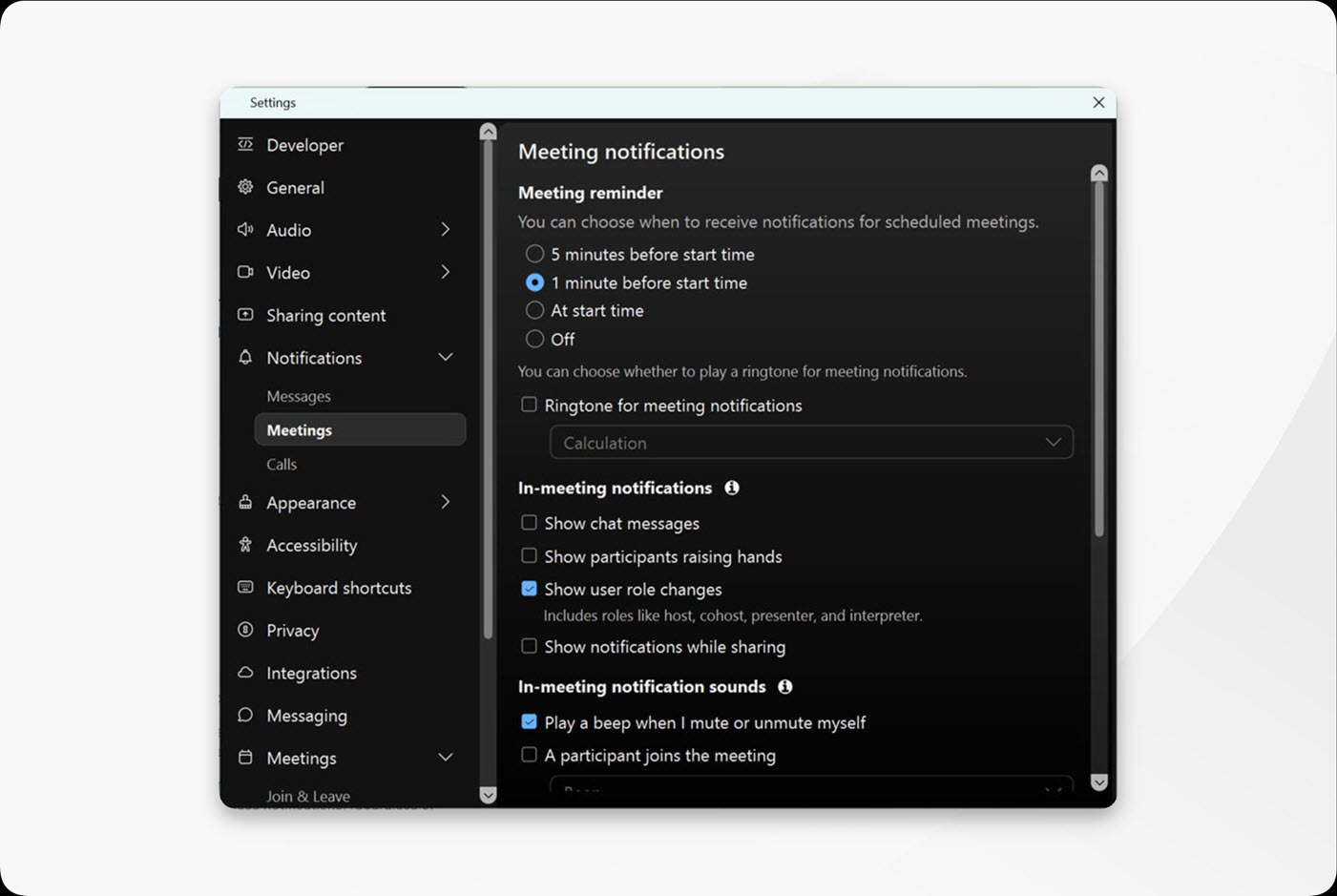
Click Notifications > Meetings.

4

Under In-meeting notifications, choose the in-meeting notifications you want to stop receiving:

  • Uncheck Show chat messages to stop receiving notifications for incoming chat messages when the chat panel is hidden. When the chat panel is open, you won't receive these notifications, regardless of this setting.
  • Uncheck Show participants raising hands to stop receiving notifications when a participant raises their hand while the participants panel is hidden. When the participants panel is open, you won't receive these notifications, regardless of this setting.
  • Uncheck Show user role changes to stop receiving the notifications when you're assigned or removed as the host, cohost, presenter, or interpreter in a meeting. If you're the host, you stop receiving the notifications when you assign these roles to others.
  • Uncheck Show notifications while sharing to stop receiving these notifications only while you're sharing content.
Was this article helpful?