- Home
- /
- Article

Thanks for your feedback.

 In this article
 Feedback?
Focus on the people who are showing video during a meeting or webinar by hiding all the participants who aren't on video. By default, you can see all of the participants in a meeting, whether they show their video or not.
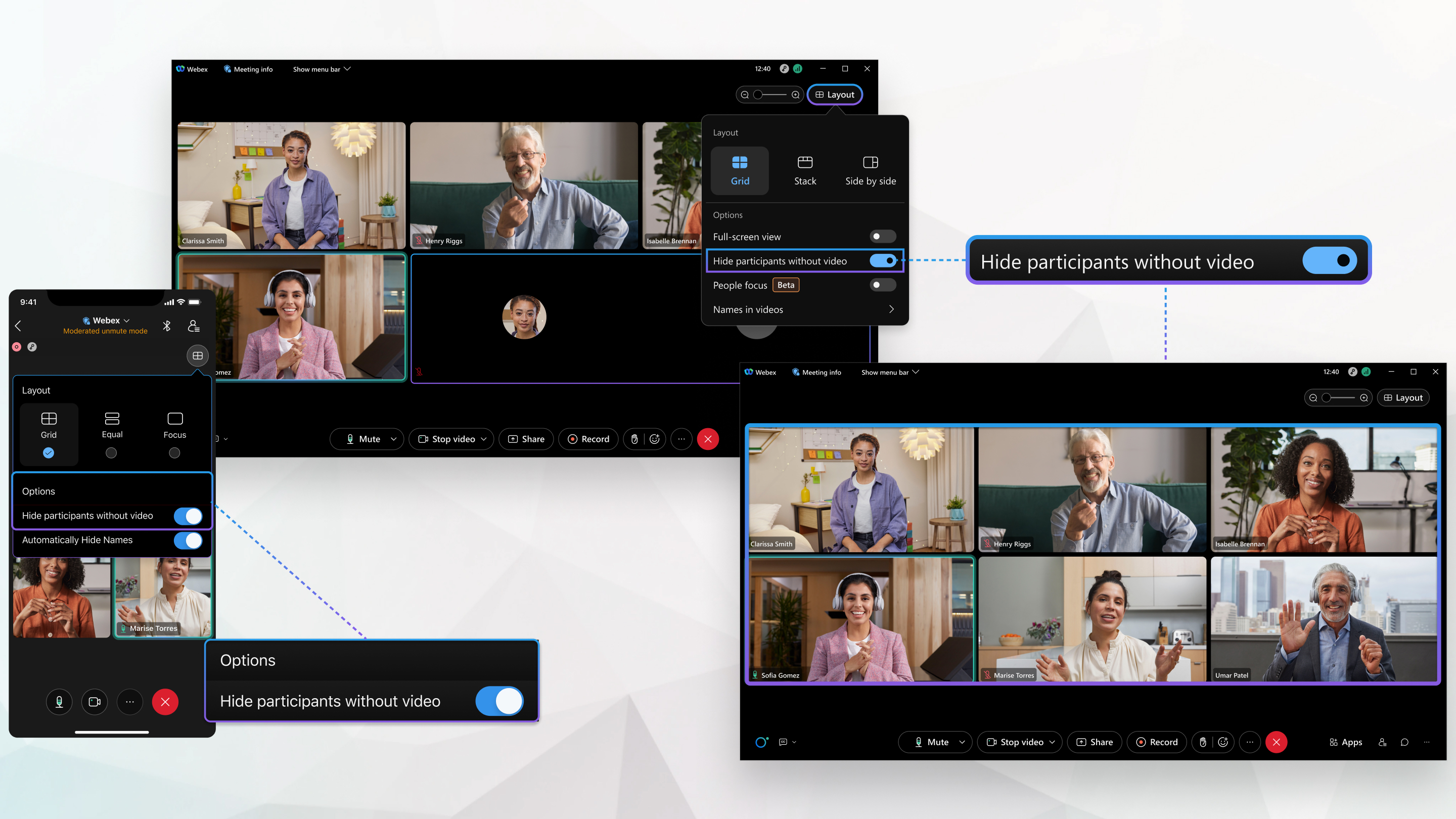
This feature is supported in meetings and webinars.
Desktop
| 1 |
When you're in a meeting, click Layout
You can also set this when you're not in a meeting. Click Settings
 on the navigation
sidebar, select , and check Hide participants without video. We save
the setting so it applies to all future meetings. Now, you only see the participants who are showing video. An indicator on the screen shows you how many non-video participants are hidden.  If you lock focus on a participant and that person stops showing their video, they remain in focus. |
| 2 |
To show all the participants who aren't showing video, click
Layout
|
 , and then toggle on
Mobile
| 1 |
To hide participants who aren't showing their video during a meeting, tap Layout
|
| 2 |
Toggle off Hide participants without video to show participants who aren't sharing their video. |
 , and toggle on
Web
| 1 |
Click Layout
Now, you only see the participants who are showing video. If you lock focus on a participant and that person stops showing their video, they remain in focus. |
| 2 |
To show all of the participants who aren't showing video, click Layout
|


