
Thanks for your feedback.
Get started with Room Bar BYOD and Room Bar Pro BYOD
 Feedback?
Room Bar BYOD and Room Bar Pro BYOD provides a great video and audio experience in meetings with a high-quality camera, speakers, and microphones that include AI noise removal. Your administrator may have enabled digital signage that is shown when your device is in a half-wake state.
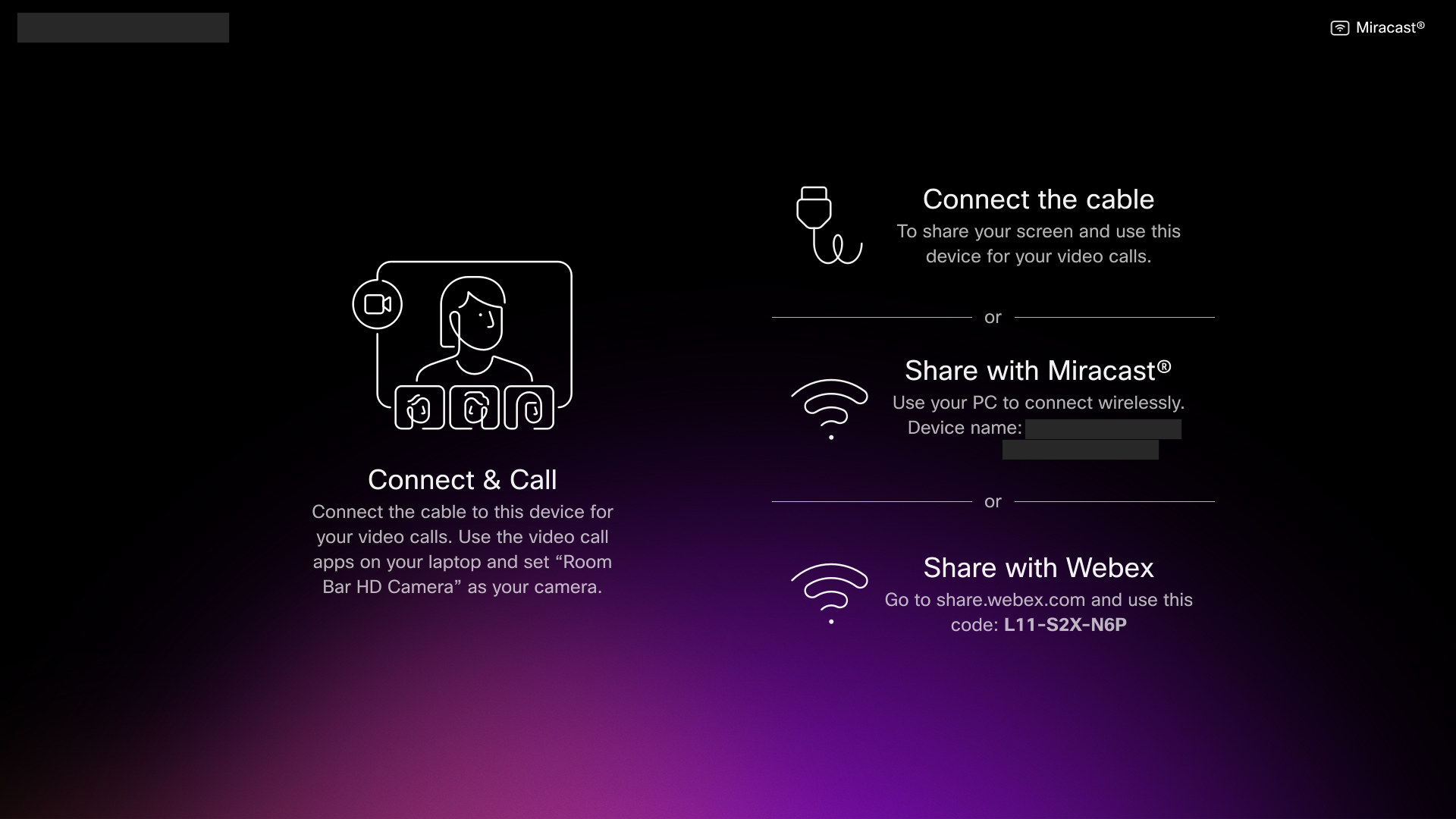
Make a call or join a meeting
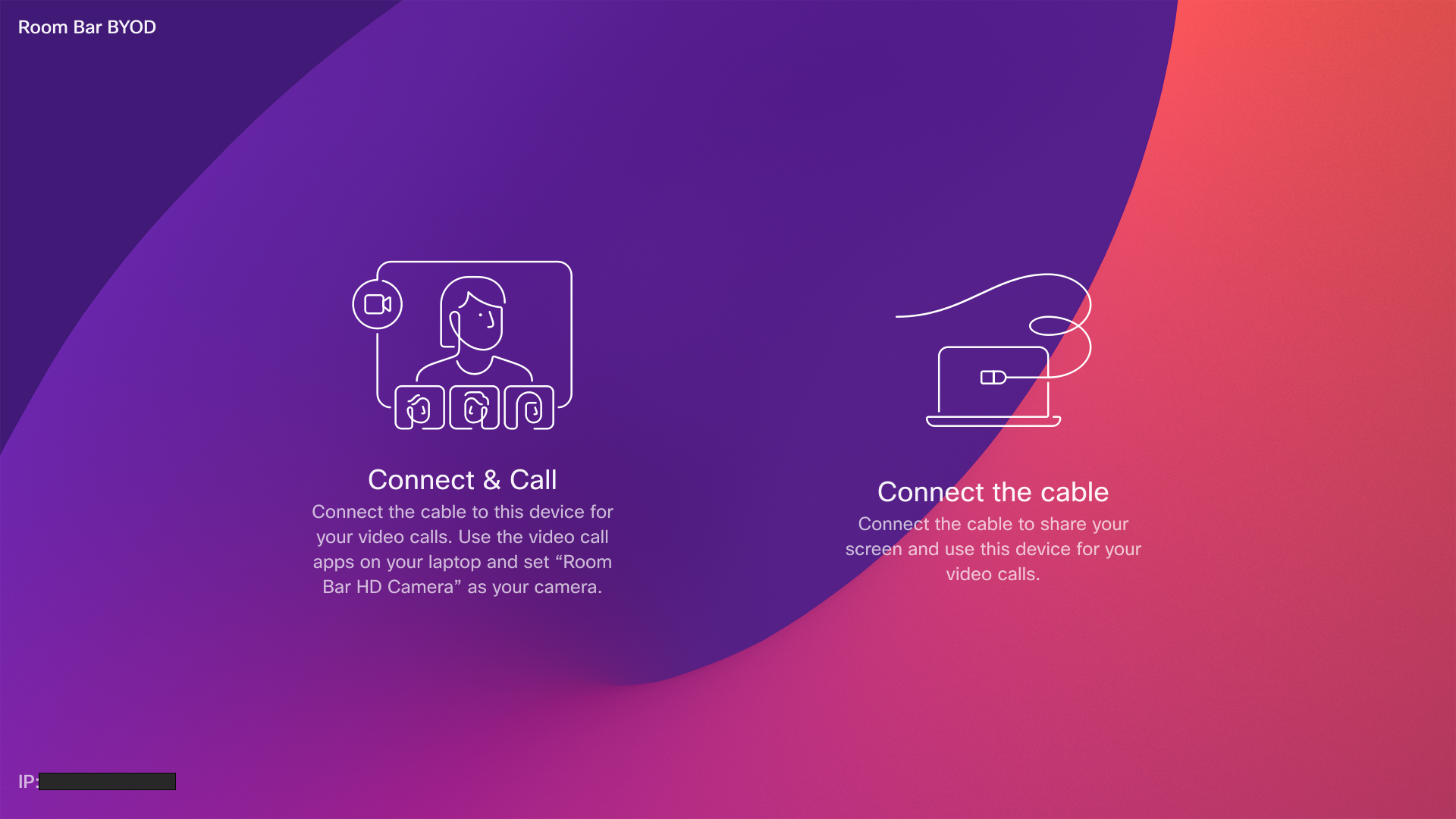
Connect your computer to the Room Bar BYOD or Room Bar Pro BYOD with the USB-C cable. From your computer, open your calling or meeting app settings. In the video and audio settings, make sure to select Room Bar/Room Bar Pro HD Camera.
When you use the app to call or join a meeting, the camera, microphone, and loudspeakers on the Cisco device are used. The calling or meeting app controls all other functionality.
The camera light indicator on the Room Bar or Room Bar Pro is lit whenever the camera is active to maintain privacy.
The Room Bar BYOD and Room Bar Pro BYOD supports HD1080p video.
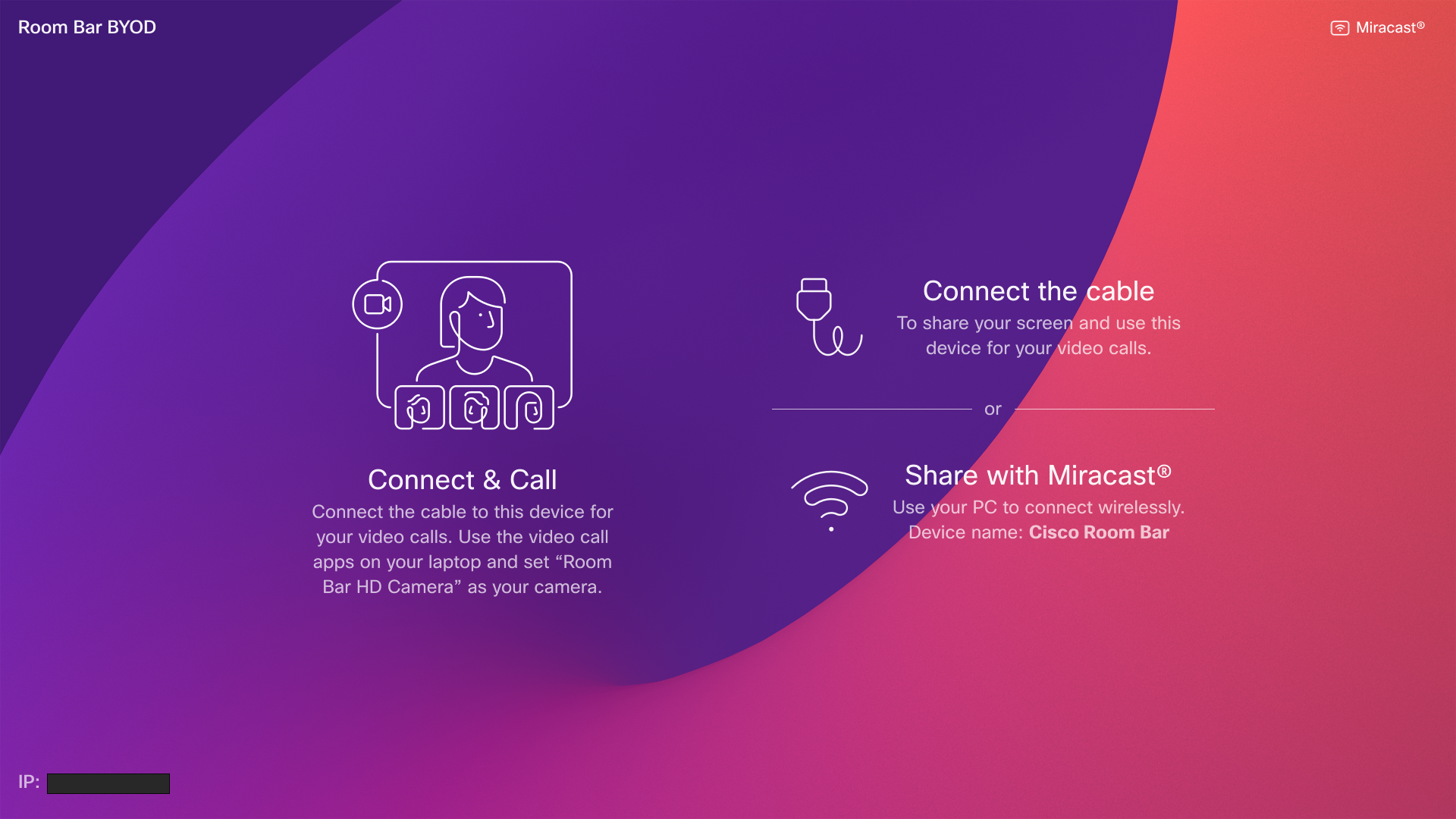
Share with Miracast
You can use Miracts to wirelessly share from your computer to a Room Bar BYOD or Room Bar Pro BYOD if it has been enabled by your administrator.
Read more about content sharing with Miracast
Wireless guest share
You can use guest share to wirelessly share from your computer to a Room Bar BYOD or Room Bar Pro BYOD.
Read the wireless guest share article for more information.


