Thanks for your feedback.
 Feedback?
Auto Answer automatically connects eligible incoming calls to your preferred device, so you don’t need to answer each call manually. This is helpful when you receive frequent calls or need to respond quickly, such as in a call center, help desk, reception, or other high-volume calling environments.
Preferred Answering Device is a shared setting used by multiple calling features that support automatic answering. These calling features include User Auto Answer, Customer Assist Queue Auto Answer, Virtual Lines, Push-to-Talk, Group Paging, and Click-to-Dial.
Supported Devices
Auto Answer requires a registered device that supports automatic answering.
- The following devices support auto answer:
-
Webex App for desktop
-
Cisco Multiplatform Phones (MPP)
-
Cisco Desk phones
-
Supported Polycom phones
-
Supported Yealink phones
-
Supported AudioCodes phones
-
Supported SNOM phones
-
-
The following devices don't support auto answer:
-
Webex App for mobile devices, tablets, and WebRTC
-
RoomOS user endpoints, such as Cisco Desk Pro
-
Analog phones
-
DECT devices
-
Customer-managed devices
-
Partner-managed devices
-
You can choose the preferred device from Webex App or User Hub.
To choose the preferred device from Webex App, see Webex App | Set your preferred device for auto answer.
To choose the preferred device from User Hub, follow these steps:
Before you begin
-
Your administrator must enable Auto Answer for you.
-
Your administrator may set a preferred device for you. You can change your preferred device from User Hub or Webex App. The option to select None is available only if your administrator allows you to turn off Auto Answer.
-
For Customer Assist queue calls, your administrator may configure an auto answer delay. If a delay is configured, the call is automatically answered only after that delay.
-
Depending on the service, delay setting, and device, you may hear a zip tone when the call is auto answered.
-
If a call is already active or waiting on the selected device, the incoming calls aren’t answered automatically.
| 1 |
Sign in to User Hub. | ||||||||||||||||||
| 2 |
Go to . | ||||||||||||||||||
| 3 |
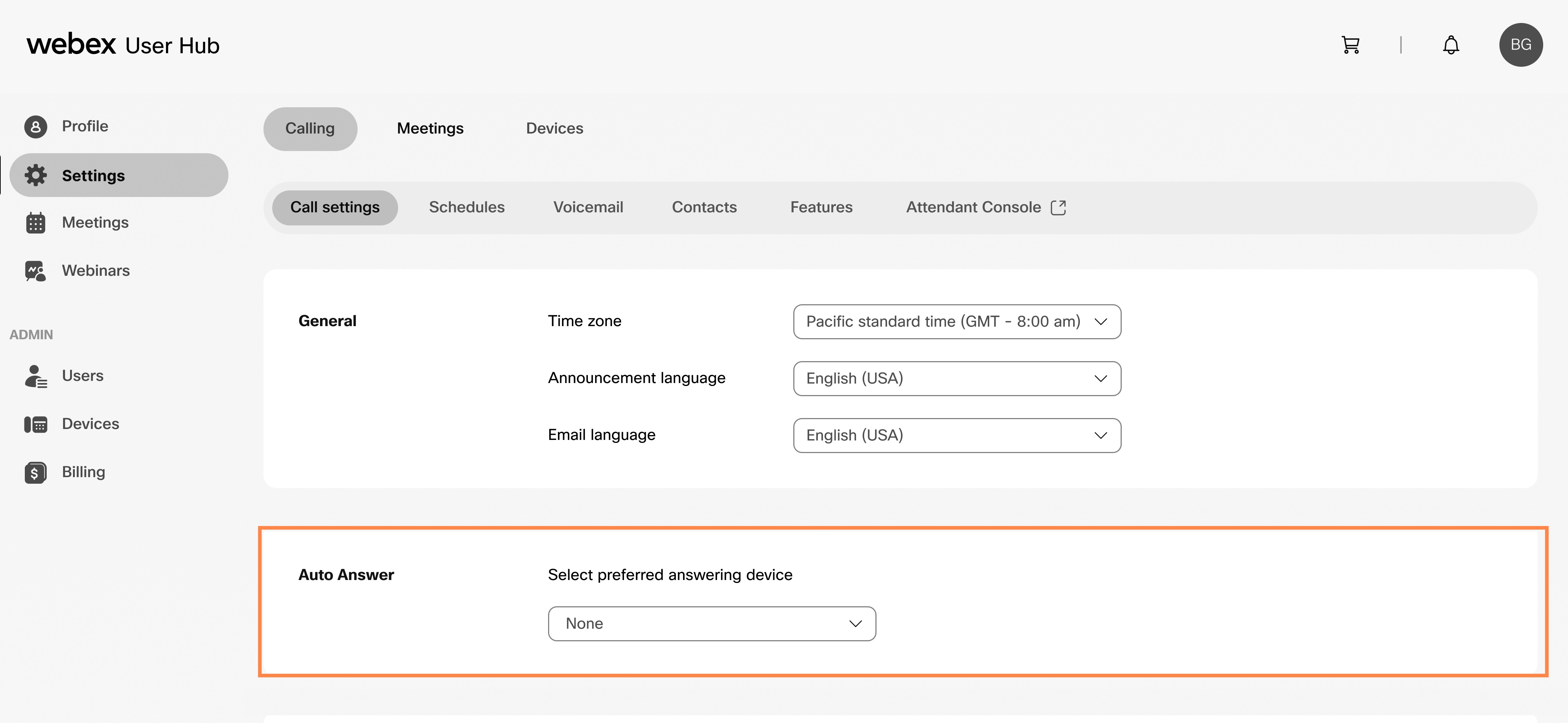
Go to Auto Answer and choose a device from the drop-down list. To turn off Auto Answer, choose None from the drop-down list. The None option is available only if your administrator allows you to turn off auto answer.
The following table describes the auto answer behavior based on your device setup.
|