- Home
- /
- Article

Thanks for your feedback.

Webex App | AI Assistant for Apple Vision Pro
 In this article
 Feedback?
Use Webex AI Assistant when joining a meeting using your Apple Vision Pro device. With AI Assistant, you can quickly catch up on what you've missed if you join a meeting late. Or, if you're multitasking and get distracted you can ask questions without disturbing the meeting, and stay on top of the conversation.
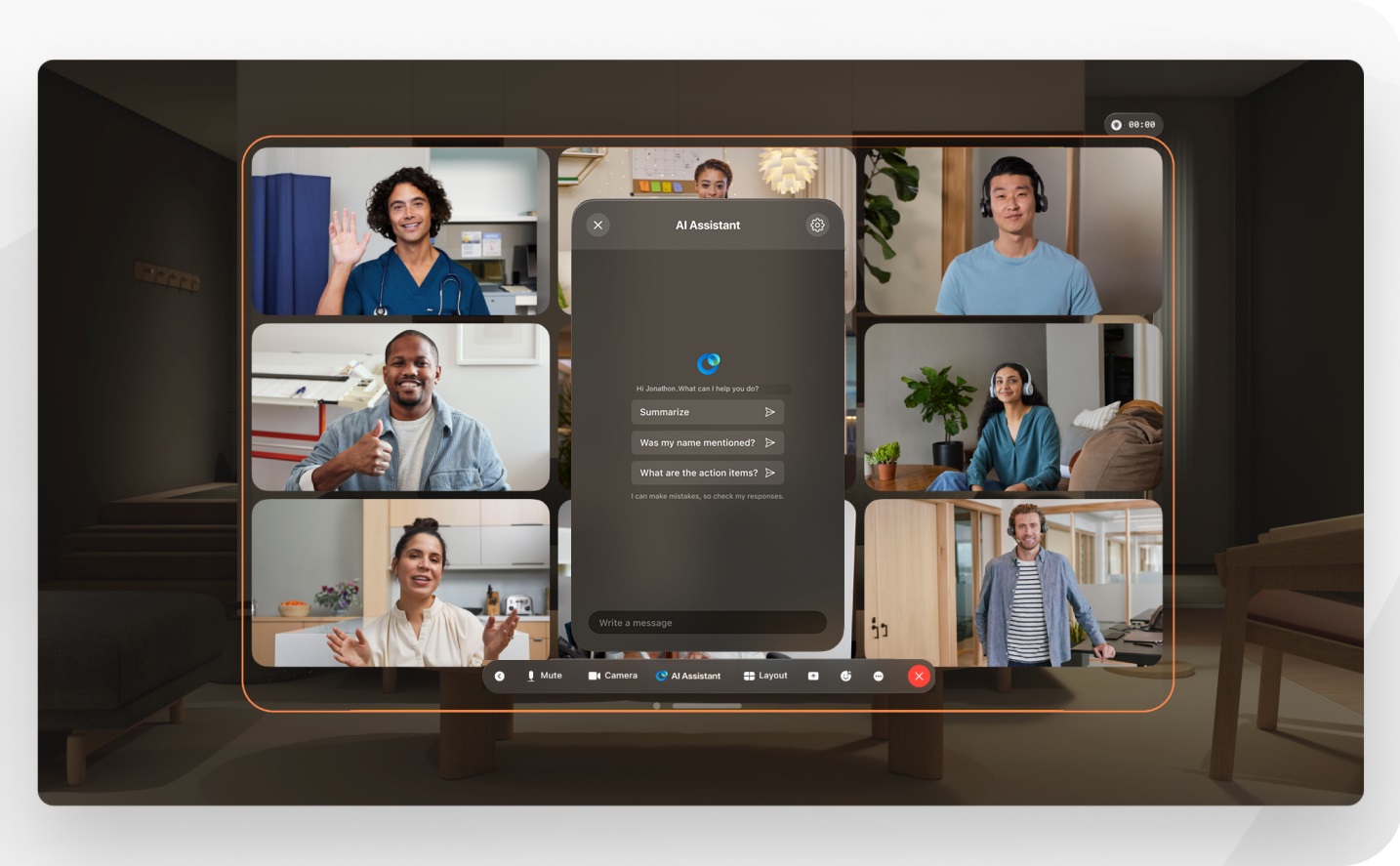
AI Assistant Summaries
Before you begin
Sign in to Webex on your Apple Vision Pro device.
| 1 |
Join or start your meeting, see Use Webex on Apple Vision Pro for more information. |
| 2 |
In the meeting controls, tap AI Assistant
In the panel, choose from:
Tap |

 to close the AI Assistant panel.
AI Assistant settings
Meeting hosts and cohosts can adjust AI Assistant meeting options, to decide who can start or stop meeting summaries, and also decide if summaries and transcripts are saved after the meeting.
|
In the meeting, tap AI Assistant
In the Meeting options window, under AI Assistant, select from:
Meeting summaries and transcripts are saved to the meeting host's account in Webex App. If your meeting is associated with a space, the summary and transcript link automatically appears in the space where the meeting took place. If you can't save content after the meeting, contact your administrator, as they may have disallowed this option. |
 .
.


