
Thanks for your feedback.
Secure your recordings with registration
 Feedback?
Enabling registration require viewers to complete a short registration form before accessing MP4 recordings of meetings and webinars, including externally uploaded files.
- Hosts don't need to register to access their own recordings.
- If people follow a public link to access your recording, then Webex automatically requires them to register.
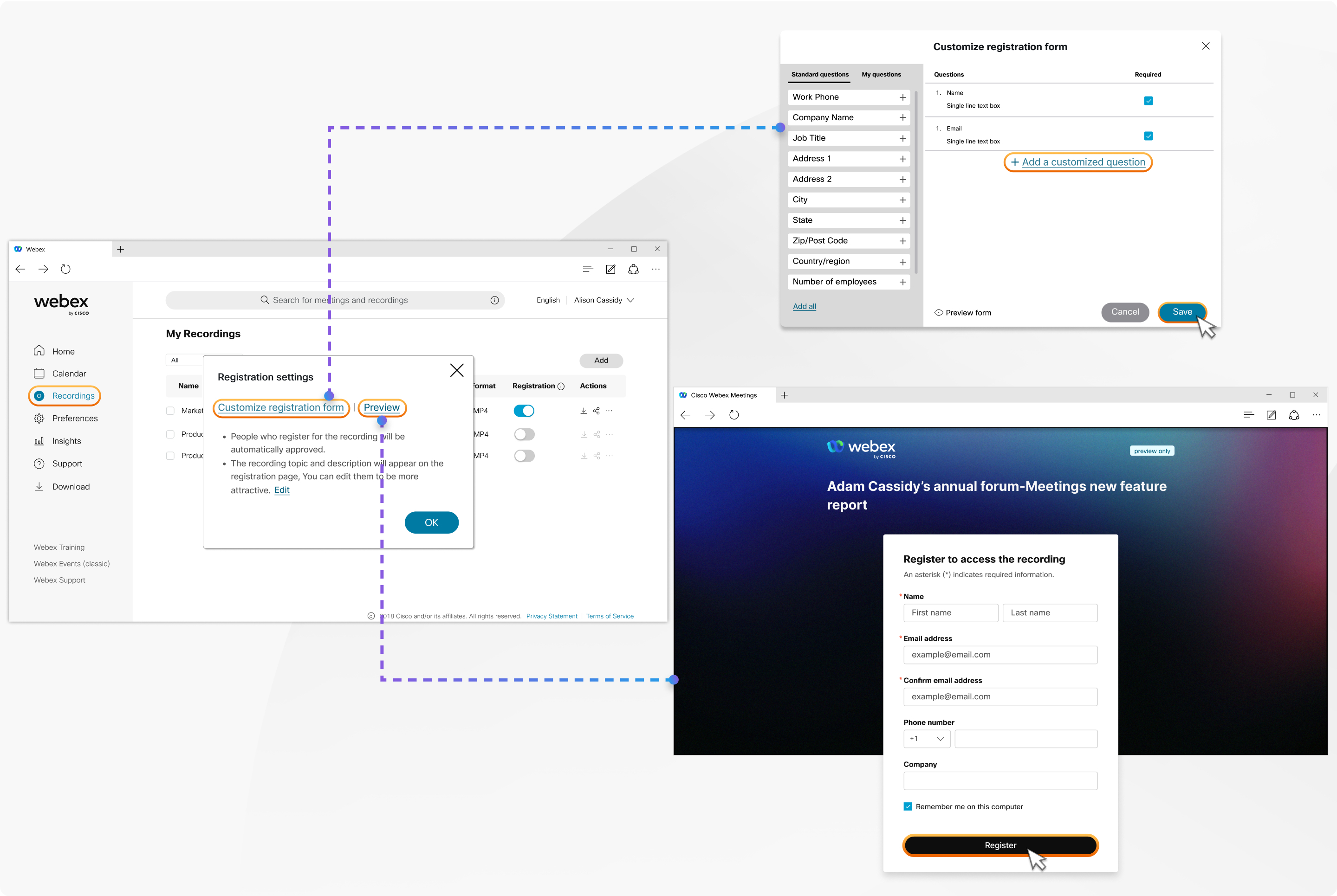
After you receive the recording of your meeting or webinar, you can enable registration before sharing it with others.
| 1 |
Sign in to User Hub and go to Recordings. You'll see recordings for all the meetings, webinars, and training sessions that you hosted. |
| 2 |
Choose the recording you want, then toggle on Registration. |
| 3 |
Click Settings under Registration. |
| 4 |
In the Registration settings window, click Customize. |
| 5 |
Add or edit standard and customized questions as needed. |
| 6 |
Preview the form to check the changes. |
| 7 |
Click Save to apply the edits to the registration form. |
You can see the detailed report of people who registered to watch the recording.
Before you begin
Enable registration on the recording to see the registration options.
| 1 |
Sign in to User Hub and go to Recordings. You'll see recordings for all the meetings, webinars, and training sessions that you hosted. |
| 2 |
Choose the recording you want and click You’ll see the detailed registrant report of the recording. |


