
Thanks for your feedback.
Cisco AI Notes on Board, Desk, and Room Series
 Feedback?
Don't scramble to take notes or miss out on important information. With AI Notes transcribing the conversation for you, you can be fully present in your meetings.
AI Notes is available to users in Webex meetings on devices running RoomOS 26. A Personal Meeting Room license is required.
Before you use AI Notes the first time
Once your Administrator has enabled AI Notes it will be available to you. However, there a couple of things you should do once, before using it for the first time.
To make AI Notes available to participants in upcoming meetings where you are the host, first log in to your Webex account at <meeting site>.Webex.com. Under Settings > Meetings > My Personal Room > scroll down to Cohosts and toggle Allow cohosts for my Personal Room meetingsON. Under that, make sure that All attendees who have host accounts on this site and all authenticated Cisco video devices in this organization become cohosts when they join my Personal Room meetings is selected.
Then, whenever someone joins a meeting you are hosting in your personal room, they can choose to use AI Notes to transcribe the meeting for them.
If yours is a personal device, you don't have to do anything to enable AI Notes for yourself or other meeting participants.
Using AI Notes during a meeting
If you're on a device where AI Notes is available, you'll see the AI Notes button on your homescreen.
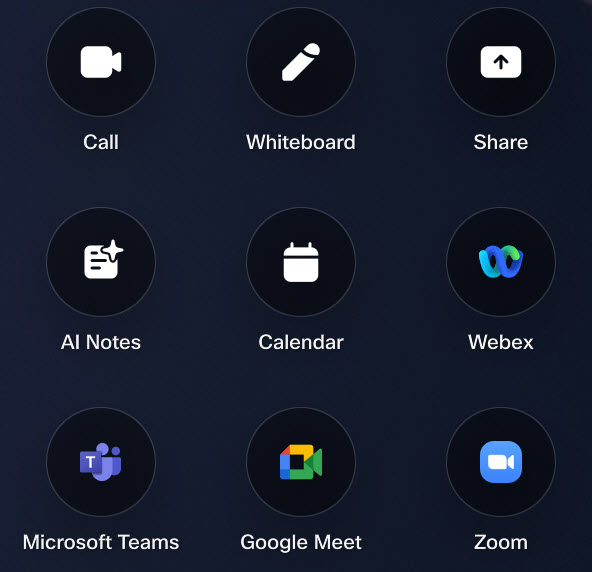
Tap the AI Notes button before your meeting starts.
If you're the host, follow the prompts to ensure that a meeting room is booked and select a host to receive the summary and action items afterwards.
It's a good idea to have your host PIN handy, in case you get stuck in the lobby. You can find your host PIN in your Webex account at <meeting site>.Webex.com under Settings > Meetings > Audio and Video >.
The AI Assistant panel opens on your homescreen and you'll be reminded that the meeting will be transcribed. Action items will be refreshed every two minutes throughout the meeting.
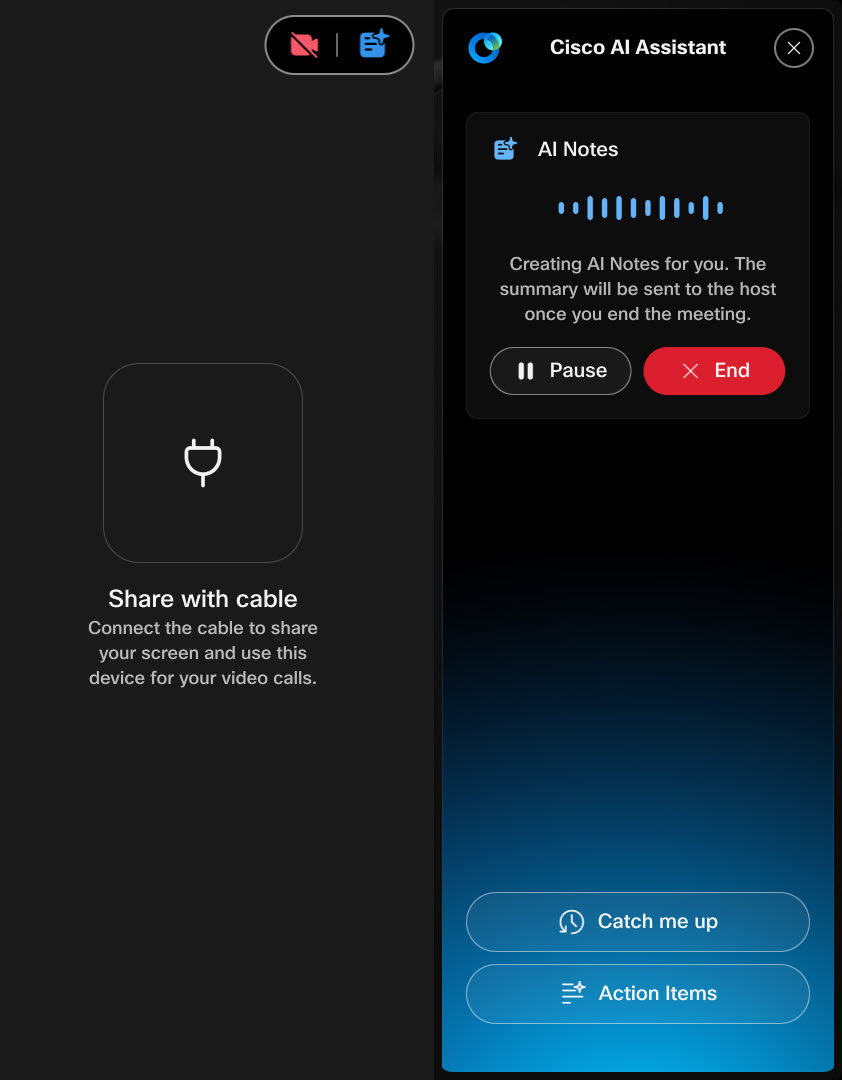
When the meeting is over, open the Meeting Recap tab in your Webex app, and you'll find:
- the meeting transcript.
- the meeting summary with key points highlighted. If you're the host, this will also be sent to your email.
- a list of action items.


