
Thanks for your feedback.
Audio exclusion zone feature for Cisco Ceiling Microphone Pro
 Feedback?
Attenuation options
There are two attenuation modes available for the audio exclusion zones:
- Soft attenuation
This mode disables the microphone beams in the selected exclusion zones, stopping audio capture from those areas without applying any additional attenuation.
- Aggressive attenuation
In this mode, the microphone not only disables the beams but also applies attenuation to further reduce sound pickup from the exclusion zones, providing stronger suppression of unwanted audio.
Benefits
- Minimizes noise and distractions from specific parts of the room.
- Enhances meeting audio clarity by focusing microphone coverage
- Works in tandem with Cisco’s Cinematic Meetings for an optimized experience.
How to configure audio exclusion zones on the display
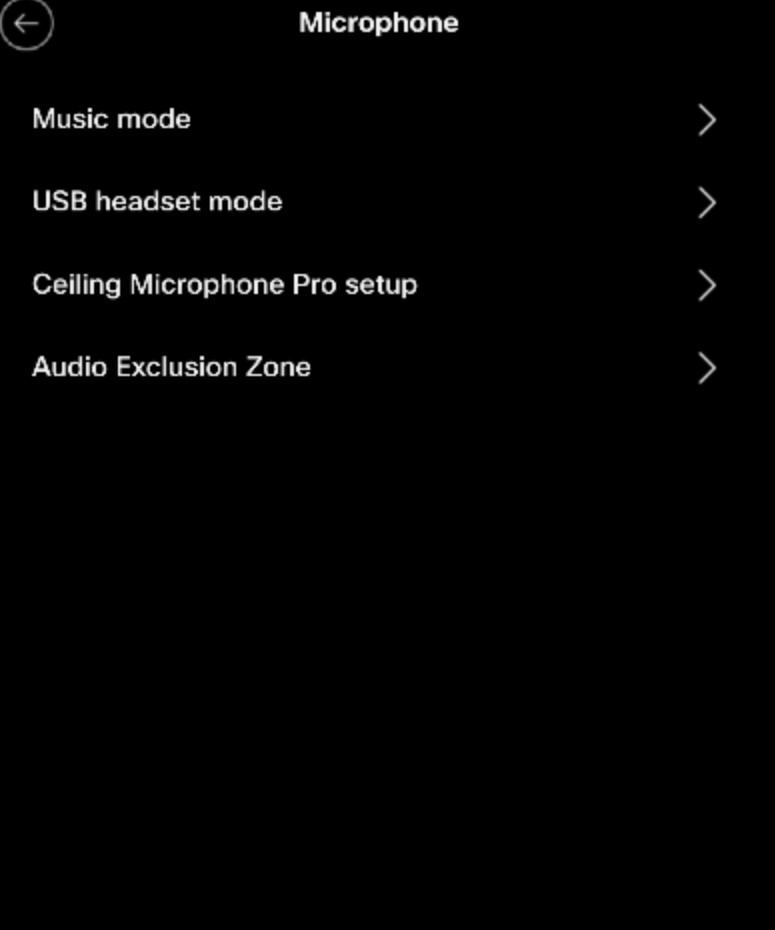
- On the device UI menu navigate to Settings → Microphones → Audio
Exclusion Zone.
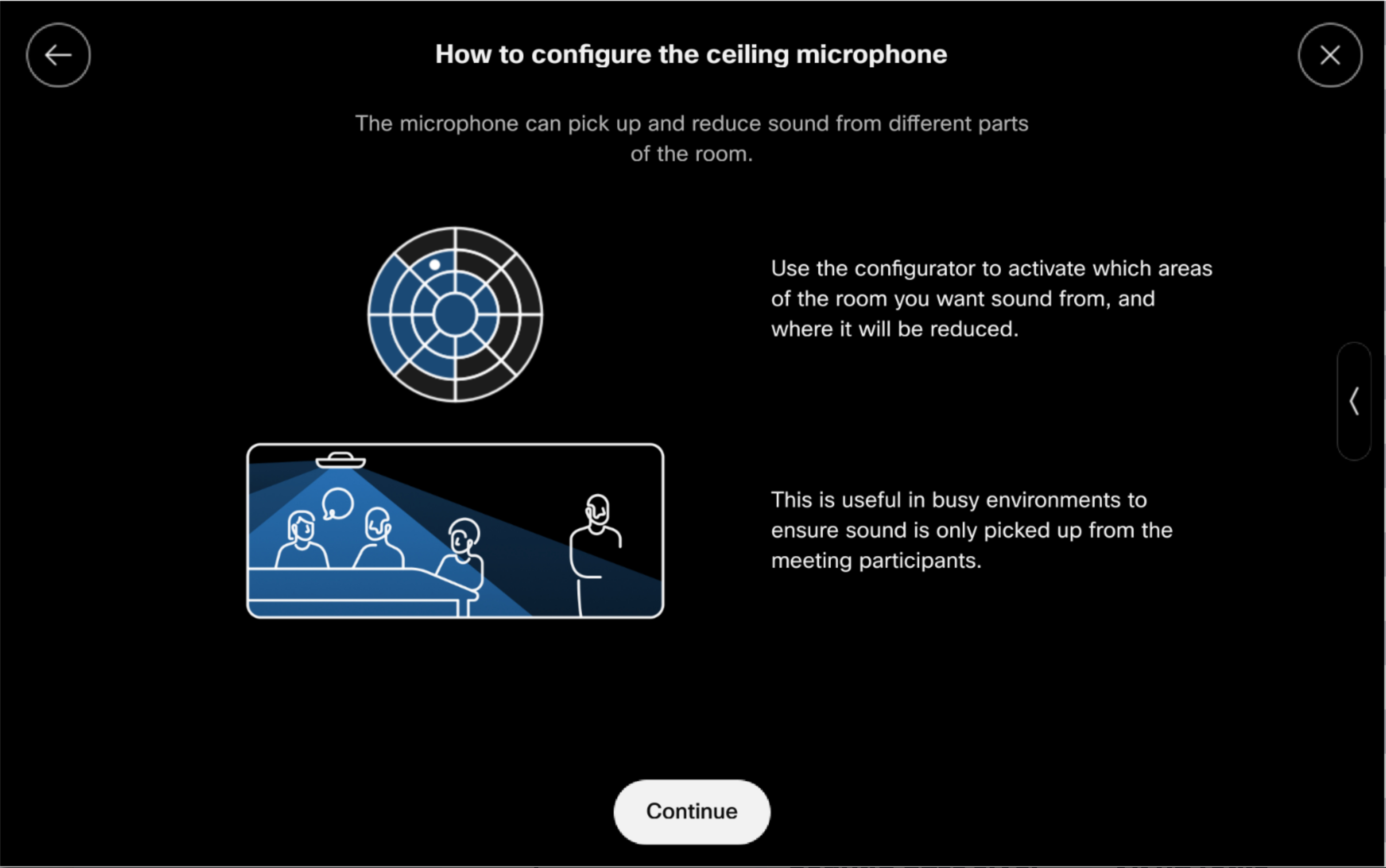
- A dialog titled “How to configure the ceiling microphone” will appear. Press
Continue to view available microphones.
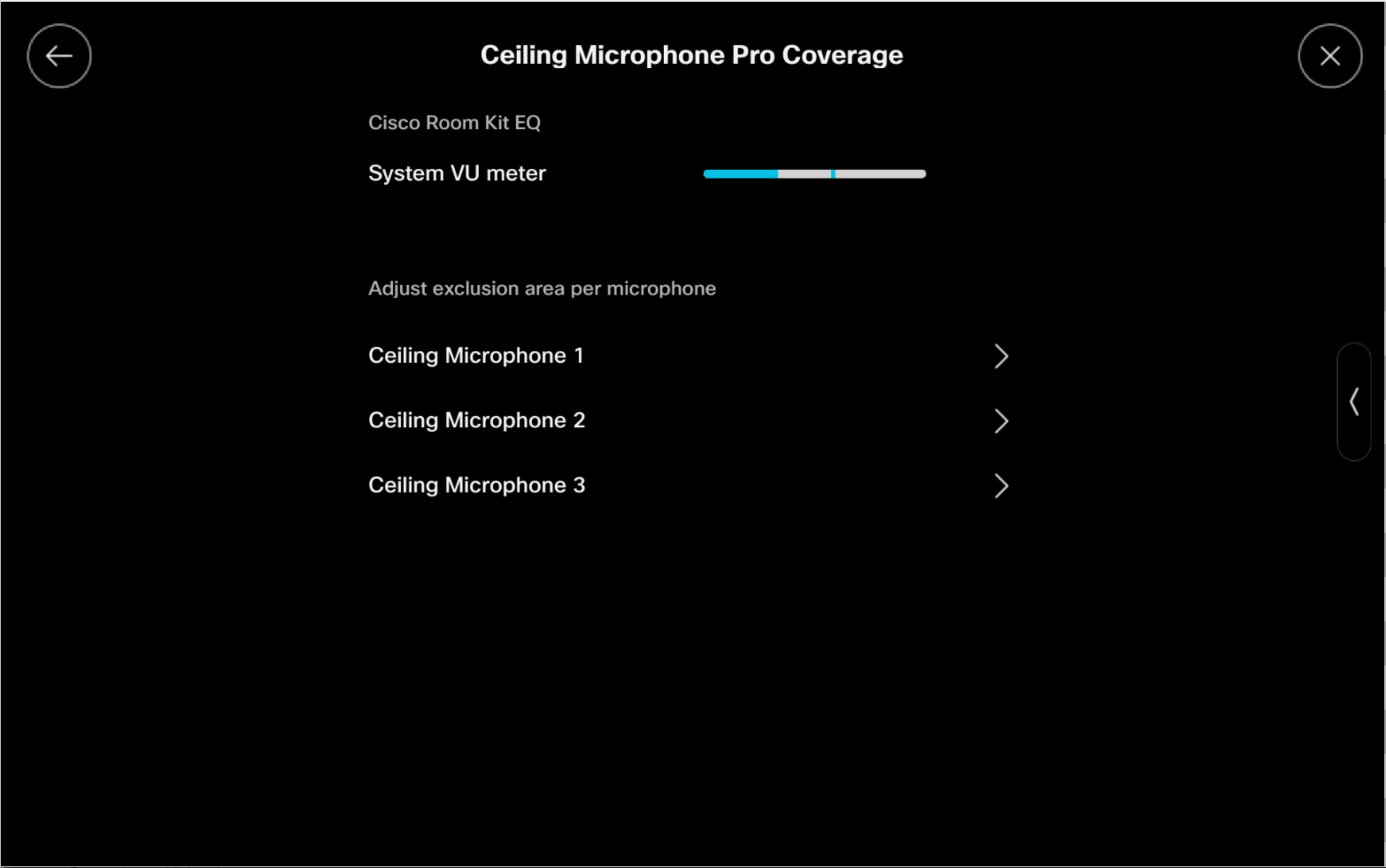
- Select the Ceiling Microphone Pro you want to configure. If you have more than
one ceiling microphone, you need to configure each one individually.
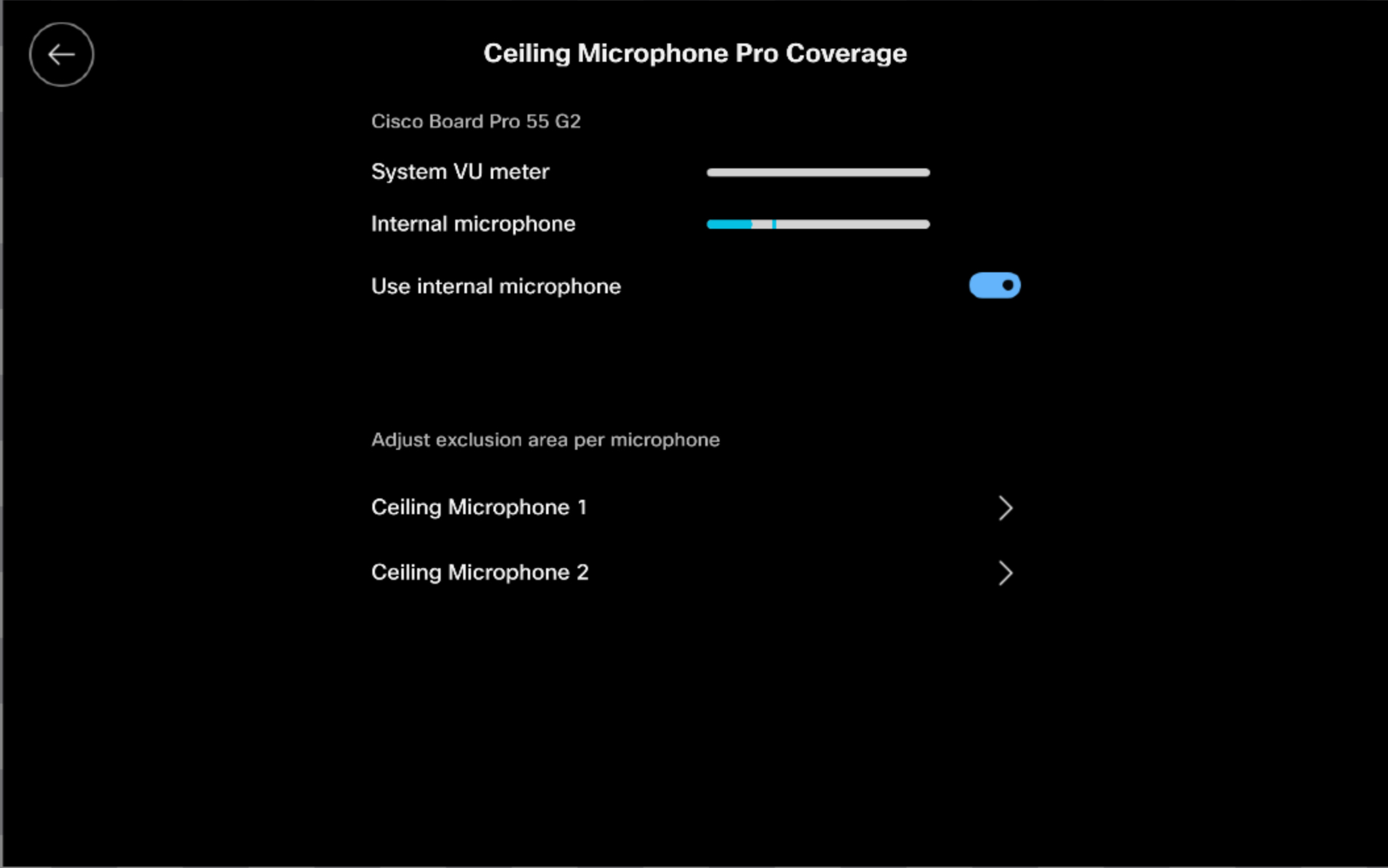
Note that there are some variations between the Cisco products. Some products such as the Cisco Board Pro has an "internal microphone" which can be enabled or disabled.
- Tap the zones you want to exclude from audio capture.
- Non-excluded zones appear in gray.
- Tapped zones to exclude audio will change to black.
- Tap again to revert a zone back to non-excluded.
- When the person speaking in the room, a blue dot appears in the non-excluded zones, while a red dot appears in the excluded zones.
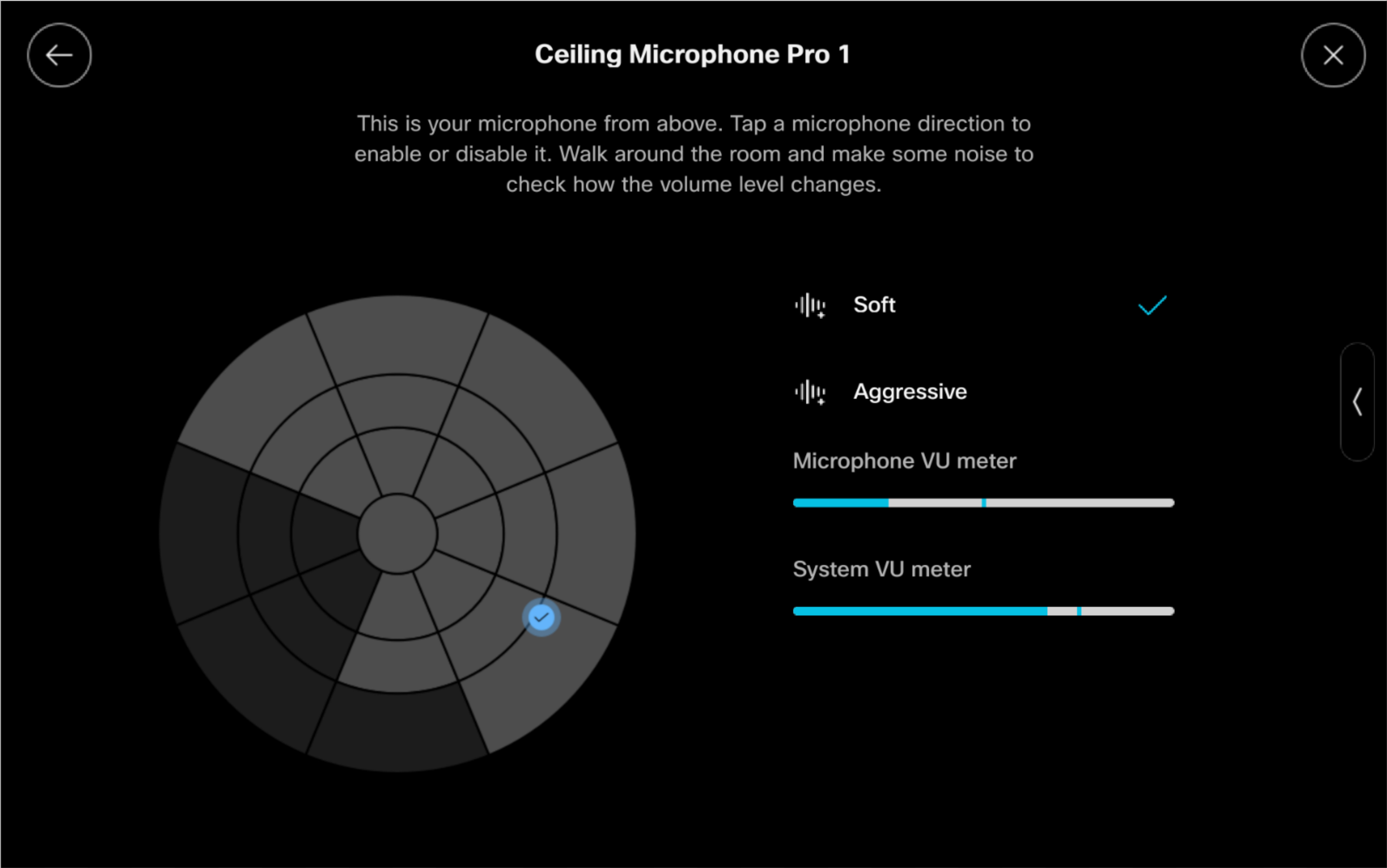
The System VU meter displays the combined mix of all microphone signals after additional processing steps, such as automatic gain control (AGC) and noise reduction. In comparison, the Microphone VU meter displays the audio level for a single, specific microphone.
- You can move around the room to locate each zone.


