
Thanks for your feedback.
 Feedback?
You can join Microsoft Teams meetings directly from your Cisco device using Cloud Video Interop (CVI) with Cisco Video Integration for Microsoft Teams (VIMT) or Direct Guest Join (WebRTC). You can join meetings hosted by your organization or another organization by tapping the Microsoft Teams button. If the invitation includes a CVI Video ID, use it to join. If no Video ID is available, use the Microsoft Teams Meeting ID and passcode. For cross-tenant meetings, your device selects VIMT Cross-Tenant Join or WebRTC based on CVI availability.
Your system administrator configures these options. Availability depends on the device, organization settings, and meeting details.
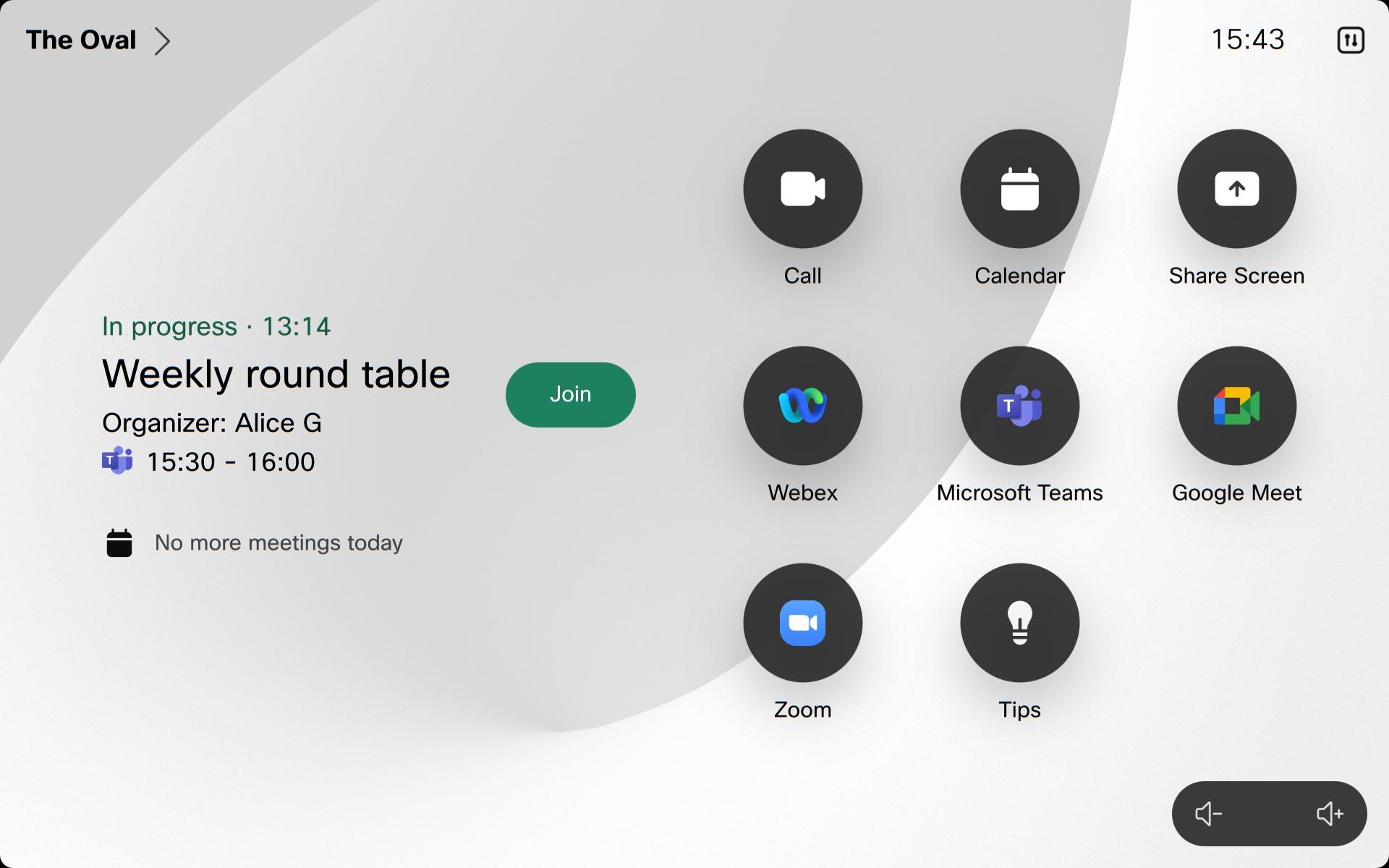
You can also join with One Button to Push (OBTP). When users schedule Microsoft Teams meetings and include Cisco devices, a green Join button appears on the devices before the meeting begins. OBTP works whether your device is configured with WebRTC or CVI.
Cross-tenant OBTP for Microsoft Teams meetings is available when using VIMT. However, until Microsoft releases the new Teams Short Join URL, there may be issues parsing meeting invites with extensive content or non-standard formats. If parsing fails, the device may default to using WebRTC to join the meeting.
Summary of joining solutions
The selected join method depends on the CVI configuration of the meeting host and the CVI solution enabled for the organization where the Cisco device is registered.
In this table, the host is the organization that scheduled the Microsoft Teams meeting. The joining organization is the organization associated with the Cisco device.
| Meeting host has CVI | Joining organization has CVI | Solution used by the device | Join method | Notes |
|---|---|---|---|---|
| Yes | Yes | Host’s CVI | Video ID | The device uses the CVI details in the meeting invitation. |
| Yes | No | Host’s CVI | Video ID | The device uses the CVI details in the meeting invitation. |
| No | Yes | Joining organization’s CVI | VIMT Cross-Tenant Join | The device uses its organization’s CVI gateway, even when joining with the Meeting ID and passcode. |
| No | No | WebRTC | WebRTC Direct Guest Join | WebRTC is used because CVI is not available. |
Joining with Video ID
When a CVI Video ID is included in the invitation, use it to join the meeting, especially for meetings hosted by your organization. Joining with a CVI Video ID provides the CVI experience and can enable lobby bypass and presenter capabilities. If no Video ID is available, join using the Meeting ID and passcode.
When you enter the Video ID, the system combines this information with the default hostname to create the correct meeting address (SIP URI). This also allows you to quickly join VIMT calls using the Video ID. This configuration is managed by your organization's administrator.
-
Tap the Microsoft Teams button.
- Enter the Tenant key and Video ID provided in the Microsoft Teams meeting invitation, and press Join.
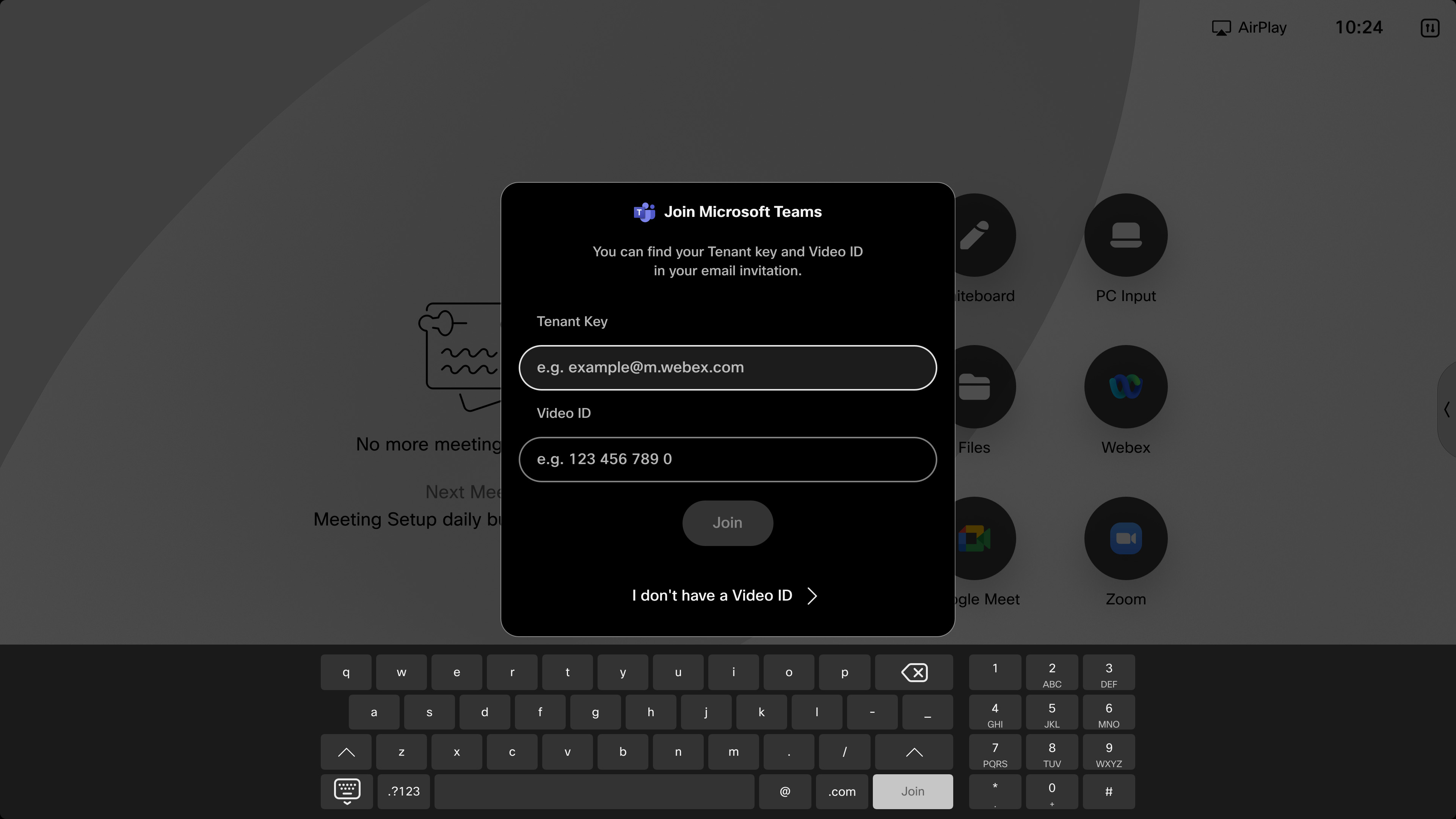
Once in the meeting, your device displays the video stream from Microsoft Teams on up to two screens (with grid, stack, overlay, focus, prominent, or large gallery layout) and the call controls. For more information on layouts on Cisco devices, see Screen layouts for Cisco devices. The participant list is available, indicating who is muted. The recording indicator appears on screen when the meeting is recorded. When a presentation is shared, the device displays the presentation in the selected layout.
When joining with VIMT, two-way content sharing is available. However, the content shared on screen is not interactive.
VIMT Cross-Tenant Join
With Video Integration for Microsoft Teams (VIMT), you can use Cross-Tenant Join to join a meeting hosted by a different business or Teams tenant directly from your device.
This join method gives you the VIMT meeting experience on devices instead of using WebRTC Direct Guest Join:
-
Dual screen support
-
Two-way content sharing
-
Better video capabilities and features
Joining with Meeting ID
Use this method when no Video ID is available. For a cross-tenant meeting where the host’s organization does not have CVI configured, the device uses VIMT Cross-Tenant Join when the joining organization has a CVI solution enabled. If neither the host nor the joining organization has CVI available, the device uses WebRTC Direct Guest Join. This applies even when joining with the Meeting ID and passcode.
-
Tap the Microsoft Teams button on your home screen.
-
Select I don't have a Video ID. Enter the meeting ID and the passcode, and press Join. The call controls and the self-view fade away after a few seconds.

-
When joining a meeting hosted by another company, you have to be admitted from the lobby by the Microsoft Teams host.
When joining with WebRTC Direct Guest Join, presentations are displayed, but you can’t share content and the content isn’t interactive. On dual-screen Room Series devices, the second screen isn’t used.
When joining with VIMT Cross-Tenant Join, two-way content sharing is available. The shared content isn’t interactive, and the second screen is used on dual-screen Room Series devices.
To join a Microsoft Teams meeting on your device:
-
Before the meeting starts, your device or Touch controller displays the Join button. Tap it to enter the meeting.
-
If your device is joining with Direct Guest Join (WebRTC): The call controls and the self-view fade away after a few seconds. When a presentation is shared, the device displays the presentation from Microsoft Teams. However, the content shared on screen is not interactive and you can't share content from the device. On dual screen Room Series devices, the second screen isn’t used.
If your device is joining with CVI: Your device displays the video stream from Microsoft Teams on up to two screens (with the layouts: grid, stack, overlay, focus, prominent, large gallery) and the call controls. For more information on layouts on Cisco devices, see Screen layouts for Cisco devices. The participant list is available, indicating who is muted or who has raised their hand. The recording indicator appears on screen when the meeting is recorded and other notifications will be shown. Two-way content sharing is availavle, however the content shared is not interactive.
Microsoft Teams calls do not appear in the Recent Calls list when dialed from the touch panel or user interface. As a result, redialing these calls directly from the Recents section is not supported. This change was implemented to prevent potential exposure of sensitive information.
WebRTC is available on devices that support the web engine.
WebRTC isn't supported:
-
In classroom setup
-
On Panorama
-
With the SpeakerTrack 60 when SpeakerTrack is enabled
These features aren't available during the meeting when joining with WebRTC:
-
Sharing wirelessly or with an HDMI
-
Whiteboarding
-
Far-end camera control
-
Participant list
-
Devices with dual screens show the meeting on the main display
The features aren't available during the meeting when joining with CVI:
-
In classroom setup
-
One-way whiteboarding is not available on DX80
-
Two-way whiteboarding
-
Far-end camera control


