- Home
- /
- Article

Thanks for your feedback.

Configure Partner SSO with SAML or OpenID Connect for Wholesale RTM customers
 In this article
 Feedback?
Configure Partner Single Sign-On (SSO) with SAML or OpenID Connect to provide secure customer access with a single set of Identity Provider (IdP)-managed credentials.
Configure partner SSO with SAML
Partner administrators can configure SAML SSO for newly created customer organizations. They can configure a single predefined SSO relationship and apply that configuration to the customer organizations they manage, and to their own employees.
The following partner SSO steps apply to newly created customer organizations only. If partner administrators try to add Partner SSO to an existing customer organization, the system retains the existing authentication method to prevent existing users from losing access.
| 1 |
Verify that the third-party Identity Provider (IdP) meets the requirements listed in the Requirements for Identity Providers section of Single Sign-On Integration in Control Hub. |
| 2 |
Open a service request with Cisco TAC. TAC must establish a trust relationship between the third-party IdP and Cisco Common Identity service.
If your IdP requires enabling the
|
| 3 |
Upload the CI metadata file that TAC provided to your IdP. |
| 4 |
Configure an onboarding template:
|
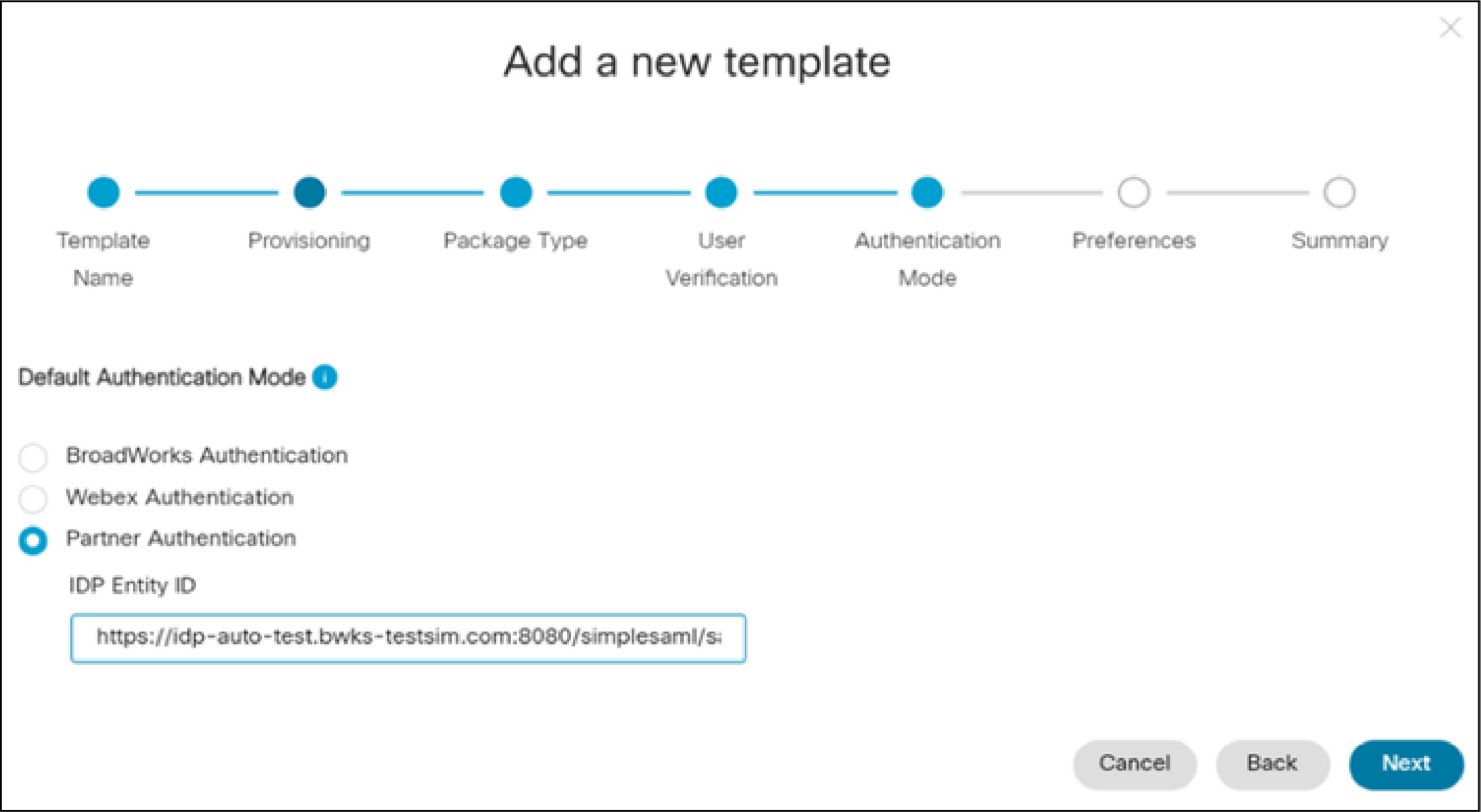
Once you've completed the configuration, you can manually verify that the Partner IdP Entity ID is set up correctly.
-
Onboard a customer that uses the template and create a new user in the customer organization.
-
Verify that the user can sign in.
User sign-in should redirect to the partner IdP sign-in page, and the user must be able to sign in successfully with valid credentials.
Configure partner SSO with OpenID Connect (OIDC)
Partner administrators can configure OIDC SSO for newly created customer organizations. They can configure a single predefined SSO relationship and apply that configuration to the customer organizations they manage, and to their own employees.
The following partner SSO OIDC steps apply to newly created customer organizations only. If partner administrators try to modify the default authentication type to Partner SSO OIDC in an existing template, the changes don't apply to the customer organizations already onboarded using the template.
| 1 |
Open a service request with Cisco TAC with the details of the OpenID Connect IDP. The following table shows the mandatory and optional IDP attributes. TAC set up the IDP on the CI and provide you with the redirect URI to be configured on the IDP.
In addition to the above IDP attributes, you need to specify a partner organization ID in the TAC request. | ||||||||||||||||||||||||||||||
| 2 |
Configure the redirect URI on the OpenID connect IDP. | ||||||||||||||||||||||||||||||
| 3 |
Configure an onboarding template:
|
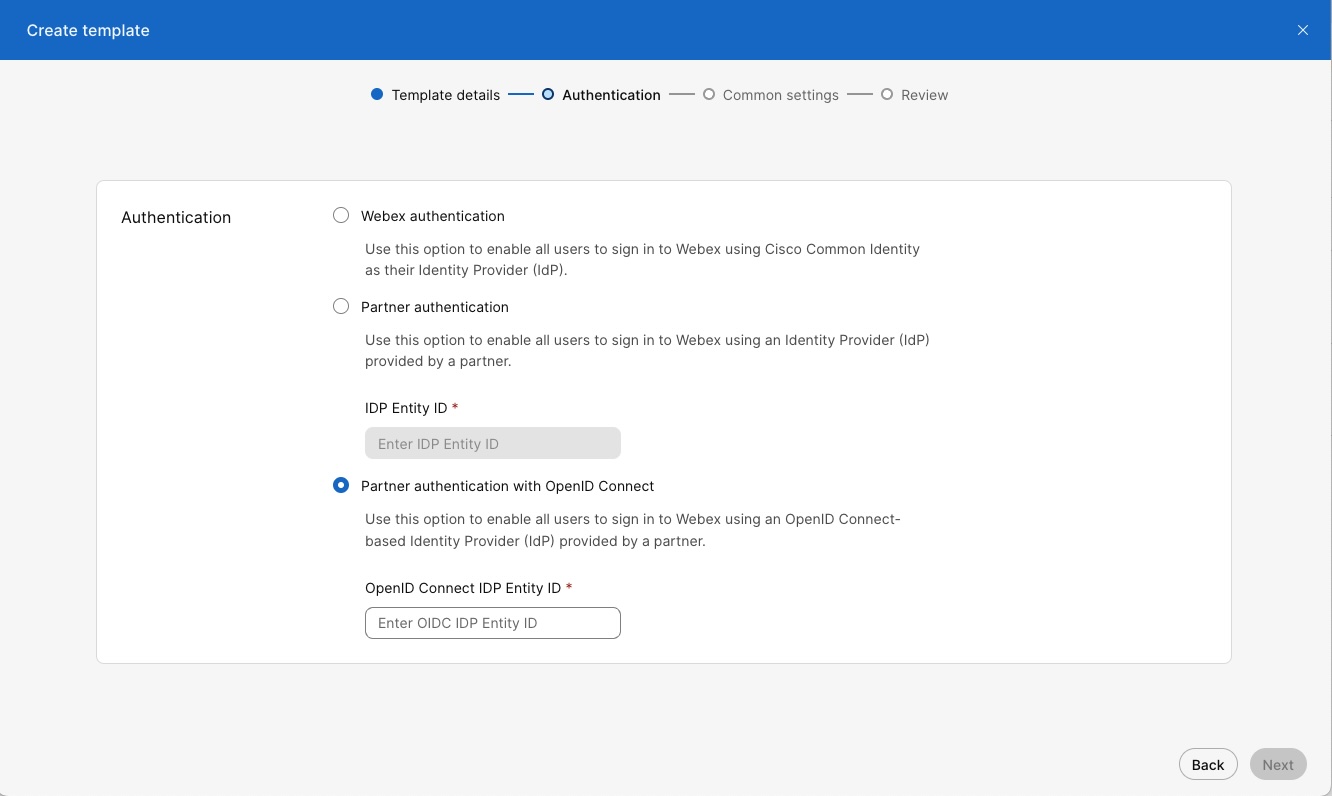
Once you've completed the configuration, you can manually verify that the Partner IdP Entity ID is set up correctly.
-
Onboard a customer that uses the template and create a new user in the customer organization.
-
Very that the user can sign in using the SSO authentication flow.


